

If you still spend hours hunting down registry keys, obscure Group Policy settings, and scattered Settings pages to “debloat” a fresh Windows install, there’s a practical truth you should accept: one well-maintained, community-driven utility will usually do the job faster, with fewer errors, and with recoverability options that manual fiddling rarely provides.
Chris Titus Tech’s Windows Utility (commonly seen as WinUtil or Winutil) has grown from a handy collection of PowerShell snippets into a polished, GUI-driven toolkit for installing apps, applying privacy and performance tweaks, fixing common Windows problems, and—until very recently—building custom installation ISOs. It’s open-source, actively developed, and designed specifically to capture the set of tweaks a power user or system builder wants to apply repeatedly across machines.
The project is published under an MIT license and is distributed primarily through GitHub and Chris Titus Tech’s distribution endpoints. Its release cadence is frequent; the repository shows active releases and community contributions, and the project lists a recent stable release named 26.02.11 published on February 11, 2026. What used to be a single-script affair now exposes a multi-tab GUI and a set of documented user guides, making the tool accessible to more than just PowerShell savants.
This article takes a close look at what WinUtil does today, what it used to do (and why that matters), the strengths that make it a real time-saver, and the practical risks you must accept when using automation to change system-level settings.
Alternatives to consider in the same space include scripted debloaters and package automation tools (Scoop, Chocolatey, WinGet, various GitHub debloat projects). What differentiates WinUtil is its combination of:
The practical takeaway: features that touch Windows’ installation process and encryption behavior are inherently fragile when Windows itself is evolving, and the project responds by iterating quickly — but that means users should expect some features to appear, change, or be retired over time.
Why I reach that conclusion:
WinUtil doesn’t make Windows magically perfect, but what it does do is give you the pragmatic levers to shape Windows into something closer to your needs—quickly, consistently, and with far less frustration than manual fiddling. That’s why, for many users, one tool is now enough.
Source: XDA If you're still debloating Windows manually, this one tool does it better
 Background / Overview
Chris Titus Tech’s Windows Utility (commonly seen as WinUtil or Winutil) has grown from a handy collection of PowerShell snippets into a polished, GUI-driven toolkit for installing apps, applying privacy and performance tweaks, fixing common Windows problems, and—until very recently—building custom installation ISOs. It’s open-source, actively developed, and designed specifically to capture the set of tweaks a power user or system builder wants to apply repeatedly across machines.The project is published under an MIT license and is distributed primarily through GitHub and Chris Titus Tech’s distribution endpoints. Its release cadence is frequent; the repository shows active releases and community contributions, and the project lists a recent stable release named 26.02.11 published on February 11, 2026. What used to be a single-script affair now exposes a multi-tab GUI and a set of documented user guides, making the tool accessible to more than just PowerShell savants.
This article takes a close look at what WinUtil does today, what it used to do (and why that matters), the strengths that make it a real time-saver, and the practical risks you must accept when using automation to change system-level settings.
What WinUtil actually does
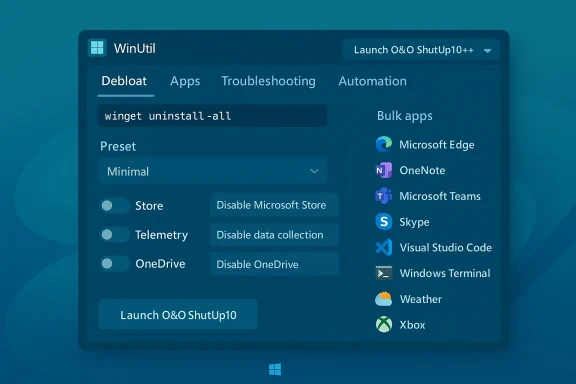
WinUtil is best described as a workstation setup and maintenance toolkit that bundles several capabilities into one PowerShell-launched GUI. The best way to think about it is as four complementary feature sets:- Debloat & privacy tweaks: curated toggles to remove or disable components most users don’t need (store apps, OneDrive, Xbox components, telemetry endpoints, widget/telemetry bits, etc.), plus advanced options to change service startup types and block specific components.
- Bulk app installer / package manager integration: a screen that lets you select a set of common apps (browsers, developer tools, utilities) and install them in bulk via Windows package tooling.
- Troubleshooting & fixes: one-click tasks for common maintenance (reset Windows Update, run scans, re-enable subsystems, restore components).
- Automation and export: the ability to save a configuration (so the same set of tweaks and installs can be re-applied to another machine), plus features that in earlier versions attempted to produce a custom Windows installation ISO.
- The tool is launched from an elevated PowerShell window using a short “one-liner” command that downloads and executes the project bootstrap. A dev branch is available for early features.
- WinUtil displays preset collections (for example Minimal, Standard, Recommended) so you can pick a conservative set of changes rather than toggling everything manually.
- Many options are presented with short explanations or hover text so users can see what a tweak will do before running it.
- The UI includes a one-click entry to launch O&O ShutUp10++ (a separate privacy tool) from within the WinUtil environment, making O&O’s familiar toggle-based privacy controls available without a separate install.
- WinUtil integrates with Windows package tooling for bulk installs; historically it supported different package sources and installers so you could pick your preferred backend for mass-installation.
The feature set — deeper dive
Debloating and privacy presets
- WinUtil collects dozens of commonly used tweaks that remove or disable things such as:
- Store/UWP apps you never use.
- OneDrive components and auto-run behavior.
- Widgets and shell cruft.
- Specific telemetry services, scheduled tasks, and diagnostic endpoints.
- Presets give you a fast way to apply a known-good subset of changes: pick Minimal if you want conservative changes, or Standard if you want a more aggressive cleanup.
- Advanced tweaks are clearly marked as higher-risk; the documentation repeatedly warns about making system restore points and knowing what you’re disabling.
O&O ShutUp10++ integration
- WinUtil provides a direct way to run O&O ShutUp10++ from its Tweaks area. That tool is a widely used GUI utility that consolidates many privacy-related registry and policy changes into an easily managed profile.
- The convenience is notable: instead of installing both tools, WinUtil lets you invoke O&O’s functionality from inside its flow.
Bulk app installation and package management
- The install screen contains a long catalog of commonly used applications (browsers, editors, dev tools, communication apps, utilities).
- WinUtil can run installs in bulk, automating what many people used to do with manual installers or tools like Ninite.
- The tool has historically worked with Windows package systems so the installs are largely unattended and repeatable.
Troubleshooting and “fixes”
- The toolkit bundles practical fixes: network resets, Windows Update helpers, Windows subsystem repairs, and scripted sanity checks.
- Many fixes are implemented as modular PowerShell functions, so they’re auditable and can be invoked independently.
Automation and custom ISOs (history and current state)
- The project used to include a feature (commonly referred to as “microwin” or similar) that helped produce a custom Windows installation ISO with selected changes baked in—useful if you wanted to re-image machines with your preferred defaults.
- Notably, the repository’s recent maintenance changed that area: the microwin functionality was actively modified and, in the most recent release cycle, removed for stability, compatibility, or maintenance reasons.
Strengths — what WinUtil does better than a manual approach
- Speed and consistency: applying a curated preset does in minutes what would take hours manually, and it does so consistently across systems.
- Discoverability: the tool surfaces many useful tweaks and explains them; you don’t need to hunt through dozens of forum posts.
- Repeatability: exportable configurations mean you can treat your personal setup as a repeatable artifact, saving long-term time.
- Community validation: the project is open source, widely starred, and actively maintained, which gives it broader scrutiny than a one-off script.
- Integration: bundling O&O ShutUp10++ and bulk installers into the one flow removes friction—fewer separate downloads, fewer UI steps.
- Recoverability guidance: the UI and docs emphasize creating restore points and call out high-risk options, reducing the chance of accidental destructive changes.
Risks and real-world failures — why you must be careful
No automated system tweak tool is risk-free, and WinUtil is not magic. Here are the main hazards and observed failure modes from community reports and the project’s issue tracker:- Misconfigured or destructive choices: some advanced toggles remove or disable components Windows expects. If you flip everything to “off” indiscriminately, you can break expected features (for example, removing core store components, or changing service start types that modern Windows expects).
- Windows Security / Defender side effects: users have reported losing access to the Windows Security GUI or parts of Defender after certain combinations of tweaks. That doesn’t always mean protection is gone, but it can hide critical UI surfaces and lead to confusion.
- Update behavior and regressions: Microsoft sometimes reverts settings during cumulative updates. Users must plan to re-apply certain tweaks after major Windows updates or build upgrades.
- Third-party AV and heuristics: some users (and community posts) have reported that anti-malware tools flag WinUtil’s operations—PowerShell scripts that change many system settings can trigger heuristic detections. That can block operation or cause extra alarms.
- Installer pipeline problems: the bulk-install functions depend on the Windows packaging and App Installer infrastructure; if App Installer/Store components aren’t present or updated, installs can silently fail. The common remedy is updating/reinstalling the App Installer package first.
- Bugs in adjacent features: integrations such as O&O ShutUp10++ running in quiet mode have generated edge-case errors when combined with other selected tasks (for example, delete-temp-files interactions). The project’s issue tracker shows these as active problem areas that are being fixed iteratively.
- ISO customization volatility: the earlier micro-ISO feature was powerful but fragile. It could interact poorly with BitLocker, Home/Pro differences, and Windows’ changing OOBE (out-of-box experience) and online account enforcement. The repository’s recent change log explicitly removed or altered microwin components — a sign that creating custom install media is a higher-maintenance feature than tweaks or bulk installs.
How to use WinUtil safely — step-by-step recommendations
If you decide WinUtil is the right tool for you, follow these conservative steps to avoid the most common pitfalls:- Read the docs and pick a conservative preset first.
- Always create a full system restore point and (if possible) a disk image before making broad changes.
- Run WinUtil on a test machine or virtual machine if you’re trying the advanced options for the first time.
- Keep the App Installer and Store components updated so bulk installs don’t silently fail.
- Use the Minimal preset on production machines; reserve aggressive removals for fresh installs or disposable systems.
- Avoid toggling “turn off updates permanently” unless you have an alternative update strategy and understand the security trade-offs.
- If you rely on Windows Security, check the Windows Security control panel after applying tweaks; if items are missing, re-enable them or restore from your backup.
- Watch for antivirus warnings during the script run; check the script contents if you get suspicious detections and whitelist the tool only after you’re satisfied the code is legitimate.
- Keep a list of the changes you made and export WinUtil configuration for reuse — that helps you track what was changed.
- Re-apply checks every few months after major cumulative updates — Microsoft occasionally restores defaults to certain telemetry and system settings.
Troubleshooting common issues
- Problem: “Install selection finished” but apps are not visible.
- Likely cause: App Installer / Microsoft Store component is outdated or missing. Remedy: update App Installer via the Microsoft Store or use WinUtil’s guidance for repairing the installer.
- Problem: Windows Security UI missing after tweaks.
- Likely cause: a security-related service or setting was disabled. Remedy: re-enable Windows Security components manually or restore via a restore point; don’t assume protection is absent — sometimes only the UI is affected.
- Problem: AV tool blocks the script.
- Likely cause: heuristic detection of credential-access patterns in an elevated PowerShell process. Remedy: pause AV briefly, examine the script code (it’s open source), and run in a controlled environment. Consider reporting false positives to the AV vendor and the WinUtil project.
- Problem: ISO or microwin-related features crash or behave inconsistently.
- Likely cause: the project’s ISO-making feature has been modified/removed in recent releases; disk space and version mismatches also cause crashes. Remedy: ensure you have enough free disk space and read release notes — the feature may be intentionally removed or replaced in recent releases.
Who should, and who shouldn’t, use WinUtil?
- Use WinUtil if:
- You build or re-image machines regularly and want to save time.
- You’re comfortable applying system-level tweaks when guided.
- You want a reproducible way to apply a curated set of privacy/performance settings.
- You’re comfortable with open-source tools and can verify what a script will do before running it.
- Avoid or be very cautious if:
- You manage critical production machines where changes must be strictly controlled and tested.
- You can’t afford downtime or lack an image-based rollback plan.
- You are uncomfortable with PowerShell or don’t want to review the script actions.
Where WinUtil fits in the ecosystem
WinUtil sits between manual tinkering (editing registry keys and searching obscure settings) and full-image customization (using unattended answer files or creating custom Windows images). It’s more flexible and less risky than wholesale OS rebuilds like custom “lite” ISOs produced by third-party builders, yet far more powerful than a single-purpose GUI debloater.Alternatives to consider in the same space include scripted debloaters and package automation tools (Scoop, Chocolatey, WinGet, various GitHub debloat projects). What differentiates WinUtil is its combination of:
- Friendly GUI for less technical users,
- Bulk-installs + tweaks in one flow,
- Community-maintained presets and clear documentation.
What the recent release cycle tells us
Project release notes for the Feb 11, 2026 build (stable tag 26.02.11) show active maintenance, new app additions, and UI improvements. Importantly, the release notes also referenced removal of the earlier microwin ISO feature and related adjustments (for example, BitLocker handling). That sequence is instructive: the project’s maintainers are pragmatic and willing to remove features that cause instability or excessive support burden.The practical takeaway: features that touch Windows’ installation process and encryption behavior are inherently fragile when Windows itself is evolving, and the project responds by iterating quickly — but that means users should expect some features to appear, change, or be retired over time.
Final analysis: is it "the one tool" to debloat Windows?
Short answer: for most enthusiast users and small-scale system builders, WinUtil is the single best pragmatic tool to consolidate debloating, privacy tweaks, bulk installs, and many maintenance tasks into a repeatable workflow. It’s not perfect, but it’s far better than cobbling together a dozen scripts and forum posts.Why I reach that conclusion:
- The tool dramatically lowers the time cost of provisioning and tuning a Windows machine.
- It is open-source and actively maintained; that reduces the likelihood of hidden nastiness and allows inspection.
- The GUI and presets reduce user error for common tasks while still exposing advanced options for power users.
- Know what you toggle — aggressive presets can disable needed infrastructure.
- Expect maintenance — Microsoft’s platform changes mean you’ll sometimes re-apply or tweak policies after big Windows updates.
- Prepare recovery — always have a restore point or image if you’re modifying production devices.
WinUtil doesn’t make Windows magically perfect, but what it does do is give you the pragmatic levers to shape Windows into something closer to your needs—quickly, consistently, and with far less frustration than manual fiddling. That’s why, for many users, one tool is now enough.
Source: XDA If you're still debloating Windows manually, this one tool does it better
