• Thread Author
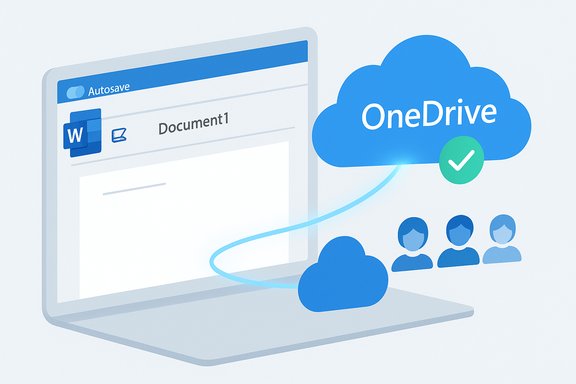
Microsoft Word is changing a fundamental assumption of how the desktop app handles new documents: in current Insider builds Word now creates new documents directly in the cloud (OneDrive by default) with AutoSave enabled from the first keystroke, rather than leaving a new document in an unsaved, local state until the user performs the first Save.

Cloud-based data sync across laptop, tablet, and smartphone.Background​

For decades the desktop Word experience has been local-first: open a blank document, type, then save to disk. That fragile first-save moment left users vulnerable to lost edits and forced a manual step to unlock cloud features such as continuous AutoSave, version history, and real-time co-authoring. Microsoft’s recent change reframes the document lifecycle so that a new file immediately receives a cloud-backed identity, is given a date-stamped placeholder name, and has AutoSave toggled on automatically. The change began appearing in Microsoft 365 Insider builds (notably Word for Windows Version 2509, Build series in the 19221.x range) and is being tested before broader rollout. This is not merely a UX tweak. It alters where files live by default, when they become subject to cloud governance and AI features, and how administrators must think about data residency and user training. The following sections explain exactly what changed, why Microsoft argues it is beneficial, what risks and technical caveats exist, and clear, practical steps both individual users and IT teams should take today.

What changed (the practical details)​

  • New documents created in Word for Windows in the current Insider build cycle are now automatically saved to a cloud location by default — typically OneDrive, or a user-selected “preferred cloud destination.” AutoSave is enabled immediately, and the file appears with a date-based placeholder name (for example, Document-YYYY-MM-DD) rather than the old incremental Document1/Document2 naming.
  • The option that controls this behavior is exposed in Word under File → Options → Save as “Create new files in the cloud automatically” and Microsoft ships the setting enabled in those preview builds. Users can change it to restore local-first behavior.
  • Administrators have Group Policy and ADMX controls to manage AutoSave behavior centrally. Microsoft documents a policy named “Turn AutoSave OFF by default in Word” (and equivalent policies for Excel and PowerPoint). These controls allow IT to set deterministic defaults across devices.
  • If a user closes an unsaved, cloud-created document, Word will present a Keep/Discard dialog for drafts, and in some builds empty untitled documents may be discarded automatically. Pressing Ctrl+S on a new document surfaces the cloud-save context and lets users rename or move the file to a different location, including local folders.
These mechanics make AutoSave universal for files that exist in cloud-enabled locations and immediately bring features such as Version History and co-authoring into play without any manual upload step.

Why Microsoft is doing this (the official case)​

Microsoft frames the move as a modernization of the document lifecycle with concrete, product-oriented benefits:
  • Reduction of data loss: AutoSave continuously protects edits, minimizing the risk of lost work due to crashes or forgotten saves. This is the most direct user-facing benefit.
  • Frictionless collaboration: Files created in the cloud are instantly co-authoring-ready and shareable without an upload step, speeding distributed teamwork.
  • Governance and compliance alignment: When documents start their life in OneDrive or SharePoint they can immediately inherit retention labels, Data Loss Prevention (DLP) rules, conditional access, and eDiscovery controls applied at the tenant level. That makes enforcement simpler for organizations that already anchor work in Microsoft 365.
  • AI and Copilot readiness: Cloud-backed files can be surfaced to Copilot and other AI services subject to licensing and tenant controls, enabling AI-driven workflows from creation onward. Microsoft explicitly links cloud storage with Copilot features in its messaging.
These rationales align with Microsoft’s strategic push to centralize productivity around Microsoft 365 and integrate AI features more tightly into everyday workflows.

Strengths and immediate benefits​

  • Continuous protection from the first keystroke. The most tangible win for end users is fewer lost drafts and a simpler recovery path after unexpected crashes or power loss. Version history is available immediately.
  • Quicker collaboration. Teams that routinely share documents get co-authoring and link sharing instantly — no “Upload to OneDrive” step required. That reduces friction for distributed teams and quick-edit use cases.
  • Simplified governance for IT. Documents that land in managed cloud locations from creation can be governed centrally, reducing the window where sensitive files slip outside corporate controls. This is particularly useful for regulated industries already standardized on Microsoft 365.
  • Better alignment with AI workflows. Files accessible in the cloud are primed for Copilot and other Microsoft 365 AI features, which can improve productivity where license and privacy policy permit.
These benefits are real and will be meaningful for many Microsoft 365 customers who already rely on OneDrive and SharePoint.

Risks, unintended consequences, and open questions​

While the conveniences are clear, the change raises important trade-offs and questions that deserve attention.

1) Default nudges change behavior at scale​

Defaults are powerful. Even though Microsoft provides an opt-out, many users will never change the default. That means a large number of documents that would previously have been local may end up stored in the cloud by default, changing the locus of control for personal and corporate files. This has privacy, cost (storage), and governance implications.

2) Privacy and AI exposure​

Cloud-stored files are more easily surfaced to AI features (Copilot) and can be accessed by tenant administrators or by services the tenant allows. This expands the set of actors that could interact with or index document contents, raising legitimate privacy and compliance concerns for sensitive work. Administrators must treat AI access as a configuration item.

3) Ambiguity around “preferred cloud destination”​

Microsoft’s messaging references a “preferred cloud destination” as an alternative to OneDrive, but documentation is vague about which non-Microsoft providers qualify and how deeply they integrate with Word’s AutoSave mechanics. That ambiguity has provoked competitive criticism and leaves enterprises uncertain about off‑Microsoft cloud parity. Until Microsoft publishes a definitive compatibility list, assume OneDrive/SharePoint will get the best experience.

4) Storage and cost implications​

If users create large numbers of short-lived drafts that are saved to OneDrive, quota consumption can increase unexpectedly — particularly for free-tier accounts limited to 5 GB. Organizations must monitor OneDrive usage growth and consider licensing or retention strategies.

5) Early-ship bugs and inconsistent rollout​

Insider reports show several UX and reliability edge cases: the first document after launch may not autosave if the Start screen is disabled, new sessions can behave inconsistently when another session is open, and recent documents lists can lag. These are known issues in preview builds and underscore why cautious piloting is essential.

Verifiable technical facts (what’s been confirmed)​

  • The feature is visible in Microsoft 365 Insider builds of Word for Windows and has been reported in Version 2509 (19221.x series).
  • The save option is called “Create new files in the cloud automatically” and is enabled by default in those preview builds; users can disable it under File → Options → Save.
  • Microsoft documents administrative controls that allow IT to set AutoSave defaults, including Group Policy settings named “Turn AutoSave OFF by default in Word” (separate policies exist per Office app). Administrators must deploy updated ADMX/ADML templates to use these policies.
  • AutoSave remains available only for files stored on OneDrive/SharePoint/other cloud-enabled locations; local files still rely on AutoRecover for crash recovery.
  • Microsoft’s messaging ties cloud-backed files to Copilot readiness; Copilot access is conditional on tenant licensing and administrator controls. This linkage is explicitly stated in Microsoft’s and third-party write-ups.
If any of these facts are mission-critical for a specific deployment plan, verify the exact build numbers and ADMX versions in your environment because Insider staging and server-side gating can create differences between preview testers.

Practical guidance — what end users should do now​

For most users who accept cloud storage and want convenience, no immediate action is required. Files will be protected and accessible across devices.
For users who prefer local-first workflows or handle sensitive materials, follow these steps:
  • Open Word → File → Options → Save.
  • Uncheck “Create new files in the cloud automatically” (or enable “Save to Computer by default” if present).
  • Verify or change the default local save folder to a path you control (for example, C:\Users\YourName\Documents).
  • If OneDrive is redirecting your Known Folders (Documents/Desktop/Pictures), open OneDrive Settings → Backup → Manage backup and stop protecting folders you want kept local, then move files back to the local path as needed.
Short-term tips to avoid surprises:
  • Press Ctrl+S immediately if you want full control of naming and location.
  • Check the save banner in the title bar to confirm whether AutoSave is on and which account or tenant is selected.
  • If working with very sensitive content, consider unlinking OneDrive or using a local encrypted container until the workflow is concluded.

Practical guidance — what IT administrators should do​

This is a governance and change-management issue, not just a client update. Recommended steps:
  • Inventory current Word builds in use and identify devices that may receive Version 2509 (19221.x series) Insider bits or equivalent GA releases. Pilot in controlled groups first.
  • Update ADMX/ADML templates and review Group Policy / Intune controls. If a local-first default is required, deploy “Turn AutoSave OFF by default in Word” across the estate or configure policies to force Save-to-Computer behavior. Test policies on representative machines before wide deployment.
  • Revisit DLP, retention labels, sensitivity labeling, and eDiscovery settings so that newly created cloud files inherit the appropriate protections immediately. Run pilot audits to validate label application on newly created cloud files.
  • Monitor OneDrive quota consumption and set alerts or archival policies for tenants likely to see increased storage growth. Consider storage plans or archive policies for heavy creators of ephemeral drafts.
  • Prepare helpdesk scripts and short user training explaining: where new files are stored by default; how to rename/move cloud drafts; and how to revert to a local-first workflow. Expect a spike in support cases around “missing files” or confusion about local vs cloud paths immediately after rollout.
Implementing these steps will reduce friction and compliance risk while allowing organizations to adopt the new behavior where it actually benefits workflows.

Known limitations and bugs in preview builds (what to watch for)​

Multiple Insider testers and technical outlets report early-stage issues that make a blunt rollout risky without pilot and QA:
  • If “Show the Start screen when this application starts” is disabled, the first document created after launching Word may not be autosaved to the cloud.
  • Starting a new Word session while another session is already open can prevent the new file from being saved automatically.
  • Some testers see inconsistent exposure of the feature due to server-side gating and staged rollout; not every Insider sees the feature at once.
  • Recent-list update lags and discarded empty untitled documents have been observed on some builds. These can cause confusion about whether a file is safe.
These are concrete reasons to pilot, collect feedback, and delay broad enforcement until known issues are resolved.

Competitive, legal, and market implications​

  • The move narrows the functional gap between desktop Word and web-first productivity suites (notably Google Docs), which have always saved documents in the cloud by default. This increases the stickiness of Microsoft’s cloud ecosystem for document workflows.
  • Competitors and privacy-focused providers have criticized the behavior as a default nudge toward Microsoft’s cloud, with implications for market competition and user choice. Ambiguity around third-party cloud support fuels this critique. Enterprises concerned about avoiding vendor lock-in should test alternate workflows and ask Microsoft for clearer interoperability documentation.
  • From a regulatory perspective, moving default storage to the cloud alters data residency and access models; organizations in highly regulated industries must validate that OneDrive/SharePoint tenancy and region configuration meet contractual and legal obligations before permitting the default.

Where claims remain unverified — flagged for caution​

  • Microsoft’s exact definition and compatibility list of “preferred cloud destinations” beyond OneDrive/SharePoint is not comprehensively documented in public product pages at this time. Until Microsoft publishes authoritative compatibility details, any claims about parity with third‑party cloud providers should be treated as unverified.
  • Rollout timing across channels (Insider → Beta → Current Channel → Semi‑Annual Enterprise Channel) and region-specific behaviors can vary. Do not assume immediate availability in GA channels; confirm build numbers and feature flags in your tenant.
Flagging these unknowns publicly and in internal change communications will reduce surprise and help IT teams plan appropriately.

Bottom line​

Microsoft’s decision to make cloud-first saving the default for new Word documents is a deliberate UX and product strategy: it reduces the risk of lost work, speeds collaboration, and primes files for AI features like Copilot. For users and organizations already standardized on Microsoft 365 the benefits are tangible. However, defaults are powerful and the change shifts the balance of control, privacy, and governance toward the cloud unless users or administrators act.
Actionable next steps for every reader:
  • If cloud backups and cross-device access are desired, accept the new behavior and benefit from AutoSave and version history.
  • If local-first control or strict regulatory compliance is required, proactively change Word’s Save options and use Group Policy/Intune to enforce settings at scale.
  • Pilot and test before broadly adopting the new default in organizational settings, and prepare helpdesk resources for expected user questions.
The move modernizes Word’s document lifecycle for a cloud-first world, but it must be managed deliberately — defaults matter, and thoughtful configuration is the only reliable way to balance convenience with control.
Source: Windows Central Microsoft is updating Word to automatically save new documents to the cloud — autosave with OneDrive is the new default
 

Microsoft has quietly changed a fundamental assumption of desktop productivity: in current Microsoft 365 Insider builds of Word for Windows, newly created documents are now saved to OneDrive (or a tenant-preferred cloud destination) by default with AutoSave turned on from the first keystroke — a cloud-first behavior that promises fewer lost drafts and seamless collaboration, but also shifts the privacy, governance, and operational boundaries for millions of users.

Isometric computer displays OneDrive cloud syncing local documents and Word files.Background​

For decades the Word experience has been straightforward and local-first: open a blank document, type, then press Save to place the file on disk. That “first save” was the moment a document left volatile memory and became persistent and discoverable on the local filesystem. With cloud storage and AutoSave, Microsoft introduced continuous protection — but only after the user explicitly saved the file to OneDrive or SharePoint. That fragile first-save moment remained the single point of failure for accidental data loss and prevented immediate co-authoring or version history for brand new drafts.
Microsoft’s new Insider behavior reframes that lifecycle: Word assigns a cloud-backed identity to newly created documents, gives them a date-stamped placeholder name, and enables AutoSave automatically so changes are stored continuously in the cloud from the outset. The change surfaced in Microsoft 365 Insider builds (notably Word Version 2509 and reported builds in the 19221.x series) and was described by Microsoft and several independent outlets as part of broader OneDrive and Copilot updates.

What changed — technical specifics and verification​

The behavioral shift, in plain terms​

  • New blank Word documents created on the desktop in current Insider builds are placed into the user’s cloud storage by default (OneDrive or a “preferred cloud destination”).
  • AutoSave is enabled immediately, so edits are saved continuously to the cloud.
  • Untitled placeholders now use a date-based name (for example, Document-YYYY-MM-DD) instead of the old incremental Document1/Document2 pattern.
  • The setting appears in Word under File → Options → Save as “Create new files in the cloud automatically”, and it ships enabled in those preview builds.

Verified build and controls​

Independent reporting and community testing show the behavior appearing first in Microsoft 365 Insider channels, particularly Word for Windows Version 2509 (reported builds in the 19221.x range). Microsoft’s longstanding AutoSave documentation explains that AutoSave is enabled by default for files stored on OneDrive or SharePoint, and administrators can control AutoSave behavior centrally with Group Policy and updated ADMX templates (policy named “Turn AutoSave OFF by default in Word”). Those official support pages remain the authoritative source for admin-level controls.

What remains local-first​

AutoSave continues to require a cloud-backed location to provide continuous save and version history. Local files still use the older AutoRecover behavior for crash protection. In practice, local-first workflows will continue to work, but they require either disabling the new default in Word options or enforcing a local-first policy via Group Policy/MDM.

What’s ambiguous and needs clarification​

Microsoft’s phrasing about a “preferred cloud destination” leaves a key open question: which non-Microsoft cloud providers (if any) will be treated as first-class cloud destinations for default-save + AutoSave? Public messaging and early documentation emphasize OneDrive/SharePoint as the primary destinations; clarity about third-party or self-hosted clouds remains limited and should be treated as unverified until Microsoft publishes specifics.

Why Microsoft made the change — the official rationale​

Microsoft frames the change as modernization: reduce data loss, make collaboration frictionless, and ensure documents are immediately subject to tenant governance and AI readiness (Copilot and other Microsoft 365 AI services). The company positions cloud-backed documents as prerequisites for real-time co-authoring, version history, ransomware recovery, and Copilot’s ability to surface and analyze content where tenant settings and licensing allow. These benefits align with Microsoft’s broader push to integrate OneDrive, SharePoint, and Copilot more tightly into everyday productivity flows.

The upside — immediate strengths and benefits​

  • Continuous protection from the first keystroke. AutoSave eliminates the fragile unsaved-drafts window, reducing data loss from crashes and forgotten saves.
  • Instant collaboration. Files created in the cloud are immediately ready for co-authoring and sharing without a manual upload step.
  • Version history and recovery. Cloud-backed files gain access to OneDrive/SharePoint version history and ransomware-detection/restore features.
  • Governance from day one. Newly created documents can inherit retention labels, DLP rules, sensitivity labels, eDiscovery controls, and conditional access policies immediately — simplifying compliance in organizations that already rely on Microsoft 365 controls.
  • AI and Copilot readiness. Documents that live in managed cloud storage are accessible to Copilot features (subject to licensing and admin configuration), enabling AI-assisted workflows from creation onward.

The downside — risks, trade-offs, and operational impact​

Privacy and exposure​

Defaulting new documents to cloud storage changes the threat model. Files users assumed were local-only may now be stored in the cloud, exposing them to:
  • Account compromise threats (stolen credentials leading to access).
  • Administrator visibility in corporate tenants.
  • Potential exposure to AI indexing or processing if tenant settings and licenses permit.
While cloud features can be secured by governance, defaults matter: most users will not change them, and a widespread default change scales the privacy effect quickly.

Governance and legal/regulatory complications​

Organizations subject to strict data residency, privacy rules, or contractual confidentiality must reassess whether OneDrive/SharePoint placements meet regulatory requirements. If not, admins should enforce local-first behavior or redirect cloud placement to compliant storage locations.

Storage, cost, and quota management​

Automatically creating many short-lived drafts in OneDrive can inflate storage consumption. Free consumer OneDrive accounts have limited quota; Microsoft 365 consumer subscriptions usually include 1 TB per user, but for organizations, storage planning and monitoring are necessary to avoid surprises.

Vendor lock-in and competition concerns​

Default nudges toward OneDrive reinforce Microsoft’s ecosystem and raise competitive questions about parity for third-party and self-hosted clouds. Until Microsoft clarifies which “preferred cloud destinations” qualify, assume OneDrive/SharePoint will get the best, most reliable experience.

User confusion and operational friction​

Early Insider reports reveal UX edge cases that can create helpdesk tickets:
  • Inconsistent behavior when multiple Word sessions are active.
  • Interaction with the Start screen setting can prevent the first document from being autosaved in some builds.
  • Recent-file lists may lag when placeholders are renamed.
    These issues highlight why staged rollouts and pilot programs matter.

Practical, verifiable steps for end users​

  • Check your Word version: If you see Word Version 2509 (or a 19221.x build) on the Microsoft 365 Insider channel, expect the cloud-first option to be present.
  • To restore local-first behavior (per-device):
  • Open Word → File → Options → Save.
  • Uncheck Create new files in the cloud automatically (or select any “Save to Computer by default” option if present).
  • Restart the app to confirm the change.
  • If OneDrive has redirected Known Folders (Documents/Desktop/Pictures) and you want them local:
  • Open OneDrive Settings → Backup → Manage backup.
  • Stop protecting folders you want to keep local, then move files back to local paths.
  • For immediate control when drafting:
  • Press Ctrl+S on a new document to open the Save dialog and choose Save to Computer or another local folder.
  • If working with sensitive material:
  • Consider temporarily pausing OneDrive sync or saving within an encrypted local container until the document is finalized.
These steps are practical, supported by Microsoft documentation for AutoSave and OneDrive, and are the quickest way for users to avoid unintended cloud residency.

Practical, verifiable steps for IT administrators​

  • Inventory and pilot:
  • Identify machines that might receive Insider builds or the soon-to-be-released GA version.
  • Pilot the default behavior with a small, cross-functional group (compliance, security, support).
  • Update ADMX/ADML and enforce policies if needed:
  • Download the latest Office Administrative Templates and deploy the Group Policy “Turn AutoSave OFF by default in Word” (and equivalents for Excel/PowerPoint) if a local-first default is required.
  • Review tenant-level controls:
  • Confirm DLP rules, sensitivity labels, retention labels, eDiscovery settings, and Copilot access policies apply immediately to newly created cloud files.
  • Monitor OneDrive quotas:
  • Set alerts and monitor storage growth, and plan licensing or archive strategies if storage usage rises.
  • Update training and communication:
  • Publish guidance for users explaining the new default, how to opt out, and why governance controls exist.
  • Test known edge cases:
  • Validate behavior when the Start screen is disabled, when multiple Word instances are open, and across low-connectivity scenarios.
These actions convert a potentially disruptive default change into a managed rollout that aligns with corporate policy and compliance needs.

Copilot, AI, and the new default​

Cloud-backed files are inherently easier for Copilot and other Microsoft 365 AI features to index and analyze — but AI access is governed by tenant controls and licensing. Microsoft positions the cloud-first default as Copilot-ready, enabling AI-driven workflows from document creation onward. That said, organizations must treat AI exposure as a configurable governance item: ensure tenant-level Copilot policy, data access settings, and contractual protections are set to prevent unwanted indexing or training exposure. Where Microsoft has not publicly specified processing boundaries for some Copilot-connected flows (for example, whether conversion/export processing happens purely client-side or server-side in every scenario), treat those details as unverified until clarified by Microsoft.

Real-world scenarios and impact analysis​

Consumers and hobbyists​

For most consumers who accept cloud convenience, the change is a net positive: fewer lost drafts, cross-device continuity, and seamless sharing. However, free OneDrive quota limits mean consumers should monitor storage usage and be aware that many small drafts can accumulate in the cloud.

Small businesses and SMBs​

For SMBs that use Microsoft 365, the default improves backup, version history, and collaborative workflows with minimal friction. Yet SMBs should still pilot the change — especially if they have hybrid or third-party storage requirements — and ensure DLP and retention policies apply to new cloud creations.

Large enterprises and regulated industries​

For regulated organizations the stakes are higher. The change forces an explicit governance decision: accept cloud-first defaults and ensure compliance controls, or lock down AutoSave and enforce local-first policies. Migration paths, data residency, contractual obligations, and audit controls must be validated before broadly enabling the new default.

Known issues in preview and what to watch for​

  • Start screen interaction: Disabling the Start screen can prevent the first created document from being autosaved in some Insider builds.
  • Multi-session edge case: Opening multiple Word sessions can create inconsistent autosave behavior in specific builds.
  • Staged rollout: Some Insiders report the feature gated by server-side flags; availability may vary even on reported builds.
  • Discoverability friction: Date-stamped placeholders and immediate cloud placement may confuse users who are accustomed to local folder trees and Document1 naming.
These are reasons to pilot and delay wide deployment until preview quirks are resolved.

Recommendations (short checklist)​

  • For individual users: verify your Word Save settings and disable Create new files in the cloud automatically if you prefer local-first workflows.
  • For IT teams: update ADMX templates, pilot the change, and deploy the Turn AutoSave OFF by default in Word policy if local-first defaults are required.
  • For privacy-conscious projects: avoid creating drafts in cloud-backed locations or use local encrypted containers until documents are cleared for cloud storage.
  • For organizations using Copilot: validate tenant-level AI access controls and contractual protections before enabling cloud-defaults broadly.

Conclusion​

Microsoft’s move to save new Word documents to OneDrive by default in Insider builds represents a meaningful architectural shift: it transforms the document’s point of origin from local disk to managed cloud storage. The benefits are clear and practical — fewer lost edits, instant co-authoring, version history, and smoother AI integration. But defaults are powerful, and this one carries non-trivial implications for privacy, governance, storage costs, vendor parity, and user expectation.
For users and administrators alike the right approach is deliberate: validate whether OneDrive/SharePoint default storage fits your compliance posture, pilot the setting with representative groups, and apply Group Policy or MDM controls where local-first behavior is required. Treat the new default not as an inevitability but as a configurable trade-off that must be aligned with organizational policy and user needs. Where claims or implementation specifics remain vague — notably the exact scope and parity of “preferred cloud destination” support and certain Copilot processing boundaries — treat those points as unverified until Microsoft provides definitive documentation. Until then, cautious, documented rollout and clear user education will be the best defense against surprises.

Source: Club386 Microsoft will soon save Word documents to OneDrive by default | Club386
 

Microsoft has begun testing a dramatic change to Word for Windows: new documents created on the desktop will default to being created in the cloud with AutoSave enabled, placing files into OneDrive (or a tenant “preferred cloud destination”) from the very first keystroke — a shift rolling out to Microsoft 365 Insiders that promises to make lost drafts rare but also moves default data residency and governance into Microsoft’s cloud ecosystem.

Desktop, laptop, and tablet syncing a OneDrive document across devices.Background / Overview​

For decades, Word’s model was simple and familiar: open a blank document, type, and perform the first Save to make the file persistent on your local disk. That first-save moment was the pivot between volatile local memory and a durable file on your PC. Microsoft’s new Insider test flips that flow by giving blank documents a cloud identity immediately and turning on continuous AutoSave, a behavior already standard in Google Docs and web-first productivity suites. This cloud-first behavior is present in Insider channel builds (reported in the Version 2509 / Build 19221.x series), and Microsoft exposes a Save option labeled along the lines of “Create new files in the cloud automatically” that ships enabled in those preview builds. Multiple community accounts and technical write-ups corroborate the build series and the feature’s presence in preview channels.

What Microsoft actually changed​

The mechanics, in plain language​

  • New blank Word documents are created directly in the cloud (OneDrive by default) rather than only being saved locally after a user action.
  • AutoSave is enabled immediately for those new documents, so edits are persisted continuously to OneDrive or SharePoint. This uses the same AutoSave behavior Microsoft documents for cloud-backed files.
  • Untitled placeholder names are date-stamped (for example, Document-YYYY-MM-DD) instead of the old incremental Document1/Document2 convention in some Insider builds.

How the UI behaves​

When you press Ctrl+S or access Save for a new document, Word will show a save banner that indicates the file “was created in the cloud” and provides options to rename or move the file. Users can still choose Save a Copy → This PC if they insist on a local snapshot, and options are exposed to return to a local-first posture, though they’re now more discoverable than before.

Why this matters: immediate benefits and the strategic play​

Making cloud the default is both a practical UX improvement and a product strategy.
  • Practical benefits are immediate: fewer lost drafts, built-in version history, instant co-authoring, and seamless cross-device continuity. Users working across laptops, tablets, and phones will see drafts populate other devices with far less friction.
  • Strategically, default cloud saving increases the amount of real-world telemetry and document footprints Microsoft can observe (within tenant and privacy boundaries), which in turn makes AI features like Copilot more responsive and useful — cloud residency makes documents Copilot-ready as soon as they are created. Microsoft’s Copilot and OneDrive roadmap explicitly treats cloud-backed files as first-class inputs for AI and automation.
  • From a competition standpoint, the change narrows the UX gap between desktop Word and web-first competitors such as Google Docs. By adopting a cloud-first default, Microsoft reduces a key usability advantage Google has had: saving and collaborating in the cloud by default.

The concrete upsides (who benefits and how)​

  • Casual consumers get a safety net: no more lost content if the machine crashes before the first Save.
  • Remote and distributed teams get instant co‑authoring without the friction of manually sharing files or toggling autosave.
  • Small businesses and SMBs benefit from uniform backup and retention policies when files are created in managed cloud folders.
  • Power users of Copilot and Microsoft 365 AI features get immediate access to their own drafts, enabling faster searches, summarization, and task automation.
Benefits in short:
  • Instant version history and ransomware protection hooks.
  • Faster collaboration and sharing.
  • Reduced risk of unsaved content for mobile/spotty connectivity scenarios when users reconnect.

The risks and trade-offs (privacy, governance, and hidden costs)​

Defaults are powerful. When millions of users accept the default, the data model and threat landscape change.

Key risks​

  • Privacy surprises: Users who expect drafts to remain local may unknowingly place sensitive notes or early contract drafts in the cloud. That changes access semantics and raises concerns for personally identifying or regulated data.
  • Account and tenancy confusion: Users signed into multiple Microsoft accounts (personal and work) may save to the wrong tenant, creating legal and contractual issues.
  • Quota and cost exposure: Free OneDrive accounts have limited space (commonly 5 GB), while Microsoft 365 subscriptions typically include 1 TB per user; automatic creation of many ephemeral cloud drafts can quickly consume quotas for consumer accounts. Administrators and users must plan storage.
  • AI exposure: Cloud residency makes documents eligible for AI processing where tenant-level Copilot settings and licensing permit — an advantage for productivity but a governance concern if not tightly controlled.

Operational and UX problems reported in Insiders​

Preview users and community testers have reported several edge cases and bugs in Insider builds, including:
  • Inconsistent exposure due to server-side gating; not every Insider sees the feature at once.
  • Edge-case failures when Word is launched in certain multi-session scenarios or when the Start screen is disabled, causing a new document to fail into the cloud autosave flow.
    These are preview-channel teething problems, but they highlight why pilot testing and staged rollout matter.

Unverified or ambiguous claims — flagged for caution​

Several topics remain insufficiently documented publicly and should be treated as unverified until Microsoft provides definitive documentation:
  • The precise definition and compatibility list of “preferred cloud destinations” beyond OneDrive/SharePoint (for example, self-hosted or third‑party clouds) is unclear. Community reporting notes Microsoft’s phrasing but finds documentation gaps. Treat any claims of parity with non‑Microsoft cloud providers as uncertain until Microsoft publishes explicit technical compatibility lists.
  • The exact enterprise rollout schedule across Insider → Beta → Current Channel → Semi‑Annual Enterprise Channel and region-specific behaviors can vary and has been staged in ways that produce inconsistent exposure for Insiders. Confirm build numbers and channel timing in your environment rather than assuming GA availability.

What administrators and power users must do now​

This is a governance and change-management event, not merely an app update. The right approach is intentional.

Immediate checklist (IT administrators)​

  • Inventory devices and Word builds to identify machines receiving Version 2509 / Build 19221.x Insider bits.
  • Update Administrative Template files (ADMX/ADML) to the latest release and validate Group Policy/Intune controls are available in your environment. Microsoft documents a policy named “Turn AutoSave OFF by default in Word” for centralized control.
  • Pilot the change with representative user groups (remote workers, regulated teams, offline-heavy users) and monitor OneDrive quotas, helpdesk volume, and label application.
  • Verify Data Loss Prevention (DLP), sensitivity labeling, and retention labels are applied on creation for new cloud documents to ensure compliance.
  • Update helpdesk scripts and end-user communications explaining: where new files are stored, how to opt out, and steps to create local snapshots.

Steps for individual users who want to stay local-first​

  • Open Word → File → Options → Save and uncheck Create new files in the cloud automatically or enable Save to Computer by default if that option appears. Press Ctrl+S to invoke the classic Save dialog and choose This PC when necessary.
  • If OneDrive has redirected Known Folders (Documents/Desktop/Pictures), open OneDrive Settings → Backup → Manage backup and stop protecting folders you want kept local, then move files back.
  • For highly sensitive drafts, consider using a local encrypted container (for example, BitLocker-encrypted volumes or third-party vaults) until the content is cleared for cloud storage.

Copilot, AI, and the privacy calculus​

Placing a document in the cloud at creation invites immediate automation and AI interactions. Microsoft positions cloud-first files as more useful for Copilot experiences, enabling summarization, extraction, and task generation without additional upload steps. That improves productivity but increases the surface area for data to be processed by AI models subject to tenant-level settings. Administrators must therefore treat AI access as an explicit governance decision, controlling Copilot connectors, tenant-level AI settings, and contractual safeguards where warranted. If your tenant permits Copilot to operate across OneDrive and SharePoint content, newly created documents will be accessible to those capabilities by default unless you apply restrictions. Validate licensing and tenant settings before enabling cloud-defaults broadly in regulated environments.

Competitive and market implications: is Google Docs threatened?​

This move narrows a clear UX distinction between desktop Word and Google Docs: the frictionless, always-in-the-cloud drafting experience. By making cloud saving the default in Word, Microsoft reduces a key advantage held by Google Workspace and increases Office’s attractiveness for cross-device, AI-enabled workflows.
However, the competitive win is not automatic:
  • Google Workspace still offers a native, browser-first experience with deep third-party integration and a long track record of realtime collaboration.
  • Microsoft’s advantage arises when users prefer the richness of the Word desktop app but want the cloud-first safety and AI capabilities — a blended scenario Google has not needed to solve in the same way.
The end result is more direct competition: Word on Windows becomes functionally closer to Google Docs, but Microsoft’s differentiated value will be the combination of the Word desktop feature set, OneDrive/SharePoint governance controls, and integrated Copilot experiences. Market outcomes will depend on how well Microsoft addresses the governance and parity concerns (including third-party cloud support) noted earlier.

Practical recommendations (clear, actionable)​

  • For home users who prefer convenience: Accept the cloud-default and monitor OneDrive usage; upgrade storage or clean orphaned drafts if you’re on a free 5 GB plan. Microsoft’s storage guidance documents the typical per-user allowances for free and paid subscribers.
  • For SMBs: Pilot the default in a controlled group, ensure DLP labels are applied on creation, and set retention policies so that cloud-first drafts inherit your compliance posture automatically.
  • For enterprises and regulated organizations: Treat the change as a configuration decision — either accept cloud-first with validated protections or lock down AutoSave and enforce local-first behavior via Group Policy/Intune. Document the rationale and communicate the change to impacted users.
  • For privacy-conscious individuals and projects: Use local encrypted containers and avoid creating drafts while signed into accounts linked to corporate tenants or public cloud accounts until you’re ready to put the content into the cloud.

What to watch next​

  • Microsoft’s public documentation on preferred cloud destinations — if Microsoft publishes a compatibility list that includes third‑party or self‑hosted clouds, the competitive critique around vendor lock‑in will be materially affected. Until that documentation appears, treat parity claims as unverified.
  • Insider-to-GA rollout timing and channel-specific behavior — confirm channel and build numbers for your environment; preview bugs reported by Insiders (multi-session edge cases, Start screen interaction) should be resolved before broad enforcement.
  • How tenant-level Copilot policies evolve — Microsoft’s Copilot and connector features will determine the balance between productivity and governance; watch for admin tooling that provides fine-grained AI access controls.

Conclusion​

Microsoft’s cloud-first save experiment in Word for Windows is a consequential UX and strategic move: it modernizes the desktop Word experience by making documents safer, more collaborative, and immediately usable by AI — but it also shifts the default privacy, governance, and cost model toward the cloud. For many users the change will be an unalloyed improvement; for organizations with regulatory, residency, or sensitivity constraints it is a governance moment that must be managed intentionally.
Administrators should validate builds, update ADMX/Intune controls, pilot deliberately, and ensure DLP and retention labeling are applied from the moment a document is created. Individual users who prefer local-first workflows can opt out in Word’s Save options or use local encrypted containers for sensitive drafts. The feature’s final shape — particularly around third‑party cloud parity and enterprise rollout timing — remains worth watching closely.
Source: Digital Trends Microsoft’s new Word tests are a direct threat to Google Docs
 

Attachments

  • windowsforum-word-for-windows-goes-cloud-first-new-documents-auto-saved-to-onedrive-by-default.webp
    windowsforum-word-for-windows-goes-cloud-first-new-documents-auto-saved-to-onedrive-by-default.webp
    935.3 KB · Views: 0
Microsoft Word on Windows will now create new documents directly in the cloud by default — saving them to OneDrive (or a tenant “preferred cloud destination”) with AutoSave switched on from the first keystroke — a small UX change with large consequences for privacy, governance, and desktop productivity.

Windows Word window on a blue background showing a document titled Document-2025-10-11 with a cloud icon.Background​

For decades Microsoft Word followed a simple, local-first model: you opened a blank document, typed, and only when you hit Save did the file move from volatile memory to your disk. That “first-save” moment was the only thing keeping brand-new drafts off remote servers and outside version history, co-authoring, and tenant governance controls. Microsoft’s recent Insider changes flip that lifecycle so the cloud becomes the document’s default home the moment you begin working.
AutoSave itself is not new: Microsoft has long enabled AutoSave for files stored on OneDrive, OneDrive for Business, or SharePoint Online, and its official support material states that AutoSave is enabled by default for cloud-backed files. What is new is the default destination and the startup behavior: instead of requiring the first manual save to a cloud folder, Word is now assigning a cloud identity immediately and turning on continuous save.

What Microsoft actually announced​

The short version​

  • New documents created in Word for Windows (Insider builds) are saved directly to OneDrive (or a configured preferred cloud location) by default, and AutoSave is turned on immediately.
  • The setting that controls this behavior appears in Word under File → Options → Save as something like “Create new files in the cloud automatically” and ships enabled in current Insider preview builds. Users can opt out.
  • Placeholder filenames for untitled documents move from the old Document1/Document2 pattern to date-based names (for example, Document-YYYY-MM-DD), and pressing Ctrl+S on a new document surfaces a save banner describing that the file was created in the cloud.

Where this first appeared​

The change surfaced in the Microsoft 365 Insider channel (reported as Word for Windows Version 2509, in the 19221.x build series), and Microsoft discussed it as part of a larger OneDrive + Copilot update. The company framed the move as “cloud-first creation” and emphasized continuity, collaboration, and Copilot readiness.

Technical details and verified claims​

Verified mechanics​

  • Insider rollout: The behavior is visible in Microsoft 365 Insider builds, notably Version 2509 (reported builds in the 19221.x series). Multiple community reports and preview write-ups corroborate the versioning.
  • AutoSave policy controls: Administrators can control AutoSave behavior centrally through Group Policy/ADMX templates (for example, a policy referenced as “Turn AutoSave OFF by default in Word”), allowing enterprises to enforce a local-first posture if required.
  • AutoSave prerequisites unchanged: AutoSave continues to require the file reside in a cloud-enabled location (OneDrive, OneDrive for Business, or SharePoint Online) to provide continuous save and version history; local files still rely on AutoRecover for crash protection. This is consistent with Microsoft’s documented AutoSave behavior.

UX behaviors to expect in preview​

  • New cloud-backed documents will appear in your OneDrive and have version history and co-authoring enabled immediately.
  • Closing an untitled cloud-created document presents a prompt to keep or discard the draft in current builds; some Insider builds may discard empty untitled documents automatically under certain conditions. Known edge cases exist in preview (for example, first document after disabling the Start screen may not autosave, and session edge cases can cause inconsistent behavior).

Why Microsoft did it — the official rationale​

Microsoft’s product case is straightforward:
  • Reduce data loss. AutoSave from creation reduces the chance that a crash or user forgetfulness will permanently lose work.
  • Frictionless collaboration. Cloud-created files are immediately co-authoring-ready; there’s no manual upload step.
  • Governance and compliance from day one. Documents created in managed cloud locations can instantly inherit retention labels, Data Loss Prevention (DLP) rules, conditional access, and eDiscovery controls.
  • Copilot and AI readiness. Cloud-resident files are available to Copilot and other Microsoft 365 AI services (subject to licensing and tenant admin controls), enabling AI workflows immediately after creation.
Those benefits align with Microsoft’s wider push to tighten the integration between Microsoft 365, OneDrive, and Copilot-style AI assistants.

Immediate user benefits​

  • Continuous protection from the first keystroke. For users who move frequently between devices or are at risk of losing unsaved drafts, this change is a material improvement.
  • Instant version history. OneDrive/SharePoint versioning starts immediately, making it easier to recover earlier drafts or undo mistakes.
  • Faster sharing and co-authoring. Teams get co-authoring and sharing without uploads, which speeds iteration and reduces friction for remote collaboration.
  • Seamless Copilot readiness. For organizations licensed for Copilot, immediate cloud residency removes a step for content to be surfaced into AI workflows — useful for summarization, rewriting, search, and automation.

Major concerns and real risks​

Defaults are powerful. When a change like this becomes the path of least resistance for millions of users, it shifts the underlying data model and threat landscape.

Privacy and exposure​

  • Unintentional cloud residency. Users who expect drafts to remain local may put sensitive notes, early contract language, or personally identifying information into the cloud by default. That changes who can access the content (tenant admins, cloud services, and potentially indexed AI features) unless precisely controlled.
  • Account mix-ups. People signed into multiple Microsoft accounts (personal and work) may save files to the wrong OneDrive, creating data residency and contractual boundary issues. Early community reporting highlights this as a real operational problem.

Operational and cost implications​

  • OneDrive quotas. Free Microsoft accounts are limited to 5 GB of cloud storage; Microsoft 365 consumer subscriptions typically include 1 TB per user (or more in family plans). A sudden surge of short-lived drafts across many users can increase quota pressure and generate support calls or storage overage costs.
  • Bandwidth and metered networks. Continuous background saving increases network usage. For users on metered mobile hotspots or slow links, that can be a real cost and performance issue.

Governance and third-party cloud uncertainty​

  • “Preferred cloud destination” ambiguity. Microsoft’s messaging references a tenant- or user-configured “preferred cloud destination,” but documentation is vague about whether third-party clouds (Google Drive, Dropbox, self-hosted Nextcloud, etc. will receive the same first-class AutoSave behavior. That ambiguity raises competition and vendor-parity questions and remains unverified until Microsoft publishes definitive compatibility details.

Early-preview bugs​

  • Insider testers have reported several edge-case bugs: inconsistent autosave across multiple sessions, interaction with the Start screen setting, lagging Recent lists, and occasional silent discard of empty documents. These issues underline why Microsoft is testing the feature in preview before broad rollout.

How to opt out or regain local control (user steps)​

If you prefer a local-first workflow, Word provides ways to restore that behavior. The following steps are the most direct and are already present in preview builds and Microsoft documentation:
  • Open Word → File → Options → Save.
  • Uncheck “Create new files in the cloud automatically” (or similarly worded option) to restore the old flow where AutoSave only activates after a manual save to OneDrive/SharePoint.
Alternatives and fallbacks:
  • Use File → Save a Copy → This PC to explicitly create a local file if you occasionally want to work offline.
  • For files you do store in OneDrive but want a local copy, right‑click the file in File Explorer (OneDrive sync folder) and choose Always keep on this device.
  • For users who must ensure drafts never hit the cloud, create files inside an encrypted local container (e.g., VeraCrypt) or work offline without signing into an MSA/Azure AD account.

Admin controls and recommended IT actions​

This change is as much an IT governance story as a UX one. Administrators should treat the rollout as a configuration decision, not a fait accompli.
  • Audit Word builds and channels. Confirm which machines are running Insider builds (Version 2509 / Build 19221.x) and stage the change in a pilot group before broad deployment.
  • Apply ADMX/Group Policy controls. Microsoft exposes policies to control AutoSave defaults (for example, “Turn AutoSave OFF by default in Word”); deploy these if a local-first posture is required across the tenant. Ensure you have the latest ADMX templates.
  • Review DLP, retention, and sensitivity labeling. If you accept cloud-first creation in parts of your fleet, ensure DLP policies and retention labels apply immediately to newly created documents so sensitive data is protected from the start.
  • Monitor OneDrive quotas and telemetry. Expect OneDrive usage spikes; track storage consumption and plan for license or quota adjustments if pilot tests show heavy churn from short-lived drafts.
  • Update helpdesk scripts and training. Users will ask why their Draft appeared in OneDrive, or how to move files back to local drives. Prepare step-by-step guidance and scripts for common support flows.
  • Copilot and AI exposure review. Verify Copilot licensing and AI-access controls in tenant settings to determine whether newly created documents will be surfaced to Copilot features; treat AI access as an explicit configuration item.

Practical checklist for the first 72 hours (for IT and power users)​

  • Identify devices on Insider channels; confirm build numbers (look for Version 2509 / 19221.x).
  • Pilot the default with a small cross‑functional group and watch OneDrive quota and support ticket volume.
  • If local-first is required, deploy Group Policy to turn AutoSave off by default or disable the “Create new files in the cloud automatically” setting.
  • Ensure DLP and retention labels apply automatically to new files; test Copilot indexing behavior under your tenant controls.
  • Communicate the change clearly to end users: what will be saved by default, how to opt out, and where to find local-saving instructions.

Strategic and competitive implications​

  • Parity with web-first rivals. The change narrows a longstanding UX gap between desktop Word and web-first suites such as Google Docs by making cloud saving the default experience on the desktop. Microsoft’s aim is to combine Word’s desktop richness with the convenience of always-in-the-cloud collaboration. That strategy is likely to reduce friction for users who want the best of both worlds.
  • Platform lock-in and data concentration questions. Making cloud saving the default increases the volume of user content stored in Microsoft’s clouds, which raises questions about data concentration, vendor lock-in, and the competitive position of third-party cloud providers. Until Microsoft clarifies how preferred cloud destinations map to third-party services and whether parity is guaranteed, competition concerns will persist.
  • Copilot and AI as accelerants. Cloud-backed files are a natural on-ramp for AI features that require cloud access; Microsoft’s push to make files Copilot-ready from creation is a strategic move to make its AI services more responsive and integrated. For organizations, the question becomes one of trade-offs: convenience and new AI productivity vs. tighter governance and data exposure.

Balanced assessment​

The feature is defensible on technical and user-experience grounds: continuous saving from creation is safer for users, and immediate cloud residency unlocks versioning, co-authoring, and AI workflows that many customers value. For users and organizations already anchored on Microsoft 365 and OneDrive, the change will mostly be a quality-of-life improvement.
That said, defaults are consequential. The shift places the burden on Microsoft to be transparent about which cloud destinations qualify as “preferred,” to provide reliable and discoverable admin controls, and to make opt‑out paths straightforward for users who require local-first behavior. Until documentation clarifies third-party cloud parity and Insider bugs are resolved, cautious piloting and clear admin policies are the pragmatic path forward.

What remains unverified (flagged claims)​

  • Which third‑party or self‑hosted cloud storage providers will be treated as first-class preferred destinations with the same AutoSave experience remains unconfirmed in official Microsoft documentation at the time of writing. Public reporting and early product messaging emphasize OneDrive and SharePoint; any parity claims for Google Drive, Dropbox, or self-hosted solutions should be treated as unverified until Microsoft publishes exhaustive compatibility guidance.
  • Precise GA rollout timing across all channels and Microsoft 365 SKU boundaries will vary; Insider exposure does not guarantee immediate general availability in Broad or Semi‑Annual Enterprise channels. Administrators should verify channel-specific schedules for their organization’s update cadence.

Final recommendations (practical)​

  • For individual users who prefer convenience: embrace the cloud-default, but monitor OneDrive usage and consider a subscription if you hit the 5 GB free limit. Use version history and OneDrive ransomware recovery tools to make the most of cloud residency.
  • For privacy-conscious individuals and teams: turn off Create new files in the cloud automatically in Word’s Save options and use local, encrypted containers for sensitive drafts. Confirm you’re signed into the correct Microsoft account before saving sensitive documents.
  • For IT: pilot the change, deploy ADMX/Intune controls if necessary, validate DLP/retention label coverage, and prepare support guidance. Treat AI access and Copilot indexing as explicit configuration decisions and verify licensing and tenant settings before broad enablement.

Microsoft’s move to make the cloud the default home for new Word documents is a sensible engineering choice for a multi‑device, AI‑enabled productivity stack — but it is also a governance inflection point. The convenience and safety gains are real, yet defaults shape behavior at scale, so organizations and individuals should treat this as a configuration decision. Verify your Word builds, pilot thoughtfully, and make deliberate choices about where your documents — and the signals inside them — should live.
Source: Mashable India Microsoft Word Will Now Automatically Save Your Docs In The Cloud
 

Microsoft is changing one of Word’s most-basic defaults: new documents created in the Word desktop app on Windows will now save to OneDrive by default, with AutoSave turned on from the moment you create a file — a cloud-first change that is rolling out to Windows Insiders now and will expand to the broader Microsoft 365 user base in the months ahead.

Word document autosaves to OneDrive cloud, syncing with users.Background​

For decades, Word’s default behavior has been straightforward: create a new document, work on it, then choose Save (or press Ctrl+S) to write the file to the local Documents folder. That model has shaped user expectations about where files live, how backups work, and how collaboration unfolds.
Over the last several years Microsoft has progressively shifted Office toward cloud-centric workflows. Built-in OneDrive and SharePoint integration, the AutoSave toggle in Office apps, and features like version history and real-time co-authoring have all encouraged users and organizations to store files in the cloud. In 2025 Microsoft signaled a further nudge in that direction by removing certain group-policy barriers that previously allowed enterprises to disable the coordination between Office and OneDrive (the OCSI control), effectively enabling a smoother, cloud-first sync experience for most tenants.
The latest step removes yet another bit of friction: you no longer need to press Save to get a cloud-backed copy, and newly created documents receive an automatic cloud location and continuous syncing right away.

Overview: what’s changing and why it matters​

  • New Word documents on Windows will default to being stored in OneDrive (or the tenant’s configured cloud destination such as SharePoint) rather than the local Documents folder.
  • AutoSave is enabled from creation, so edits are continuously synced to the cloud in near real time.
  • The document is initially given a provisional name (often a date-based name) until the user confirms or renames it via Save.
  • If you close an unsaved-but-empty document, Word discards it; if the document has content, Word prompts whether to Keep or Discard the cloud-stored draft.
  • The feature is available first to Windows Insiders and will roll out to mainstream Microsoft 365 customers over time. Enterprises retain administrative controls to influence behavior through policies and tenancy settings.
This is not a subtle tweak. It changes the default mental model of the application — from “I work locally and save when ready” to “work starts already backed up and shared.” For everyday users and many teams, that will reduce accidental data loss and streamline collaboration; for users with constrained internet, sensitive data rules, or strict local backup policies, it will require attention and administrative planning.

How the new default works in practice​

Creation, naming, and autosave​

When you open Word and create a new blank document under the new behavior:
  • Word creates the document and places it into your tenant’s cloud storage (OneDrive/SharePoint) automatically.
  • AutoSave is switched on by default; every keystroke or save-event is synced to the cloud. There is no “unsaved” state that exists only on disk.
  • The file initially uses a temporary or date-based name. Pressing Save (Ctrl+S) lets you set a permanent file name and change the location if you prefer a different folder or your local drive.
  • If you close without saving and the document contains content, Word prompts whether to keep the cloud draft or discard it.
This sequence mirrors existing cloud-first flows in Office web apps and matches the behavior users have seen when editing files already stored in OneDrive. The key difference is that it now applies to brand-new files created from the desktop app.

Where users still have choice​

  • You can still explicitly save to This PC during the Save flow. Choosing a local folder writes the file to disk and removes it from the automatic cloud-first lifecycle.
  • Administrators have tenant-level controls and policy knobs to influence or disable certain cloud behaviors for managed devices and accounts.
  • Some on-prem and regulated environments already have policies in place; organizations that depend on local-only storage will need to verify that their existing settings continue to block or reroute new cloud saves as intended.

Benefits: why Microsoft pushed this change​

  • Reduced data loss: Automatic cloud saves cut the risk of losing work when a machine crashes, battery dies, or a user forgets to save. Documents now have near-real-time backups and are protected by cloud resiliency and retention policies.
  • Faster access across devices: Files saved to OneDrive are available instantly from other devices — phones, tablets, another PC — without manual syncing or copying.
  • Smoother collaboration: Cloud-stored documents are instantly shareable and co-authorable. Teams can see changes live, add comments, and avoid the confusion of multiple emailed copies.
  • Version history and compliance: Files in OneDrive/SharePoint benefit from built-in version history and enterprise controls (retention, labels, DLP), which can help meet compliance and e-discovery needs.
  • AI-enabled workflows: Documents saved to the cloud can be accessed by Copilot and other Microsoft 365 agents, enabling on-demand AI assistance, content generation, summaries, or context-aware suggestions — assuming the tenant’s licensing and policies permit those features.
These advantages are particularly compelling for distributed teams and knowledge workers who rely on cross-device continuity and real-time collaboration. For those users, the new default removes a recurring manual step and reduces friction.

Risks and concerns: what to watch for​

Privacy and sensitive data​

By changing the default to cloud storage, Microsoft increases the surface area where sensitive data might transit or be stored outside a device. For many organizations, cloud storage is already the norm and is governed by corporate policies, but for environments with strict data residency, air-gapped systems, or local-only storage requirements, the change must be managed carefully.
  • Users who assume files are only on their PC may unintentionally place protected or regulated data into OneDrive.
  • Personal devices with mixed personal and corporate accounts could see drafts written to a consumer OneDrive account unless profiles and sign-ins are configured correctly.

Connectivity and offline users​

The cloud-first model presumes at least intermittent network connectivity. Users on metered networks, low-bandwidth environments, or frequently offline scenarios may experience delays, sync errors, or unexpected behavior when autosave tries to reach the cloud.
  • Autosave while offline will queue changes, but syncing errors can create multiple copies or merge conflicts once connectivity returns.
  • Users with expensive mobile data or capped plans should exercise caution, as continuous syncing can consume bandwidth.

User expectations and workflow disruption​

Many long-time Word users are accustomed to local-first saves and the security of a local documents folder. Changing the default risks user confusion, accidental sharing, or frustration when Word prompts about cloud drafts.
  • New prompts and alerts (e.g., “Autosave is on” or “Keep this file?”) might be seen as intrusive.
  • Workflows that rely on local backup software, enterprise backup agents, or file-system-level versioning may require administrators to reconfigure systems to include OneDrive-stored content.

Security considerations​

While OneDrive includes enterprise-grade protections and admins can enforce policies (encryption at rest, conditional access, DLP), moving the default increases reliance on tenant configuration.
  • Misconfigured tenancy, weak access policies, or lax sharing settings can inadvertently expose files.
  • Organizations will need to ensure policies like conditional access, device compliance, and DLP are tuned to the new default to prevent unintended data leakage.

Enterprise impact: administrators and IT planning​

This shift is not purely a user experience adjustment; it has clear IT and governance implications.

Policies and control points​

  • Microsoft has removed certain OneDrive group policies (the OCSI-related policy) that previously allowed tenants to block Office/OneDrive coordination. As a result, core synchronization features like autosave and real-time co-authoring are easier for Microsoft to enable broadly.
  • IT teams can still manage storage destinations, conditional access, DLP, retention, and sharing policies at the tenant level. Organizations that cannot accept cloud-first defaults must review and adjust these controls proactively.
  • For managed devices, desktop configuration profiles, Group Policy objects, and MDM settings will remain critical to controlling where Office stores files and how autosave behaves.

Rollout and communication​

  • Administrators should expect the feature to reach Windows Insiders first before general availability. Organizations should plan user communications, training materials, and possible helpdesk scripts to answer the most-common questions about autosave, file location, and how to revert to local save.
  • Update internal documentation, especially for teams that handle regulated data, and ensure legal/compliance teams review the implications for retention and e-discovery.

Backup and retention​

  • Traditional enterprise backup solutions that operate at the file-system level may not capture files stored solely in OneDrive until the OneDrive client syncs to a local cache. IT must review backup strategies to include OneDrive content, or rely on Microsoft’s retention and backup capabilities as appropriate.

What end users should know and do​

  • If you prefer local-only files, explicitly select This PC during the Save process every time you create a new document, or change your default save settings in Word’s Options if that control exists for your build.
  • Use the Save (Ctrl+S) flow to rename temporary date-based file names to something descriptive and to confirm the folder location.
  • For collaborators, remember that cloud-stored documents are immediately shareable; check sharing permissions before sending links outside your intended group.
  • If you work on sensitive content, check with your organization’s IT or compliance team about acceptable storage locations and whether OneDrive is permitted.
  • If you experience autosave prompts or sync errors, the simplest first step is to sign into OneDrive with the correct account and ensure the OneDrive desktop client is up to date. Reinstalling the OneDrive client has resolved some reported autosave issues in enterprise environments.

Troubleshooting and common issues​

  • Autosave not turning on: Often tied to account sign-in or OneDrive client health. Ensure you are signed into the correct Microsoft account, the OneDrive client is running, and the Office app has permission to use cloud sync features.
  • Repeated prompts to sign into OneDrive: This can be caused by account conflicts, stale credentials, or device policies. Clearing cached credentials and signing back in often resolves the behavior.
  • Multiple copies or merge conflicts: When multiple people edit offline and then reconnect, Office attempts to merge changes. If automatic merging fails, Word will surface conflicts and ask users to resolve them.
  • Want to revert to local save by default: Depending on build and tenant settings, you may be able to change default save locations in Word Options or through an admin-managed policy. In tightly managed environments, only admins may be able to change this.
Note: Some behavior and troubleshooting steps vary by Office/OneDrive build and tenant configuration. Users experiencing persistent problems should contact their IT teams and ensure their OneDrive and Microsoft 365 clients are on supported channels.

Broader implications: product strategy, competition, and user control​

This default-change reflects a larger Microsoft strategy: integrate cloud services more deeply into the OS and native apps and make cloud-backed workflows the path of least resistance. That strategy yields clear product benefits — faster cross-device access, integrated AI, and seamless collaboration — but it also raises questions about user autonomy, privacy, and the balance between convenience and control.
  • Vendors across the productivity space have been pushing cloud-first by default for years. Microsoft’s move aligns Word’s desktop behavior with web-first experiences and with competitors that encourage cloud storage.
  • For consumers, the change simplifies document management and reduces accidental data loss. For enterprises, the change reduces variability in where files live and gives IT a single place (the cloud) to apply unified governance.
  • Critics will point out that defaults matter — most users do not change defaults — so shifting them is a powerful lever. That makes it essential for Microsoft to keep clear, discoverable controls and for IT to communicate changes to users proactively.

What’s verifiable — and what still needs attention​

Verified points:
  • The change to save new Word documents to OneDrive by default and enable AutoSave at creation is being deployed to Windows Insiders and is planned to expand to more users. The rollout approach and the AutoSave-by-default behavior have been communicated by Microsoft in product channels.
  • Microsoft has removed or altered OneDrive/Office coordination group policies in 2025 (the EnableAllOcsiClients policy), reducing the ability to disable cloud coordination at the tenant level and enabling autosave and real-time collaboration more broadly for tenants.
  • Practical mechanics — provisional date-based names, Save to rename and relocate, and Keep/Discard prompts — are part of Microsoft’s described UI flow for the change.
Open or evolving items:
  • Exact global general-availability (GA) timing and the target date for full worldwide deployment vary by tenant, build channel, and Microsoft’s phased rollout plan. Organizations should not assume an immediate, universal change without checking their admin center settings and communications.
  • Edge-case interactions with third-party backup and endpoint-management systems remain complex and environment-specific; administrators need to validate end-to-end behavior for their particular stacks.
  • Some reported bugs and regressions (for example, autosave not activating in certain EntraID or specific OneDrive client versions) have appeared in community discussions. These incidents appear to be tied to specific client builds or configuration mismatches and are being addressed through client updates and support channels.
When a vendor changes a pervasive default like this, a few implementation and edge-case issues are normal; the important part is that administrators and users validate behavior in their environments and plan for remediation or policy adjustments where needed.

Practical checklists​

For administrators (short checklist)​

  • Review tenant-level OneDrive and Microsoft 365 admin settings that affect Office cloud sync and autosave.
  • Confirm conditional access, DLP, retention, and e-discovery policies include OneDrive and SharePoint content.
  • Communicate the change to end users with step-by-step guidance on how to save locally when required.
  • Test backup and endpoint-management tools to ensure OneDrive-stored files are captured in your organization’s backup/retention strategy.
  • Monitor support channels for client-side issues and apply OneDrive/Office client updates in a controlled manner.

For end users (short checklist)​

  • If you want local-only files, choose “This PC” when you hit Save or change default save settings if available.
  • Rename temporary/date-named files immediately to keep your folders organized.
  • Verify which account is signed into OneDrive on your device before creating documents.
  • If you work offline frequently, check OneDrive status and sync health before heavy editing sessions.

Final analysis: a meaningful nudge toward cloud-first work, with caveats​

Moving Word’s default save location to OneDrive is a clear product decision that aligns with Microsoft’s broader cloud and AI strategy. It reduces accidental data loss, makes collaboration immediate, and unlocks integrated AI features that expect cloud-hosted content. For the majority of consumers and many modern organizations, those are net positives: less friction, more resilience, and better cross-device continuity.
However, defaults are powerful. For users and organizations that need strict local control, limited connectivity, or bespoke backup workflows, this change introduces risk and requires administrative action and user education. The technical details — from the way AutoSave queues offline edits to how tenant policies propagate — matter in practice, and administrators should take a cautious, measured approach: audit, communicate, test, and update.
This change represents the next step in the long migration from local-first to cloud-first productivity. For most users it will be a welcome simplification; for some it will demand attention and policy tuning. The onus is on IT to ensure that when Word reaches for the cloud by default, it does so in a way that aligns with each organization’s security, privacy, and operational requirements.

The Word desktop app’s new default — saving new documents to OneDrive with AutoSave enabled — is more than a UI tweak: it reshapes where work lives. That reality is simple and consequential. Users and IT teams should prepare now so that convenience and safety go hand in hand.

Source: Techweez No More “Save As”? Word Documents Will Now Save to OneDrive by Default
 

Back
Top