

Wox arrived on Windows as a compact, Spotlight‑style launcher that promised to speed app and file access, slot useful utilities (calculator, color picker, clipboard history) into a single keyboard-driven surface, and let users extend the experience with a rich plugin ecosystem—an approach that remains its defining strength today. The original BetaNews review praised Wox’s quick activation (Alt+Space), expression evaluator, and more than 100 community plugins while noting a practical quirk: filename searches relied on the separate Everything indexer rather than a bundled Windows search implementation.
Wox began as an open‑source, Windows‑focused "Alfred-like" launcher: lightweight, keyboard-first, and focused on delivering near‑instant search and action. Over time the project split into a stable 1.x lineage and an ambitious v2 rewrite that aims to be cross‑platform (Windows, macOS, Linux) and modernize the plugin and theming experience. The v2 work is public and rolling; the project’s GitHub release notes show active beta tags and a clear roadmap toward a unified, plugin‑store centric model. Why launchers like Wox matter: a fast launcher reduces friction. A single hotkey and a responsive query box save many small context switches per hour. For power users who type more than they click, the productivity dividend from a well‑tuned launcher is substantial. Wox positions itself in that space with a compact bar, fuzzy matching, and an extensible plugin model that pushes many "micro utilities" into the same surface.
Key practical points:
v2 aims to improve theming and settings storage, and a plugin store should add personalization indirectly (via plugins and themes). If you need heavy UI customization or a multi-pane overlay, consider alternatives that emphasize richer visuals.
Conclusion
Wox’s enduring value is straightforward: it combines a fast, keyboard‑first overlay with a plugin system that turns a launcher into a personal productivity hub. The BetaNews review captured those benefits early, and current project activity shows that the team and community continue to evolve Wox into a modern, cross‑platform tool while balancing stability in the mature v1.x branch. For users who prize speed, extensibility and open‑source control, Wox remains a practical and powerful choice—provided you pair it with Everything for file search and exercise the usual caution when installing third‑party plugins.
Source: BetaNews Wox is a versatile launcher for Windows
 Background / Overview
Wox began as an open‑source, Windows‑focused "Alfred-like" launcher: lightweight, keyboard-first, and focused on delivering near‑instant search and action. Over time the project split into a stable 1.x lineage and an ambitious v2 rewrite that aims to be cross‑platform (Windows, macOS, Linux) and modernize the plugin and theming experience. The v2 work is public and rolling; the project’s GitHub release notes show active beta tags and a clear roadmap toward a unified, plugin‑store centric model. Why launchers like Wox matter: a fast launcher reduces friction. A single hotkey and a responsive query box save many small context switches per hour. For power users who type more than they click, the productivity dividend from a well‑tuned launcher is substantial. Wox positions itself in that space with a compact bar, fuzzy matching, and an extensible plugin model that pushes many "micro utilities" into the same surface.What the BetaNews review said — a short summary
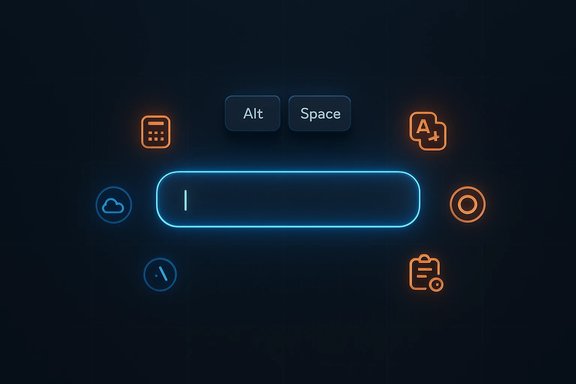
- Activation: default hotkey is Alt+Space, opening a minimal command bar ready for queries.
- Search types: programs, files (via Everything), web searches (via short command prefixes), inline math/evaluation (no explicit prefix needed), and system items like Control Panel entries.
- Everything dependency: Wox’s file search historically required the external Everything indexer, which the user must install separately; the Wox bundle did not include Everything in some installers.
- Extensibility: the review highlighted "more than 100 plugins" for translations, weather, todo, screenshot sharing and other utilities—plugins could be assigned hotkeys and extended functionality well beyond plain app launching.
- UI: reviewers liked the functional command bar but wished for more configurability of the bar itself (size, docking, auto‑hide).
How Wox works today (technical verification)
The project’s current public repository and release notes provide the clearest, authoritative view of Wox’s present technical shape.- Release cadence and v2 beta: The Wox GitHub shows multiple v2 beta releases (for example, v2.0.0‑beta.1 and later betas and nightlies), and the v2 changelogs explicitly list cross‑platform goals, a modernized plugin system (JavaScript and Python), and a new plugin/theme store. The project also maintains the older 1.4 stable lineage for production users.
- Everything integration and packaging: v2 release notes explicitly mark Everything integration as a Windows‑only feature for file plugin support. Older v1.x installer notes mention a "wox-full-installer" that can include dependencies, whereas the lighter installer variants may require separate Everything and Python installs. That aligns with the BetaNews observation: file search works best when Everything is installed and running.
- System requirements: v2 nightly/release notes list Windows 10 or above as the supported Windows platform for v2 builds. The older v1.x builds historically fixed Windows 7/8 compatibility regressions, indicating that the classic v1 series remains the pragmatic choice for legacy Windows installations. Validate the specific build you download if you run older Windows versions.
- Everything’s role: Everything (from Voidtools) is a dedicated filename/path indexer that keeps an in‑memory database of NTFS filenames and paths for near‑instant lookups. Everything’s documentation underlines this design: instant filename results, tiny resource footprint, real‑time updates, and an index stored in memory while running. That’s the performance lever third‑party launchers like Wox use for instant file result returns.
Feature deep dive
Activation and immediate UX
Wox uses a single global hotkey to toggle the launcher overlay; the traditional default is Alt+Space (mirroring macOS Spotlight behavior). The overlay is intentionally minimal: a single line query input with a results list. Typing triggers fuzzy matching across program entries, plugins, and — when Everything is present — filenames. The overlay design favors speed and clarity over heavy UI customization.Key practical points:
- Hotkey can be customized in settings to avoid conflicts (PowerToys and other launchers sometimes share defaults).
- Results update incrementally; v1.4 builds focused heavily on startup/query speed gains to reduce latency on first use.
Local file searching (Everything)
Everything is the high‑speed partner in this workflow. Everything indexes NTFS volumes by name and path, keeping an in‑memory database for instantaneous results. Wox’s Files plugin queries Everything to show filename matches in the launcher, which is why installing Everything materially improves search performance for many users. If you expect deep content search or indexed content inside files, Everything isn’t designed primarily for that—use full‑text search tools if you need content indexing.Built‑ins and utilities
Wox ships with a set of small utilities that users reach for daily:- Inline expressions/math: type arithmetic or functions (e.g., SIN(90) or 2*3+4/5) and see immediate results.
- Web search prefixes: short commands such as "g" for Google or "wiki" for Wikipedia route queries to online search; plugin shortcuts let you add many additional sites.
- Shell command execution: launch a console command from the overlay for quick administrative tasks.
- Colors, folder quick‑open, clipboard history: small but high‑frequency features that replace separate utilities for many users.
Plugins and the extensibility story
Wox’s long‑standing advantage is the plugin model: developers write plugins in Python or JavaScript that return results and actions in the launcher UI. Over the years the community built hundreds of plugins (translation, system actions, Obsidian/notes integrations, Spotify controls, weather, currency converters, etc.. The v2 rewrite focuses on a better plugin store, discovery, and modern plugin authoring to reduce friction for both users and authors. A few practical plugin notes:- Plugins can execute arbitrary code—this is powerful but raises supply chain and security concerns (more on that below).
- Favorite commands can be assigned to hotkeys, removing the need to type for frequent tasks.
- Plugin discovery historically was clunky; v2’s store aims to surface trusted, up‑to‑date options more cleanly.
Security, privacy and enterprise considerations
Open extensibility is a double‑edged sword. Wox’s model that permits Python/JS plugins grants great flexibility but also requires users to treat plugins as potential risk vectors.- Supply chain risk: plugins run code; a malicious or compromised plugin can execute arbitrary actions. Prefer plugins with open source repositories, active maintenance, and transparent authorship.
- Network access: review plugin permissions. Network‑facing plugins (translation, syncing) increase exposure.
- AV/Endpoint interactions: system‑level agents, global hotkeys, and window API hooks can trigger Defender or third‑party endpoint heuristics. Test in a controlled environment before widely deploying a launcher (or its betas) on managed fleets.
- Enterprise governance: treat plugin deployment like other software distribution tasks—use allow‑lists, vet authors, and prefer signed or vendor‑curated packages if you deploy across many machines.
UX and customization: strengths and frustrations
Wox favors a consistent, keyboard‑centric overlay rather than a highly configurable dockable widget. Strengths include speed, clarity of results, and a minimal distraction surface. Criticisms from early hands‑on reviews generally focus on the overlay’s limited mobility and size flexibility: you can change colors and fonts, but not dock/resize/auto‑hide in complex ways. Those decisions are deliberate design tradeoffs—simplicity and speed over cosmetic flexibility.v2 aims to improve theming and settings storage, and a plugin store should add personalization indirectly (via plugins and themes). If you need heavy UI customization or a multi-pane overlay, consider alternatives that emphasize richer visuals.
How Wox stacks up against competitors
The launcher ecosystem is crowded; here are practical contrasts:- Flow Launcher — community‑driven, plugin‑rich, and architected around inline plugin results. Flow often emphasizes the plugin UX and discovery earlier than Wox historically did. If your priority is the broadest, mature plugin catalog and inline results, Flow is a strong contender.
- Microsoft PowerToys Run / Command Palette — official, lightweight, and well‑integrated. It’s the lowest‑risk choice for enterprise or users who want tight Windows support and Microsoft maintenance channels. PowerToys' Run feature and the newer Command Palette continue to evolve with official backing.
- Raycast (Windows beta) — commercial, high‑polish alternative with strong integrations and a macOS pedigree. Raycast’s Windows rollout aims to be premium and polished, but it’s a different model (company‑led rather than community open‑source). Early betas can hit AV false positives or stability quirks.
Installation and configuration — practical steps
- Decide which Wox branch you want:
- Use v1.4 (stable) for everyday productivity and older Windows versions (Windows 7/8/10 compatibility).
- Try v2 beta only on non‑critical machines if you want cross‑platform features and the new plugin store. v2 notes currently list Windows 10 or newer as the target for v2 builds.
- Install Everything (recommended for file search):
- Download Everything from Voidtools and run it (install service option recommended for full indexing). Everything creates an in‑memory filename database and is the fastest way to get Wox file results.
- Choose installer flavor:
- If available, prefer the wox-full-installer variant which bundles dependencies.
- Portable/no‑install zips are convenient for testing but may require manual dependency installs.
- Configure hotkey and plugins:
- Rebind hotkey if Alt+Space conflicts with existing shortcuts.
- Start with a conservative plugin set—enable only what you need and prefer plugins with published source.
- Security checklist:
- Vet plugin authors, review plugin code if possible, and disable network‑facing plugins unless trusted.
- Test in a VM or secondary machine before deploying widely.
Real‑world tips and troubleshooting
- If Wox returns no file results: confirm Everything is installed and running. Some Wox installers assume Everything is present and won’t bundle it by default.
- Hotkey conflicts: use a unique hotkey and check IME/language switcher collisions if the overlay won’t capture input. Some systems (or other utilities like PowerToys) may reserve the same defaults.
- Plugin errors: narrow down by disabling all plugins and re‑enabling them one at a time. Prefer plugins with Git repos and recent commits to reduce the chance of abandoned code.
Strengths and risks — a critical appraisal
Strengths- Speed: pairing Wox with Everything provides near‑instant filename lookups and a fast fuzzy engine for program launching.
- Extensibility: the Python/JS plugin model lets the community build varied utilities, turning Wox into a small productivity OS within the OS.
- Keyboard-first ergonomics: single hotkey, pervasive fuzzy search, and hotkeyable favorites are a big win for keyboard‑centric workflows.
- Plugin supply chain: arbitrary plugin code raises security concerns; sandboxing is limited and vetting is on the user. Prefer open, actively maintained plugins.
- Beta instability: the v2 line is explicitly beta; it introduces new features but also a higher chance of regressions—use it only on non‑critical machines.
- Platform targeting: v2 targets Windows 10+; enterprises or users on Windows 7/8 should use the stable v1.x builds or confirm compatibility before upgrading.
- The exact number of available community plugins is a moving target. The original BetaNews statement of "more than 100 plugins" was true at the time of that review, but plugin counts can increase or decrease, and packaging/discovery differences make an exact current number hard to pin down without a live plugin index. Treat plugin counts as indicative of a healthy ecosystem rather than an immutable metric.
Verdict and practical recommendation
For Windows power users who value an open‑source, keyboard‑first launcher, Wox remains a compelling choice. Its core strengths—speed, Everything integration, and an extensible plugin model—deliver daily productivity wins.- Use Wox v1.4 (stable) for daily, production machines, especially on older Windows installations.
- Install Everything alongside Wox to get the best file search performance.
- Try Wox v2 on a secondary machine if you want the cross‑platform rewrite, the newer plugin store, or the AI-ready features; expect to encounter early beta rough edges.
- Treat plugins like third‑party software: vet, prefer open repos, and run a minimal set of trusted plugins.
Conclusion
Wox’s enduring value is straightforward: it combines a fast, keyboard‑first overlay with a plugin system that turns a launcher into a personal productivity hub. The BetaNews review captured those benefits early, and current project activity shows that the team and community continue to evolve Wox into a modern, cross‑platform tool while balancing stability in the mature v1.x branch. For users who prize speed, extensibility and open‑source control, Wox remains a practical and powerful choice—provided you pair it with Everything for file search and exercise the usual caution when installing third‑party plugins.
Source: BetaNews Wox is a versatile launcher for Windows
