

For years WSL made Linux on Windows feel like a magic trick — seamless file access, native tooling, and the ability to run servers, compilers, and development stacks without dual-booting — but networking has long been the weakest link; recent additions in Windows 11 (notably mirrored networking and DNS tunneling) fix most of the pain, and this article shows exactly what’s changed, why the defaults are still a problem, and a step‑by‑step, production-minded plan to get rock‑solid networking for WSL on your machine.
WSL2 moved the Windows Subsystem for Linux from a translation layer to a lightweight VM with a real Linux kernel. That architectural shift unlocked huge compatibility and performance wins, but it also introduced a virtualized network interface and a NAT topology that insulated the Linux instance from the Windows host and the local LAN in ways WSL1 did not. The most visible consequences:
Start by enumerating the WSL VMCreatorId and firewall settings:
If you want to allow inbound traffic to WSL by default (use with caution), set the default inbound action:
That said, there are valid reasons vendors ship with conservative defaults:
However, the shift is not risk-free. Exposing Linux services to the host IP space increases the chance of accidental public exposure. Port collisions and subtle tooling incompatibilities are real; some extensions and remote tooling may require updates to play nicely with mirrored mode. Enterprises with locked policy profiles will need to engage their endpoint teams to adopt mirrored mode safely.
For everyday power users and devs, the balanced recommendation is clear:
In short: if you’ve wrestled with DNS flakiness, VPN breakage, or “localhost” confusion in WSL, try mirrored networking plus DNS tunneling. Make the firewall changes intentionally, validate connectivity with the commands above, and use the ignoredPorts and hostAddressLoopback options to resolve port-binding and host-loopback edge cases. The setup takes only a few minutes and usually fixes the networking headaches that drive users to convoluted workarounds.
Source: XDA WSL is great, but networking is a mess — here's how I fixed it
 Background
WSL2 moved the Windows Subsystem for Linux from a translation layer to a lightweight VM with a real Linux kernel. That architectural shift unlocked huge compatibility and performance wins, but it also introduced a virtualized network interface and a NAT topology that insulated the Linux instance from the Windows host and the local LAN in ways WSL1 did not. The most visible consequences:- Services you run in Linux don't always appear the same way to Windows or to other devices on your network.
- Certain VPNs, security clients, and DNS setups that operate at the Windows host level break name resolution or routing for the Linux guest.
- Debugging cross‑platform networking (Windows <-> WSL <-> LAN) became harder because the default NATed network obscures the endpoints and requires manual port-forwarding for external access.
Why WSL networking feels broken
The default NAT model
Out of the box, WSL2 runs behind a host-based NAT. That means the Linux VM has its own private address space, a virtual NIC, and the host performs network address translation for outbound traffic. From a simple “I want my Node/NGINX/Redis server to be reachable” perspective, NAT is convenient for outbound connectivity and isolates your guest. But it also creates friction:- Windows apps can access Linux services using localhost (port forwarding that maps host localhost to container ports), but Linux apps must refer to Windows services using the host’s IP as seen from inside WSL — not localhost. That asymmetry confuses many workflows.
- Exposing Linux services to the LAN requires explicit port forwarding or firewall rule workarounds.
- Many enterprise VPN clients and DNS/proxy filters run at the Windows stack and interfere with how WSL resolves DNS or routes traffic.
VPNs, DNS, and the “no route” symptom
When a Windows VPN reconfigures the DNS path or filters traffic, WSL’s traditional networking can lose name resolution or experience “no route to host” errors. Some clients hijack DNS or force all traffic into a secure tunnel that the WSL NAT layer doesn’t cooperate with. This is why many users see connectivity flakiness only when a particular corporate VPN or security client is active.What changed: DNS tunneling and mirrored networking
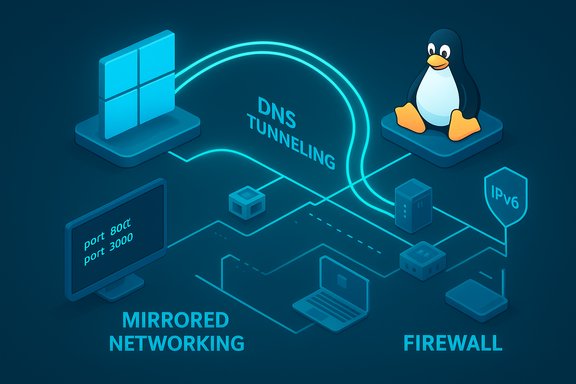
Microsoft added two complementary capabilities intended to address the above problems.- DNS tunneling: Instead of relying on an ordinary UDP/TCP DNS query that may be rerouted or blocked, WSL can now tunnel DNS requests through a virtualization channel to the Windows host. That avoids packet‑path filters and greatly improves name resolution when complex VPNs or endpoint security software is in use. The new behavior is configurable and, on modern Windows builds, is usually enabled by default.
- Mirrored networking mode: Rather than placing WSL behind NAT, mirrored mode “mirrors” your Windows network interfaces into the Linux VM. Practically, that means WSL sees the same IPs as the host, gains IPv6 support, gets far better compatibility with VPNs and multicast, and can be reached directly from the LAN in a way similar to WSL1’s simpler model — but with a modern, secure virtualization architecture behind it.
What mirrored mode gives you (and what it doesn’t)
Enabling mirrored networking provides several tangible benefits:- IPv6 support inside WSL distributions.
- Bidirectional localhost behavior — WSL can reach Windows-hosted services via localhost and, depending on settings, Windows can reach certain Linux services via localhost as well.
- Improved VPN compatibility, since the guest sees the same interfaces and addresses the host does.
- Direct LAN access to services running in WSL: other devices on your network can connect to your WSL servers without complex port proxies.
- Multicast support, useful for mDNS and other discovery protocols (though some mDNS behaviors differ in mirrored mode; see limitations).
- Port conflicts: because the Linux guest can appear on the same host IPs, ports that Windows uses may be contested. WSL provides an “ignoredPorts” whitelist so you can let Linux bind specific ports even if Windows is already using them.
- Certain tooling incompatibilities: some remote extensions and container workflows (for example, specific VS Code Remote / Dev Container scenarios) have reported “address already in use” or other binding issues in mirrored mode.
- mDNS / discovery quirks: service discovery using .local names sometimes behaves differently; you may need to test your specific workflow.
Before you begin: minimum requirements and safety checklist
Mirrored networking and the advanced .wslconfig options require modern Windows and WSL builds. Before you change networking modes:- Confirm you run Windows 11, version 22H2 or later.
- Ensure you have an up‑to‑date WSL install (use the Microsoft‑delivered WSL package). If you installed WSL from the Store (recommended), update it there.
- Back up any stateful Linux services or data; changing networking mode and restarting WSL is generally safe, but it’s wise to snapshot important work.
- Understand the security implications: mirrored mode and firewall changes can make services reachable from the LAN. Lock down ports and use firewall rules to limit exposure where necessary.
- wsl -l -v
- wsl --shutdown
How to enable mirrored networking (two ways)
There are two simple, supported approaches: the GUI and the manual .wslconfig file.Method A — Use the WSL Settings app (GUI)
- Open the Start menu and type “WSL Settings” and launch the app.
- Select the Networking tab on the left.
- Change Networking mode to Mirrored.
- Close the app.
- Open PowerShell and run wsl --shutdown, then restart your distro to apply the change.
Method B — Edit .wslconfig (manual)
- Open Notepad or your editor with Administrator privileges or in your user profile.
- Create or edit the file at:
C:\Users\<your-username>.wslconfig - Add these lines to enable mirrored mode (and a couple of recommended companion settings):
[wsl2]
networkingMode=mirrored
dnsTunneling=true
autoProxy=true
firewall=true - Save the file.
- From an elevated PowerShell: wsl --shutdown
- Launch your WSL distro to pick up the new configuration.
- dnsTunneling=true explicitly enables DNS tunneling behavior to improve name resolution under complex host networking.
- autoProxy=true tells WSL to adopt Windows’ HTTP proxy settings automatically.
- firewall=true ensures WSL traffic is subject to the Hyper‑V firewall integration (recommended unless you have a specific reason to disable it).
Post‑change checklist: firewall and port rules
Mirrored mode generally plays well with Windows Defender Firewall and Hyper‑V’s VM firewall policies, but you will likely need to check or add rules for inbound access.Start by enumerating the WSL VMCreatorId and firewall settings:
- In an elevated PowerShell, run:
- Get-NetFirewallHyperVVMCreator
- Check current Hyper‑V firewall policies applied to WSL:
- Get-NetFirewallHyperVVMSetting -PolicyStore ActiveStore -Name '{40E0AC32-46A5-438A-A0B2-2B479E8F2E90}'
If you want to allow inbound traffic to WSL by default (use with caution), set the default inbound action:
- Set-NetFirewallHyperVVMSetting -Name '{40E0AC32-46A5-438A-A0B2-2B479E8F2E90}' -DefaultInboundAction Allow
- New-NetFirewallHyperVRule -Name "WSL-HTTP" -DisplayName "WSL HTTP" -Direction Inbound -VMCreatorId '{40E0AC32-46A5-438A-A0B2-2B479E8F2E90}' -Protocol TCP -LocalPorts 8080
- Prefer whitelisting explicit ports rather than a blanket allow.
- Restrict rules to specific network profiles (Private, Domain) when possible.
- Remember that firewalls and group policy in enterprise environments can override local settings; verify with your IT team before changing defaults on managed machines.
Practical troubleshooting and validation commands
After enabling mirrored mode and starting WSL, validate networking with the following steps:- From WSL:
- ip a — verify interface addresses.
- wsl hostname -i — shows the WSL VM address in some modes.
- ip route show | grep -i default — find the default gateway (host IP as seen from WSL).
- ping -c 4 8.8.8.8 — basic IPv4 reachability.
- curl -v http://localhost:3000 — test local server reachability if you have one.
- From Windows (PowerShell or CMD):
- wsl -d <your-distro> -- bash -lc "ss -ltnp" — inspect listening ports inside WSL from Windows.
- Use a browser to open http://localhost:3000 if your Linux service is configured to bind to 0.0.0.0 or localhost depending on your setup.
- Firewall verification:
- Get-NetFirewallHyperVRule -VMCreatorId '{40E0AC32-46A5-438A-A0B2-2B479E8F2E90}' — lists WSL-specific rules.
- If inbound traffic is blocked, narrow the issue by temporarily allowing a single port and retesting.
- DNS checks:
- Inside WSL: dig +short example.com (if dig is installed) or nslookup example.com to confirm name resolution.
- If DNS fails only when VPN is active, verify dnsTunneling=true in .wslconfig and restart WSL.
Known limitations and compatibility warnings
Mirrored networking mode is a major improvement but not a silver bullet. Known issues include:- Some development tools and remote extensions may experience port binding conflicts or “address already in use” errors.
- mDNS and certain discovery protocols may behave differently; if you rely on .local resolution extensively, test your scenario.
- Enterprise-managed machines with restrictive policy or firewall settings may ignore local Hyper‑V firewall changes.
- A very small set of VPN and security stacks may still not cooperate perfectly; DNS tunneling reduces many of these problems but cannot fix every proprietary interception strategy.
Security considerations — don’t open the house
Making WSL services reachable beyond your machine can be incredibly useful for testing and self-hosting, but it expands your attack surface.- If you open ports, bind services to specific interfaces when possible, and use authentication and TLS.
- Use Windows firewall rules to scope access to trusted networks.
- On laptops or devices that connect to public Wi‑Fi, avoid leaving developer servers exposed; prefer localhost-only bindings unless you explicitly need LAN access.
- When in doubt, restrict firewall rules to the Private profile or limit by IP range.
Why this should be the default (and why it’s not)
Mirrored networking addresses the majority of real-world networking complaints with WSL: better VPN compatibility, IPv6, bidirectional localhost support, and easier LAN accessibility for services. Many users and organizations will have a smoother experience with mirrored mode than with the old default NAT behavior.That said, there are valid reasons vendors ship with conservative defaults:
- NAT is familiar, well-contained, and historically avoided many edge-case conflicts.
- Mirrored mode exposes more surface area to the host network, which can make accidental exposure easier for inexperienced users.
- A tiny minority of workflows and tools have not adapted; making mirrored the default could break those outlying scenarios.
A compact troubleshooting checklist (quick reference)
- Confirm Windows: running Windows 11 22H2 or newer.
- Verify WSL state: wsl -l -v and wsl --status.
- Enable mirrored: either WSL Settings UI -> Networking -> Mirrored, or add networkingMode=mirrored to C:\Users\<you>.wslconfig.
- Add dnsTunneling=true and autoProxy=true in .wslconfig if you use VPNs or proxy servers.
- Apply changes: wsl --shutdown, then start your distro.
- Check interfaces: ip a and ip route show in WSL.
- Adjust firewall: use Get-NetFirewallHyperVVMCreator and Set-NetFirewallHyperVVMSetting to set the desired inbound policy or create specific New-NetFirewallHyperVRule entries.
- Test: curl/ping from both WSL and Windows; test access from another LAN machine if you expect LAN reachability.
- If ports conflict, use ignoredPorts in .wslconfig to whitelist Linux-only bindings.
- If problems persist, revert to NAT temporarily to help isolate the interfering component.
Final analysis — strengths, risks, and recommended defaults
Mirrored networking combined with DNS tunneling closes many of the longstanding gaps between Windows and WSL networking. For developers who rely on local dev servers, multi-host debugging, or who work on corporate networks with VPNs and DNS controls, the change is transformative. The feature set is mature enough for routine use, and the configuration surface is intentionally small — a couple of well-documented .wslconfig keys, a GUI toggle, and a few PowerShell commands for firewall tuning.However, the shift is not risk-free. Exposing Linux services to the host IP space increases the chance of accidental public exposure. Port collisions and subtle tooling incompatibilities are real; some extensions and remote tooling may require updates to play nicely with mirrored mode. Enterprises with locked policy profiles will need to engage their endpoint teams to adopt mirrored mode safely.
For everyday power users and devs, the balanced recommendation is clear:
- If you regularly use VPNs, local dev servers, or cross-platform networking, enable mirrored mode and dnsTunneling.
- Lock down firewall rules to the precise ports you need rather than enabling a permissive inbound default.
- Test your specific development toolchain (IDE extensions, container tooling) after switching and use ignoredPorts to resolve intentional port access conflicts.
- Provide feedback on any bugs encountered — the networking layer continues to evolve and vendor feedback helps prioritize fixes.
In short: if you’ve wrestled with DNS flakiness, VPN breakage, or “localhost” confusion in WSL, try mirrored networking plus DNS tunneling. Make the firewall changes intentionally, validate connectivity with the commands above, and use the ignoredPorts and hostAddressLoopback options to resolve port-binding and host-loopback edge cases. The setup takes only a few minutes and usually fixes the networking headaches that drive users to convoluted workarounds.
Source: XDA WSL is great, but networking is a mess — here's how I fixed it
