

Microsoft’s new Xbox Cloud Gaming web preview puts a clear, console‑style face on browser streaming — and it’s available now for anyone who wants to opt in and test the redesigned Play.Xbox.com interface. The shift is small on the surface but significant strategically: Microsoft is moving the web client from a utility port into a first‑class, console‑familiar entry-point for Game Pass, owned titles, and cross‑device play. Early details and the official rollout instructions come from Microsoft’s Xbox Wire announcement and immediate coverage from major outlets, while community and hands‑on writeups fill in the practical steps and caveats.
Xbox Cloud Gaming (formerly Project xCloud) has been the web‑first gateway for streaming Xbox content to devices that can’t run the Xbox app natively. The web client is critical because it bypasses app store barriers on mobile platforms and delivers the lowest friction path to play: sign in, pick a game, and stream. Microsoft’s cloud streaming layer has steadily matured — higher bitrates, Series‑class server blades, and broader platform support — and the web surface has been a natural place to prototype new cross‑device interaction models.
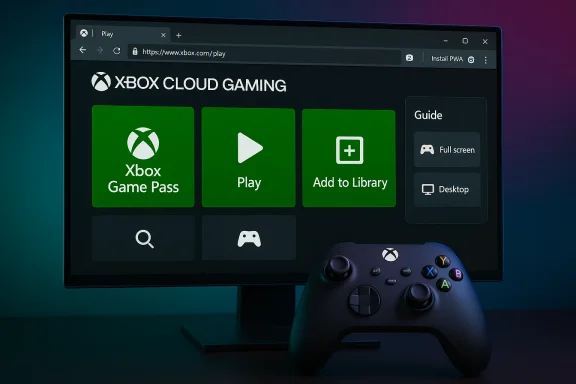
What changed this week is bing; it’s the product surface. Microsoft has launched a public preview of a redesigned web experience that intentionally mirrors Xbox console navigation: a Home with large tiles, an overlay Guide (Xbox button equivalent), and controller‑first flows intended to reduce cognitive friction when players move between console and browser. The preview is opt‑in and appears to be the company’s testbed for faster iteration on storefront, discovery, social, and monetization experiments delivered from the web.
For testers: use a modern Chromium browser, enable Preview features at xbox.com/play, and spend some time exercising the Guide, both display modes, and the PWA install path. File reproducible feedback when you hit bugs or accessibility gaps — that’s the explicit point of the preview. For everyone else, view this as a strong signal: Microsoft is doubling down on web‑first gaming experiences and the browser is now a legitimate, evolving front in the Xbox ecosystem. The preview is useful, but remember it’s early — stability, telemetry controls, and feature parity will determine whether the web client becomes the daily driver for mainstream cloud play.
Source: TechPowerUp Microsoft Intros New Xbox Cloud Gaming Web Experience - Available Now in Public Preview | TechPowerUp}
 Background
Xbox Cloud Gaming (formerly Project xCloud) has been the web‑first gateway for streaming Xbox content to devices that can’t run the Xbox app natively. The web client is critical because it bypasses app store barriers on mobile platforms and delivers the lowest friction path to play: sign in, pick a game, and stream. Microsoft’s cloud streaming layer has steadily matured — higher bitrates, Series‑class server blades, and broader platform support — and the web surface has been a natural place to prototype new cross‑device interaction models. What changed this week is bing; it’s the product surface. Microsoft has launched a public preview of a redesigned web experience that intentionally mirrors Xbox console navigation: a Home with large tiles, an overlay Guide (Xbox button equivalent), and controller‑first flows intended to reduce cognitive friction when players move between console and browser. The preview is opt‑in and appears to be the company’s testbed for faster iteration on storefront, discovery, social, and monetization experiments delivered from the web.
What’s new in the preview
Microsoft’s official announcement and independent walkthroughs line up on the core changes and options in the preview. Here’s whadiately after opting in.Console‑style UI and guide overlay
The most visible change is the console‑like layout: large tiles, clearer primary actions (Play, Add to library), and a floating Guide that exposes quick actions and system controls — the same mental model console users rely on every day. The Guide is accessible via an onscreen Xbox icon or by pressing the Xbox button on a connected controller, and it centralizes feedback, account controls, and quick navigatib client feel like a direct extension of the Xbox home experience rather than a separate, simplified app.Two presentation modes: Full Screen and Desktop
The preview offers two display modes:- Full Screen Mode — a console‑optimized layout intended for controller navigation and large displays.
- Desktop Mode — an app‑like view that keeps a sidebar and is better suited for keyboard and mouse users on PCs.
Progressive Web App (PWA) install
If you use Microsoft Edge (or another Chromium browser), the redesigned Play.Xbox.com can be installed as a Progressive Web App, giving you a windowed, app‑like presence on Windows without the browser chrome. That makes it simpler to Alt+Tab into the web client from a gaming workflow or pin the app for quick access. Edge installation is optional but recommended for a more native feeling on Windows handhelds and desktops.In‑experience feedback and preview controls
Microsoft baked feedback collection directly into the experience: two entry points (profile menu and Guide) enable users to file reports and suggestions. The preview is explicitly intended to be iterative — expect Microsoft to make rapid changes based on Insiders’ reports. The opt‑in toggle is reversible via an “Exit preview” action, to the legacy web experience at any time.How to enable the preview (verified steps)
Microsoft’s guidance and multiple outlet walkthroughs confirm these exact steps for enabling the new Xbox Cloud Gaming web preview:- Open a modern, up‑to‑date browser (Microsoft Edge is recommended for the smoothest experience).
- Go to xbox.com/play and sign in with your Microsoft/Xbox account.
- Open your profile menu (top‑right) and choose Settings. Find Preview features and toggle it on. Confirm the prompt.
- Wait up to 10 minutes for the change to propagate. If you don’t see the new UI, log out and back in or clear the browser cache.
- After activation, either follow the on‑screen prompts or navigate to play.xbox.com to enter the redesigned experience. If you prefer, install the site as a PWA in Edge for an app‑like window.
Why this matters for Windows users and Game Pass subscribers
The UI redesign on the web is more than cosmetic. It’s a strategic move with several practical implications for players, Microsoft, and the broader Windows ecosystem.- Lowered friction for cloud adoption. When the web UI mirrors the console, new players — especially console owners — can jump into streaming faster. Familiar navigation reduces hesitation and increases session length, which directly helps discoverability and retention.
- Faster product iteration. The web is the fastest delivery channel Microsoft has for product experiments. Changes rolled into Play.Xbox.com don’t require console firmware updates, enabling quicker A/B tests and UX pivots.
- Better support for Windows handhelds. Many handheld Windows devices benefit from a console‑first interface. The PWA install and Full Screen Mode make Play.Xbox.com an appealing marketed for portable gaming. This aligns with Microsoft’s broader Full Screen Experience (FSE) work for Windows.
- Potential for broader Game Pass reach. Web‑first experiences make it easier to trial cloud streaming for users on systems that don’t support native Xbox apps, which can expand Game Pass adoption and make the subscription more sticky across devices.
Technical considerations: compatibility, performance, and entitlements
Under the hood, streaming quality and feature parity still depend on a mix of server capacity, encoding tiers, entitlement rules, and the player’s last‑mile network. The new UI won’t change these constraints; it just makes navigating to playable titles easier. Herind.Browser compatibility and behavior
Microsoft lists “compatible browsers” without naming an exhaustive list. Practical tests and guidance from outlets recommend Chromium‑based browsers (Edge, Chrome) for best compatibility and PWA behavior. Safari and other browsers may work, but expect subtle differences in input mapping, PWA support, and media capture. If you want the most predictable result on Windows, use Edge.Network and streaming quality
Streaming fidelity (resolution tiers, bitrates, and latency) is determined by:- Microsoft’s server encoding tiers and regional datacenter capacity.
- The player’s ISP and local network conditions.
- Per‑title support for higher quality modes.
Licensing and subscription entitlements
The web redesign doesn’t change licensing. To stream a Game Pass title you need the entitlement included in your subscription tier. Microsoft has been testing access expansions (for example, pilot programs to include cloud streaming for Game Pass Core and Standard Insiders), but or console titles through cloud still depends on subscription level and publisher permissions. Always check the game’s product page or the Xbox PC app to confirm entitlements.Input parity: controllers, keyboard/mouse, and touch
The new Guide and Full Screen Mode are explicitly controller‑first, but the desktop mode preserves keyboard and mouse flows. Many cloud titles support touch controothers accept keyboard and mouse, but input mapping can vary by title. If you’re testing, connect your controller and experiment with both modes to verify which inputs are best supported for your favorite games.Accessibility, privacy, and telemetry
A more featureful web client brings benefits aareas.Accessibility
Preview builds often omit final accessibility polish. If you rely on screen readers, high‑contrast modes, or remappable inputs, test the scenarios you need and file feedback through the in‑experience tool. Microsoft explicitly wants feedback from Xbox Insiders and will iterate on accessibility, but don’t assume parity on day one.Privacy and telemetry
Richer web experiences can collect more telemetry. Microsoft’s announcement emphasizes feedback collection inside the experience, which is expected; however, testers should be alert for new telemetry controls, per‑user privacy toggles, or changes to discovery that might surface promoted content. If you’re privacy‑minded, monitor Settings and treat early experiments as potentially data‑rich. Where Microsoft hasn’t published specific telemetry documentatreat claims about telemetry as worthy of caution until formal documentation appears.Risks and practical caveats
This preview is a promising step but not without real limitations and risks that Windows users should weigh.- Browser fragmentation. Differences across engines (Chromium vs WebKit vs Edge variants) can create inconsistent behavior. Expect browser‑specific bugs.
- Preview instability. As with any opt‑in preview, expect missing features, regressions, and temporary regressions in areas like UI rendering and input mapping. Don’t switch mission‑critical workflows to the preview.
- Expectations vs reality. The console‑like UI doesn’t magically add console‑only features that require native OS integration (for example, local capture hooks or certain low‑latency overlays). The web is a powerful surface, but it has limits compared with native consoles and the Xbox app.
- Monetization and discovery experiments. The web is a natural place for subtle promotional placements; watch for monetization experiments that may alter discovery or introduce sponsored placements into the core browsing flows. Microsoft will likely test different discovery models during the preview.
How to test the preview effectively (practical checklist)
If you plan to opt in and help shape this preview, follow these pragmatic steps to produce useful feedback and get a reliable experience.- Use Edge or Chrome and update to the latest version.
- Connect the input methods you care about: controller (Bluetooth or wired), keyboard/mouse, and touchscreen where applicable.
- Enable Preview features via xbox.com/play, wait the stated propagation window (~10 minutes), and then open pand back in if the change doesn’t appear. ([news.xbox.com](Try the New Xbox Cloud Gaming Web Experience — Now in Public Preview - Xbox Wire flows: launching a cloud game, switching between Full Screen and Desktop modes, using the Guide, and filing feedback. Note the exact steps, device, browser, and local network conditions for each bug report.
- Test at different times of day to capture ISP variability and note any differences in frame rate and latency.
- If you rely on accessibility features, test your exact workflows (screen reader navigation, captions, remapping) and file detailed, reproducible reports.
How this fits with Microsoft’s broader strategy (FSE, PWA, Game Pass)
This web preview dovetails with recent Microsoft moves to unify the Xbox and Windows experience across devices.- The Xbox Full Screen Experience (FSE) for Windows is an adjacent initiative to bring a console‑like shell to Windows devices and handhelds; the web preview complements that by enabling the same visual language even where native FSE isn’t available. The two efforts together reduce friction for players who move between handheld PCs, desktops, and consoles.
- PWAs and web-first rollouts let Microsoft reach platforms where app distribution is constrained (for example, some mobile ecosystems), and the web preview is a clear demonstration of treating the browser as a first‑class product surface for Xbox.
- Changes to entitlements and Game Pass tiering (tests to expand cloud‑play to non‑Ultimate subscribers) are being trialed in parallel; those experiments will determine how broadly the web client converts free or lighter subscribers into paid Game Pass customers. The UI alone won’t change entitlements, but it can make the path to trial and subscription clearer.
What to watch next
If you want to track this preview as it matures, follow these signals:- Rollout breadth — which regions, browsers, and device classes gain the preview first. Widening availability suggests confidence.
- Feature parity — whether console features like cloud save indicators, cross‑device play history, or native capture workflows appear in the web client.
- Monetization and discovery experiments — look for sponsored placements, promoted content, or front‑page merchandising that could alter discovery.
- Telemetry and privacy documentation — any new privacy controls or transparency pages Microsoft publishes for the web preview will be important for privacy‑minded users.
Conclusion
Microsoft’s public preview of the redesigned Xbox Cloud Gaming web experience is a pragmatic, well‑scoped step toward making cloud streaming feel like an extension of the Xbox console rather than a separate utility. The move leverages the web’s agility for rapid iteration while offering Windows users and handheld owners a more consistent and discoverable play surface. Microsoft’s official Xbox Wire announcement and independent coverage provide a consistent picture of the new UI, the opt‑in flow, and the preview’s goals; community writeups and walkthroughs add practical testing guidance and early caveats.For testers: use a modern Chromium browser, enable Preview features at xbox.com/play, and spend some time exercising the Guide, both display modes, and the PWA install path. File reproducible feedback when you hit bugs or accessibility gaps — that’s the explicit point of the preview. For everyone else, view this as a strong signal: Microsoft is doubling down on web‑first gaming experiences and the browser is now a legitimate, evolving front in the Xbox ecosystem. The preview is useful, but remember it’s early — stability, telemetry controls, and feature parity will determine whether the web client becomes the daily driver for mainstream cloud play.
Source: TechPowerUp Microsoft Intros New Xbox Cloud Gaming Web Experience - Available Now in Public Preview | TechPowerUp}
