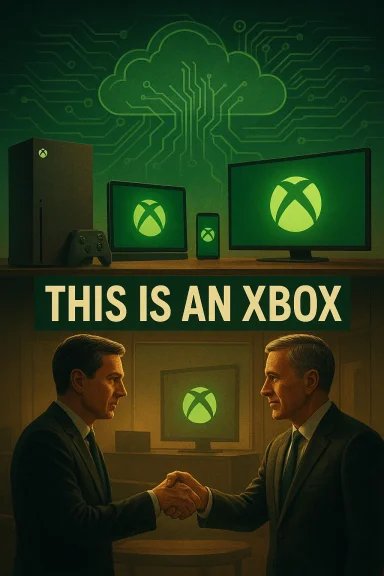
Microsoft’s recent leadership upheaval has rippled back through the company’s strategy and marketing playbook, and nowhere is that more visible than the controversy over the 2024 “This Is an Xbox” campaign — a campaign that, according to multiple contemporary reports, didn’t just baffle consumers but offended many Xbox employees internally and became a flashpoint in debates over the brand’s identity.
The campaign in question debuted in 2024 as part of an overt push to reframe Xbox from a console maker into a cross-device gaming ecosystem. Under the umbrella of what insiders called an “Xbox everywhere” or “Play Everywhere” strategy, Xbox leadership emphasized cloud streaming, PC integration, and new mobile distribution initiatives — positioning tablets, phones, smart TVs, and streaming sticks alongside the traditional Xbox Series X|S as valid ways to access “Xbox” experiences. At the same time, Microsoft publicly unveiled plans for a browser-first mobile games storefront and leaned into Xbox Cloud Gaming as a central plank of the company’s growth strategy.
Fast forward to February 2026, and Xbox’s leadership has shifted dramatically. Phil Spencer, the architect of Xbox’s modern strategy and its public face for more than a decade, stepped down. Asha Sharma, a senior Microsoft executive with a background in platform product leadership and AI, was named the new head of Microsoft Gaming. Xbox President Sarah Bond, who had been associated closely with the multiplatform push and the 2024 campaign, resigned. The shuffle has prompted scrutiny of the strategic choices made under Spencer and Bond — chief among them the marketing messages that asked consumers to imagine an Xbox without necessarily buying an Xbox console.
That shift aligns with a broader industry trend: software and recurring revenue are more scalable and durable than hardware sales alone. For Microsoft, which has invested heavily in Game Pass and cloud infrastructure and made multibillion-dollar studio acquisitions, translating that platform play into a consumer-facing brand position had obvious internal logic.
Inside Xbox and across the broader Xbox developer and fan communities, that message had consequences:
Marketing doesn’t happen in a vacuum. Messages intended to reach potential new customers also pass through internal audiences, partners, and loyal fans. If they aren’t prepared or consulted, those internal audiences may feel blindsided — which can produce leaks, negative sentiment, and a blowback loop that damages morale and external perception.
That pattern isn’t unique to Xbox, but it is instructive: complex brand shifts require cross-functional buy-in, staged messaging, and contingency plans when public reception diverges from internal models.
In short, console strength feeds the broader brand even when the strategic goal is platform ubiquity.
Developers and creative talent are sensitive to signals from leadership. When messaging focuses on enabling play everywhere, developers worry about fragmentation, parity expectations across devices, and the operational burdens of optimizing for many platforms — sometimes at the expense of delivering a best-in-class console experience.
Significant strategy shifts require a culture where counterarguments are heard and stress-tested. Absent that, organizations can produce well-funded but poorly calibrated initiatives that alienate the very communities they rely on.
The leadership changes in February 2026 — Spencer’s retirement and Bond’s exit — reflect both a planned transition and, arguably, a response to accumulated dissatisfaction. The appointment of Asha Sharma, a product and platform executive from Microsoft’s AI fold, signals a new phase: one that frames Xbox’s future through platform engineering and AI-aware product strategy rather than as a purely gameplay-first, hardware-centric operation.
The episode also underscores a broader tech-industry challenge — how to modernize a storied hardware brand for the cloud era without erasing the emotional bonds that fans form with physical products. Xbox’s difficulty in navigating that line is hardly unique, but because gaming is both a cultural and commercial business that depends on deep emotional engagement, missteps are amplified.
How Microsoft manages that balance will determine whether Xbox emerges strengthened by a broader, service-driven future — or whether it loses the distinctiveness that made it a cornerstone of modern gaming. The next chapter will be written in product roadmaps, studio outputs, and, most visibly, in what Microsoft chooses to say about Xbox — and how it chooses to show it — in ad campaigns and announcements to come.
Source: TechRadar Microsoft's 'This Is an Xbox' campaign 'offended many Xbox employees internally', report claims
 Background
The campaign in question debuted in 2024 as part of an overt push to reframe Xbox from a console maker into a cross-device gaming ecosystem. Under the umbrella of what insiders called an “Xbox everywhere” or “Play Everywhere” strategy, Xbox leadership emphasized cloud streaming, PC integration, and new mobile distribution initiatives — positioning tablets, phones, smart TVs, and streaming sticks alongside the traditional Xbox Series X|S as valid ways to access “Xbox” experiences. At the same time, Microsoft publicly unveiled plans for a browser-first mobile games storefront and leaned into Xbox Cloud Gaming as a central plank of the company’s growth strategy.Fast forward to February 2026, and Xbox’s leadership has shifted dramatically. Phil Spencer, the architect of Xbox’s modern strategy and its public face for more than a decade, stepped down. Asha Sharma, a senior Microsoft executive with a background in platform product leadership and AI, was named the new head of Microsoft Gaming. Xbox President Sarah Bond, who had been associated closely with the multiplatform push and the 2024 campaign, resigned. The shuffle has prompted scrutiny of the strategic choices made under Spencer and Bond — chief among them the marketing messages that asked consumers to imagine an Xbox without necessarily buying an Xbox console.
What “This Is an Xbox” tried to do — and why it landed poorly
The premise: Xbox as software and ecosystem, not just hardware
At its heart, the campaign attempted a bold rhetorical move: to collapse the distinction between the Xbox console and the larger software-and-services ecosystem that Microsoft has been building. The message was simple and inclusive — Xbox experiences are available on many devices — and it reflected a genuine business pivot. Subscription services, cloud streaming, and cross-buy initiatives make it possible for many players to access Xbox games without owning dedicated hardware.That shift aligns with a broader industry trend: software and recurring revenue are more scalable and durable than hardware sales alone. For Microsoft, which has invested heavily in Game Pass and cloud infrastructure and made multibillion-dollar studio acquisitions, translating that platform play into a consumer-facing brand position had obvious internal logic.
Why employees and core fans bristled
Despite that logic, the execution created a backlash both externally and internally. The campaign’s visuals and copy often portrayed a phone, tablet, or smart TV as “an Xbox,” a framing that many interpreted as implying the physical console — the proud, visible artifact that players buy, collect, and evangelize — was marginal or dispensable.Inside Xbox and across the broader Xbox developer and fan communities, that message had consequences:
- It could be read as devaluing the substantial engineering and design work behind consoles.
- It risked alienating the most loyal, hardware-invested players and creators who see the console as central to Xbox culture.
- It sent mixed signals to retail partners and hardware partners about Microsoft’s commitment to console lifecycle and future hardware investment.
- Internally, employees who had built or supported console platforms felt their efforts were being overwritten by a narrative that prioritized subscription reach over hardware craftsmanship.
Timeline and verifiable moments of the push
- In May 2024, Xbox leadership publicly announced plans for a browser-first mobile game store and underscored plans to extend Xbox’s reach beyond consoles. The store was pitched as a way to offer an alternative distribution path across devices and, crucially, to sidestep restrictive mobile app-store economics by starting on the web.
- The “This Is an Xbox” ads rolled out through 2024, aggressively foregrounding non-console devices as portals to Xbox experiences.
- By 2025–2026, observers noted the mobile storefront had not materialized at the scale initially announced, and Game Pass growth showed signs of slowing compared with early-stage expansion expectations. Meanwhile, Xbox hardware revenue experienced measurable declines, contributing to questions about whether the cross-device strategy cannibalized console demand or merely coincided with a broader market trend.
- In February 2026, the leadership transition — Phil Spencer’s retirement and Sarah Bond’s departure, and Asha Sharma’s elevation — crystallized the internal reassessment of strategy and messaging.
What the controversy reveals about brand strategy and marketing risk
Brand meaning is fragile
Brands that have been defined by a piece of hardware are vulnerable when leadership reframes what that brand is. For Xbox, whose core identity for 25+ years was tied to the console, asking players to accept “Xbox” as something that exists independent of that box was a deep semantic shift. Doing this abruptly through advertising amplified the risk.Marketing doesn’t happen in a vacuum. Messages intended to reach potential new customers also pass through internal audiences, partners, and loyal fans. If they aren’t prepared or consulted, those internal audiences may feel blindsided — which can produce leaks, negative sentiment, and a blowback loop that damages morale and external perception.
The product-economics tension
There’s a structural tension between hardware and subscription economics:- Consoles are capital-intensive to design, manufacture, and distribute. They build brand equity but generate thin margins per unit in many cases.
- Subscriptions scale differently: they can generate recurring revenue and higher lifetime value, but they require persistent content investment and expensive cloud infrastructure to support streaming.
- If the marketplace believes a company is deprioritizing hardware, retail channels may reduce promotional support, and fans may delay or forgo hardware purchases — which feeds into declining hardware revenue numbers.
Organizational design and accountability
The reporting around the campaign also highlighted personnel shifts — departures of marketing leaders, restructured reporting lines, and a leadership situation where the marketing function answered more directly to a platform-oriented executive. When strong directional bets are made in that context, dissenting voices can be marginalized, and the result is an echo chamber that produces more extreme or uncompromising creative work.That pattern isn’t unique to Xbox, but it is instructive: complex brand shifts require cross-functional buy-in, staged messaging, and contingency plans when public reception diverges from internal models.
The business realities: subscriptions, hardware, and content
Game Pass growth and plateau dynamics
Game Pass has been the most visible commercial lever for Microsoft’s strategy: a large library of titles for a monthly fee, designed to broaden reach and lock in recurring revenue. Early growth in subscribers allowed Microsoft to justify platform-first investments, but scaling Game Pass to the level the company publicly targeted has proven more challenging than hoped.- Rapid early subscriber growth faces natural diminishing returns. As a subscription matures, incremental additions become harder and require sustained content investment.
- Content spend is steep. Maintaining a compelling backlog and launching high-quality day-one titles on Game Pass eats into margins and ties success to studio productivity.
- If core players feel Game Pass is replacing premium-first experiences or devaluing single-purchase ownership, that sentiment can erode willingness to pay at given tiers.
Hardware trends and channel impacts
Hardware revenue and unit sales are not vanity metrics; they support ecosystems in tangible ways: first-party exclusivity leverage, cross-promotion at retail, and visibility in living rooms. Persistent declines in hardware sales — whether due to competition, platform fatigue, or customers choosing cloud/PC alternatives — create real tradeoffs for platform owners. Retail partners, accustomed to promoting boxed consoles and associated accessories, may deprioritize a brand that appears less committed to hardware.In short, console strength feeds the broader brand even when the strategic goal is platform ubiquity.
Content, studios, and creative trust
Content remains the principal long-term value driver for gaming platforms. Microsoft’s large-scale acquisitions bought a deep franchise portfolio, but integrating studios, aligning creative pipelines, and maintaining quality while pursuing platform expansions is complex.Developers and creative talent are sensitive to signals from leadership. When messaging focuses on enabling play everywhere, developers worry about fragmentation, parity expectations across devices, and the operational burdens of optimizing for many platforms — sometimes at the expense of delivering a best-in-class console experience.
Internal culture and leadership optics
Reports from inside Xbox describe a leadership environment in which questioning the multiplatform pivot could risk career consequences. Whether true in the fullest sense or exaggerated by post hoc narratives, the perception of a punitive culture undermines two critical assets: employee morale and candid cross-functional debate.Significant strategy shifts require a culture where counterarguments are heard and stress-tested. Absent that, organizations can produce well-funded but poorly calibrated initiatives that alienate the very communities they rely on.
The leadership changes in February 2026 — Spencer’s retirement and Bond’s exit — reflect both a planned transition and, arguably, a response to accumulated dissatisfaction. The appointment of Asha Sharma, a product and platform executive from Microsoft’s AI fold, signals a new phase: one that frames Xbox’s future through platform engineering and AI-aware product strategy rather than as a purely gameplay-first, hardware-centric operation.
What Asha Sharma inherits and the choices ahead
Sharma’s early public statements emphasize a “return to Xbox” and declare that games are “crafted by humans,” signaling an intent to recalibrate against two worries: overreliance on generative AI for game creation, and an erosion of console-first identity. Her mandate appears to include:- Rebuilding trust with core console fans and studio partners.
- Stabilizing messaging so Xbox’s identity is coherent to consumers.
- Resolving the balance between software/platform expansion (cloud, PC, mobile) and hardware investment.
- Restoring internal culture norms that encourage debate and protect engineering and creative craft.
Strategic recommendations for Microsoft Gaming
If the goal is to preserve the long-term health of the Xbox business while still pursuing the scalability advantages of services, the new leadership team should consider the following:- Re-center brand messaging around a dual promise:
- Affirm the console as an iconic, premium hardware offering.
- Communicate the cross-device complementarity of cloud and PC, not their replacement of console ownership.
- Stage transitions publicly:
- Major reframings of what “Xbox” means should be phased across product, developer, retail, and public channels with clear timelines and customer education.
- Repair internal feedback mechanisms:
- Create protected cross-functional forums where engineers, creators, and marketers can raise objections without career risk.
- Institute post-mortems for major campaigns that publicly acknowledge lessons and show accountability.
- Treat hardware and services as mutually reinforcing:
- Use console exclusives and hardware innovations to drive Game Pass value; use Game Pass to funnel players into premium console experiences (and vice versa).
- Be transparent about AI:
- If AI will be leveraged for tooling or personalization, delineate how it augments human creativity rather than replaces it.
- Reassure retail and manufacturing partners:
- Provide concrete commitments to future hardware roadmaps, supply plans, and promotional support.
- Revisit the mobile/web storefront strategy candidly:
- If the timeline slipped or the business case changed, own that publicly and present a revised, realistic plan.
Potential risks if the course isn’t corrected
- Brand drift: continued messaging that privileges ubiquity over craft could hollow out Xbox’s distinctiveness and reduce willingness to buy hardware or pay premium for exclusive experiences.
- Developer friction: if studios perceive that Xbox will prioritize scale over creative autonomy, investment in ambitious, platform-defining titles may slow.
- Retail and channel weakening: sluggish or ambiguous hardware commitment could reduce retail promotional support and visibility.
- Employee attrition and morale decay: when teams feel their work is devalued or that dissent is unsafe, talent leaves — and culture is hard to rebuild.
- Financial mismatch: heavy content and cloud infrastructure spending without commensurate subscription ARPU growth strains profitability.
Why the “This Is an Xbox” episode matters beyond a single ad campaign
This moment is a case study in how marketing campaigns can become organizational stress tests. A single set of creative decisions exposed latent tensions: between hardware and software economics, between retail and cloud distribution, and between loyalty-driven brand custodians and growth-driven product strategists.The episode also underscores a broader tech-industry challenge — how to modernize a storied hardware brand for the cloud era without erasing the emotional bonds that fans form with physical products. Xbox’s difficulty in navigating that line is hardly unique, but because gaming is both a cultural and commercial business that depends on deep emotional engagement, missteps are amplified.
A path forward: pragmatic clarity and guarded ambition
Xbox’s future doesn’t require choosing binary outcomes. There’s a plausible, sustainable strategy that blends strong console offerings with broad service availability:- Design consoles to be aspirational experiences that also act as the best-in-class gateway to Microsoft’s broader ecosystem.
- Use Game Pass and cloud to expand reach and introduce players to franchises, while reserving some premium experiences and hardware-enhanced features as console differentiators.
- Ensure marketing narratives reflect that complementarity — “Xbox: great on console, great everywhere” — instead of implying disposability.
- Invest in developer tooling and platform parity guidelines so studios can deliver great experiences across devices without compromising creative intent.
Conclusion
The fallout from the “This Is an Xbox” campaign is emblematic of a pivotal moment in Microsoft Gaming’s life cycle: a strategic inflection where platform ambition collided with identity, and marketing choices exposed deeper organizational tensions. Leadership transitions have opened a window to course-correct, but the hard work is cultural and tactical: repairing trust with fans and developers, clarifying the relationship between consoles and services, and proving that a modern Xbox can be both everywhere and unmistakably itself.How Microsoft manages that balance will determine whether Xbox emerges strengthened by a broader, service-driven future — or whether it loses the distinctiveness that made it a cornerstone of modern gaming. The next chapter will be written in product roadmaps, studio outputs, and, most visibly, in what Microsoft chooses to say about Xbox — and how it chooses to show it — in ad campaigns and announcements to come.
Source: TechRadar Microsoft's 'This Is an Xbox' campaign 'offended many Xbox employees internally', report claims