

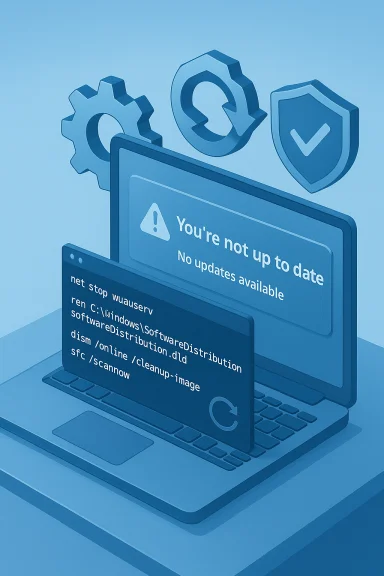
Windows can tell you “You’re not up to date” even when Settings reports there are no new updates available — a confusing but fixable mismatch that usually stems from local update components rather than Microsoft’s servers. This guide explains exactly why the message appears, walks through safe, step‑by‑step repairs (from quick restarts to a full reset of update components), and highlights practical troubleshooting, risks, and fallback options for Windows 10 and Windows 11 systems.
The Windows Update client keeps a small local database and several caches that track available updates, their download progress, and verification state. When those caches or supporting services become corrupted, paused, or stuck, the UI can show an incorrect status such as “You’re not up to date” while there actually are no pending updates to download or install. Common culprits include corrupted files in the SoftwareDistribution folder, a stuck Cryptographic service, BITS (Background Intelligent Transfer Service) interruptions, and occasionally interfering third‑party security tools.
Why this matters: an incorrect update status may hide security updates, confuse scheduled maintenance, or cause repeated, pointless update attempts. The fixes are typically safe and non‑destructive if done correctly; many are recommended by experienced community troubleshooters and long‑running repair playbooks.
Important safety notes before you begin:
If you encounter “Access is denied” when renaming catroot2, use takeown and icacls to take ownership and grant Administrators full control before renaming. Community guidance includes tested takeown/icacls sequences when permission errors occur.
Run (elevated):
A commonly used and effective script includes:
The principal risk is user error: running commands without elevation, improperly handling permissions, or disabling security for too long can create exposure or leave the system in a partially configured state. Hardware problems (disk failure) are a separate class of risk — repair attempts on failing disks can cause data loss unless the disk is imaged first. Always back up important data before major system repairs.
Source: Windows Report You’re Not Up to Date but No Updates: Easy Fix
 Background / Overview
The Windows Update client keeps a small local database and several caches that track available updates, their download progress, and verification state. When those caches or supporting services become corrupted, paused, or stuck, the UI can show an incorrect status such as “You’re not up to date” while there actually are no pending updates to download or install. Common culprits include corrupted files in the SoftwareDistribution folder, a stuck Cryptographic service, BITS (Background Intelligent Transfer Service) interruptions, and occasionally interfering third‑party security tools.Why this matters: an incorrect update status may hide security updates, confuse scheduled maintenance, or cause repeated, pointless update attempts. The fixes are typically safe and non‑destructive if done correctly; many are recommended by experienced community troubleshooters and long‑running repair playbooks.
What’s actually going wrong: the technical picture
- Windows Update uses several services and folders to manage downloads and installation state:
- Windows Update service (wuauserv) — orchestrates scanning and installation.
- BITS (Background Intelligent Transfer Service) — handles efficient, resumable downloads.
- Cryptographic Services (cryptSvc) — validates update signatures and certificates.
- SoftwareDistribution — local cache for update payloads and metadata.
- catroot2 — holds signature verification data; Windows recreates it when needed.
Quick first checks (2–5 minutes)
Start here before deeper repairs. These are safe, fast, and often resolve the issue.- Restart your PC. Many transient issues disappear after a clean boot.
- Run the built‑in Windows Update Troubleshooter:
- Windows 11: Settings > System > Troubleshoot > Other troubleshooters > Windows Update > Run.
- Windows 10: Settings > Update & Security > Troubleshoot > Additional troubleshooters > Windows Update > Run.
The troubleshooter will attempt automated repairs and often fixes common update component issues. - Check Date & Time: ensure “Set time automatically” and “Set time zone automatically” are enabled. Incorrect system time can break certificate validation.
Safe intermediate fixes (10–30 minutes)
1) Restart Windows Update services (no destructive changes)
This clears temporary glitches in the services without touching cached files.- Open Services (press Windows + R, type services.msc).
- Find Windows Update (wuauserv), right‑click and choose Restart.
- Optionally restart Background Intelligent Transfer Service (BITS) and Cryptographic Services the same way.
2) Pause and resume updates
Use Settings > Windows Update to pause updates for a short period, then resume. That can nudge the client into a refreshed check cycle. This is a quick, non‑invasive attempt that sometimes resolves looped states.Clear the Windows Update cache (recommended next)
If services restart doesn’t fix it, the most common and effective remedy is to clear the cached update files in SoftwareDistribution and refresh catroot2. This forces Windows to rebuild update metadata from scratch.Important safety notes before you begin:
- Run the commands in an elevated Command Prompt or Windows Terminal (Run as Administrator).
- Renaming instead of deleting the folders is safer — Windows will recreate them. Always keep backups of critical data prior to broad system changes.
- Stop update services:
net stop wuauserv
net stop cryptSvc
net stop bits
net stop msiserver - Rename the cache folders:
ren C:\Windows\SoftwareDistribution SoftwareDistribution.old
ren C:\Windows\System32\catroot2 catroot2.old - Start services again:
net start wuauserv
net start cryptSvc
net start bits
net start msiserver - Reboot your PC and recheck Settings > Windows Update > Check for updates.
If you encounter “Access is denied” when renaming catroot2, use takeown and icacls to take ownership and grant Administrators full control before renaming. Community guidance includes tested takeown/icacls sequences when permission errors occur.
Repair system image and system files (if cache reset didn’t help)
If clearing the cache doesn’t restore a correct update status, the component store or protected system files may be damaged. Use DISM and SFC to check and repair.Run (elevated):
- DISM (may download replacement files; allow time):
DISM /Online /Cleanup-Image /RestoreHealth - System File Checker:
sfc /scannow
Full reset of Windows Update components (robust fix)
If the Troubleshooter, cache rename, and DISM/SFC don't fix the problem, perform a full reset of Windows Update components. This sequence stops services, renames caches, re‑registers core DLLs and resets networking stacks — effectively giving the update client a factory reset.A commonly used and effective script includes:
- Stop services:
net stop bits
net stop wuauserv
net stop appidsvc
net stop cryptsvc - Rename folders:
ren %SystemRoot%\SoftwareDistribution SoftwareDistribution.old
ren %SystemRoot%\System32\catroot2 catroot2.old - Re‑register update components (examples — add specific DLL regsvr32 lines if needed).
- Reset Winsock and restart services:
netsh winsock reset - Start services:
net start bits
net start wuauserv
net start appidsvc
net start cryptsvc - Reboot and check Windows Update.
When third‑party security tools interfere
Third‑party antivirus and endpoint protection often lock files or services and block Windows Update components (notably cryptSvc). If you suspect an AV product:- Temporarily disable shields using the vendor’s UI, then rerun the cache‑rename steps. If the AV refuses to disable, boot to Safe Mode and rename the caches there — Safe Mode prevents many third‑party drivers/services from starting and simplifies the rename process.
- If disabling fixes updates, contact the AV vendor for recommended exclusions (SoftwareDistribution and Windows Update services) or update the AV to the latest build before re‑enabling protection.
Manual update tools and alternate approaches
If Microsoft Update still refuses to verify your system is up to date, you have two reliable manual pathways:- Windows Update Assistant / Installation Assistant: Microsoft’s official tool will perform an in‑place upgrade to the latest release and often bypasses a broken Windows Update client. Use the “Upgrade this PC now” flow to keep personal files and apps. Community guides recommend this as a safe fallback.
- Microsoft Update Catalog (manual KB .msu install): Identify the specific KB failing in Update History and download the matching package from the Update Catalog. Install with wusa or DISM as appropriate. This is useful for single KBs that won’t apply through the client.
Common pitfalls, risks, and how to avoid them
- Disk space: Some guides say Windows updates may need significant temporary space (community estimates range around 20–25 GB for big feature upgrades). Treat such values as approximations — actual needs vary by update and system configuration. If an update fails citing lack of space, free drive C: by removing temporary files or using Disk Cleanup. Do not assume a single fixed number without checking the specific update requirements.
- Administrative rights: All service and cache operations require an elevated prompt. Running as a standard user will fail at key steps.
- Permission changes: Take ownership and change ACLs only when necessary; incorrect use of takeown/icacls can leave folders with improper permissions. Use these commands only if you receive explicit “Access is denied” errors and only follow trusted guidance.
- Antivirus downtime: Disabling AV exposes your PC; keep it disabled only briefly and only while offline if possible. Re‑enable immediately after testing.
- Data loss risks: Renaming SoftwareDistribution and catroot2 is safe for updates, but if your system has other issues (failing disk, existing corruption), perform a backup before extensive repairs, especially in enterprise environments. Community runbooks advise imaging disks when suspected hardware failure exists.
Practical checklist — exact steps you can copy/paste
- Quick restart: Restart PC, then check Settings > Windows Update.
- Run Troubleshooter: Settings > System > Troubleshoot > Other troubleshooters > Windows Update > Run.
- If still broken, open Admin Command Prompt and run:
- net stop wuauserv
- net stop bits
- del /s /q %windir%\SoftwareDistribution*
- net start wuauserv
- net start bits
Then check for updates. - If update still shows wrong status, run a full cache reset:
- net stop wuauserv
- net stop cryptSvc
- net stop bits
- net stop msiserver
- ren C:\Windows\SoftwareDistribution SoftwareDistribution.old
- ren C:\Windows\System32\catroot2 catroot2.old
- net start wuauserv
- net start cryptSvc
- net start bits
- net start msiserver
- Restart PC and check Windows Update.
- Run DISM and SFC if problems persist:
- DISM /Online /Cleanup-Image /RestoreHealth
- sfc /scannow
Reboot and retry. - If nothing works, use Windows Update Assistant or Media Creation Tool to do an in‑place upgrade.
When to escalate to enterprise IT or Microsoft support
- If systems are managed by WSUS/Intune/Group Policy, local resets may be overridden; coordinate with your IT admin before applying changes. Many enterprise policies direct update behavior centrally.
- If you encounter hardware errors (chkdsk reports bad sectors, SMART shows failing drive), stop and image the disk before further repairs. Component repair commands can stress failing storage.
- If you find persistent, unexplained servicing errors in CBS or DISM logs after RestoreHealth, collect logs (WindowsUpdate.log, CBS log excerpts) and escalate. Community runbooks provide exact commands for log extraction and what to include for a support case.
FAQs
- Why does Windows say “You’re not up to date” when no updates exist?
Because local metadata, cached payloads, or services are corrupted or paused; Windows can’t reliably confirm the system’s state until caches and services are rebuilt. Restarting services and clearing caches refreshes that state. - Is it safe to delete or rename SoftwareDistribution?
Yes — Windows will recreate it on demand. Renaming (SoftwareDistribution.old) is safer because it preserves the folder for rollback. Most guides recommend renaming rather than outright deleting. - Can antivirus software cause this?
Absolutely. Third‑party AV or endpoint protection can lock update files or block services. Temporarily disabling or pausing AV, or performing renames in Safe Mode, are common remedies. Always re‑enable protections immediately after. - Do I need to reinstall Windows?
Reinstallation is a last resort. Most issues resolve with the Troubleshooter, cache reset, DISM/SFC, or an in‑place repair using Microsoft’s tools. Only if servicing corruption is irrecoverable or hardware is failing should you consider full reinstall.
Final analysis: strengths and risks of the standard remedies
The standard reset-and-repair sequence (Troubleshooter → stop services → rename SoftwareDistribution/catroot2 → DISM/SFC → in‑place repair) is effective because it addresses the three most common failure modes: stuck services, corrupted caches, and servicing/component store corruption. These steps are low‑risk when performed carefully and with administrative privileges, and they avoid the downtime and data loss associated with a full reinstall. Multiple independent community runbooks and hands‑on threads validate the approach and report high success rates.The principal risk is user error: running commands without elevation, improperly handling permissions, or disabling security for too long can create exposure or leave the system in a partially configured state. Hardware problems (disk failure) are a separate class of risk — repair attempts on failing disks can cause data loss unless the disk is imaged first. Always back up important data before major system repairs.
Conclusion
A “You’re not up to date” message with no visible updates is almost always a client‑side issue that can be fixed without reinstalling Windows. Start small (restart, run the Windows Update Troubleshooter), then clear caches and restart update services, and escalate to DISM/SFC or an in‑place repair only if needed. Use Safe Mode or disable third‑party security briefly when it blocks service stops, and keep full backups if you suspect disk or servicing corruption. The steps above reflect community‑validated practices and proven Microsoft‑aligned recovery techniques used by technicians and power users to restore accurate update checks and re‑establish secure, up‑to‑date Windows systems.Source: Windows Report You’re Not Up to Date but No Updates: Easy Fix
