

Zorin OS’s recent surge into headlines is no accident: the distribution’s vision for making a Windows-to-Linux switch feel familiar, functional, and—critically—low-risk has been deliberately engineered into Zorin OS 18. The release ships a set of features and workflow conveniences that target the three main barriers that keep mainstream users tied to Windows: muscle-memory UI, access to cloud-hosted documents and services, and the ability to run familiar Windows applications. Taken together, these design choices make trying and adopting Linux less of a leap for many households, schools, and small businesses facing the end of support for older Windows releases.
Zorin OS 18 landed at a moment when millions of Windows 10 users faced a concrete choice about whether to upgrade, pay for extended support, or evaluate alternatives. Zorin’s strategy for this release was explicit: remove friction where it matters. That meant shipping polished Windows-like layouts, tighter access to Microsoft 365 cloud files, a Web Apps utility that turns browser-based services into desktop-like apps, and an improved Windows compatibility stack that simplifies running legacy installers. Zorin combined these user-facing improvements with a modern upstream stack—an Ubuntu 24.04 LTS base, a recent Linux kernel series, and PipeWire audio—to broaden hardware compatibility and smooth common pain points.
This article examines five concrete ways Zorin OS lowers the barrier for Windows users, verifies the technical underpinnings of each claim, and provides a balanced assessment of strengths, limitations, and migration risks so readers can make an informed decision.
However, it’s important to note limits and community-documented quirks. Because the layout system sits atop GNOME, there are edge cases—especially during upgrades or with certain drivers—where the layout may not apply correctly or settings might reset. Community forums have examples of users needing to reinstall or reconfigure the appearance package when layouts stop behaving as expected. In short: the layout tool removes initial intimidation but is not a magic bullet; occasional troubleshooting may be required.
The combination of layout choices, OneDrive access, Web Apps, and improved Windows compatibility tooling gives Windows users a realistic path to extend the useful life of existing hardware and to evaluate Linux with practical safeguards. That said, a successful migration depends on careful inventorying, methodical testing, and realistic expectations—especially for specialized applications and peripherals. Zorin provides a confident launchpad for the switch; good planning provides the runway.
For anyone considering the leap, start with the pilot checklist, back up your data, and validate your critical apps. Zorin’s tooling will make that first week feel far less foreign—and for many users, that’s the difference between a fleeting experiment and a durable move away from Windows.
Source: MSN https://www.msn.com/en-us/news/tech...ing-from-windows-feel-effortless/ar-AA1U9NFH]
 Background / Overview
Zorin OS 18 landed at a moment when millions of Windows 10 users faced a concrete choice about whether to upgrade, pay for extended support, or evaluate alternatives. Zorin’s strategy for this release was explicit: remove friction where it matters. That meant shipping polished Windows-like layouts, tighter access to Microsoft 365 cloud files, a Web Apps utility that turns browser-based services into desktop-like apps, and an improved Windows compatibility stack that simplifies running legacy installers. Zorin combined these user-facing improvements with a modern upstream stack—an Ubuntu 24.04 LTS base, a recent Linux kernel series, and PipeWire audio—to broaden hardware compatibility and smooth common pain points.This article examines five concrete ways Zorin OS lowers the barrier for Windows users, verifies the technical underpinnings of each claim, and provides a balanced assessment of strengths, limitations, and migration risks so readers can make an informed decision.
1) Familiar desktop layouts: Zorin Appearance recreates Windows muscle memory
What Zorin does
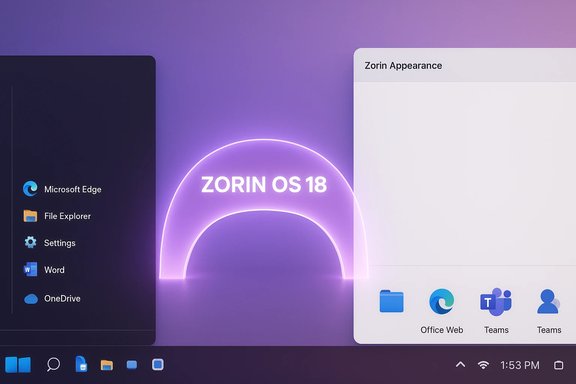
One of Zorin’s most visible features is Zorin Appearance, the control panel that lets you select pre-configured desktop layouts modeled after different operating systems. The Windows-like layouts recreate fundamental elements Windows users expect: a bottom taskbar, Start-style application menu, system tray, and window controls in familiar places. For first-time Linux users this matters more than aesthetic preference—it short-circuits the cognitive friction of learning a new interface.Why it matters for switching from Windows
Muscle memory is surprisingly sticky. Entry-level users often abandon alternatives because simple tasks—finding the Start menu, locating system settings, or managing open windows—feel foreign. By providing an immediate, recognizable environment, Zorin lets people focus on workflow, not rediscovering UI basics.Technical verification and caveats
Zorin Appearance is a first-party tool included in the distribution and has been refined over multiple major releases. It’s a desktop layout system built on top of GNOME; it rearranges shells, panel configurations, and menu styles rather than shipping an entirely different desktop environment. That means you get the look and much of the interaction model of Windows without losing the underlying benefits of modern GNOME-based Linux stacks.However, it’s important to note limits and community-documented quirks. Because the layout system sits atop GNOME, there are edge cases—especially during upgrades or with certain drivers—where the layout may not apply correctly or settings might reset. Community forums have examples of users needing to reinstall or reconfigure the appearance package when layouts stop behaving as expected. In short: the layout tool removes initial intimidation but is not a magic bullet; occasional troubleshooting may be required.
2) Run many Windows programs: Windows App Support and compatibility tooling
What Zorin does
Zorin explicitly packages an improved Windows App Support experience—an integration layer that uses Wine (the Windows-compatibility project) and related tooling to let you open .exe and .msi installers directly. The release also expands a built-in database that recognizes many popular installers and recommends alternatives or compatibility paths. For games and heavier Windows apps, Zorin leans on the broader Proton/WINE ecosystem and supports the Steam client and Proton where applicable.Why it matters
The inability to run essential Windows apps has been one of the longest-standing migration blockers. If your business-critical programs, legacy utilities, or favorite consumer applications will run without major workarounds, migration becomes plausible for many users. Zorin’s approach reduces guesswork: when an installer is detected, the system provides actionable paths—run via Wine, use a web app, try a native alternative, or fall back to virtualization if necessary.Technical verification and caveats
Zorin ships an updated compatibility stack (notably recent Wine releases in the 2024–2025 timeframe) and offers a user-friendly flow to install the “Windows App Support” layer. The reality of application compatibility, however, remains nuanced:- Many productivity apps, legacy small-business utilities, and single-player games run well under Wine or Proton.
- Anti-cheat systems, kernel-level Windows drivers, and certain licensed enterprise tools will not run natively and require virtualization or a hosted Windows VM.
- The compatibility database and detection tool are useful triage aids, but they are not a guarantee; testing each critical application before committing to migration is mandatory.
3) OneDrive and Web Apps: preserving cloud continuity for Microsoft 365 users
What Zorin does
Zorin OS 18 integrates Microsoft OneDrive access into the Files app via desktop Online Accounts and adds a Web Apps utility to convert frequently used websites into standalone desktop entries. Signing into a Microsoft 365 account mounts OneDrive in the file manager sidebar so documents appear alongside local files; Web Apps let users pin Office web, Teams, and other services to the menu or panel like native apps.Why it matters
For many consumers and small organizations, the single largest migration friction point is cloud data and workflow continuity. If users can find, open, and edit OneDrive documents with minimal retraining and without hopping to a web browser every time, the day-to-day pain of switching is reduced significantly. Web Apps act as a bridge for web-first workflows, turning browser tabs into dedicated desktop experiences.Technical verification and caveats
The OneDrive integration leverages the desktop environment’s Online Accounts feature; its behavior is a mounted/browse model rather than a full Windows-style selective-sync client. That distinction has operational consequences:- Files are accessible and openable directly from the Files sidebar, but offline selective sync and “Files On‑Demand” parity with Windows are not guaranteed.
- Authentication and enterprise conditional access rules can complicate corporate Microsoft 365 setups; administrators should test sign-in flows and compliance policies before widescale migration.
- Web Apps provide a practical productivity shortcut for cloud-centric users, but they don’t replace native offline editing in all scenarios.
4) Migration assistant, installer detection, and triage tooling
What Zorin does
Zorin includes migration-focused tooling that scans saved Windows installer files and recommends migration paths—native replacements, web alternatives, Wine/Proton wrappers, or virtualization. The messaging around these tools emphasizes an assessment-first approach: inventory your apps, then plan replacements or compatibility strategies.Why it matters
A guided triage prevents the “try and abort” loop that defeats many switchers. By mapping installers to recommended approaches, Zorin shortens the exploratory phase and reduces the technical barrier for users who would otherwise be overwhelmed by compatibility uncertainty.Practical steps and a recommended checklist
- Create a complete inventory of required applications and workflows.
- Prioritize by business- or productivity-critical apps.
- For each app, test compatibility using the migration assistant and trial runs (live USB sessions, Wine bottles, or a virtual machine).
- Confirm data locations (OneDrive, local files, email archives) and verify access from the Zorin environment.
- Pilot the migration on a spare machine or non-critical profile before full adoption.
Technical verification and limits
The migration assistant is a triage tool, not a converter of Windows kernel behavior. It can point to workable solutions for many mainstream installers, but vertical-market software, device drivers, and tightly coupled Windows services commonly require virtualization or a retained Windows host.5) Performance, hardware compatibility, and long-term support
What Zorin does
Zorin OS 18 is built on a modern Ubuntu LTS baseline, uses a recent hardware-enablement kernel series, and defaults to modern GNOME and PipeWire components for improved audio and device support. There’s also a Lite edition for older or lower-spec hardware and a Pro edition with extra layout and convenience features.Why it matters
A practical migration is not just about looks and apps; it’s about whether the existing hardware can be kept in service without buying new devices. Zorin’s choice of an LTS base and updated kernel series maximizes support for recent chipsets and peripherals while offering a predictable update window for security patches.Technical verification and caveats
The release ships on an Ubuntu LTS foundation and uses a current kernel series to improve device support. This alignment provides multi-year security update expectations and supports a range of app packaging formats (APT, Flatpak, Snap, AppImage). Nevertheless, the following realities matter:- Some Wi-Fi chipsets, printers, and industry-specific peripherals rely on proprietary drivers that have more reliable support on Windows; confirm driver availability.
- GPU drivers for advanced creative work or the latest AAA gaming titles may require vendor packages; confirm proprietary GPU support (NVIDIA/AMD) and test driver behavior for your workload.
- For very old hardware, the Lite edition or an alternate lightweight desktop environment will yield better responsiveness.
Strengths: why Zorin’s approach is effective
- Lowered psychological friction: Familiar layouts and desktop behaviors remove the most common emotional barrier to trying something new.
- Cloud continuity: OneDrive mounting and Web Apps keep files and workflows accessible without heavy retooling.
- Actionable compatibility guidance: The migration assistant and Windows App Support convert vague compatibility hope into practical, testable options.
- Modern technical foundations: An Ubuntu LTS base, recent kernel, and PipeWire reduce hardware and multimedia headaches that historically discouraged Linux desktop adoption.
- Multiple editions: Core, Pro, Education, and Lite editions accommodate a broad set of users, from schools to older laptops.
Risks and real-world limits: what switching users must prepare for
- Application compatibility is never universal: Wine and Proton have improved dramatically, but compatibility gaps remain—anti-cheat systems, kernel-mode drivers, and some licensed enterprise applications will not run natively.
- Cloud and enterprise policies can complicate access: Conditional access, single sign-on (SSO), and device compliance checks in corporate Microsoft 365 setups might block or complicate OneDrive mounting; administrators should test with real accounts.
- Peripheral drivers and specialized hardware: Printers, scanners, certain docking stations, and bespoke hardware sometimes require Windows-only drivers. Confirm vendor support or be prepared for additional configuration time.
- Upgrade and layout edge cases: The appearance/layout system is powerful, but forums document occasional issues following major upgrades or with non-standard driver stacks. Keep backups and a test environment.
- Counting downloads vs. adoption: High download numbers are an encouraging signal, but they do not equal committed, long-term migration. Live-session testing and staged pilots are essential for sustained success.
A practical migration plan for Windows users
- Backup: Create full backups of local files and export email archives and browser bookmarks.
- Inventory: List required applications, devices, and cloud accounts.
- Pilot: Create a live USB and test Zorin on the target machine. Try opening OneDrive files, converting favorite web services to Web Apps, and running critical installers.
- Validate drivers: Confirm Wi‑Fi, Bluetooth, GPU, and printer support. If a device fails, identify whether a proprietary driver or workaround exists.
- Test apps: Use the migration assistant and run a trial for each crucial app. For those that won’t run, plan a virtualization or cloud-hosted Windows fallback.
- Plan rollback: Keep the ability to revert to Windows until you’re ready to commit. Maintain system images and restore media.
- Educate users: Provide short how-tos for email configuration, file locations, and app replacements. Remove surprise by documenting differences ahead of time.
Final assessment: who should try Zorin OS now?
Zorin OS 18 is especially well-suited to three groups:- Home users and students who use web-first services (Office web, Google Docs) and want to preserve device life without costly upgrades.
- Small businesses and non-critical deployments that primarily rely on cloud services and common productivity apps, and can tolerate a staged migration with a few virtualization fallbacks.
- IT-conscious hobbyists and enthusiasts who want a polished, familiar desktop environment with the ability to experiment confidently.
Closing: an accessible bridge, not a one-click replacement
Zorin OS 18 is an intentionally pragmatic release: it doesn’t promise to erase every migration problem, but it does a remarkable job of turning the most common showstoppers into manageable tasks. By focusing on familiarity, cloud continuity, and compatibility triage, the distribution reduces the initial friction that causes many users to abandon trials.The combination of layout choices, OneDrive access, Web Apps, and improved Windows compatibility tooling gives Windows users a realistic path to extend the useful life of existing hardware and to evaluate Linux with practical safeguards. That said, a successful migration depends on careful inventorying, methodical testing, and realistic expectations—especially for specialized applications and peripherals. Zorin provides a confident launchpad for the switch; good planning provides the runway.
For anyone considering the leap, start with the pilot checklist, back up your data, and validate your critical apps. Zorin’s tooling will make that first week feel far less foreign—and for many users, that’s the difference between a fleeting experiment and a durable move away from Windows.
Source: MSN https://www.msn.com/en-us/news/tech...ing-from-windows-feel-effortless/ar-AA1U9NFH]
