

Fortunately, Windows lets you clear that activity list without sacrificing the folders you deliberately pinned for quick access. You can also stop File Explorer from building the list again.
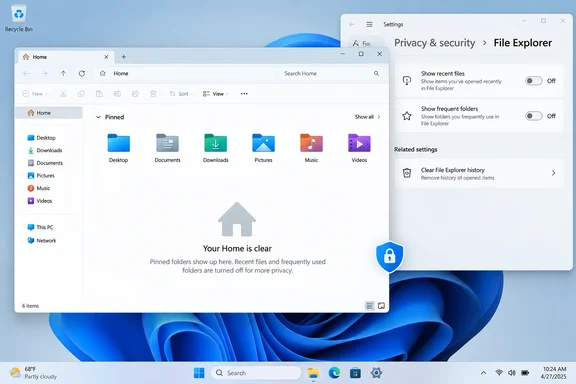 What clearing File Explorer history does
Clearing File Explorer history removes the automatically generated recent-file and frequent-folder entries from Home or Quick access. It does not:
- Delete the original files from your PC or OneDrive
- Remove folders you personally pinned
- Delete documents from an app’s own recent-items list
- Erase browser, Start menu, or Office activity history
Think of it as wiping the reception desk’s visitor log, not bulldozing the building.
Microsoft distinguishes between automatically suggested items and pinned locations. In Windows 11, Home is the modern name for the landing page previously known as Quick access; pinned folders remain available even when recent files and frequent folders are disabled.
Clear all recent files and frequent folders
Windows 11
- Open File Explorer by selecting its taskbar icon or pressing Windows key + E.
- Select the See more button—the three dots in the command bar.
- Choose Options.
- On the General tab, find the Privacy section.
- Select Clear next to Clear File Explorer history.
- Select Apply, then OK.
Return to Home. The automatic recent-file and frequent-folder lists should now be empty, while your manually pinned folders remain in place.
Windows 10
- Open File Explorer.
- Select the View tab on the ribbon.
- Choose Options.
- In the General tab, locate the Privacy section.
- Select Clear beside Clear File Explorer history.
- Choose Apply, then OK.
Windows 10 calls the area Quick access, but the housekeeping job is essentially the same.
Quick takeaway: Use Clear File Explorer history when you want a clean slate immediately but are otherwise happy for Windows to keep showing future activity.
Stop Windows from showing new activity
If you clear the list but leave its tracking options enabled, File Explorer will begin repopulating it as you open files and folders. For a longer-term privacy fix, change the two privacy check boxes in the same Options window.
In Windows 11 Home or Windows 10 Quick access
- Open File Explorer.
- Go to Options:
- Windows 11: See more > Options
- Windows 10: View > Options
- Under Privacy, clear these check boxes:
- Show recently used files in Quick access/Home
- Show frequently used folders in Quick access/Home
- Select Clear to remove items already listed.
- Select Apply, then OK.
The wording may still refer to Quick access on some Windows 11 installations, even though File Explorer’s main landing page is labeled Home. That is a naming wrinkle, not a different setting.
Microsoft’s File Explorer guidance confirms that disabling recent files or frequent folders lets users keep only their pinned folders visible.
Keep pinned folders while removing private activity
This is the setup most people actually want:
- Keep Documents, Downloads, project folders, and network shares pinned.
- Turn off automatic recent files.
- Turn off automatic frequent folders.
- Clear the existing history once.
Pinned folders are intentional shortcuts. Recent files and frequent folders are algorithmic guesses based on activity. Those guesses can be useful—but they can also reveal the name of a sensitive spreadsheet, a medical document, a job application, or that mystery folder called “Final_FINAL_v7_reallyfinal.” No judgment. File names have survived worse.
To pin a folder, right-click it in File Explorer and choose Pin to Quick access. To remove only a pinned shortcut, right-click it and choose Unpin from Quick access. Neither action deletes the actual folder or its contents.
Remove one item instead of clearing everything
If only one file or folder is awkwardly visible, you do not need to erase the whole list.
- Open Home in Windows 11 or Quick access in Windows 10.
- Right-click the unwanted recent item.
- Choose the removal option offered in the context menu, commonly labeled Remove from Quick access.
This hides that entry from the File Explorer activity view; it does not delete the file. Microsoft documents this as a way to remove an unwanted item even when it is used regularly.
Optional: Open File Explorer to This PC instead
Disabling activity lists keeps Home cleaner, but you may prefer to bypass Home entirely.
In File Explorer Options on the General tab:
- Find Open File Explorer to.
- Select This PC.
- Choose Apply, then OK.
This PC emphasizes drives and traditional locations rather than activity-based suggestions. It is a practical choice for shared PCs, workstations handling sensitive files, and anyone who simply wants Explorer to get to the point.
If recent items reappear
If the list fills up again, check the two Privacy options first. They may still be enabled, or a Windows update may have restored a default preference. Clear the history again after disabling them.
Also remember that File Explorer history is only one layer of Windows activity. A file may still appear in:
- An application’s Recent list
- Microsoft 365’s recent-document views
- The Start menu’s recommendations
- OneDrive or SharePoint’s online recent-file lists
Clearing File Explorer history is therefore a focused privacy cleanup, not a universal eraser. It controls what appears in File Explorer Home or Quick access—and, for everyday use, that is usually the screen most likely to give away yesterday’s work before the coffee has kicked in.
Windows 10 users should also note that Microsoft ended free Windows Update security fixes and technical support for the operating system on October 14, 2025. The Quick access steps remain useful on existing installations, but moving supported PCs to Windows 11 is the safer long-term plan.