

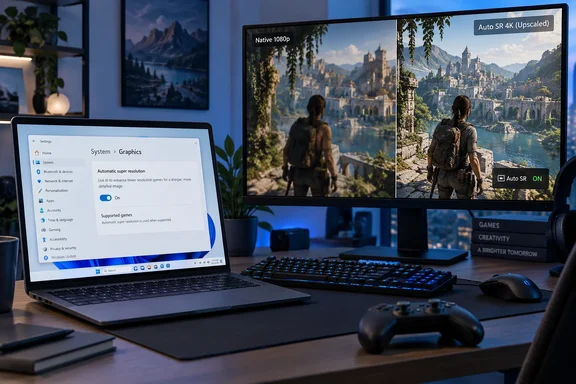
 Check whether your PC and game are eligible
Before looking for the switch, confirm that your device meets Auto SR’s current hardware and software requirements. The setting does not appear on unsupported PCs, and installing a graphics driver or changing a registry setting will not add it.
Your PC needs all of the following:
Quick walkthrough
- Windows 11, version 24H2 or later, with current Windows updates installed.
- A supported device:
- A Copilot+ PC with a Snapdragon X or Snapdragon X2 Series processor and Hexagon NPU.
- A Copilot+ PC with an Intel Core Ultra Series 3 processor.
- A ROG Xbox Ally X, enrolled in Xbox Insiders and connected to an external display.
- A display resolution of at least 1920 × 1080 (1080p).
- Current graphics and neural-processing drivers.
- The current Auto Super Resolution Package from the Microsoft Store.
- A compatible game: DirectX 10 or later, running as native x64, x64 under emulation, or Arm64.
Auto SR does not support DirectX 9, Vulkan, OpenGL, x86-only games, or games using certain formats such as 10-bit formats. It also does not currently support HDR content. If you want to use HDR in a compatible game, turn Auto SR off for that game.

Check your Windows version
- Press Windows key + R.
- Type
winver, then select OK. - Confirm that the dialog reports Version 24H2 or later.
If the version is earlier than 24H2:
- Open Start > Settings > Windows Update.
- Select Check for updates.
- Install available updates and restart when Windows requests it.
- Return to Windows Update after restart and check again until there are no pending feature or quality updates.
Update the components Auto SR depends on
- Open Start > Settings > Windows Update.
- Select Check for updates and install offered updates.
- Restart the PC if required.
- Open the Microsoft Store.
- Check for updates to the Auto Super Resolution Package.
- Also install current graphics and neural-processing driver updates provided through Windows Update or your PC manufacturer.
A restart is not required merely to switch Auto SR on, but it may be necessary after Windows, driver, or Store-component updates.
Turn on Auto SR for all compatible games
The global setting is useful if you generally want Windows to apply Auto SR whenever a supported game starts at a compatible resolution. It remains an opt-in feature: turning it on does not force Auto SR into games that do not meet the game, display-mode, and resolution requirements.
- Open Start > Settings.
- Select System.
- Select Display.
- Select Graphics.
- Under Default settings, find Automatic super resolution.
- Turn Automatic super resolution On.
Windows will now allow Auto SR for supported games by default. You may still need to lower a game’s rendering resolution and choose a supported display mode before the feature becomes active.
To disable Auto SR globally, return to Settings > System > Display > Graphics and turn Automatic super resolution Off. This stops Auto SR from applying by default, but a per-game preference may still override the global choice.
Enable or disable Auto SR for one game
Per-game settings are the best approach when you want Auto SR only for selected games, or when one game has blurry text, visual artifacts, compatibility problems, or an image-quality result you do not like.
A per-game choice overrides the global Auto SR default:
- To use Auto SR for only selected games, turn the global default Off, then enable Auto SR for each game you want.
- To use it for most games except a few, turn the global default On, then turn Auto SR Off for games you want to exclude.
- Close the game if it is running.
- Open Start > Settings > System > Display > Graphics.
- Under Custom settings for applications, locate the game.
- If the game is not listed, add its executable file:
- Select the option to add a desktop app.
- Browse to the game’s
.exefile. - Select the executable to add it to the list.
- Select the game from the application list.
- Find the Automatic super resolution toggle.
- Set it to On to enable Auto SR for that game, or Off to exclude the game.
Launch the game after changing the setting. If Windows tells you a restart is needed, exit the game completely and start it again.
Set a resolution that lets Auto SR activate
Auto SR works by enhancing a game that is rendering below 1080p. A game can be enabled for Auto SR yet remain inactive because it is running at an unsupported resolution or display mode.
For best results, Microsoft’s recommended input-resolution ranges are device-specific:
- Snapdragon-based Copilot+ PCs: closest to 1280 × 800.
- Intel-based Copilot+ PCs: from 1280 × 800 up to 1920 × 1080.
- ROG Xbox Ally X: 1280 × 720.
The exact resolutions available to you can vary by device. Windows lists the resolutions it can use for Auto SR in the per-game graphics settings.
Use the game’s own graphics menu first
For games that offer a usable resolution control, the game’s graphics settings are usually the simplest method.
- Start the game.
- Open its Graphics, Video, or Display settings.
- Look for Resolution or Render resolution.
- Choose a lower, supported resolution suitable for your device.
- Set Display mode to Fullscreen or Exclusive Fullscreen when the game offers those choices.
- Apply the setting.
- Restart the game if prompted by Windows or the game.
Do not assume Auto SR will improve every setting combination. A very low render resolution can increase performance but may make small UI elements, subtitles, inventory text, map labels, or fine lines less clear before Windows upscales them. Start close to the recommended resolution for your device, then test one lower setting only if you need more performance.
Have Windows change display resolution for a specific game
Some games use borderless windowed mode only, do not expose a separate rendering-resolution control, or ignore the resolution you select in their own menu. Windows can automatically switch the display to an Auto SR-capable resolution while that game runs and restore your normal desktop resolution after the game closes.
Warning: This changes the display resolution while the selected game is running. Your desktop may briefly resize or flicker when the game starts and exits. Do not use this option if a particular game, capture workflow, or multi-monitor setup becomes unstable when the display mode changes.
- Open Start > Settings > System > Display > Graphics.
- Under Custom settings for applications, select the game.
- Find Maximum display resolution.
- Open the drop-down list.
- Choose one of the listed Auto SR-capable resolutions.
- Start the game.
Windows changes the display to that resolution at launch, prevents the game from seeing higher display resolutions, and restores the original display resolution after you quit the game.
To undo this behavior:
- Return to Settings > System > Display > Graphics.
- Select the game.
- Set Maximum display resolution back to Off.
Use Xbox Game Bar to configure and check Auto SR while playing
Xbox Game Bar provides an in-game way to enable Auto SR for the currently running game and see why it is or is not active.
- Start a compatible game.
- Press Windows key + G to open Xbox Game Bar.
- Open the Widgets Menu.
- Select Display.
- Open the Auto SR tab.
- Turn on Always use with this game.
- Optionally turn on Show in-game status indicator.
When Auto SR is active, the status indicator can appear in the game window. The Display widget also reports the current state:
- On means Auto SR is actively enhancing the game.
- Off, Action Required means it is enabled, but the current resolution is unsupported or the game must be restarted.
- Off means Auto SR is disabled for that game.
The Game Bar setting is equivalent to the game-specific Auto SR setting in Windows Settings. You do not need to configure both.
If Game Bar is unavailable, Windows may show a Use Auto SR notification the first time you start a supported game. Select Turn on to enable Auto SR for that game. If the game is already at compatible display settings, Windows activates it immediately. Otherwise, follow the notification’s request to change resolution or restart the game.
Verify that Auto SR is working
Do not judge success only by whether the per-game toggle is on. Confirm that the feature is actually active during gameplay.
- Start the game with Auto SR enabled.
- Make sure the game uses a supported lower resolution and, where available, Fullscreen or Exclusive Fullscreen mode.
- Press Windows key + G.
- Open Widgets Menu > Display > Auto SR.
- Check that the current status is On.
If you enabled the in-game status indicator, you can also use that overlay as a quick confirmation.
For a meaningful comparison, test the same game scene with Auto SR off and on. Keep the same in-game graphics preset, resolution, display mode, and frame-rate cap. Look beyond the frame-rate number: pay attention to foliage, transparent effects, fast motion, HUD text, subtitles, crosshairs, and fine geometry. Auto SR can deliver a better balance of image quality and performance, but its visual benefit and any artifacts depend on the game and the chosen input resolution.
Troubleshoot image-quality or activation problems
The Automatic super resolution setting is missing
The most common reason is unsupported hardware. Auto SR is not a general-purpose feature for all Windows 11 PCs or all discrete GPUs.
Check the following:
- Confirm Windows 11 is version 24H2 or later with
winver. - Install all available updates from Settings > Windows Update.
- Update the Auto Super Resolution Package in Microsoft Store.
- Update graphics and neural-processing drivers.
- Confirm the PC is one of the supported Copilot+ PC configurations or a supported ROG Xbox Ally X configuration.
- Confirm the display is 1080p or higher.
If the option remains absent after updates, treat the PC as unsupported rather than attempting registry modifications or third-party “enablers.”
Auto SR is enabled, but the Game Bar status says “Off, Action Required”
The game is usually running at a resolution or display mode Auto SR cannot use.
- Open the game’s graphics settings.
- Choose a lower supported resolution.
- Select Fullscreen or Exclusive Fullscreen if available.
- Apply the changes.
- Exit the game completely.
- Launch it again and recheck the Auto SR tab in Game Bar.
If the game has no useful resolution setting, configure Maximum display resolution for that game in Settings > System > Display > Graphics.
Text, menus, or HUD elements look soft or distorted
This is a known tradeoff of rendering at a lower input resolution. Fine UI elements can be difficult for a game to render cleanly before upscaling.
Try these changes in order:
- Raise the game’s render resolution to the next supported option.
- Keep Auto SR enabled and test again in the same scene.
- If the game has separate render resolution and display resolution controls, raise only the render resolution first.
- If the problem remains, disable Auto SR for that game in Settings > System > Display > Graphics > Custom settings for applications.
Use a per-game exclusion rather than turning Auto SR off globally if it works well in other games.
HDR no longer works or looks wrong
Auto SR does not support HDR content. Choose the feature that matters more for that game:
- To use HDR, turn Auto SR Off for that game.
- To use Auto SR, disable HDR in the game or Windows as appropriate for your setup.
Do not attempt to force both features together through third-party utilities.
Screenshots look lower-resolution than the image on screen
Game Bar, Snipping Tool, and similar capture tools generally capture the game window rather than the larger Auto SR-enhanced image shown on the display. This is expected behavior with Auto SR’s display-pipeline integration. Use the in-game status indicator or the Game Bar Auto SR status to confirm the feature is active instead of relying on a screenshot.
A game crashes, has artifacts, or performs worse
First, turn Auto SR off only for the affected game:
- Exit the game.
- Open Settings > System > Display > Graphics.
- Select the game under Custom settings for applications.
- Turn Automatic super resolution Off.
- If you set a Maximum display resolution, change it to Off.
- Start the game again at its normal resolution and display mode.
If disabling Auto SR resolves the issue, leave the per-game exclusion in place. If the issue continues with Auto SR disabled, restore the game’s original graphics settings and investigate the game, driver, or hardware separately.