

0x0000007E blue-screen error—displayed as SYSTEM_THREAD_EXCEPTION_NOT_HANDLED—means a Windows system thread hit an exception that its error handler could not catch. It does not diagnose RAM by itself, and it does not automatically prove that the last driver named on screen is guilty. The practical fix is to establish what changed before the crashes began, isolate suspect drivers in Safe Mode, test memory, and only then repair Windows components.Microsoft’s debugger documentation identifies 0x7E as an unhandled exception in a system thread. Its first bug-check parameter records the exception code, while the second is the address where it occurred. For ordinary PC troubleshooting, that distinction matters: the stop code describes the kind of kernel failure, while the failing driver, a recent hardware change, corrupted Windows files, firmware, or unstable memory may be the cause.
Start by preserving the evidence rather than repeatedly rebooting into the same crash.
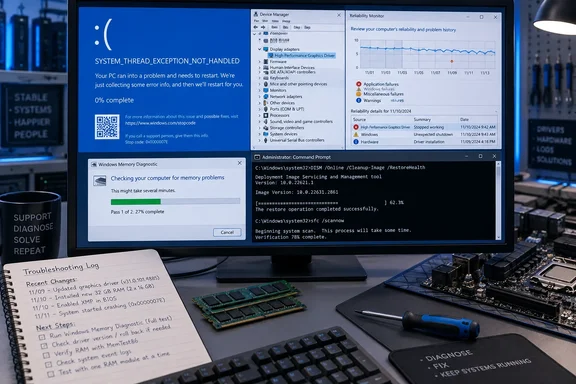 Record the stop code and the crash timeline
If the blue screen remains visible long enough, photograph it. Capture the full stop code and any text after “What failed”—for example, a file ending in .sys. A named driver is a valuable lead, but do not download a replacement merely by searching that filename. Driver filenames are often shared across versions, and third-party “driver updater” utilities can replace a stable OEM package with an inappropriate generic one.
Next, open Reliability Monitor. Press Win + R, enter:
perfmon /rel
Reliability Monitor presents application failures, Windows failures, driver-install events, and hardware reports in a date-based view. Look at the day the 0x7E crashes began, then work backward for changes that align with it:
- A graphics, Wi-Fi, storage, audio, USB, VPN, antivirus, RGB-control, virtualization, or motherboard utility driver was installed or updated.
- A cumulative Windows update, firmware update, BIOS change, new peripheral, docking station, PCIe card, RAM kit, or USB device appeared immediately before the failures.
- The machine fails only while gaming, waking from sleep, copying files, using a particular dock, or connecting to a certain network.
The point is to form a testable suspect list. “Windows crashed” is not enough to justify uninstalling chipset, storage, or security drivers at random.
Microsoft’s general blue-screen guidance likewise recommends checking the system logs around the crash time and looking for a device or driver that can be identified. In Event Viewer, open Windows Logs > System and inspect Error and Critical entries from the same minute as the stop event. A driver-install failure, disk warning, device reset, or service crash immediately before the reboot is more useful than a generic Kernel-Power event logged after Windows has already gone down.
Use Safe Mode to remove the driver variable
If Windows boots normally but crashes soon afterward, enter Safe Mode before changing drivers. Safe Mode starts Windows with a minimal driver and service set, which makes it useful for undoing a recent driver change that is unstable in the normal boot environment.
From a working desktop, hold Shift while selecting Restart, then choose:
Troubleshoot > Advanced options > Startup Settings > Restart
After the next reboot, select 4 or F4 for Safe Mode. Choose 5 or F5 only if you need networking to obtain a driver from Windows Update or the PC manufacturer. If repeated crashes prevent sign-in, Windows should eventually enter the Windows Recovery Environment after unsuccessful starts; the same Startup Settings route is available there.
Once in Safe Mode, open Device Manager by right-clicking Start and selecting Device Manager. Prioritize devices that match the timeline you built in Reliability Monitor. Expand the likely category—such as Display adapters, Network adapters, Storage controllers, Sound, video and game controllers, Universal Serial Bus controllers, or Bluetooth—and open the device’s Properties > Driver tab.
Use the least disruptive correction first:
- If crashes began right after a driver update and Roll Back Driver is available, roll back that one device and restart normally. This returns to the prior driver package rather than introducing another variable.
- If no rollback is available, use Update driver and first check Windows Update, including optional driver updates where appropriate.
- If Windows Update does not provide a suitable driver, download the package from the PC maker for laptops and prebuilt desktops, or from the motherboard, GPU, or device manufacturer for self-built systems.
- If a recent optional peripheral driver is the clear suspect, disable the device temporarily. If the crashes stop, uninstall its driver package and reinstall a current vendor-supported version.
Microsoft specifically advises Device Manager checks for devices marked with a warning icon and recommends updating, disabling, or uninstalling a suspect device when updating does not resolve a blue-screen problem. Its display-driver guidance also confirms an important limitation: Roll Back Driver is unavailable when Windows has no previous driver package stored locally. Its absence does not mean the current driver is healthy.
Avoid uninstalling the storage controller, chipset driver, or system-critical boot driver on a hunch. If the suspected component is a GPU, Wi-Fi adapter, USB dock, printer, capture device, or third-party security tool, temporary removal is usually a safer isolation step. If the suspect is the system disk controller or an enterprise endpoint agent, obtain the approved package and change plan before proceeding.
Do not disable Memory Integrity simply to make an old driver load. Microsoft warns that turning it off reduces the protection state of secured-core PCs. A compatible current driver is the remedy; disabling a security feature should not become the permanent workaround for a driver that should have been replaced.
Test RAM without treating one result as a verdict
Faulty or marginal RAM can produce 0x7E crashes, particularly when the system has just had memory added, memory profiles changed, overclocking enabled, or a laptop docked under heavy load. Microsoft’s 0x7E documentation includes memory conflicts and hardware incompatibilities among possible causes. But a 0x7E screen alone cannot separate a defective memory module from a driver that accessed memory incorrectly.
Run the built-in Windows Memory Diagnostic after saving open work. Press Win + R, type:
mdsched.exe
Select Restart now and check for problems. The PC restarts into the diagnostic, and the test runs before Windows loads. After sign-in, Windows may show the result as a notification. If it does not, open Event Viewer and search the System log for MemoryDiagnostics-Results.
Microsoft documents that an Event ID 2001 result indicates that no memory errors were detected. Treat that as a useful result, not a clean bill of health under every possible workload. The built-in test checks memory during a finite diagnostic pass; intermittent faults, heat-related instability, incompatible XMP or EXPO settings, a poor DIMM seating, or a problem that appears only under sustained load can evade a single basic test.
If Windows Memory Diagnostic reports an error, stop chasing drivers first. Shut the machine down, return memory settings to stock values, reseat the modules if the hardware is serviceable, and test one module at a time if there are multiple DIMMs. For a business PC, laptop, or system under warranty, record the diagnostic result and use the manufacturer’s hardware service path rather than opening sealed hardware.
If the test passes but the crashes began after adding RAM, remove the new kit or restore the previous configuration temporarily. A return to stability after that change is stronger evidence than the stop code itself.
Repair the Windows image only after the hardware and driver checks
System-file repair is appropriate when the crash history suggests corrupted Windows components, when SFC reports integrity problems, or after a bad driver or forced restart may have damaged the component store. It is not a substitute for removing a clearly failing driver or repairing bad RAM.
Open Command Prompt as administrator and run Microsoft’s recommended order:
DISM.exe /Online /Cleanup-Image /RestoreHealth
Allow DISM to complete. It normally uses Windows Update to obtain repair content, so an internet connection is helpful. Then run:
sfc /scannow
Microsoft recommends DISM before System File Checker because DISM repairs the Windows component source SFC may need. SFC then verifies protected system files and replaces incorrect versions with known-good copies. Do not close the elevated Command Prompt before the scan reaches 100 percent.
The result determines the next move:
- If SFC reports no integrity violations, Windows system files are unlikely to explain the crash, and attention should return to the driver, firmware, peripheral, or memory timeline.
- If SFC repairs files successfully, restart and observe whether the same 0x7E recurs during the workload that previously caused it.
- If SFC cannot complete, Microsoft advises running it from Safe Mode. If it identifies corruption it cannot repair, do not assume a reset is mandatory; inspect the repair logs and address the identified component or recovery path.
A successful DISM or SFC run means Windows files were repaired. It does not validate third-party kernel drivers, firmware, or physical memory.
When the next step is firmware, hardware service, or a dump file
If 0x7E continues after a targeted driver rollback or replacement, a clean memory test, and successful component repair, check the PC or motherboard manufacturer’s support page for BIOS/UEFI, storage firmware, Thunderbolt or USB4 dock firmware, and chipset updates. Microsoft’s 0x7E guidance explicitly points to ACPI and other firmware updates as possible remedies, particularly where hardware compatibility is involved.
For repeatable crashes on managed PCs, collect the small memory dump from C:\Windows\Minidump before changing more drivers. An administrator with WinDbg can inspect the exception code, failing address, loaded driver stack, and crash history. This is the point where “probably caused by” output must be read carefully: a Windows kernel filename often appears because the kernel detected the failure, not because the kernel component created it.
Windows 10 machines deserve an additional operational check. Windows 10 Home and Pro reached end of support on October 14, 2025; organizations using Windows 10 should confirm whether the device is on an applicable LTSC lifecycle or enrolled in Extended Security Updates. A driver crash can be fixed on an unsupported installation, but a stable recovery should not be mistaken for a supported platform plan.
The safe sequence is simple: identify the first change, undo or replace one suspect driver at a time, test RAM when the evidence points to it, then run DISM and SFC. If 0x7E remains reproducible after those steps, preserve the dump and escalate with the hardware model, Windows build, exception code, and the exact driver version—not just the blue-screen name.