

Microsoft’s current Sticky Notes documentation says the app can be used on Windows 10 and Windows 11 without signing in, but cross-device access requires every device to use the same Microsoft account. That design creates the most common source of confusion: notes can look safely stored on one computer even though they were never uploaded anywhere.
Microsoft Support documents the account and manual-sync steps below, while Windows Central has separately reported that signing out and back in can trigger synchronization in some newer Sticky Notes and OneNote configurations. Start with the least invasive checks, and only repair or reset the Windows app after you know whether your notes have reached Microsoft’s service.
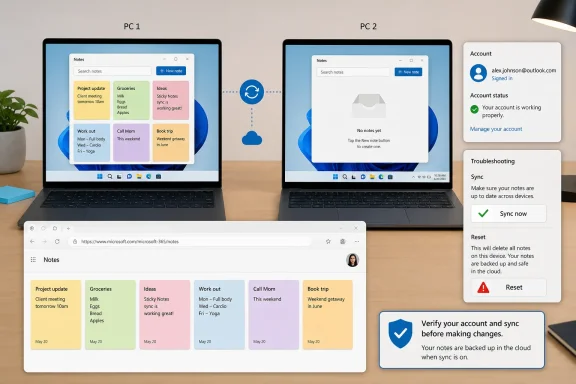 Check whether the notes exist online first
Open a browser and sign in to Sticky Notes on the web with the Microsoft account you believe you used on the affected Windows PC. Microsoft routes synced Sticky Notes through its OneNote web experience, and the same data can also surface through Outlook.
If the missing notes are visible online, the good news is clear: the notes are already in Microsoft’s cloud storage. Your problem is limited to the Windows client, its account session, or its sync state. You can proceed with sign-in, updating, repair, and even reset with substantially less risk.
If the notes are not visible online, stop treating the issue as a simple sync delay. The notes may be tied to a different Microsoft account, may have been created while signed out, or may still exist only in the affected PC’s local Sticky Notes data. Before repairing or resetting anything, copy any visible notes to a text file or another safe location.
This order is important because a working local note is not proof that it was synced. Microsoft explicitly allows Sticky Notes to operate without an account on Windows; without sign-in, the app can retain notes locally but has no account identity to use for cross-device sync.
Confirm the exact Microsoft account in Sticky Notes
On the Windows PC that has the correct notes, open Sticky Notes and switch to the Notes list if you are looking at a single note. Select the Settings gear in the upper-right corner, then look for the account section.
If Sticky Notes shows Sign in, it is not currently configured to sync notes across devices. Select Sign in, enter the Microsoft account you want to use, and complete the prompt. This can be a personal Outlook.com, Hotmail, or Microsoft account; it does not need to match the account used to sign in to Windows itself.
If an account is already shown, compare the full email address carefully with the one used on the other PC, phone, tablet, OneNote app, and browser. “Same account” means the same email identity, not merely two accounts that belong to the same person. A personal Microsoft account and a work Microsoft 365 account are separate storage locations even when they use similar names or are both listed in Windows Settings.
There is also no separate, universal “turn sync on” switch documented for the Windows Sticky Notes app. The effective sync controls are the signed-in account and the Sync now command. If a guide sends you looking for a master sync toggle in Windows Settings, it is likely describing a different app or an older interface.
Once you have confirmed the account, select Sync now in Sticky Notes Settings. Leave the app open briefly, then refresh the web view and check the second device. Microsoft recommends this manual sync step when the app is current and the account is correct but notes have not appeared elsewhere.
Update Sticky Notes before repairing it
Microsoft says outdated Sticky Notes versions may continue working only on the local device while losing cloud synchronization. Its troubleshooting guidance specifically flags versions earlier than 3.7.106 as unable to sync, although the practical advice today is simpler: install every available Sticky Notes update from Microsoft Store rather than relying on an old version number.
Open Microsoft Store, search for Microsoft Sticky Notes, and select Update if it is offered. Then reopen the app, return to the Notes list, confirm the account again, and choose Sync now.
Also update the app used on the other device. On iPhone, iPad, and Android, Microsoft says Sticky Notes are available through OneNote; an outdated OneNote installation can therefore make a Windows-side problem appear worse than it is. Update OneNote from the relevant mobile app store, sign into the same account, and look for the Sticky Notes section there.
Do not confuse the close button on an individual note with deletion. In modern Sticky Notes, closing a note normally returns it to the Notes list rather than erasing it. Actual deletion remains permanent, according to Microsoft, so search the Notes list and the web view before assuming a note vanished.
Repair Sticky Notes in Windows 11 or Windows 10
If the notes are confirmed online but Windows still will not display or update them, use Windows’ Repair option before Reset. Repair is designed to correct an app that is malfunctioning without making Reset the first response.
In Windows 11, open Settings > Apps > Installed apps, find Microsoft Sticky Notes, select the three-dot menu, then choose Advanced options. Select Repair if the button is available. Once Windows finishes, launch Sticky Notes, make sure the correct account is present, and choose Sync now again.
In Windows 10, open Settings > Apps > Apps & features, select Microsoft Sticky Notes, then choose Advanced options and select Repair. The location differs slightly, but Microsoft’s prescribed order is the same: Repair first, Reset only if Repair is unavailable or does not resolve the problem.
Repair is appropriate when notes are available in the browser but the desktop app freezes, opens blank, refuses to update, or keeps showing old content. It cannot fix the wrong Microsoft account, an account without cloud-backed notes, an organization’s policy, or a mailbox problem. Those are account and service conditions, not damaged-app conditions.
Reset only after you have protected the notes
Use Reset from the same Advanced options page only after you have checked the web view and copied any notes that exist solely on the PC. Microsoft’s Windows app recovery guidance places Reset after Repair, and its Sticky Notes guidance offers cloud export for notes that were already synced. Neither is a substitute for preserving notes that have not yet reached the service.
Reset returns the application to its initial state and can clear the local data it relies on. That is acceptable when your notes are safely visible online: reset Sticky Notes, open it again, sign into the verified account, and select Sync now. The cloud copy should then repopulate the app.
It is a poor gamble when the web view is empty but the desktop still contains important notes. In that situation, first copy the visible text manually. Windows Central has also documented a more advanced recovery path involving the local Sticky Notes database file, but that is a recovery technique for readers comfortable handling local app data—not a beginner fix to attempt before making a backup.
If Reset succeeds but Sticky Notes is still absent or will not open, reinstall it from Microsoft Store. Reinstalling addresses a broken package installation; it does not restore notes that were never synced.
Work and school accounts need an Exchange Online mailbox
A corporate sign-in adds one major exception. Microsoft says Sticky Notes syncing for work or school accounts requires an Exchange Online mailbox. On-premises Exchange mailboxes are not supported for Sticky Notes syncing, and an organization can also disable the feature through policy.
If Sticky Notes displays a message saying it requires an Exchange Online mailbox, resetting the Windows app will not resolve it. New or edited notes made while that error is displayed will not sync, so copy them somewhere safe and contact the Microsoft 365 administrator. The admin needs to verify that the user has an Exchange Online mailbox and that Sticky Notes synchronization has not been blocked.
Mailbox capacity can matter as well. Microsoft stores synced Sticky Notes in Outlook or Exchange, where they count toward the account’s mailbox quota alongside mail, calendar items, attachments, and contacts. If a work or personal mailbox is full, free space before expecting new notes to upload.
Windows 10 users should also keep the platform status in mind: Microsoft ended free Windows 10 security updates and technical support on October 14, 2025. Sticky Notes troubleshooting remains possible on existing installations, but an unsupported Windows 10 PC should not be kept online solely to preserve a local-only note collection.
The decisive checkpoint is the browser view: if the notes appear there, repair or reset the Windows client as needed; if they do not, preserve what remains on the original PC before trying any reset.