

The fastest fix is therefore not “try the same button harder.” It is to identify which package manager owns the package, refresh that manager’s data, and reproduce the failing action once outside the GUI. Think of UniGetUI as the dashboard: helpful, handsome, and not personally responsible when the engine light comes on.
 Start with the failed operation, not the update list
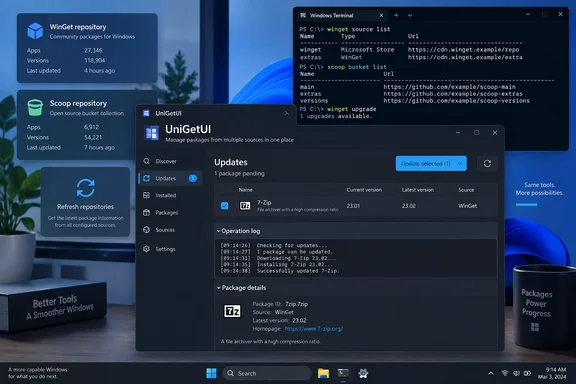
First, open the update operation that failed in UniGetUI and read the detailed output. Recent versions keep an operation history of up to 1,000 operations and retain up to 5,000 log lines for each, while active operation cards can open a live log.
Look for these details:
- Package manager: WinGet, Scoop, Chocolatey, or another backend.
- Package ID: More useful than the friendly app name. “Visual Studio Code” can map to different packages depending on its source.
- Exact failure: A download URL, hash mismatch, access-denied message, source error, or installer exit code.
- The generated command: This is the cleanest way to test whether the problem belongs to UniGetUI or the package manager.
What the result tells you
| What you see | Likely meaning | Best next move |
|---|---|---|
| Package is “pending” indefinitely | A previous process, installer prompt, or locked app may be blocking completion | Close the target app, restart UniGetUI, then retry one package |
| Source cannot be reached | Repository metadata is stale, blocked, or damaged | Refresh the relevant source |
| Access denied or elevation required | The installer needs administrative privileges | Retry only that trusted package with elevation |
| Hash mismatch | The package definition and downloaded installer do not agree | Do not bypass it; wait for a corrected package definition or use the vendor’s updater |
| No update is found | The backend may not yet have a revised manifest, or the installed version cannot be reliably matched | Verify with the backend command and confirm the package ID/source |
The key point: a failed update is evidence, not a verdict. A red status badge tells you that something went wrong; the operation log tells you where the wheels came off.
Refresh WinGet sources first
For packages marked as WinGet, open Windows Terminal, Command Prompt, or PowerShell and run:
winget source list
winget source update --open-logs
winget source list shows the registered repositories, while winget source update refreshes them. Microsoft documents the default sources as msstore, winget, and the explicit winget-font source; explicit sources are only used when a command specifically targets them.
A successful refresh should complete without source-opening or download errors. Return to UniGetUI afterward, allow it to rescan, and check whether the missing update or failed package has changed state.
If the source refresh fails, create a more detailed record:
winget source update --verbose-logs --open-logs
Microsoft says WinGet logs normally live under the current user’s Local AppData package folder, and winget --info can confirm the active log location. The --verbose-logs option adds detail about communication with package sources and content delivery endpoints.
Reset sources only as a last resort
If source refresh consistently fails and you do not depend on custom WinGet repositories, open an elevated Terminal and use:
winget source reset --force
winget source update
This is deliberately a last-resort repair. Microsoft warns that source reset removes all sources except the defaults, and it requires elevation because it changes the user’s source configuration. If your PC uses a work, lab, or private repository, export or record its settings before resetting:
winget source export
Do not casually add random replacement sources from forum posts. Microsoft’s own guidance is blunt: use secure, trusted sources only.
Repair the Scoop side separately
A Scoop package needs a Scoop repair, not a WinGet repair. In PowerShell, run:
scoop update
That updates Scoop itself and refreshes local manifests. Then test the individual package:
scoop update <app-name>
For example, replace <app-name> with the Scoop package name shown in UniGetUI’s operation log. Scoop’s documentation recommends updating Scoop and its manifests before updating an individual application; scoop update * updates all Scoop-managed apps, but it is wiser to prove the single troublesome package first.
If the command works in PowerShell but fails in UniGetUI, preserve the UniGetUI operation log and note whether UniGetUI is running under the same Windows account. If it fails in both places, the backend message—such as a missing file, Git/network failure, or inaccessible download—is the real problem to solve.
Avoid confusing scoop reset with a source refresh. Scoop documents reset as a way to switch an installed app back to an already installed version; it is not the first-line cure for an update discovery problem.
Test the exact WinGet package outside UniGetUI
For a WinGet-managed app, copy its package ID from the UniGetUI log or details panel and test it directly:
winget upgrade --id <package-id> --verbose-logs
If that command fails the same way, UniGetUI has done its job by exposing the backend failure. The project’s own FAQ makes the same distinction: when a specific WinGet package cannot be upgraded, test it directly with winget upgrade or winget install before treating it as a UniGetUI defect.
This direct test also separates three common cases:
- The package manager finds no upgrade.
The repository may not yet include the new release, or it may not identify your installed app as the same package. - The package manager finds the upgrade but the installer fails.
Close the app, check whether a reboot is pending, and read the installer’s exit code or message in the log. - The package manager works, but UniGetUI does not.
Update UniGetUI and retain the operation log for a bug report.
As of UniGetUI version 2026.3.0, released September 15, 2026, the Installed Packages page includes both Update and Update as administrator actions. That release also improved messages for unavailable installers, already-current packages, and WinGet hash mismatches.
Use elevation precisely, not permanently
Administrative rights are often necessary for machine-wide installers, services, drivers, or applications installed under protected locations. They are not a magic seasoning to sprinkle over every failed update.
Use Update as administrator only when:
- UniGetUI or the installer explicitly asks for it.
- The app is trusted and you expected it to install for all users.
- The log reports an access or privilege problem.
Do not elevate merely because a repository refresh failed; refresh and inspect the source error first. Likewise, do not run a blanket “update everything as administrator” operation just to defeat one stubborn package. That is how a simple app refresh becomes a surprise change-management exercise.
When the update is real—but still unavailable
Sometimes UniGetUI is behaving correctly even though the publisher has released a newer version. The package manager’s source must first receive and publish the corresponding manifest or package metadata. Until that happens, the GUI has nothing authoritative to offer.
A good sanity check is:
- Compare the installed version in UniGetUI with the publisher’s announced release.
- Run the matching backend’s direct update command.
- Confirm the package’s source and ID.
- Wait for repository metadata to catch up if the backend also reports no applicable update.
Conversely, if UniGetUI says an update is available but the software is already current, do not force it blindly. Version detection can become ambiguous when an app updates itself, changes its installer packaging, or was originally installed from a different channel.
A safe 15-minute recovery checklist
- Close the target application and any installer windows.
- Open the UniGetUI operation log and identify the package manager and package ID.
- Refresh WinGet with
winget source update --open-logs, if it is a WinGet package. - Refresh Scoop with
scoop update, if it is a Scoop package. - Retry one affected package, not the entire update queue.
- Run the backend command directly with verbose logging if the retry fails.
- Elevate only the affected update if the log shows a permissions requirement.
- Reset WinGet sources only after exporting or recording custom sources.
- Update UniGetUI if command-line tests succeed but its operation still fails.
- Keep the log and exact command output if you need to report a defect.
The practical lesson is reassuringly unglamorous: package updates fail at boundaries—between the GUI, repository, network, installer, and Windows permissions. Once you test the correct boundary, the mystery usually shrinks from “UniGetUI is broken” to something far more fixable.
For related troubleshooting, WindowsForum readers may also want to consult coverage of WinGet source repair, App Installer maintenance, Windows Terminal logging, and safe package-management practices.