

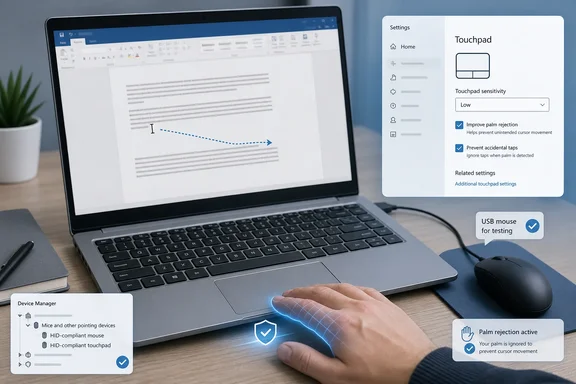
The confusing part is its name. Touchpad sensitivity is also a palm-rejection control, not simply a cursor-speed setting. Lowering it makes Windows ignore more touchpad activity after you type, which is often exactly what stops accidental clicks and cursor jumps. If the pointer still misbehaves after that adjustment, move on to Windows Update and a controlled driver reinstall rather than downloading a generic driver from a third-party site.
 Confirm that the touchpad is causing the jump
First, reproduce the problem in a simple app such as Notepad. Type a few lines with your normal hand position. If the insertion point suddenly moves, text becomes selected, or a menu opens, watch whether a palm or thumb is brushing the lower edge of the touchpad.
A quick isolation test is useful before changing anything. Connect a USB mouse if one is available, then temporarily turn off the built-in touchpad:
- In Windows 11, open Settings > Bluetooth & devices > Touchpad and switch off Touchpad.
- In Windows 10, open Settings > Devices > Touchpad and switch off Touchpad.
Type for a few minutes with the touchpad disabled. If the cursor stops jumping, the cause is almost certainly touchpad input or its driver—not the keyboard, the app, or a random Windows setting. Turn the touchpad back on before continuing.
If the cursor continues to move or click on its own while the touchpad is disabled, widen the check. Disconnect external mice, wireless receivers, drawing tablets, and game controllers one at a time. On a touchscreen laptop, an intermittent or damaged touch panel can also produce what looks like erratic pointer input; Device Manager lets you temporarily disable the HID-compliant touch screen for a short test if needed. Do not leave it disabled if you use touch input.
Set Windows palm rejection before changing drivers
On Windows 11, go to Settings > Bluetooth & devices > Touchpad. On Windows 10, go to Settings > Devices > Touchpad. Look for Taps and expand that section if necessary, then find Touchpad sensitivity.
Choose Low sensitivity first and test your normal typing position. This is counterintuitive if you assume the setting changes pointer speed, but Microsoft Learn documents that a lower sensitivity level applies more input suppression after keyboard use. In practical terms, Windows waits longer before treating a new touchpad contact as intentional after you have typed.
Use the setting as a trade-off, not a permanent guess:
- Low sensitivity is the best first setting when palms are moving the pointer, selecting text, or triggering accidental taps while typing.
- Medium sensitivity is a reasonable follow-up if Low sensitivity prevents you from moving the cursor promptly after finishing a sentence.
- High or Most sensitive reduces the post-typing delay, but it also makes accidental palm contact more likely to get through.
Test each change in a text editor rather than deciding based on a few taps. Type several paragraphs, use the spacebar near the bottom of the keyboard, then intentionally move the pointer after finishing a sentence. The correct setting prevents unwanted movement without making the touchpad feel as if it has stopped working.
Microsoft’s wording explains a common support mistake: users sometimes raise the sensitivity to fix a touchpad that seems slow right after typing. That can remove the delay, but it is the wrong direction for a cursor that jumps during typing. The objective here is stronger suppression, so start lower.
Also review the tap gestures directly below that setting. If unwanted clicks are part of the problem, temporarily clear Tap with a single finger to single-click and Tap with two fingers to right-click. You can leave physical click-pad presses enabled. This separates accidental tap-to-click from actual pointer movement and makes the result of your testing much clearer.
Check whether Windows or the laptop maker controls the touchpad
Windows Settings provides the standard controls only when the laptop uses a Windows Precision Touchpad or exposes comparable settings through Windows. If the Touchpad page is sparse, lacks sensitivity options, or refers you to additional settings, your laptop may rely on an OEM utility or a manufacturer-specific driver.
Microsoft Support advises looking for the touchpad in Device Manager under either Human Interface Devices or Mice and other pointing devices. The device might be named HID-compliant touch pad, Synaptics, ELAN, ALPS, Dell Touchpad, or something similarly specific to the laptop.
Manufacturer terminology makes this more complicated than it needs to be. Dell’s current support documentation, for example, uses Touch Guard and palm check for settings intended to prevent the cursor from moving while typing. Other vendors may use Palm Tracking, PalmCheck, SmartSense, or a similarly named option in a touchpad tab within Mouse Properties. These controls serve the same general purpose as Windows’ sensitivity setting, but their position and behavior depend on the vendor driver.
If an OEM touchpad app or an Additional settings link is present, look for its palm-rejection or accidental-touch setting and increase the protection. Do not make conflicting adjustments in several utilities at once. Set Windows sensitivity to Low, test, then adjust the vendor control only if Windows’ setting is missing or insufficient.
A useful clue is whether the issue began after a major Windows update, a clean installation, or a driver update. A switch from a vendor package to Microsoft’s built-in precision-touchpad stack can change which settings appear. That does not automatically mean the new driver is broken; it may mean the old vendor-only palm-detection controls are no longer in charge.
Update the touchpad driver through Windows Update first
Microsoft recommends Windows Update as the first path for touchpad-driver updates. Open Settings > Windows Update, select Check for updates, and install available updates. Then open Advanced options > Optional updates if that category appears, because hardware-driver updates may be offered there rather than in the main update list.
Restart the laptop after installing updates, even if Windows does not insist. Touchpad drivers sit low in the input stack, and a restart ensures the existing driver is unloaded before the replacement is tested.
If Windows Update offers nothing new, use Device Manager only to check the installed device:
- Right-click Start and select Device Manager.
- Expand Human Interface Devices and Mice and other pointing devices.
- Right-click the likely touchpad entry and select Properties.
- On the Driver tab, note the provider, date, and version.
- Select Update driver > Search automatically for drivers.
“Windows has determined the best driver is already installed” does not prove that the laptop maker has no newer package. It only means Device Manager did not locate a more suitable driver through its available sources. For a laptop-specific driver, firmware update, or touchpad utility, use the support page for the laptop’s exact model and service identifier—not a driver-download site that bundles unrelated installers.
Dell’s support guidance makes an important broader point: some modern precision touchpads use a Windows-built-in driver and do not need a separate touchpad download. Installing an old Synaptics or ELAN package simply because it appears in a web search can remove Windows precision features, reintroduce a vendor control panel, or create a mismatched driver stack. Match the driver to the exact laptop model and operating system.
Reinstall the device only after the settings and update check
If the cursor still jumps after sensitivity changes and updates, reinstalling the touchpad device can clear a corrupted driver installation. Save work first, and keep an external USB mouse connected if possible. A keyboard-only recovery is possible, but it is needlessly difficult if the touchpad remains unavailable after reboot.
In Device Manager, locate the touchpad under Human Interface Devices or Mice and other pointing devices, right-click it, and select Uninstall device. Confirm the uninstall, then restart the laptop. Microsoft Support says Windows will attempt to reinstall the device driver after restart; if it does not, return to Device Manager and use Action > Scan for hardware changes, then run Windows Update again.
Do not select an option to delete the driver package unless you have already downloaded the correct replacement from the laptop maker and understand why it is necessary. For the usual cursor-jump problem, removing the device instance and restarting is the safer first reinstall because it preserves Windows’ ability to restore the working driver automatically.
After the restart, test in Notepad before restoring more aggressive sensitivity or tap settings. If the problem disappears only until the next reboot, or the Device Manager entry shows a warning icon or error code, the issue has moved beyond a simple palm-contact problem. Check the laptop maker’s support page for a model-specific touchpad firmware, BIOS, chipset, or input-driver update. Dell has documented at least one recent Latitude and Precision touchpad case where a firmware defect repeatedly triggered palm rejection, which is a reminder that settings cannot repair every hardware-level input fault.
For most laptops, though, the durable fix is far less dramatic: set Touchpad sensitivity to Low sensitivity, reduce accidental tap gestures if needed, then update or reinstall only the driver Windows and the laptop manufacturer actually support.