

Start by pressing Windows+K. If the TV, projector, wireless display adapter, or another Windows PC appears there, Windows is attempting a Miracast connection. If it does not appear, do not begin by opening firewall ports or resetting the network: first establish that both endpoints support the same method of casting.
A Chromecast, for example, may be visible from Chrome or another compatible app without being a Miracast receiver. Conversely, a Microsoft Wireless Display Adapter or a TV with Miracast support should appear in Windows+K but may not show up in an app’s media-casting list. Treat those as separate problems.
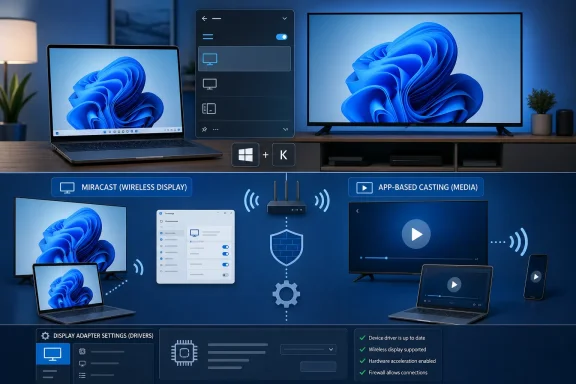 Identify the receiver Windows is meant to find
For a full-screen wireless display connection, turn on the TV, projector, dock, or adapter and select its correct HDMI input before looking in Windows+K. If the receiver has a screen-mirroring, Screen Share, Miracast, or Wireless Display mode, enable that mode; many televisions do not advertise themselves continuously.
Wi-Fi must be enabled on the Windows PC even when the PC has an Ethernet connection. Miracast can use Wi-Fi Direct for discovery and connection, so the wireless adapter remains part of the path. Microsoft Support specifically lists disabled Wi-Fi as a common reason a supported display fails to appear.
Do not assume that both devices must always be on the same Wi-Fi name. Traditional Miracast commonly relies on a direct Wi-Fi connection, while Windows can also use a trusted existing wired or secured Wi-Fi network when both the receiver and environment support Miracast over Infrastructure. That distinction changes the troubleshooting:
- If Windows+K cannot see any nearby display, concentrate on the PC’s Wi-Fi hardware, the receiver’s Miracast mode, and driver support.
- If an app cannot see a TV or streamer on the local network, concentrate on the router, discovery services, network profile, and firewall rules.
- If an enterprise receiver works for some users but not others on the same building network, check VLAN separation, wireless client isolation, DNS or multicast-DNS resolution, and network firewall policy.
Microsoft’s Windows hardware documentation says infrastructure-based Miracast uses the existing trusted network only when it is appropriate; Windows can fall back to the conventional direct connection. In other words, a working home router is not evidence that an office network is ready for wireless projection.
Make the local network discoverable without weakening it
Network Discovery is often presented as a universal casting fix. It is not. Enabling it can help Windows locate network devices and can be necessary for local-media discovery, but it is not a blanket prerequisite for Windows+K Miracast discovery. Turning it on is sensible when a PC cannot see network-based devices, or when a receiving Windows PC needs to be found on a private network; it should not be the first explanation for every missing wireless display.
On Windows 11, open Settings > Network & internet > Advanced network settings > Advanced sharing settings. Under the current network profile, enable Network discovery for a trusted private network. On Windows 10, open Control Panel’s Network and Sharing Center, select Change advanced sharing settings, and enable Network discovery under Private.
If the current Wi-Fi is marked Public, change it to Private only when it is a network you trust, such as your home network or a managed workplace network. A hotel, airport, apartment-building, or shared guest network should remain Public. Making an untrusted network discoverable to solve a casting annoyance is a poor trade.
Microsoft Learn identifies several Windows services tied to Network Discovery:
- DNS Client
- Function Discovery Resource Publication
- SSDP Discovery
- UPnP Device Host
Open services.msc and confirm these services are not disabled if local device discovery has stopped working. A stopped or disabled Function Discovery Resource Publication service is especially relevant when a Windows PC is supposed to be discoverable to another machine. Avoid changing unrelated services or copying broad “network optimization” scripts; they often create a larger problem than the missing TV.
For media-only “Cast to Device” failures, distinguish the PC’s screen projection from media streaming. Windows developer documentation describes Play To-style casting as sending audio, video, or images to a selected receiver on the home network. The receiver needs to support that form of media playback, and the particular app must support it. A television that supports DLNA-style media playback may accept a movie file but cannot necessarily mirror the Windows desktop.
Test Windows Firewall before changing rules
Open Windows Security > Firewall & network protection > Allow an app through firewall, select Change settings, and verify that Network Discovery is allowed on the Private profile when local discovery is the symptom. Microsoft’s troubleshooting guidance names firewall blocking as one reason Network Discovery settings may refuse to stay enabled.
If you run a third-party security suite, VPN client, or endpoint security product, its firewall can override or supplement Windows Defender Firewall. Check its event history or temporary troubleshooting mode rather than assuming the Windows setting is decisive. The useful test is narrow: briefly disable the relevant firewall protection on a trusted network, attempt the same cast once, and immediately turn protection back on.
If the connection works only during that test, restore the firewall and create the smallest vendor-documented exception that covers the receiver or casting application. Do not leave the firewall disabled, create an “allow all inbound” rule, or open random ports from forum posts. Those changes can make the casting test succeed while needlessly exposing the PC.
For managed networks, the fix may sit beyond the endpoint. Guest Wi-Fi commonly blocks device-to-device traffic by design through wireless isolation. On an enterprise network using Miracast over Infrastructure, Microsoft documents a requirement for TCP port 7250, a secure network connection, and resolvable receiver hostnames. Those requirements apply to that infrastructure mode; they are not a reason to expose TCP 7250 on every home PC or to modify a router for a normal Wi-Fi Direct session.
Set up a Windows PC as the receiving display
When the missing receiver is another Windows computer, check the receiving PC first. Microsoft Support says the Wireless Display optional feature must be installed on the PC that will receive the projection; it is not required merely to send a display from another Windows PC.
On the receiving Windows 11 PC, go to Settings > System > Projecting to this PC. Select Optional features, choose View features, search for “Wireless Display,” and install it. Return to Projecting to this PC afterward and choose discovery and permission settings appropriate to the environment. Launch the Wireless Display app from Start once it is installed, then retry Windows+K from the sending PC.
On Windows 10, the corresponding receiver application is normally called Connect. Microsoft Support notes that Windows 11 version 22H2 and later uses the Wireless Display app, while earlier Windows versions use Connect. This naming change produces a surprisingly common dead end: users search for Connect on a newer Windows 11 receiver, decide the feature is missing, and start reinstalling drivers unnecessarily.
If the receiver appears but repeatedly refuses to connect, remove its saved association before deeper repairs. In Windows 11, open Settings > Bluetooth & devices > Devices, find it under Wireless displays & docks, select Remove device, then reconnect with Windows+K. Restart both the PC and receiver as part of that reset; wireless adapters and television receivers can retain a failed pairing state.
Confirm Miracast support before reinstalling anything
A PC can have Wi-Fi, Bluetooth, and a modern graphics card yet still fail Miracast eligibility because the Wi-Fi and graphics drivers must both expose compatible support. In Command Prompt, run:
netsh wlan show drivers
Look for the Wireless Display Supported result. A usable configuration should report support from both the graphics driver and Wi-Fi driver. If either side reports No, Windows+K projection will not be repaired by enabling Network Discovery or adding a firewall exception.
Microsoft Support advises updating both device drivers and the firmware for a wireless display, adapter, or dock. Begin with Windows Update, including optional driver updates where offered, then use the PC manufacturer’s support page for the model-specific Wi-Fi and graphics packages. For laptops, the manufacturer package is often safer than a generic graphics driver because laptop display switching, power management, and wireless components can depend on an OEM-tested combination.
In Device Manager, inspect both Network adapters and Display adapters for warning symbols after an update. If casting broke immediately after a graphics or Wi-Fi driver update, use the driver’s Roll Back Driver option only when it is available and the timing is clear. Otherwise, install the current package from the PC maker rather than repeatedly uninstalling adapters and hoping Windows picks a better version.
If Windows reports that Miracast is unsupported, accept that result as a hardware or driver limitation until an appropriate driver proves otherwise. A wired HDMI or USB-C display connection, or a compatible external Miracast adapter, is more reliable than trying to force support through registry edits, service changes, or firewall exceptions.
Use the shortest repair path for the symptom
For a TV or projector absent from Windows+K, verify receiver compatibility and mode, turn Wi-Fi on, restart both endpoints, remove any stale wireless-display entry, and then check the Wi-Fi and graphics drivers. For a Windows PC that cannot be selected as a receiver, install Wireless Display on that target PC and make it discoverable in Projecting to this PC.
For “Cast to Device” or app-only media casting, ensure the PC and receiver are on a trusted network that permits local devices to communicate, enable Network Discovery where appropriate, and review the firewall profile. If the receiver is visible in Chrome but not Windows+K, or vice versa, stop treating the symptom as one generic “casting” fault: the device supports one protocol path and not necessarily the other.
Windows 10 remains capable of these functions, but Microsoft ended its free Windows 10 security updates and technical support on October 14, 2025. On a Windows 10 machine that requires new Wi-Fi, graphics, or display-adapter fixes, the practical long-term repair may be moving the supported hardware to Windows 11 rather than expecting driver and security coverage to keep pace indefinitely.