

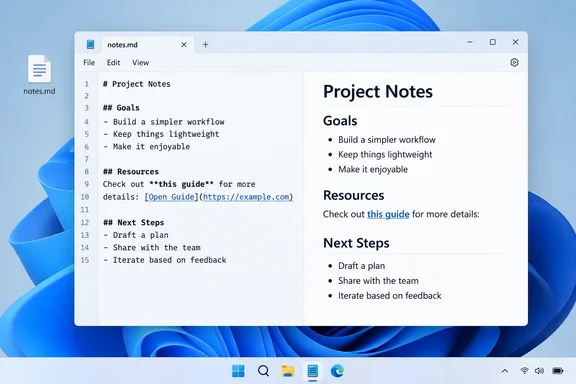
 Check that your Notepad supports formatting
Notepad is updated separately from the main Windows release, so two Windows 11 PCs can have different Notepad features. Before creating a document, confirm that your copy has the formatting controls.
- Open Start, type Notepad, and select the app.
- Create a blank document with File > New or press
Ctrl+N. - Look below the menu bar for a formatting toolbar. A compatible version includes controls for formatting text, headings, lists, and links.
- Look at the lower-right part of the Notepad window for a control that identifies the current display as Formatted or Syntax.
- Formatted view displays the note as a readable document: headings are larger, emphasized text is styled, and lists appear as lists.
- Syntax view displays the Markdown characters stored in the file, such as
#,**,*, and-.
- If neither the formatting toolbar nor the view control appears, update Notepad through the Microsoft Store, then close and reopen the app. Formatting features can also be disabled in Notepad settings, so open the app’s Settings and check whether formatting support is turned off.
Do not confuse Markdown formatting with a word-processing document. Notepad is still saving text, not a Word document or rich-text file. The formatting is represented by readable characters in the file itself.
Create a Markdown note with the formatting toolbar
The toolbar is the most reliable starting point for beginners because it inserts supported Markdown without requiring you to remember every character sequence. You can format selected text or turn on a style before you begin typing.
- Open Notepad and type a short title for the note, such as:
Weekend project plan - Select the title.
- On the formatting toolbar, choose the heading control and apply a heading level.
The selected line should become visually larger in Formatted view. In Syntax view, you should see one or more number signs before the heading text. For a main heading, Markdown normally uses one number sign followed by a space:
# Weekend project plan - Press
Entertwice after the heading to begin a normal paragraph. Use a blank line between major sections so the note remains easy to read in other Markdown editors. - Type a sentence, select an important word or phrase, then select Bold on the toolbar. In Syntax view, bold text is represented with two asterisks on each side:
Bring the **external drive** before leaving. - Select another word or phrase and use Italic. Markdown normally represents italic text with one asterisk on each side:
Start the backup *before* making changes. - If you apply a style by mistake, select the styled text and select the same formatting control again to remove that style. You can also use the option to clear formatting from the toolbar or the Edit menu to return the selected content to ordinary plain text.
The main benefit of using the toolbar is that you can work visually while still producing an ordinary Markdown-compatible text file.
Add headings, lists, and links by typing Markdown
Once you know the basic patterns, syntax view is often faster than reaching for the mouse. Switch to Syntax view first so you can see exactly what Notepad stores.
- Open the view menu and choose the Markdown syntax view, or select the view toggle in the status bar until it reads Syntax.
- Start a heading with a number sign, a space, and the heading text:
The space after the number signs matters. Without it, the line may be treated as ordinary text rather than a heading.Code:# Main topic ## First section ### Detail under the first section - Start a bulleted list with a hyphen and a space. Put each item on its own line:
Code:- Charge laptop - Pack adapter - Copy notes to USB drive - Create a numbered list with a number, a period, and a space:
Code:1. Create the folder 2. Save the note 3. Review it in Formatted view - For a link, select the words that should become clickable, then use the link control in the formatting toolbar. Enter the destination when Notepad asks for it.
This method avoids typing link punctuation manually and lets Notepad create the supported Markdown form. When you return to Syntax view, the link is stored as Markdown text: visible link text followed by its web address in parentheses. - Switch back to Formatted view. The heading, emphasis, list markers, and links should display as readable content rather than as literal Markdown characters.
For everyday notes, stick to the features Notepad exposes in its toolbar: headings, bold, italic, links, and simple lists. Markdown is not a single fixed feature set across every app. A complex construct that works in a programming editor or publishing system may not display the same way in Notepad.
Build a complete note from a plain-text outline
A practical way to use Notepad is to write freely first, then add structure after the content is in place.
- Type the note in ordinary text. For example:
Code:Home network check Things to do this Saturday Restart router Check backup drive Update Wi-Fi password record - Select Home network check, then apply a heading from the toolbar.
- Select Things to do this Saturday, then apply a smaller heading if it is a subsection rather than the document title.
- Put the cursor before each task line and turn the lines into a bulleted or numbered list using the toolbar.
- Highlight key terms, such as the name of a router or backup drive, and apply bold if that improves scanning.
- Switch to Syntax view and inspect the result. A finished version may look similar to this:
Code:# Home network check ## Things to do this Saturday - Restart router - Check **backup drive** - Update Wi-Fi password record - Switch back to Formatted view to proofread it as a reader would.
This two-view workflow is useful because it separates writing from checking the actual stored text. Formatted view helps you judge readability; Syntax view helps you catch missing spaces, stray asterisks, or list markers in the wrong place.
Save the note as a compatible Markdown file
Use the .md filename extension when the document is intended to be opened as Markdown in Notepad or another editor. The extension tells compatible apps that the plain-text file contains Markdown.
- Press
Ctrl+S, or select File > Save As. - Choose the folder where you want to keep the note.
- In the file name box, enter a descriptive name ending in
.md, such as:
home-network-check.md - Save the file.
- Close Notepad, then open the saved file again from File Explorer.
- Confirm that the headings, lists, and emphasized text still appear in Formatted view. Switch to Syntax view and make sure the Markdown characters are still present.
A .md file is the best choice when you want portability between Markdown tools. It is still plain text, so it can be opened in Notepad even if another app does not provide a formatted preview.
Use .txt instead when you specifically want a conventional plain-text note and do not need the filename to identify it as Markdown. The text may contain the same characters, but other apps are less likely to recognize a .txt file as a Markdown document automatically.
Before renaming an existing file: changing only the filename extension does not convert a Word document, PDF, or rich-text document into Markdown. Rename only a plain-text note that already contains Markdown-style text, or create a new.mdfile in Notepad.
Verify what other editors will receive
Markdown formatting is portable because it is stored as text rather than as invisible formatting data. You can verify that before sharing the file.
- Open your
.mdnote in Notepad. - Change to Syntax view.
- Check that headings begin with
#characters, bold text is surrounded by double asterisks, italic text uses single asterisks, and list items have visible list markers. - Save the document again if you made corrections.
- Open a copy in another Markdown-capable application, if you use one, and compare its preview with Notepad’s Formatted view.
Small visual differences are normal. For example, another app may use different heading sizes or link colors. The important check is that the underlying syntax is intact and readable.
Fix common Notepad Markdown problems
The formatting toolbar or Formatted/Syntax control is missing
Your Notepad version may not yet include the formatting update, or formatting may be disabled.
- Update Notepad from the Microsoft Store.
- Close all Notepad windows and open the app again after the update.
- Open Notepad Settings and look for the formatting option. Enable it if it has been turned off.
- If the PC is managed by work or school, application updates may be controlled by the organization. Contact the IT administrator rather than trying to install an unofficial Notepad package.
Number signs or asterisks remain visible in Formatted view
Check the syntax around the text.
- A heading needs at least one
#, followed by a space and heading text. - Bold text needs an opening and closing pair of double asterisks:
**text**. - Italic text needs a matching opening and closing asterisk:
*text*. - A bulleted list needs a hyphen or supported list marker followed by a space.
- Put list items on separate lines.
Use the toolbar to apply the desired style to one test word or line. Then switch to Syntax view and compare Notepad’s working result with the text you typed.
A list does not look like a separate list
Insert a blank line before the first list item, especially after a paragraph or heading. Also make sure each item begins at the start of its own line. Extra characters before the list marker can cause the item to be treated as ordinary text.
The note looks right in Notepad but not in another app
Open the file in Notepad’s Syntax view and confirm that the Markdown text is present. Then simplify the affected area to basic headings, emphasis, links, and simple lists. Notepad’s lightweight formatting is designed for common note structure, not for every advanced Markdown extension used by publishing systems.
You want to remove all Markdown formatting
- Make a backup first with File > Save As and give the copy a different name.
- In the original document, select the formatted text or press
Ctrl+Ato select the whole note. - Use Clear formatting from the formatting toolbar or the Edit menu.
- Save the file and switch to Syntax view to verify that the formatting markers have been removed.
This removal changes the stored text, so keeping a backup .md copy is the safest rollback method if you later decide you want the headings, emphasis, or lists back.