

The important bit: these tools are configurable. You can use them for everyday .txt notes, then keep them out of the way when you are editing scripts, logs, Markdown, subtitles, or other technical files where “helpful” corrections can become tiny acts of sabotage.
Microsoft introduced Notepad spell check with automatic red underlines, correction suggestions, dictionary controls, multiple-language support, and autocorrect for common typos. The company also designed the feature to be controlled globally, per file type, or temporarily for the file currently open.
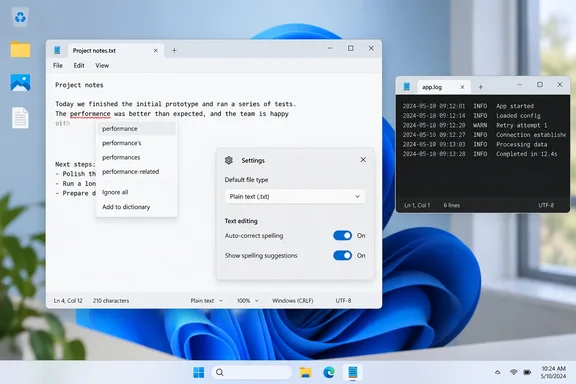 Turn on spell check in Notepad
- Open Notepad in Windows 11.
- Select the Settings gear icon in the lower-left corner of the app.
- Find the Spell check section.
- Turn on Spell check.
When enabled, Notepad places a red underline beneath words it considers misspelled. This is a live check while you type, rather than a separate “review document” process.
What success looks like
Type a deliberately misspelled word such as teh or recieve into a standard text document. If spell check is active for that file type and language, Notepad should underline the word in red.
If nothing is underlined, do not assume Notepad is broken just yet. First check whether spell check has been disabled for that specific extension or for the current document.
Choose which file types get spell checking
The best part of this feature is that it is not a one-size-fits-all switch. Notepad lets you decide which kinds of files receive spelling suggestions.
In Notepad Settings, look under Spell check for the available file-type controls. Enable it for the formats where you write natural-language prose, and disable it where specialized terminology, commands, or code dominate the page.
A sensible beginner-friendly setup looks like this:
| File type | Recommended setting | Why |
|---|---|---|
.txt | On | Ideal for notes, drafts, lists, and plain-text documents |
.md | Depends | Useful for prose-heavy Markdown; distracting for syntax-heavy files |
| Subtitle and lyric-style text files | Usually on | Helpful when the content is primarily language |
| Log files | Off | Error strings, paths, IDs, and timestamps are not spelling mistakes |
| Code and configuration files | Off | Variables, commands, parameters, and product names trigger false positives |
Microsoft specifically notes that spell check is enabled by default for some file types but off by default for log files and other formats commonly associated with coding.
That distinction matters. A spell checker sees Get-ChildItem, localhost, winget, and C:\Temp as a parade of suspicious-looking words. A sysadmin sees Tuesday.
Correct a word quickly
When Notepad flags a word:
- Right-click the underlined word.
- Pick one of the suggested replacements.
You can also select the word and press Shift + F10 to open its context menu from the keyboard. Choose a suggestion and Notepad replaces the flagged word immediately.
The same menu can also offer useful alternatives when Notepad is wrong:
- Ignore the word for the current document.
- Add to dictionary if it is a valid name, acronym, product term, or other word you expect to use again.
Adding a word is preferable to repeatedly ignoring it. It is especially useful for company names, technical products, project codenames, and the kind of surname that spell check treats like a typo with unusual confidence.
Enable or disable autocorrect
Spell check points out a possible mistake. Autocorrect goes a step further by fixing common typing errors automatically as you type.
To manage it:
- Open Notepad Settings.
- Under the spelling options, find Autocorrect.
- Turn the toggle on to automatically fix common mistakes, or off to keep every edit manual.
Autocorrect is useful for quick notes and informal writing, particularly if transposed letters are your keyboard’s favorite practical joke. But it deserves a little caution in technical work.
For example, a shorthand term, command fragment, unfamiliar name, or intentionally misspelled test value may be changed before you notice. When precision matters more than prose polish, spell check without autocorrect is often the sweet spot: you still get a warning, but you remain in charge of the edit.
Disable spell check for one file without changing everything
Sometimes you want spell check for ordinary text files but need it out of the way just once—perhaps while reviewing a pasted log, adjusting a configuration snippet, or cleaning up a Markdown file packed with commands.
Notepad supports temporarily changing spell-check behavior for the file currently open through its context menu. This is a useful middle ground: you do not have to turn the feature off globally, and you do not have to endure a screen full of red squiggles while handling technical content. Microsoft confirms that the feature can be adjusted for the current file as well as globally and by file type.
Troubleshooting: Why is Notepad not checking spelling?
Work through these checks in order:
- Confirm that Spell check is enabled
Open Notepad’s settings and make sure the main Spell check option is on. - Check the file extension
The feature can be set differently for individual file types. A.txtdocument may be checked while a.logor.mdfile is excluded. - Check whether the word was ignored or added
A word that was added to the dictionary will not continue to appear as misspelled. - Verify the text language
Notepad spell check supports multiple languages, but a document written in a language that is not configured or recognized may not receive useful suggestions. - Update Notepad if the settings are absent
Notepad is delivered and updated as an app, so its feature set can differ from one PC to another. Check the Microsoft Store’s library for available app updates, then reopen Notepad.
Spell check is not Windows text suggestions
Do not confuse Notepad’s proofing tools with Windows 11’s system-wide text suggestions for a physical keyboard. They are separate features.
Windows text suggestions can offer predicted words in compatible apps when enabled through Settings > Time & language > Typing. Notepad spell check, meanwhile, focuses on flagged misspellings and corrections inside Notepad itself.
For most people, the practical setup is simple:
- Use Notepad spell check for clean plain-text writing.
- Turn on autocorrect only when automatic replacements will not create risk.
- Exclude technical extensions so code, logs, and configuration data stay exactly as typed.
- Use Windows-wide text suggestions separately if you want predictive typing beyond Notepad.
That is the modern Notepad formula: still lightweight, still plain text, but finally capable of noticing that definately has been causing trouble since the dawn of keyboards.