

Microsoft documents Split Screen as a desktop Edge feature that supports two web pages per tab. It is not available in Edge for Android or iPhone/iPad. The feature is supported in Microsoft Edge version 117 and later, although its buttons and menu placement can vary slightly between browser versions and managed work PCs.
A note for Windows 10 users: These Edge steps may still apply, but Windows 10 reached end of support on October 14, 2025. A Windows 11 PC remains the better-supported long-term home for browser-based work.
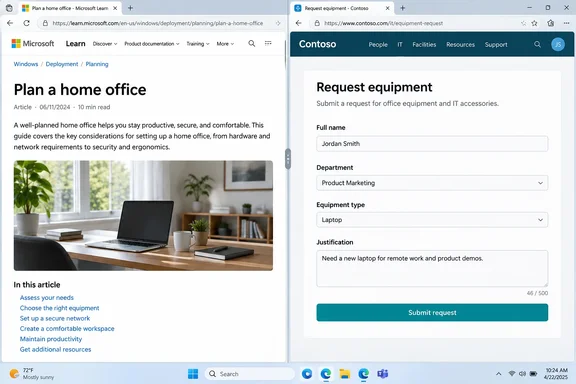 Open two websites in one Edge window
- Open Microsoft Edge and visit the first website you want to keep visible.
- Select the Split screen button on the Edge toolbar. It resembles two panels side by side.
- If that button is not visible, select Settings and more (
…) in the upper-right corner, then choose Split screen. - Edge opens a second pane beside the current page. Use it to:
- Choose another open tab, or
- Type a web address or search term to open a new page.
You now have two independently usable pages in one Edge tab. Click in either pane before typing, scrolling, selecting text, or using its address bar. Each side can visit a different site, sign in to a different service, and scroll at its own pace.
That is the key distinction: Split Screen is not merely two static previews. Both sides are live webpages.
A practical example
Suppose you are entering product specifications into a web form:
- Keep the manufacturer’s specification page on the left.
- Open the inventory, CMS, spreadsheet, or ordering page on the right.
- Copy values across without bouncing between browser tabs like a caffeinated pinball.
For research, place a source article on one side and your notes or document on the other. For shopping, compare two listings without losing your place. The feature is simple, which is usually where productivity tools earn their keep.
Open a link directly in Split Screen
You do not need to open a second tab first.
- On a webpage in Edge, right-click a link.
- Select Open link in split screen window.
- Edge keeps the current page open and loads the selected link in the second pane.
Microsoft specifically includes this context-menu command as a way to start Split Screen. It is particularly useful when an article links to a reference page, when you want to compare two search results, or when a site’s help instructions link to the exact setting you need.
Resize the two panes
The default layout gives both pages roughly equal space. That is fine for comparisons, but not every page deserves equal billing.
- Point to the vertical divider between the two panes.
- When the pointer changes to a resize cursor, select and drag the divider left or right.
- Release it when the wider pane is large enough for your main task.
For example, make a dense spreadsheet, dashboard, or web form wider, while leaving a narrower reference page open beside it. On a small laptop display, a roughly 60/40 split is often more readable than a strict half-and-half arrangement.
If text becomes uncomfortable to read, consider increasing browser zoom with Ctrl + + in the pane you are using, or temporarily switch back to one page. Two sites crammed onto a small display can be productive; two sites rendered as postage stamps are merely ambitious.
Swap the left and right pages
Sometimes the pages appear in the opposite order from the way you want to work. Edge lets you swap them without reopening either one.
- Move to the split-screen controls at the top of a pane.
- Open More options (
…). - Choose the control to switch or swap the left and right tabs.
The two pages exchange positions immediately. This is handy when you want your primary work page nearest a second display, or when you prefer source material on a particular side for copying and comparison.
Keep working without losing the split
Treat each pane as a separate browser view:
- Scroll independently: Reading position on one side does not alter the other.
- Navigate independently: Use a pane’s Back button, address bar, or page links normally.
- Sign in independently: A site login on one page does not turn the other pane into the same webpage.
- Copy and paste normally: Select text in one pane, then click the destination pane and paste.
- Use a different open tab: When Edge first opens the second pane, select an existing tab instead of typing a new address if the page is already open elsewhere.
For everyday work, this is often cleaner than Windows Snap because both sites remain grouped under one Edge tab. If your task requires another app—such as Excel, File Explorer, or Teams—Windows Snap is the better tool because it arranges separate application windows across the desktop.
Return to a normal browser window
There are two ways to end Split Screen, and the difference matters.
Close one side and keep the other
Select Close split screen (X) in the active pane’s controls.
This ends the split view and closes that pane’s page, leaving the other page in the tab. Use it when you are finished with the reference page and only need to continue on the remaining site.
Keep both pages as regular Edge tabs
- Open More options (
…) in the Split Screen controls. - Select Separate two tabs.
Edge exits Split Screen but preserves both webpages as separate tabs in the browser. Choose this option when you want the side-by-side comparison to end but may need both pages later.
If Split Screen is missing
Try these checks before assuming the feature has vanished into the browser-feature witness protection program:
- Check the Edge menu. Select Settings and more (
…) and look for Split screen. The toolbar button may simply be hidden or moved. - Update Microsoft Edge. Browser interface changes roll out over time, and Microsoft notes that Edge’s appearance and available controls can differ by version.
- Use desktop Edge. Microsoft’s feature page says Split Screen is not supported in Edge mobile apps.
- Ask your IT administrator on a work PC. Organizations can disable Split Screen through the
SplitScreenEnabledMicrosoft Edge policy. Microsoft’s policy documentation states that a disabled policy prevents users from using the feature; a browser restart is required after a policy change.
The bottom line
Microsoft Edge Split Screen is a small feature with a remarkably practical payoff: two interactive sites, one organized browser workspace, and fewer tab switches. Use it for comparisons, research, data entry, troubleshooting, and any task where one page answers the question while the other needs the answer.
For broader desktop multitasking, pair it with Windows 11 Snap layouts. For focused web work, though, Edge Split Screen is the tidier option—less window juggling, more getting on with it.