

Microsoft’s current Edge support guidance documents the profile-creation and sync controls, while Windows Central has also described profiles as separate stores for favorites, history, passwords, and other browser settings. The feature is built into the current Chromium-based Edge browser; you do not need to install another copy of Edge.
A profile is useful for separating browser activity. It is not a secure substitute for separate Windows user accounts: anyone who can open your Windows session can generally switch to another existing Edge profile without being asked for that profile’s password. For a genuinely shared computer, use a separate Windows account for each person and use Edge profiles only for additional organization within an account.
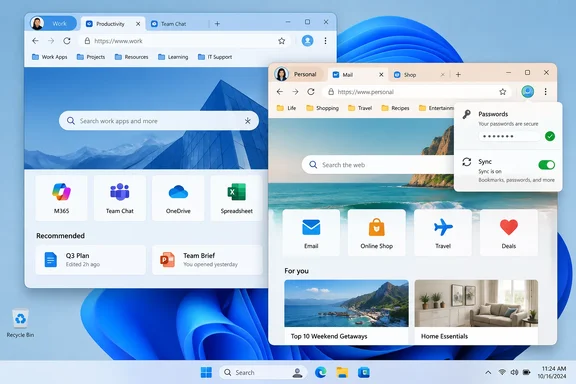 What stays separate in each Edge profile
An Edge profile is closer to a separate browser setup than a new tab group. When you create a second profile, it gets its own browser window and its own local browsing data.
This separation includes:
- Favorites and favorites-bar folders.
- Browser history and open-tab session information.
- Website sign-ins, cookies, and site permissions.
- Saved passwords, payment information, and autofill details.
- Extensions and extension settings.
- Themes, startup behavior, and many profile-level preferences.
- Sync configuration and the Microsoft account or work/school account associated with that profile.
For example, you can keep a password manager extension and Microsoft 365 sign-in in a Work profile while using a different set of extensions and personal web accounts in a Personal profile. Multiple profile windows can remain open at the same time.
Create a new Edge profile
- Open Microsoft Edge on Windows 10 or Windows 11.
- Select the profile icon near the upper-right corner of the Edge window. It may show a silhouette, initials, or an existing profile picture.
- Select Set up a new profile. In some Edge builds, the route may first be Manage profile settings and then Add profile.
- Choose the kind of profile you want:
- Select Personal for a Microsoft account used for personal email, OneDrive, consumer Microsoft 365, or everyday browsing.
- Select Work or school for an organization-managed Microsoft Entra account, formerly called an Azure Active Directory account.
- Choose whether to sign in:
- Select Sign in to sync data if you want that profile’s compatible browser data to follow you to other devices where you sign in to Edge with the same account.
- Select Start without your data if you want a local, unsigned-in profile with a clean browser setup.
- Select Confirm and start browsing.
Edge opens the new profile in a separate browser window. Check the profile icon in the upper-right corner before signing in to an important site; it identifies the profile currently being used.
Choose the right setup for work, personal use, or a shared PC
A simple two-profile layout works well for most people:
| Need | Recommended Edge profile |
|---|---|
| Personal email, shopping, home banking, and personal Microsoft services | Personal profile signed in with a personal Microsoft account, if cross-device sync is wanted |
| Microsoft 365, SharePoint, Teams web apps, and organization services | Work or school profile signed in with the organization account |
| A short borrowing session or public-style browsing | Guest browsing |
| Multiple people regularly using one Windows PC | Separate Windows accounts, with Edge profiles only as an optional extra |
If you borrow someone’s computer briefly, select the profile icon and choose Browse as guest rather than creating a profile. Microsoft says Guest mode does not retain browsing history or profile data after the guest session ends. It is intended for temporary browsing, not for storing accounts or long-term settings.
For a family computer, Edge profiles prevent routine browser data from mixing, but they do not prevent someone already signed in to the same Windows account from opening another profile. Windows accounts provide the actual operating-system separation for files, installed-app access, and sign-in protection.
Turn sync on, off, or limit what follows you
Signing in to an Edge profile does not require you to sync every available data type. Sync is configured per profile, so a Personal profile can synchronize favorites and passwords across your devices while a Work profile follows your organization’s policies and data-handling rules.
To review sync settings for the profile currently open:
- Select Settings and more (
...) in the upper-right corner of Edge, then select Settings. You can also pressAlt+Fand select Settings. - Select Profiles.
- Under the active profile, select Sync.
- Turn individual sync categories on or off as needed.
Microsoft lists options that can include favorites, passwords, addresses and autofill data, history, extensions, settings, and other supported browser information. The precise list can vary with the Edge version, account type, and organization management.
Use this control deliberately. Turning on favorite sync makes those favorites available in Edge on other devices signed in with the same account. Conversely, turning off sync does not turn the profile into a private or disposable session; it simply keeps the profile’s data local to that device unless you later enable sync.
Do not clear browsing data casually while signed in and syncing. Microsoft warns that deleting synchronized browser data can remove it from other devices connected to the same profile as well.
Switch profiles without closing your tabs
To move from personal browsing to work browsing:
- Select the profile icon in the Edge window you are using.
- Select the profile you want to open.
Edge opens the selected profile in its own window. Your existing window and its tabs stay open, which is useful when both contexts are active at once.
This behavior can initially feel different from “switching accounts” inside one window. Edge profiles use separate windows because the sites, cookies, saved credentials, extensions, and browser settings behind them are separate. Moving to a Work profile does not turn an already-open Personal window into a work browser.
For work and school accounts, Edge can also offer automatic profile switching when it detects a work-related site. The behavior is configurable under Settings > Profiles > Profile preferences, but it should be treated as a convenience, not as a guarantee that every work link will open in the intended profile. Before entering or uploading sensitive information, verify the active profile shown in the Edge toolbar.
Name profiles clearly and make them easy to recognize
Clear names and different profile pictures reduce accidental mix-ups, particularly if you keep several Edge windows open.
Open the profile menu, choose Manage profile settings, and select the profile you want to adjust. Edge provides profile customization controls, though the exact placement can differ slightly by browser version. Use names that make the purpose obvious, such as:
- Personal
- Work — Contoso
- School
- Client A
- Testing
Avoid vague names such as “Profile 2” or “New profile,” especially when both profiles use similar Microsoft account initials. The active profile picture can also appear with Edge’s taskbar presence, giving you a visual reminder of which browsing context is open.
Add extensions separately
Extensions are profile-specific. Installing an extension in a Personal profile does not automatically make it available in a Work profile, and the same extension can have different settings in each profile.
That separation is helpful when a work extension needs broad access to business sites, but it also means you should install required extensions in the correct profile. If an extension seems to be missing, first confirm that you are in the intended Edge profile before reinstalling it.
Organizations may manage extensions, sign-in, sync, and profile behavior in a work profile. If the Set up a new profile or Add profile option is unavailable on a managed PC, an Edge policy may be blocking profile creation. Microsoft’s Edge policy documentation includes a setting named BrowserAddProfileEnabled that administrators can use to disable adding profiles through Edge’s interface. In that situation, use the browser configuration required by your IT department rather than attempting to work around the restriction.
Remove an Edge profile when you no longer need it
Before removing a profile, confirm that any important favorites, passwords, or local-only information have been safely retained. In particular, verify whether sync is enabled and which account is attached to the profile.
To remove one:
- Select the profile icon in Edge.
- Select Profile settings or Manage profile settings.
- Under More profiles, find the profile to remove.
- Select its delete or more-options control, choose Remove profile, and confirm.
Removing a profile deletes its local browser data from that PC, including the history, favorites, and settings held in that profile. It does not remove the entire Microsoft account from the internet, but it is still a consequential action when the profile contains data that was never synced or exported.
Used correctly, Edge profiles provide a practical split between different online identities without requiring separate browsers. Keep work and personal accounts in their own named profiles, review each profile’s sync settings, and use separate Windows accounts whenever the goal is privacy or access control between different people.