

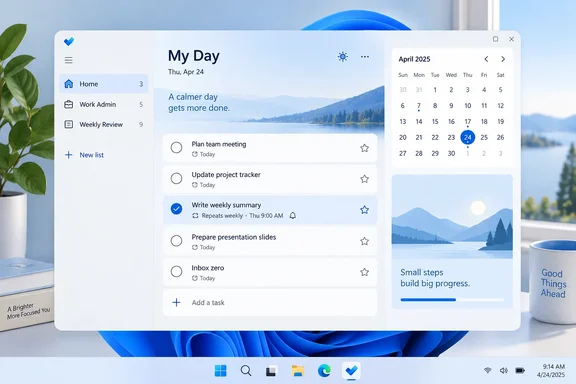
That distinction matters. Microsoft To Do does not repeat an entire personal list as a fresh checklist on a schedule; instead, you set repetition on the individual tasks inside a list. For most households and small teams, that is actually the more useful arrangement. Keep “Home,” “Work Admin,” and “Weekly Review” as enduring lists, then make the tasks within them repeat as needed.
 Start with lists, not one enormous task pile
Open Microsoft To Do on Windows and look at the left-hand list pane. Select + New List, then give it a name that describes a responsibility or context rather than a vague mood.
Good examples include:
- Home — cleaning, bills, maintenance, groceries
- Work Admin — expense reports, timesheets, meeting preparation
- Personal — appointments, calls, errands
- Weekly Review — planning and routine checks
- Projects — one list per project, if it has enough moving parts
Avoid creating a separate list for every tiny category. A list called “Things With Cables” may feel delightfully specific for five minutes, but it can make finding tasks harder later. The goal is fewer places to check, not a digital recreation of a desk drawer.
Once inside a list, use Add a task to create tasks. Click a task after creating it to open its details pane, where you can add a due date, reminder, repetition schedule, notes, steps, and importance.
For bigger work, use Add step instead of turning every sub-action into a standalone task. For example, a task called “Prepare monthly report” could include steps for gathering figures, drafting the summary, checking totals, and sending the final version.
Add due dates without turning every task into an emergency
A due date answers one question: when must this be finished? Select a task, choose Add due date, then select a quick option such as today, tomorrow, or next week—or pick a specific date.
Microsoft says tasks with due dates or reminders appear in the Planned smart list. That makes Planned a useful forward-looking dashboard: you can keep tasks in their proper lists while still seeing what is approaching across all of them.
Use due dates deliberately:
- Give a date to commitments with a real deadline.
- Use a date for recurring household jobs with a preferred completion day.
- Do not assign artificial dates merely to make a task feel important.
If every task is due today, the list is not urgent; it is just noisy.
Use reminders for the moment you need to act
A reminder is different from a due date. The due date may be Friday, but a reminder can prompt you on Wednesday afternoon to begin work before Friday becomes a small festival of regret.
To add one:
- Open the task.
- Select Remind me.
- Choose a suggested time or select a custom date and time.
A practical example:
| Task | Due date | Reminder |
|---|---|---|
| Submit expense report | Friday | Wednesday, 3:00 PM |
| Put bins out | Thursday | Wednesday, 8:00 PM |
| Renew software subscription | June 30 | June 16, 9:00 AM |
For time-sensitive obligations, pair a due date with a reminder. For flexible tasks, a reminder may be enough.
Make routine tasks repeat automatically
To create a recurring task, open its details and select Repeat. Microsoft To Do offers common schedules including:
- Daily
- Weekdays
- Weekly
- Monthly
- Yearly
- Custom repetition
Choose the schedule that matches the actual work, rather than the schedule you wish you followed in a perfect parallel universe.
For example:
- “Review calendar” — weekdays
- “Water plants” — weekly
- “Pay rent” — monthly
- “Renew passport reminder” — yearly
- “Back up important files” — custom, such as every two weeks
When you complete a repeating task, To Do creates its next occurrence according to the recurrence pattern. That means you should generally use one recurring task—such as “Clean bathroom”—rather than duplicating it 52 times for the year. Your future self will appreciate the lack of task-list confetti.
A useful recurring-list setup
Try this beginner-friendly structure:
Home
- Take bins out — weekly
- Change HVAC filter — every three months
- Pay rent or mortgage — monthly
- Check smoke-detector batteries — yearly
Work Admin
- Submit timesheet — weekly
- File expenses — monthly
- Update professional goals — quarterly
Weekly Review
- Review upcoming appointments — weekly
- Clear completed tasks — weekly
- Plan top priorities — weekly
The list provides the home; the repeat setting supplies the rhythm.
Put today’s priorities in My Day
My Day is not another permanent project list. It is a daily focus space for the tasks you want to work on now.
You can create a task directly in My Day, but tasks can also be added from any other list. Open an existing task and select Add to My Day. The task remains in its original list, so adding it to My Day does not duplicate or relocate it.
Microsoft Support describes My Day as resetting each night. Unfinished tasks are not deleted; they remain in their original lists and can be suggested again the following day. In other words, My Day clears the stage, not the work itself.
A sensible morning routine looks like this:
- Open My Day.
- Review its suggestions using the lightbulb icon.
- Add only the tasks you realistically intend to tackle.
- Put them in the order you expect to handle them.
- Leave longer-term tasks in their normal lists until they deserve today’s attention.
This is the crucial productivity trick: a task can be important without needing to be in your face every hour. Your “Renew passport” task can sit safely in Personal with its future reminder while My Day stays focused on the call, report, and errand that actually need attention now.
Microsoft also notes that daily repeating tasks may be suggested for My Day when you open the app. That can be helpful for habits such as exercise, planning, or reviewing messages—but suggestions are invitations, not a court summons. Add only what matters today.
Optional shortcut: type dates and repeats naturally
On the Windows version of Microsoft To Do, Microsoft Support says smart recognition is available in version 2.66 and later for English-language task entry. While creating a task, To Do can recognize phrases such as:
- “Submit report tomorrow”
- “Call supplier Friday 2 PM”
- “Review dashboard every Monday”
- “Stretch daily”
The app can interpret the date, time, or repeat pattern and apply it to the task. Check the recognized details before saving, especially when a date-like word is part of the actual task name.
If you prefer task titles to stay exactly as typed, use the regular detail controls for due dates, reminders, and recurrence instead. Reliability beats cleverness when your calendar is involved.
Common mistakes to avoid
Making every task recurring
Recurring tasks are for genuine routines. Do not set “Reply to Sam” to repeat unless you intend to begin a long-running correspondence with the task itself.
Treating My Day as permanent storage
My Day is a focus list, not a filing cabinet. Keep projects and routines in named lists; pull only the day’s priorities into My Day.
Using a due date as a reminder
A Friday deadline does not automatically mean you will remember to start on Tuesday. Add a reminder when you need a prompt before the deadline.
Creating duplicate tasks
If a task already exists in Home or Work Admin, add it to My Day rather than creating a second version. One task with one completion state is much easier to trust.
The simple system to keep
The most durable Microsoft To Do workflow on Windows is pleasantly unglamorous:
- Lists hold tasks by area of responsibility.
- Due dates identify real deadlines.
- Reminders tell you when to begin or act.
- Repeat settings automate regular work.
- My Day limits your visible workload to today’s priorities.
That combination gives you a task system that remembers the routine maintenance of life without making every Monday morning look like a hostage negotiation with a checklist.