

This guide covers the most common version of that problem on Windows 11 and Windows 10: headphones connect successfully, but sound remains on the PC speakers or goes silent. Start at the top and stop when sound returns.
Before you begin: Charge the headphones, turn their physical volume up, and make sure they are not actively connected to a phone, tablet, console, or another PC. Many headsets will cling to the last device they used with surprising emotional commitment.
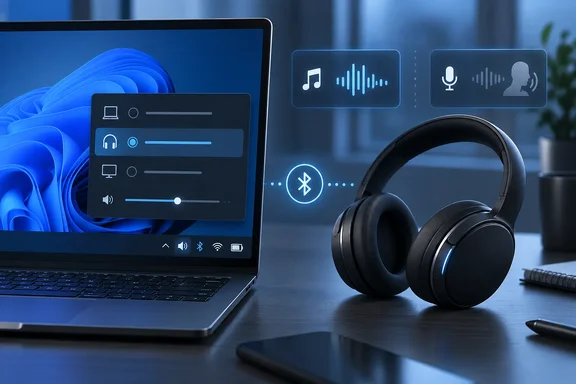 1. Select the Bluetooth headphones as the active output
A Bluetooth connection does not automatically make the headset Windows’ sound destination.
Quick walkthrough
Windows 11
- Connect the headphones.
- Select the network, volume, or battery area at the right end of the taskbar.
- Select the arrow beside the volume slider to open the list of output devices.
- Choose your Bluetooth headphones.
- Play a short test sound or video.
For a fuller check, go to Start > Settings > System > Sound. Under Output, select the Bluetooth headset and make sure its volume is not muted or set unusually low.
Windows 10
- Connect the headphones.
- Select the speaker icon in the taskbar.
- Select the current output-device name or arrow above the volume slider.
- Pick the Bluetooth headphones.
You can also go to Start > Settings > System > Sound, then choose the headset under Choose your output device.
Microsoft’s current Bluetooth-audio guidance for both operating systems puts output selection first for good reason: Windows can retain speakers, a monitor, USB audio, or another headset as the active endpoint even while the Bluetooth device says “Connected.”
Success looks like this: the headset is selected in the taskbar audio picker, its volume meter reacts during playback, and the sound is no longer coming from the PC speakers.
2. Check the classic Playback list if Windows keeps choosing speakers
If the quick audio picker is not enough, use the older Sound panel to see every available playback endpoint.
- Press Start, type Control Panel, and open it.
- Select Hardware and Sound > Sound.
- Open the Playback tab.
- Find the Bluetooth headphones.
- Right-click them and select Set as Default Device.
- Select Properties, then confirm the device is enabled and its levels are not muted.
This is particularly useful on Windows 10, where a headset may expose more than one Bluetooth audio option. If you see one labelled as a Stereo or music-oriented endpoint and another labelled Hands-Free, use the stereo-capable option for music and video when you do not need the headset microphone.
3. Understand headset modes: stereo music versus hands-free calling
This bit is the culprit behind many “my headset connected but now sounds wrong” mysteries.
Traditional Bluetooth headsets use two major audio profiles:
- A2DP handles higher-quality stereo playback for music, video, and games.
- HFP, or Hands-Free Profile, handles the headset microphone and voice calls, but uses mono playback/capture.
Windows switches to HFP when an app opens the headset microphone or creates a communications stream. In Windows 11, A2DP and HFP are generally presented as one unified output endpoint, so the switch happens automatically in the background. On Windows 10, the modes can appear as separate endpoints.
What to do
If sound disappeared or became tinny after joining a meeting:
- Close the calling or recording app completely—Teams, Discord, Zoom, a browser tab, game chat, or recording software.
- In that app’s settings, change its microphone to the PC’s built-in microphone or another dedicated mic.
- Re-select the Bluetooth headset as the output device.
- Start media playback again.
For calls, HFP behavior is normal. For music, video, and games, the headset should normally return to stereo after no app is using its microphone. Microsoft notes that Windows changes profiles automatically according to microphone use; you should not need to manually “force” a profile on Windows 11.
4. Restart the Windows audio services
If the headset is selected but Windows’ volume meter moves without producing sound, restart the services that build and manage audio endpoints.
- Press Start.
- Type services.msc and press Enter.
- Find Windows Audio.
- Right-click it and select Restart.
- Find Windows Audio Endpoint Builder.
- Right-click it and select Restart.
- Test the headset again.
The Audio Endpoint Builder discovers audio devices and creates their software endpoints, while the Windows Audio service controls audio streams. Restarting them can clear a temporary failure without requiring a full Windows reinstall—the troubleshooting equivalent of replacing a lightbulb before rewiring the house.
If either service will not restart, restart the PC, reconnect the headset, and repeat the output-selection check.
5. Set a compatible stereo format
If you have sound but it is silent intermittently, distorted, or refuses to start in particular apps, verify the device format.
Windows 11
- Go to Start > Settings > Bluetooth & devices > Devices.
- Select the connected Bluetooth headset.
- Select Advanced sound properties.
- Under output settings, choose 2 channels, 16 bit, 48000 Hz (DVD Quality) if available.
Windows 10
- Right-click the taskbar speaker icon and select Sounds.
- Open the Playback tab.
- Select the Bluetooth headset, then choose Properties.
- Open the Advanced tab.
- Under Default Format, choose 2 channel, 16 bit, 48000 Hz (DVD Quality).
- Select Apply, then OK.
That setting is Microsoft’s recommended troubleshooting format for Bluetooth audio with no sound on both Windows 10 and Windows 11.

6. Reset the Bluetooth connection cleanly
If Windows identifies the headset but cannot establish usable audio, reset the connection rather than repeatedly clicking Connect.
- Turn Bluetooth off in Windows.
- Wait 10 seconds.
- Turn Bluetooth back on.
- Reconnect the headphones.
If that fails:
- Open Settings > Bluetooth & devices in Windows 11, or Settings > Devices > Bluetooth & other devices in Windows 10.
- Find the headset and choose Remove device.
- Put the headset into pairing mode using its manufacturer’s instructions.
- Select Add device, choose Bluetooth, and pair it again.
- Immediately return to the taskbar output picker and choose the headset.
Removing and re-pairing clears the old device association, which can survive even when the actual audio capability negotiation has gone sideways. Microsoft lists this as a core recovery step for Bluetooth devices that appear connected but do not play sound.
7. Update the Bluetooth driver—then the audio driver
If the issue began after a Windows update, a driver update, or a new headset purchase, update the Bluetooth adapter first.
- Press Start, type Device Manager, and open it.
- Expand Bluetooth.
- Right-click the Bluetooth adapter—often containing “Radio” in its name.
- Select Update driver > Search automatically for updated driver software.
- Restart when prompted.
If there is still no sound, expand Sound, video and game controllers, right-click the relevant audio device, and select Update driver. If the failure began immediately after a driver update and Roll Back Driver is available in the device’s Driver tab, rolling back is a reasonable next step.
Windows may not always find the newest manufacturer driver automatically. In that case, use the support page for the PC maker or Bluetooth-adapter maker—not an anonymous driver-download site with a flashing green button and the moral character of a casino carpet. Microsoft specifically advises obtaining the latest driver from the manufacturer if Windows cannot locate one.
When the problem is not Windows
Test the headphones with another device and, if possible, test a different Bluetooth headset with the PC.
- If another headset works on the PC, the original headset may need a firmware update, a factory reset, or service.
- If no Bluetooth headset works on the PC, focus on the PC’s Bluetooth adapter, drivers, and Windows audio services.
- If audio works on a phone but not Windows, the headset hardware is probably fine; revisit the output-device and microphone-mode checks.
Also confirm that the headset supports A2DP, the Bluetooth profile used for higher-quality stereo playback. A connected device without appropriate audio-profile support is not a reliable media headset, however friendly its pairing chime may be.
A note for Windows 10 users
The steps above still apply to Windows 10, but Microsoft ended free Windows Update security fixes, technical assistance, and software updates for Windows 10 on October 14, 2025. A PC can continue running it, but recurring Bluetooth or driver problems may become harder to resolve as hardware vendors prioritize Windows 11.