

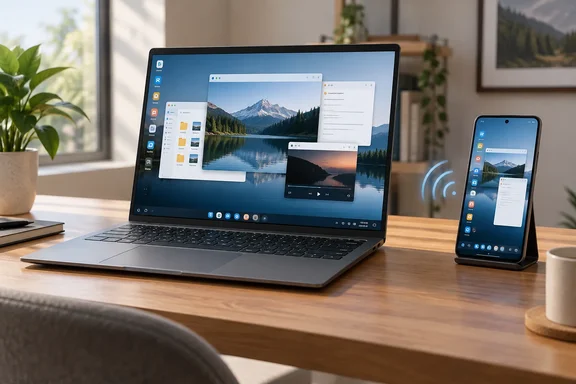
This is not Android magically running inside Windows, and it is not the same as Phone Link. The PC is receiving a live wireless video stream from the phone. Think of it as using the laptop screen as a very civilized, slightly more complicated external monitor.
 What you need before you start
You need the following:
- A PC running Windows 11 or Windows 10 with a Wi-Fi adapter and Miracast receiver support.
- Wi-Fi switched on at the Windows PC, even if the computer is otherwise connected by Ethernet.
- An Android phone or tablet that can cast through Miracast.
- For a genuine desktop-style workspace, an Android device that supports a desktop mode. Samsung DeX is the clearest example, but Android’s own connected-display desktop windowing is device-dependent.
- Both devices nearby. Keeping them on the same trusted Wi-Fi network is the sensible starting point, although Miracast itself is based on Wi-Fi Direct rather than ordinary browser-style network streaming.
Windows 10 remains technically supported by this procedure, but it reached end of support on October 14, 2025. If this PC is an everyday machine, Windows 11 is the safer long-term home for a phone-powered desktop experiment.
First, confirm the PC can receive Miracast
On the Windows PC:
- Press Windows key + K.
- Check whether Windows offers wireless display functionality or instead says that the device does not support Miracast.
- Ensure Wi-Fi is enabled from the network controls on the taskbar.
That test matters. A PC may have Wi-Fi yet still lack the driver and graphics support required to act as a dependable wireless display receiver. Microsoft also advises updating graphics and wireless drivers when Miracast connections fail or behave badly.
Install Wireless Display on Windows
Wireless Display is an optional Windows component, so it may not be present until you add it.
Windows 11
- Open Settings.
- Select System > Projecting to this PC.
- Under the prompt to add the Wireless Display optional feature, choose Optional features.
- Next to Add an optional feature, select View features.
- Search for Wireless Display.
- Select it, choose Next, then choose Install.
- Return to System > Projecting to this PC once installation finishes.
On Windows 11 version 22H2 and later, launch the receiver by searching the Start menu for Wireless Display and opening the app. Older Windows 11 releases may call the receiving app Connect instead. Keep that app open while the phone searches for the PC.
Windows 10
- Open Settings > System > Projecting to this PC.
- Select Optional features.
- Choose Add a feature.
- Search for Wireless Display.
- Select it and choose Install.
- Search Start for Connect and open the Connect app.
The goal is the same on both versions: Windows needs both the optional receiver feature and an actively open receiving app. If the app is closed, the phone may act as if your PC has vanished into the networking mist.
Configure “Projecting to this PC” sensibly
Return to Settings > System > Projecting to this PC and review the available receiving options.
For a home PC, the practical configuration is:
- Make the PC discoverable on a secure network rather than everywhere, where that option is available.
- Require approval at least the first time a device connects.
- Consider requiring a PIN if the PC is used in a shared environment.
- If the PC is a laptop, decide whether it should accept projection only while connected to power.
Those choices are not just fussy bureaucracy. A wireless display session can reveal notifications, work documents, messages, and whatever else happens to be on the phone screen. Treat the receiving PC as a display you are explicitly opening to nearby devices, not as an invisible magic portal.
Microsoft’s older projection guidance recommends approving a connection request and notes that the receiving app can be resized or maximized like a normal window.
Connect the Android phone
With the Wireless Display or Connect app open on Windows, unlock the Android phone and start its casting or desktop-mode feature.
The exact labels vary widely by manufacturer. Look for terms such as:
- Cast
- Screen cast
- Screen mirroring
- Wireless display
- Smart View
- Desktop mode
- DeX
Choose the Windows PC from the list of discovered displays. Windows may ask for permission; approve it on the PC. The phone may also ask you to confirm the session or enter a PIN.
Samsung DeX: the most familiar desktop-mode example
On a compatible Galaxy phone or tablet:
- Swipe down with two fingers to open the full Quick Settings panel.
- Tap DeX.
- Select the Windows PC when it appears in the device list.
- Tap Start now if prompted.
- Approve the connection on the Windows PC.
Samsung states that Wireless DeX works with devices that support Miracast screen mirroring. Once connected, the phone can present DeX rather than merely duplicating the handset screen. If it initially mirrors the phone, look for the Samsung DeX notification or DeX control on the device and switch to DeX mode.
A useful current caveat: Samsung’s support documentation distinguishes Wireless DeX to a Miracast display from the older DeX on PC application. The latter is not supported on newer Galaxy models running One UI 7 or later, including several recent Galaxy S, Fold, Flip, and tablet models. Wireless Display remains useful because it uses the Windows PC as a Miracast receiver rather than relying on that legacy PC-app route.
Desktop mode versus ordinary screen mirroring
This distinction saves a great deal of head-scratching.
| What you see on Windows | What it means |
|---|---|
| An exact copy of the phone screen | Standard screen mirroring |
| A taskbar, separate windows, app controls, and a desktop-like layout | Android desktop mode or Samsung DeX |
| A blank screen, disconnect, or no PC in the list | A compatibility, app, driver, or discovery problem |
Not every Android device that can cast can create a separate desktop. Google’s documentation says Android connected displays can operate in either Mirrored mode or a separate Desktop session, but stresses that availability and behavior vary by device manufacturer. That is the important fine print: “Android desktop mode” is not a single universal switch buried in every phone.
For the best experience, pair a Bluetooth keyboard and mouse directly with the phone. Some Miracast combinations can pass keyboard or mouse input back to the source device, but that depends on support at both ends. Do not plan a workday around it until you have tested it; wireless display standards are many things, but psychic they are not. Microsoft documents an optional input-back channel in Miracast, while Samsung notes that some touchpad gestures may not work in every DeX arrangement.
If the Windows PC does not appear on the phone
Work through these checks in order:
- Open Wireless Display again. Installing the feature alone is not always enough; the receiving app should be running.
- Turn on Wi-Fi on the PC. Ethernet can remain connected, but do not disable the wireless adapter.
- Move closer. Keep the phone and PC in the same room while testing. Samsung specifically recommends short range to reduce stutter and lag in Wireless DeX.
- Restart both devices. It is boring advice because it works with boring regularity.
- Install current Wi-Fi and graphics drivers from the PC maker or through Windows Update.
- Check the Windows projection settings and make sure the PC is discoverable.
- Forget and reconnect. If a previous wireless display pairing is stuck, remove it from Windows’ device settings and try again.
- Test the phone with another Miracast display if one is available. That separates a phone-side problem from a PC receiver problem.
Microsoft’s troubleshooting guidance specifically calls out Wi-Fi, the Wireless Display app, discoverability settings, drivers, firmware, restarts, and removing then reconnecting a wireless display as the primary checks.
When a cable is the better answer
Wireless Display is excellent for a presentation, hotel desk, quick email session, or turning an unused laptop into a larger screen. It is less ideal for fast games, video editing, latency-sensitive remote support, or marathon spreadsheet work where every tiny pause becomes a personal insult.
If the desktop session feels sluggish, flickers, or disconnects, a USB-C-to-HDMI connection to a real monitor is usually the more stable route—provided the phone supports wired external display output. Samsung itself notes that some older TV setups produce better results over HDMI than Wireless DeX.
The useful takeaway is simple: Windows’ Wireless Display feature can give a compatible Android device a larger stage without extra software or a physical display adapter. Just verify the PC can receive Miracast, keep the receiver app open, and remember that casting support does not automatically guarantee a full desktop mode.