

For quick replies, shopping lists, social feeds, delivery tracking, and the occasional “why is this app phone-only?” task, it is remarkably handy. Think of it as Android borrowing your Windows desktop for the afternoon, rather than moving in permanently.
 Before you begin: check that your hardware qualifies
Phone Link’s basic Android connection works broadly, but the dedicated Apps experience is more selective.
You need:
- A Windows 11 PC with a DirectX 11-capable graphics processor.
- An Android phone running Android 10 or later.
- The Phone Link app on Windows and Link to Windows on the phone, both updated.
- The PC and phone connected to the same Wi-Fi network. Ideally, use the same Wi-Fi band as well—both on 5 GHz or both on 2.4 GHz.
- A supported phone with Link to Windows preinstalled.
Microsoft’s current support documentation lists eligible models across select Samsung, HONOR, OPPO, ASUS, vivo, Xiaomi, OnePlus, Realme, and ROG Phone devices, with availability varying by region and model. Samsung and HONOR remain among the most common options, but “Android phone” alone is not enough to guarantee app streaming.
For running more than one Android app at a time, Microsoft specifies Android 11 or later, a sufficiently recent Link to Windows and Phone Link version, and recommends at least 8 GB of PC RAM. If your phone is eligible only for the basic experience, you may see Phone screen mirroring rather than a full catalog of individually launchable apps.
Bottom line: If the Apps tab does not appear after pairing, check your exact handset’s compatibility before assuming Windows 11 is the culprit. The phone model—not just the Android version—controls this feature.
Pair the Android phone with Windows 11
Set aside roughly 10 minutes and keep both devices awake, nearby, and on your home Wi-Fi.
- On the PC, open Start, search for Phone Link, and launch it.
- Select Android when asked what type of phone you want to connect.
- Sign in with your Microsoft account if prompted.
- On the phone, open Link to Windows. It may already be installed on supported Samsung and HONOR devices; otherwise, install it from the appropriate Android app store.
- Sign in to Link to Windows using the same Microsoft account used in Phone Link.
- Back on the PC, choose Pair with QR code.
- In Link to Windows on the phone, select the option to link the phone and PC, then allow camera access to scan the QR code on the PC.
- Complete the on-screen prompts on the phone, then return to Phone Link.
Manual pairing is also available if scanning a QR code is impractical. In that case, Windows displays a code for you to enter in the mobile app.
Permissions: what to allow, and why
Android will ask for permissions while linking. These are not decorative pop-ups designed by a committee of tiny bureaucrats; each one unlocks a specific Phone Link feature.
| Permission or approval | What it enables |
|---|---|
| Camera | Scanning the pairing QR code |
| Notifications | Viewing and managing phone notifications on the PC |
| Photos/media or file access | Phone photo access and, on supported devices, file-sharing features |
| Contacts and calls | Calling and contact-related Phone Link functions |
| Phone-screen/app access | Streaming the phone display and eligible apps to Windows |
On Android 13 and later, notification access must be approved on the phone. If notifications or app features do not work after pairing, open Android Settings, find Link to Windows, and review its notification permission.
You can later reduce what is synchronized from Phone Link > Settings > Features on the PC. That is useful on a shared household computer, even if the person sharing it insists they only need the PC “for five minutes.”
Launch Android apps from Phone Link
Once the phone is linked and confirmed as compatible:
- Open Phone Link in Windows 11.
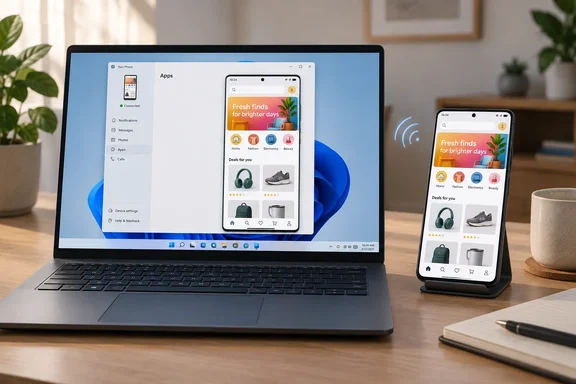
- Select Apps in the sidebar.
- Follow any first-run setup prompts.
- Choose an app from the displayed list or from Recently used.
- Use it in its own window with your mouse, trackpad, keyboard, pen, or touchscreen.
You can also right-click a listed Android app to:
- Add it to Phone Link favorites.
- Pin it to the Start menu.
- Pin it to the taskbar.
A pinned app behaves like a convenient Windows shortcut, but it is still not a native Windows app. It depends on the phone being powered on, connected, and reachable over Wi-Fi.
For a broader view of the handset, choose Open phone screen above the app list. This mirrors the complete phone display in a separate window, which is useful when an app is not listed individually or when you need to navigate a phone-only setting.
The limitations worth knowing before you rely on it
Phone Link app streaming is convenient, but it is not a replacement for native Windows software or an Android emulator.
Your apps remain on the phone
Windows is displaying and controlling the Android app remotely. It does not download, install, or run the app locally. Close the connection, move out of Wi-Fi range, lock down the network, or let the phone run out of battery, and the party ends.
Not every app will cooperate
Some apps deliberately block screen casting or remote display for security or licensing reasons. When that happens, Phone Link may show a black screen and there is no Windows-side workaround. Banking, video, and protected-content apps are frequent candidates for restrictions, though behavior depends on the individual app.
App audio stays on the Android phone
Microsoft notes that audio from a streamed mobile app continues to play through the phone. That is fine for a quick clip at your desk, less fine if you expected your PC speakers to take over automatically.
Work and secondary Android profiles are excluded
Phone Link does not support multiple Android profiles, work profiles, or work/school accounts for this purpose. Only apps from the phone’s default personal profile appear. This is an important boundary for managed devices: corporate controls and network policy can prevent app streaming from working at all.
Wi-Fi is the make-or-break ingredient
The two devices must be able to communicate on the same network. A guest Wi-Fi network, public hotspot, VPN, firewall policy, or split 2.4 GHz/5 GHz setup can stop the connection cold. Microsoft specifically warns that public and workplace networks can interfere with Apps.
If app launching fails:
- Confirm both devices are on the same named Wi-Fi network.
- Make sure both use the same Wi-Fi band where possible.
- Turn off Airplane mode and Battery Saver temporarily.
- Verify that both apps use the same Microsoft account.
- Update Phone Link and Link to Windows.
- If necessary, exempt Link to Windows from Android battery optimization.
- Temporarily disconnect a VPN to test whether network filtering is involved.
When Phone Link is genuinely useful
The best use case is not marathon mobile gaming or editing a feature-length film in a phone app—there are sturdier ways to invite chaos into an afternoon. It is about reducing device-switching friction.
Use it when you want to:
- Respond to a chat without picking up the phone every few minutes.
- Keep an Android-only utility visible beside a Windows document.
- Copy information between a mobile shopping, authentication, or tracking app and a PC workflow.
- Use the phone app’s interface with a bigger display and a physical keyboard.
- Keep your phone charging across the room while its apps remain accessible at the desk.
Microsoft’s support guidance confirms that app windows can sit alongside Windows apps, and supported devices may run multiple phone apps at once. That turns Phone Link into a practical bridge for people who live in both ecosystems—not a magic conversion spell, but a surprisingly tidy compromise.
If you need deeper Android integration, WindowsForum’s related coverage of Phone Link troubleshooting, cross-device copy and paste, and Windows 11 mobile-device settings is worth exploring next.