

0x124—should be treated as a hardware-health warning until the evidence points elsewhere. Microsoft’s debugger documentation says the stop code means Windows received a fatal error through the Windows Hardware Error Architecture, or WHEA; heat, failing memory, processor trouble, PCI Express faults, and defective hardware are typical causes, while a driver remains a less common but possible trigger.The important correction to much generic BSOD advice is that WHEA is the reporting path, not a diagnosis. Reinstalling Windows before checking the WHEA record, recent driver changes, cooling, RAM stability, and storage can erase useful clues while doing nothing to repair a marginal component. Start by preserving what the PC already knows, then make one controlled change at a time.
If the machine is crashing repeatedly, back up irreplaceable files first. A WHEA event can be a one-off consequence of a bad shutdown or a loose peripheral, but repeated fatal hardware reports raise the risk of corruption and an eventually unbootable system.
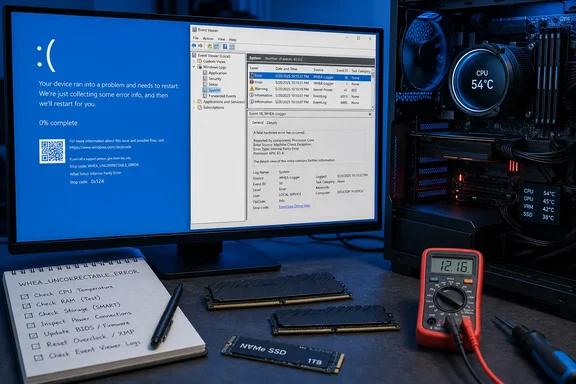 Read the WHEA record before changing anything
Open Event Viewer by right-clicking Start and selecting Event Viewer, then go to Windows Logs > System. Select Filter Current Log, choose Event sources, and filter for WHEA-Logger. Focus first on entries logged immediately before the blue screen, sudden restart, freeze, or application crash you are investigating.
Microsoft Learn documents that WHEA writes hardware-error events to the System log and includes an error record describing the condition Windows saw. The wording inside that record is far more useful than the mere presence of an Event ID. Look for fields such as Error Source, Error Type, Processor APIC ID, Bus/Interconnect Error, Cache Hierarchy Error, Memory Error, or PCI Express Error.
A useful first split is between corrected and fatal events. A corrected WHEA entry does not mean the PC is healthy; it can be an early warning that the processor, memory controller, RAM, or PCIe connection is becoming unreliable under load. A 0x124 crash means Windows received an error serious enough that it could not safely continue.
Do not diagnose the machine solely from an Event ID found in a search result. The same WHEA provider can record different classes of errors, and an event mentioning the processor does not automatically prove that the CPU itself is defective. A cache or interconnect report can also reflect unstable BIOS settings, RAM tuning, motherboard power delivery, heat, or an attached PCIe device.
Before making repairs, record:
- The exact stop code and the date and time of every crash.
- The full text of the matching WHEA-Logger event, including its error type and device or processor details.
- Whether crashes happen at idle, during gaming, while compiling code, during sleep or wake, or only when copying data.
- Any hardware, BIOS, firmware, Windows update, or driver change made shortly before the first failure.
For a quick command-line view, open PowerShell as an administrator and run:
Get-WinEvent -LogName System |
Where-Object {$_.ProviderName -eq 'Microsoft-Windows-WHEA-Logger'} |
Select-Object TimeCreated, Id, LevelDisplayName, Message |
Format-List
This does not replace reading the complete event, but it makes repeated patterns easier to spot. Repeated records with the same wording and the same timing relative to a workload are stronger evidence than one unexplained crash.
Establish a stable baseline: clocks, cooling, and connections
The lowest-risk WHEA fix is often undoing a change that made the system marginal. If the PC uses CPU overclocking, undervolting, memory overclocking, or a performance preset in BIOS or UEFI, return it to documented defaults before testing further. That includes XMP, EXPO, DOCP, PBO, Intel Turbo tuning utilities, GPU overclocks, and custom voltage curves where applicable.
This is not an accusation that the hardware is bad. A stable gaming profile can still become unstable after a BIOS update, a warmer season, accumulated dust, a driver change that shifts workload behavior, or normal component aging. Microsoft specifically advises disabling overclocking and checking cooling when troubleshooting 0x124.
Check the physical basics with the machine powered off and unplugged:
- Confirm CPU and case fans spin normally and are not obstructed by dust or cables.
- Make sure the CPU cooler is firmly mounted and laptop vents are clear.
- Reseat external USB devices, dock connections, and recently installed PCIe cards if the crash began after hardware work.
- For desktops, verify that GPU and motherboard power connectors are fully seated; do not open a power supply unit.
Temperature data should be interpreted in context, not against a single internet-sourced “safe” number. Use the motherboard or laptop manufacturer’s UEFI diagnostics, or a reputable sensor utility, to watch temperatures at idle and during the workload that normally causes the crash. A sudden temperature climb, fan failure, or crash that appears only under CPU or GPU load moves cooling, mounting, power delivery, and default-clock stability to the top of the list.
Reliability Monitor is useful for lining up failures with changes. Press Win + R, enter perfmon /rel, and look at the days preceding the first WHEA crash. Note driver installations, failed Windows updates, application failures, and hardware-error entries—but treat the timeline as correlation, not proof. Its value is identifying what changed and what workload exposed the fault.
Roll back the driver change instead of updating everything
Drivers can trigger WHEA crashes indirectly. A graphics, chipset, storage-controller, network, or device-management driver may exercise hardware differently, expose a firmware defect, or cause an already marginal device to fail. Microsoft’s support guidance for blue screens recommends checking Event Viewer, removing newly added hardware, and testing drivers and memory; that sequence is more defensible than installing a collection of “driver updater” utilities.
Start with the driver or device that changed closest to the first crash. In Device Manager, open the relevant device’s Properties > Driver tab. If Roll Back Driver is available and the timing fits, roll back that single driver and restart. Microsoft notes that the rollback option exists only when Windows retains a previous version.
Then install a known-good replacement from the right place:
- For laptops and branded desktops, check the PC maker’s support page first, especially for BIOS, chipset, storage, power-management, and graphics packages.
- For a self-built PC, use the motherboard manufacturer for chipset, LAN, audio, and BIOS updates; use the GPU manufacturer for the graphics driver.
- Use Windows Update’s optional driver updates selectively, after recording the current driver version.
Avoid stacking a BIOS update, chipset update, graphics update, and memory-profile change in one maintenance session. If stability returns, you will not know which intervention fixed it. Firmware updates can be important for a documented storage, USB, PCIe, or memory-compatibility problem, but they must be applied with stable power and the vendor’s exact model guidance.
Do not use Driver Verifier as an early troubleshooting step on a personal workstation or production PC. Microsoft documents it as a driver testing and debugging tool and warns that it can deliberately crash the computer; its intended use is test and debug systems, ideally with a kernel debugger available. A WHEA 0x124 already points first toward the hardware error record and baseline stability, so forcing additional bug checks is usually the wrong first move.
Test RAM and storage without mistaking a pass for proof
Run the built-in Windows Memory Diagnostic after returning firmware settings to defaults. Save work, press Win + R, run mdsched, and choose Restart now and check for problems. After Windows returns, search Event Viewer for MemoryDiagnostics-Results; Microsoft support identifies Event ID 2001 as a result showing no detected memory errors.
A clean Windows Memory Diagnostic result is useful, but it is not a certificate that the entire memory subsystem is perfect. Intermittent faults can depend on temperature, voltage, timing, module combinations, or prolonged load. If WHEA reports memory-related errors, the PC crashes during memory-heavy work, or Windows Memory Diagnostic reports any fault, test more deeply with a bootable memory tool such as PassMark MemTest86. PassMark’s own documentation says intermittent errors may need extended testing and that its default configuration uses four passes.
One memory-test error is enough to stop treating the system as stable. With the PC powered off, remove any overclocking profile, confirm the modules are installed in the motherboard’s recommended slots, and test matched modules and configurations methodically. If errors appear only with both sticks installed, the RAM kit, slot population, memory-controller limits, or the selected memory profile may be involved. Do not keep using a machine that produces repeatable memory errors for important work; bad RAM can corrupt files long before it produces a convenient, repeatable blue screen.
For storage, begin with a non-destructive NTFS scan from an elevated Command Prompt:
chkdsk C: /scan
Microsoft’s chkdsk documentation distinguishes this from repair options: running chkdsk without repair switches reports status, while /f fixes logical file-system errors and /r reads the volume to locate physical errors and attempt recovery. If the scan reports errors, make a backup before scheduling repair work. A storage problem can also be upstream of the drive itself: check the NVMe or SATA connection, storage-controller drivers, SSD firmware, and motherboard BIOS.
On systems with RAID, enterprise SSDs, BitLocker, or important virtual machines, do not treat chkdsk /r as a casual first response. Review the storage vendor’s diagnostic data and confirm backups before attempting long offline scans or firmware changes.
Preserve crash evidence if WHEA returns
If the blue screen repeats after defaults, cooling checks, a focused driver rollback or update, RAM testing, and storage checks, preserve a memory dump for analysis rather than reinstalling Windows. Microsoft documents that small dumps are ordinarily stored in C:\Windows\Minidump and include the stop message, parameters, loaded drivers, and kernel call stack.
Check System Properties > Advanced > Startup and Recovery > Settings and make sure Windows is set to write a debugging dump. Automatic memory dump is a sensible default for most PCs; small memory dumps are easier to retain and share with a technician, though they contain less context. Keep the paging file enabled on the Windows boot volume, because Windows may need it to write the dump during a crash.
A repeatable WHEA 0x124 at stock settings with clean driver history and a matching WHEA hardware record is no longer a Windows housekeeping problem. At that point, the practical next action is hardware isolation: vendor diagnostics, warranty service, or swapping a known-good RAM kit, GPU, storage device, power supply, or motherboard component one at a time. The error record and preserved dump turn that repair from guesswork into a targeted case.