

Set the rate in Windows first, then verify it on the monitor itself and inside the game. A frame-rate counter alone cannot prove the display connection is operating at the intended refresh rate.
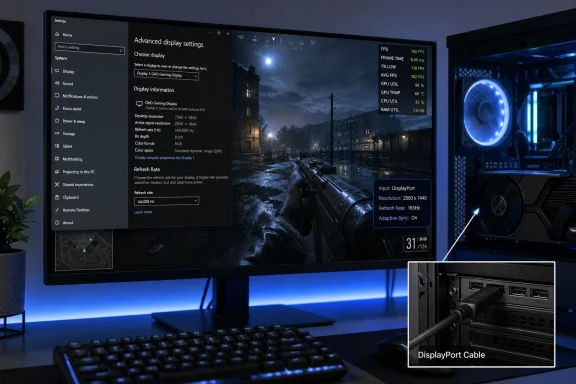 Choose the correct monitor and refresh rate in Windows
In Windows 11, open Settings > System > Display > Advanced display. If more than one display is attached, use the selector at the top of the page to choose the gaming monitor before changing anything. Windows lists the active desktop resolution, the current refresh rate, and whether the selected display supports variable refresh rate.
Under Choose a refresh rate, select the highest rate available for the monitor at its native resolution. For example, choose 1920 × 1080 at 144Hz for a 1080p 144Hz panel, or 2560 × 1440 at 165Hz for a 1440p 165Hz model.
Windows 10 uses a similar route:
- Open Start > Settings > System > Display.
- Select the gaming monitor if you have multiple displays.
- Scroll down and choose Advanced display settings.
- Select the desired refresh rate from the Refresh rate list.
Microsoft notes one easily missed detail: an asterisk beside a refresh-rate option means Windows must change resolution to use it. A monitor might offer 165Hz only at 1920 × 1080, for example, while its native 2560 × 1440 mode tops out at 144Hz through the currently connected input. Do not choose a higher number blindly if it forces a resolution you do not want.
After selecting a new mode, Windows may briefly blank the screen while the monitor renegotiates the signal. Keep the setting when the image returns. If it does not return or looks corrupted, wait for Windows to revert the change automatically.
Windows 10 reached end of support on October 14, 2025. The refresh-rate controls still work, but a gaming PC that remains on Windows 10 should be treated as an unsupported operating-system installation from a security and driver-support perspective.
A high-refresh monitor needs a complete signal path
The list in Windows is not a promise of every mode printed on a monitor’s retail packaging. It is a list of modes the graphics driver believes the current connection can use. If 144Hz, 165Hz, or 240Hz is missing, work backward through the hardware before searching for obscure Windows tweaks.
Start with the monitor’s on-screen display menu. Many gaming monitors have an Information, Input, or Display Status page that shows the current incoming resolution and refresh rate. This is the most useful verification step: Windows may show the selected setting, while the monitor confirms what the panel says it is actually receiving.
Check these items in order:
- Use the monitor input that supports its advertised maximum refresh rate at the native resolution. Some displays reserve their highest modes for a particular DisplayPort or HDMI input.
- Connect the GPU directly to the monitor where possible. USB-C docks, display adapters, KVM switches, capture devices, and older AV receivers can limit available bandwidth or report a restricted set of display modes.
- Use a cable certified or supplied for the needed connection standard, but verify the monitor and GPU manuals rather than relying on a cable label alone. The same “HDMI” label can cover hardware with very different maximum combinations of resolution, refresh rate, color depth, and HDR.
- Make sure the cable is connected to the discrete graphics card, not to a motherboard video port, on a desktop PC with a dedicated GPU. Motherboard ports may use integrated graphics or be disabled entirely, depending on the system.
- Check the monitor’s own menu for an overclock or high-refresh setting. A number of displays ship at a lower default limit and expose 165Hz, 180Hz, or higher only after that option is enabled in the monitor firmware menu.
A 4K monitor is where compromises become especially visible. A connection may carry 4K at 60Hz, 120Hz with reduced color settings, or a lower resolution at a higher rate, depending on the exact monitor, GPU, cable, and input. HDR can also affect which combinations appear because it increases the amount of display data being sent. The correct target is not simply the largest refresh-rate number; it is the monitor’s intended native-resolution mode with the color and HDR settings you actually plan to use.
Keep the desktop at the mode you intend to game on
Set the Windows desktop to the desired native resolution and refresh rate before launching the game. This is particularly important for games that run in borderless windowed mode, because borderless games commonly present through the desktop’s display mode rather than taking exclusive control of the panel.
If the desktop is set to 60Hz, a borderless game can remain tied to that 60Hz presentation path even if the monitor is rated for 144Hz or 165Hz. Changing a game’s graphics preset will not automatically fix the desktop refresh setting.
Avoid testing a high-refresh display while Windows is duplicating the gaming monitor to a TV, projector, capture device, or older secondary display. Duplicated displays can produce confusing mode limits because Windows must find a signal arrangement both devices can accept. Use Extend these displays for a multi-monitor gaming setup, or temporarily select Show only on 1 or Show only on 2 while diagnosing the gaming monitor.
If Windows still does not offer the expected rate, update the graphics driver from NVIDIA, AMD, or Intel rather than relying only on the version delivered through Windows Update. Driver control panels can also show available modes: NVIDIA Control Panel’s Change resolution page, for instance, has a refresh-rate selector for the active display. Treat that as a diagnostic cross-check, not a competing configuration to repeatedly toggle back and forth with Windows.
Configure the game separately
A Windows setting establishes what the display can use; the game still needs to render and present correctly. Open the game’s Display, Video, or Graphics settings and check four items: display mode, monitor selection, resolution, and refresh rate.
Select the correct physical monitor first. Games can open on the wrong screen when a TV, laptop panel, or second monitor is connected. Then choose the same native resolution and target refresh rate selected in Windows, if the game provides an explicit refresh-rate menu.
For first testing, use fullscreen or exclusive fullscreen if the game offers it. This removes some uncertainty around borderless-window behavior and makes the selected in-game display mode easier to identify. Once the high-refresh signal is confirmed, switch back to borderless if you prefer faster Alt+Tab behavior or multi-monitor convenience.
V-Sync, frame caps, and variable refresh rate solve different problems:
- V-Sync can cap the game’s presentation rate to the display refresh rate and reduce tearing, but it does not turn a 60Hz connection into a 144Hz one.
- A frame-rate cap below the monitor’s refresh rate can be intentional, especially for power, heat, noise, or frame-time consistency. It also means the game will not supply a new frame on every 144Hz or 165Hz refresh interval.
- Variable refresh rate, including AMD FreeSync and NVIDIA G-SYNC Compatible operation, lets a supported display vary its refresh timing to track the game’s delivered frames within the monitor’s supported range. It is valuable when the frame rate moves around, but it does not replace selecting the right maximum refresh rate in Windows.
Microsoft says Windows 11’s Dynamic Refresh Rate can vary the rate automatically on supported hardware, primarily to balance smoothness and battery life. It is not available in Windows 10. On a desktop gaming monitor, the practical check remains the selected mode in Advanced display and the monitor’s own input-status screen.
Verify smooth gameplay instead of trusting one number
Use three separate checks after applying the setting.
First, return to Advanced display and confirm Windows reports the intended refresh rate for the correct monitor. Second, open the monitor’s on-screen information page and confirm that it reports the same incoming signal—for example, 2560 × 1440 at 165Hz. Third, check the game’s own display settings and performance overlay.
The game’s frames-per-second counter answers a different question from the monitor’s status page. If a game runs at 72 fps on a 144Hz monitor, Windows and the monitor can still be configured correctly; the GPU is simply delivering half as many frames as the panel can refresh. Lower graphics settings, a performance-focused upscaling mode, or a sensible frame cap may improve the experience, depending on the game and hardware.
Conversely, a game reporting 200 fps does not prove a 200Hz display signal. A 60Hz monitor can receive more frames from the GPU than it can physically show. The monitor status page and Windows Advanced display page are the checks that establish whether the connection is actually running at 120Hz, 144Hz, 165Hz, or beyond.
The final practical outcome should be easy to state: Windows shows the target rate, the monitor’s own menu confirms the matching input signal, and the game is running on that monitor at an appropriate resolution and display mode. If any one of those three disagrees, the high-refresh setup is not finished.