

Microsoft’s current Windows Client troubleshooting guidance recommends configuring crash-dump collection through Startup and Recovery, with Automatic memory dump as the default choice. Microsoft Support separately documents a temporary “Disable automatic restart on system failure” option in the Windows Recovery Environment for machines caught in a boot loop. The important distinction is that the Startup and Recovery setting is persistent; the Windows Recovery Environment choice is a one-boot troubleshooting measure.
For most PCs, this is a 10-minute preventative change worth making before the next crash. It does not cure a faulty driver, unstable memory, storage problem, or firmware bug. It ensures that the next failure leaves evidence rather than an unexplained reboot.
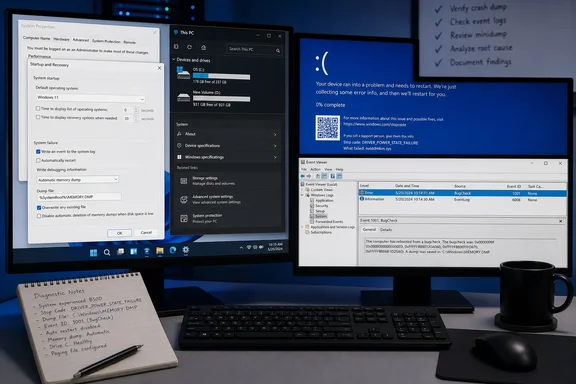 Open the persistent Startup and Recovery controls
Sign in with an administrator account, then open the classic System Properties dialog. The fastest route on Windows 10 and Windows 11 is to press Windows + R, enter sysdm.cpl, and press Enter.
Select the Advanced tab. Under Startup and Recovery, select Settings. The lower half of this dialog, labeled System failure, controls what Windows records and whether it immediately reboots after a bug check.
Make these baseline changes:
- Leave Write an event to the system log enabled so Windows records the failure in the System log after the next startup.
- Clear Automatically restart so the blue-screen display stays visible until you restart the computer yourself.
- Select a debugging-information type rather than “(none).” A stop code is useful; a dump file is the evidence needed for meaningful diagnosis.
Click OK through the open dialogs, then restart Windows once. Microsoft’s documentation says a restart is required for the changed crash-dump settings to take effect. Do this now, while the computer is stable, rather than trying to change it during a restart loop.
With automatic restart disabled, a blue screen will remain on screen instead of yielding to the manufacturer logo or Windows sign-in screen. Photograph it with a phone if necessary. Record the full stop code, any named driver or module, what the computer was doing immediately before the crash, and whether the failure followed a Windows update, driver update, BIOS update, new peripheral, or hardware change.
Do not mistake a remaining blue screen for a successful diagnosis. A stop code describes the condition Windows detected, not necessarily the component that caused it. MEMORY_MANAGEMENT, for example, can reflect a bad driver, corrupt data, RAM instability, or storage trouble. The memory dump and the event history supply the next layer of evidence.
Choose a dump type that matches the problem
The drop-down list under Write debugging information presents several dump types. The right selection depends on what you need to investigate and how much disk capacity you can reserve on the Windows drive.
For a typical Windows 10 or Windows 11 workstation, choose Automatic memory dump. Microsoft says this contains the same information as a kernel memory dump, while allowing Windows to manage the paging-file size dynamically. It is the sensible default for recurring blue screens, especially those suspected to involve device drivers, antivirus filter drivers, storage drivers, graphics drivers, or Windows kernel components.
Choose Kernel memory dump when an administrator or support engineer specifically requests it, or when you want a more predictable kernel-focused configuration. It captures Windows kernel memory and kernel-mode drivers, but excludes ordinary user-mode application memory and unallocated RAM. Microsoft describes it as the most useful dump for most purposes because it retains the data commonly needed for a kernel crash while avoiding the size of a full-RAM capture.
Choose Small memory dump when disk space is constrained or when preserving a series of crashes is more valuable than collecting deep forensic detail from a single event. Small dumps retain the bug-check code and parameters, the loaded-driver list, processor context, and the kernel-mode call stack. They are often enough to show whether the same failure pattern repeats across several crashes, but they can miss the cause when the fault occurred outside the thread Windows was executing at the time.
There is a documentation wrinkle worth knowing before treating the label as a precise file-size promise. Microsoft’s current Startup and Recovery instructions and stop-code article still describe the interface option as “Small memory dump (256 KB),” while Microsoft’s debugger documentation and memory-dump reference describe the underlying small dump as 64 KB. The practical conclusion is simple: use the choice by name and evaluate the resulting .dmp file, rather than designing storage around either number in the label. It is the minimal dump format, not a substitute for a kernel dump when a vendor asks for detailed analysis.
Choose Complete memory dump only when a Microsoft engineer, driver vendor, or internal escalation procedure asks for it, or when diagnosis genuinely requires the state of user-mode memory. It can include data from applications that were running when the system crashed, which makes it both large and potentially sensitive. It also requires a paging file on the boot volume large enough to accommodate physical RAM plus the dump overhead.
Active memory dump is more specialized. Microsoft documents it as a filtered alternative to a complete dump that retains active memory relevant to debugging while excluding pages less likely to matter. It is particularly useful on systems hosting virtual machines, where a complete dump may include large amounts of guest-memory data. For an ordinary desktop or laptop blue screen, Automatic memory dump remains the cleaner starting point.
Keep the paging file on the Windows boot volume
The most common mistake in crash-dump configuration is moving the paging file away from the Windows boot volume to reclaim space on C:. You may still see a dump-file path configured in Startup and Recovery, but that does not mean Windows can capture the crash successfully.
Microsoft’s crash-dump guidance is explicit: the paging file must be on the boot volume for dump collection. At the moment of a bug check, Windows saves memory to the paging file on the operating-system volume before it can later write the final dump file. For complete dumps, this remains true even if the final DumpFile setting points to another local drive.
For a reliable configuration:
- Keep a system-managed paging file on the Windows boot volume, normally
C:. - Leave the default dump destination in place unless storage policy gives you a clear reason to change it.
- Do not use a removable drive, network share, or a drive that may be unavailable early in startup as the only planned destination.
- Ensure the Windows volume has adequate free space for the chosen dump type and for normal updates, restore points, and application use.
The default large-dump location is %SystemRoot%\MEMORY.DMP, which normally resolves to C:\Windows\MEMORY.DMP. Microsoft’s documentation identifies that location for Automatic, Kernel, Complete, and Active dumps. It is a good default because it lives on the same Windows installation that supplies the required boot-volume paging file.
Small dumps default to %SystemRoot%\Minidump, normally C:\Windows\Minidump. Unlike the standard MEMORY.DMP file, which may be overwritten by a later kernel or complete dump depending on the selected overwrite setting, small dumps are designed to accumulate as separately named files. That makes them useful when a PC intermittently crashes over several days.
If you select Kernel, Automatic, Complete, or Active memory dump, consider the Overwrite any existing file option carefully. Leaving it enabled conserves storage but retains only the most recent major crash. Clearing it can preserve evidence, but it requires disciplined disk-space monitoring and manual renaming or archiving after each crash. On a personal PC, retaining the latest dump is often adequate. On a workstation with an intermittent production issue, copy each new dump to secured storage before the next failure overwrites it.
Crash dumps can contain private information from memory, including document fragments, credentials in application memory, or business data. Treat a .dmp file as sensitive diagnostic material. Review your organization’s handling rules before uploading one to a forum, cloud share, vendor ticket, or third-party analysis service.
Preserve the stop code and confirm the dump exists
Turning off automatic restart gives you time to capture the blue-screen details, but it should be paired with the System log and the dump file. Microsoft’s unexpected-restart guidance identifies Event ID 1001 from WER-SystemErrorReporting as the post-reboot record for a bug check; it normally includes the bug-check code and the path where Windows saved the dump.
After the computer has restarted from a real blue screen, open Event Viewer and go to Windows Logs > System. Look around the crash time for Event ID 1001 and confirm that its message reports a bug check and names a dump-file path. Event ID 41 from Kernel-Power only tells you that Windows restarted without a clean shutdown; it can result from a crash, power loss, forced reset, or hardware failure. It does not by itself establish that a blue screen occurred.
Then inspect the configured location:
- Check
C:\Windows\Minidumpafter choosing Small memory dump. - Check
C:\Windows\MEMORY.DMPafter choosing Automatic, Kernel, Complete, or Active memory dump. - Copy the dump elsewhere before trying risky driver changes, firmware updates, or cleanup utilities.
Microsoft’s Windows Client stop-code documentation recommends WinDbg and the public Microsoft symbol server for analysis, and its standard first command is !analyze -v. That command can produce a useful initial assessment, but “probably caused by” is an investigative lead, not a verdict. Compare repeated dumps, note recently installed drivers and updates, and avoid uninstalling a named component solely because a single automated analysis mentioned it.
For a system that cannot stay booted long enough to change the persistent setting, use Windows Recovery Environment: Troubleshoot > Advanced options > Startup Settings > Restart, then select Disable automatic restart on system failure. Microsoft documents that option specifically for a repeated fail-restart-fail loop. Once Windows starts normally, return to Startup and Recovery and configure the persistent setting and dump type.
The concrete outcome is straightforward: the next Windows bug check should remain visible long enough to record, create a dump under a known path, and leave an Event ID 1001 record after reboot. If any of those three pieces is missing, investigate the paging-file configuration and available space before assuming Windows has nothing useful to report.