

Microsoft Support’s current screen-saver instructions apply to both Windows 10 and Windows 11: choose a saver, set a nonzero Wait period, and apply the change. Microsoft Learn also documents an important enterprise exception that catches many administrators: enabling the “Enable screen saver” policy without defining a screen-saver timeout can leave Windows with no timeout at all, so the saver never starts.
 Confirm that Windows has a screen saver and a timeout
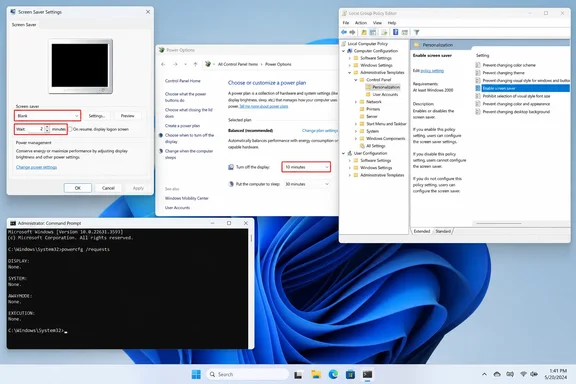
Open Settings > Personalization > Lock screen, then select Screen saver under Related settings. In the older Screen Saver Settings dialog, set Screen saver to something other than “(None)” and set Wait to a short test value such as 1 or 2 minutes.
Select Apply, then select Preview. Preview is a useful dividing line:
- If Preview does not work, choose a different built-in saver first. A broken third-party
.scrfile, a removed photo location, or an unsupported old saver is a better suspect than Windows idle detection. - If Preview works but the saver never starts after you leave the PC alone, the problem is almost certainly the idle timer, a power behavior, real or simulated input, or policy.
For a clean test, select a built-in option such as Blank, set Wait to 1 minute, select Apply, and leave the PC untouched. Do not move the mouse, touch a touchpad, press a media key, or use a wireless controller while testing. A screen saver is based on inactivity for the signed-in user; it is not a timer that runs regardless of input.
The On resume, display logon screen checkbox does not determine whether the screen saver launches. It determines whether Windows requires sign-in after the screen saver is dismissed. Enable it if the goal is a basic unattended-workstation lock, but do not expect changing it to repair a saver that fails to start.
Set the display timeout later than the screen-saver timeout
A screen saver can be correctly configured and still appear never to run if Windows turns the display off first. This is the most common practical misunderstanding: an off display gives you no opportunity to see a saver start.
On Windows 11, open Settings > System > Power & battery > Screen, sleep, & hibernate timeouts. On Windows 10, use Settings > System > Power & sleep. Set Turn my screen off after to a value longer than the screen saver’s Wait value while testing. For example:
| Setting | Test value |
|---|---|
| Screen saver Wait | 2 minutes |
| Turn my screen off after | 5 minutes |
| Put the device to sleep after | 10 minutes or Never temporarily |
Microsoft’s power documentation treats display-off and sleep as separate idle timers. That separation is important here. A screen saver is visual; if the display blanking timer expires at one minute and the saver is scheduled for two, Windows can still be behaving as configured even though the saver is never visible.
Once the test succeeds, choose the behavior you actually want. Microsoft recommends display sleep rather than a running screen saver for power savings, and that is sound advice for unattended PCs. A reasonable work-machine setup is often a screen saver or lock at 5–10 minutes, display-off shortly afterward, and sleep later still. On an OLED display, a short display-off timeout is generally more useful protection against a persistent static image than leaving an animated saver running for hours.
If you only need a lock screen after inactivity, do not treat a screen saver as the only security control. Screen-saver lock behavior depends on the selected saver, user profile, and policy. Organizations should enforce their approved inactivity-lock policy through their management controls rather than relying on an individual user’s Screen Saver Settings dialog.
Eliminate activity that resets or suppresses idle behavior
If the built-in saver works during a clean test but stops working in normal use, look for software or hardware that keeps Windows awake or continually produces input. Presentation software, video playback, remote-access utilities, mouse-jiggler tools, game launchers, conferencing apps, USB controllers, and some docking-station or display-management utilities can all change the result.
Microsoft’s Windows power documentation explains that applications can make power requests that prevent the display from powering off or the PC from sleeping. Open Terminal or Command Prompt and run:
powercfg /requests
The command lists active application, service, and driver requests. A listed entry is worth investigating if it remains present when it should not be—for example, after a presentation, video call, or remote-control session has ended. It does not prove that the listed component alone is blocking the screen saver, but it does identify software deliberately asking Windows to keep a display or system active.
Do not immediately use powercfg /requestsoverride to suppress a request. Overriding a legitimate display request can blank a screen during a presentation, media playback, backup, or other task that requires visibility. First close the program, disconnect unnecessary USB input devices, exit a remote session, and test again with the built-in Blank saver. If the issue disappears, re-enable items one at a time until the behavior returns.
Pay particular attention to input rather than just visible applications. A faulty wireless mouse, an overly sensitive controller, a USB touchscreen, or software generating periodic pointer movement can keep resetting the user-idle clock. Disconnecting nonessential input hardware for a five-minute test is safer and faster than making speculative registry changes.
Check whether work or school management owns the setting
A screen-saver setting that refuses to save, is grayed out, reverts after sign-in, or differs between user accounts is usually policy-controlled. On a PC connected to a work or school account, local changes may be overwritten by Active Directory Group Policy or mobile-device management.
Administrators should inspect these policies under:
User Configuration
  > Administrative Templates
  > Control Panel
  > Personalization
The relevant policies are:
- Enable screen saver controls whether screen savers may run.
- Screen saver timeout supplies the user idle period, in seconds.
- Force specific screen saver can point Windows to one required
.scrfile. - Password protect the screen saver controls the resume sign-in requirement.
- Prevent changing screen saver removes the user’s ability to alter the settings dialog.
Microsoft Learn’s policy documentation states that “Enable screen saver” alone is insufficient. Windows also needs a valid saver and a nonzero timeout. Microsoft’s KB 2616727 goes further: on supported Windows clients, the ordinary per-user ScreenSaveTimeOut value is not present by default in the configuration described by the KB. An administrator who enables the policy but does not configure the timeout has created a policy that looks complete in Group Policy Management yet does not launch a saver.
That is a deployment error, not a client-side failure. Configure Screen saver timeout explicitly—600 seconds is 10 minutes, for example—and apply it to the affected user scope. The policy is user-scoped, so checking only the computer-side Group Policy result can miss the setting that matters.
On a managed PC, do not delete policy values merely to make the local dialog work. They will commonly return at the next policy refresh, and removing them can violate an organization’s security baseline. Instead, identify the winning policy with:
gpresult /h "%TEMP%\GPResult.html"
Open the resulting report in a browser and review the user-side settings and applied Group Policy Objects. Microsoft’s Group Policy guidance identifies gpresult as the tool for showing the Resultant Set of Policy—the settings that were actually enforced at sign-in, rather than the settings an administrator thinks should have applied. An administrator can then correct the GPO link, security filtering, precedence, or timeout setting and refresh policy with gpupdate /force.
Inspect the per-user registry only after policy is ruled out
For an unmanaged personal PC, the screen-saver configuration is stored per user at:
HKEY_CURRENT_USER\Control Panel\Desktop
Before editing anything, export the Desktop key from Registry Editor. The values to inspect are:
ScreenSaveActive
ScreenSaveTimeOut
SCRNSAVE.EXE
ScreenSaverIsSecure
ScreenSaveActive should normally be 1 for an enabled saver. ScreenSaveTimeOut is a string value in seconds; 600 means 10 minutes. SCRNSAVE.EXE identifies the selected screen saver. ScreenSaverIsSecure controls whether a sign-in is required on resume, but it is not the switch that makes the saver start.
If ScreenSaveTimeOut is missing on an unmanaged PC and the Screen Saver Settings dialog will not restore it, create a String Value with that exact name and use a test value such as 120. Sign out and sign back in before testing. Do not set a screen-saver timeout to 0; Microsoft’s policy documentation defines zero as a value that prevents the saver from launching.
Also inspect this policy location:
HKEY_CURRENT_USER\Software\Policies\Microsoft\Windows\Control Panel\Desktop
A ScreenSaveActive value of 0, or a forced SCRNSAVE.EXE path pointing to a file that no longer exists, can explain why the normal settings appear ineffective. But the presence of that policy key is also evidence that the device may be managed. Stop and check gpresult before altering anything there.
The practical fix is therefore ordered: select a working built-in saver and nonzero Wait value, make the display-off timer longer, test without active apps and extra input devices, then determine whether policy is enforcing a conflicting configuration. Registry repair belongs at the end of that sequence, not the beginning.