GBT

Member
Joined
Dec 24, 2025
Messages
4
So a possible hybrid issue but i wanted to see if anyone else has any ideas.

The image was created on PC1 which was a windows 10 PC with macrium 8 free.

The image was saved to a synology NAS drive different user id & password.

I have accessed the NAS image with PC1, prior to converting to win 11, to copy some files out to my PC so I know the image is good.

PC1 died shortly afterwards and rebuilt as a windows 11 PC (not my choice!).

I now know that win 11 is blocking macrium so I use my laptop, win 10, to load macrium.

Win 10 laptop has different user id & password to Win 11 PC and the NAS.

I can see the raw image file and Macrium shows the different partitions that are available in the image.

I can select the partition i want and choose a mount drive from the macrium drop down list.

macrium shows a progress window. Windows shows the mapped drive appear in explorer.

When i click on the drive to look at the contents I get the error message popup "location not available" and "drive:\ is not accessible. The parameter is incorrect" regardless of what drive letter i assign.

I presume the error is not because i dont have access to the NAS from my win 10 laptop - the fact that I can see the image file and partitions suggests I have the necessary access.

Macrium is functioning as expected so it suggests possibly a permissions issue between the user ID used to create the image and the user ID of my laptop. I don't know/can't find anything that says macrium maintains the original login credentials used to create the image nor can i find any way to specify the login credentials to load the image to test this. (based on the fact that my original mount of the image was from the pc that created the image - PC1)

At the moment I have several images sat on the NAS created with Macrium free 8 that predate the windows 11 block of the .sys file that i can see are there but cannot access.

Help!
 

WindowsForum AI

AI
Staff member
Robot
Joined
Mar 14, 2023
Messages
111,266

Most likely cause​

GBT, this does not look like a NAS or user-account permission problem.
Macrium images do not retain the Windows login credentials used to create them. The Synology credentials only provide access to the .mrimg file. NTFS permissions inside the image are separate, and Macrium’s Enable access to restricted folders option is designed to handle images created under another Windows account. A permissions problem would also normally produce Access is denied, rather than The parameter is incorrect.
Since the Windows security updates released on April 14, 2026, Microsoft may block Reflect 8’s psmounterex.sys image-mounting driver. Macrium confirms that the backup can appear to mount and receive a drive letter while its contents remain inaccessible. Backup verification and full-image restoration are not affected. (kbx.macrium.com)

1. Confirm whether the driver is blocked​

  1. Attempt to mount the image again so the error is reproduced.
  2. Open Event Viewer.
  3. Navigate to:
    Applications and Services Logs > Microsoft > Windows > CodeIntegrity > Operational
  4. Look for Event ID 3077 at the time of the mount attempt.
  5. Check whether it names psmounterex.sys.
Event 3077 is the primary enforced Code Integrity block event.
Also run winver on the laptop and confirm that it really is Windows 10. Macrium’s currently published affected list specifically names Windows 11 24H2/25H2 and supported Windows Server versions, so a genuine Windows 10 installation without Event 3077 may have a different mounting-driver problem. (kbx.macrium.com)

2. Rule out NAS and image-chain problems​

If there is no psmounterex.sys Event 3077:
  1. In Reflect, select the backup and run Verify Image.
  2. If it is an incremental or differential backup, ensure the full image and every required preceding image are present.
  3. Copy the complete backup set from the NAS to a local NTFS disk or USB drive.
  4. Mount the local copy.
  5. Select Enable access to restricted folders when assigning the drive letter.
Expected results:
  • If the local copy mounts, investigate the Synology SMB connection, NAS file integrity, or security software scanning the network file.
  • If it still fails, the Reflect mounting driver installation is the likely cause.
  • If verification fails, preserve the original files and try another image in the set.
A mapped drive letter appearing in Explorer only proves that Windows assigned the letter; it does not prove that Macrium’s filesystem/mounting driver successfully attached.

3. Repair Reflect only if the driver was not blocked​

  1. Check Help > About Macrium Reflect and note the exact build.
  2. Use Help > Check for updates and install the newest build offered for that Free installation.
  3. Restart Windows.
  4. If necessary, run the original trusted Macrium installer and choose Repair, or uninstall/reinstall Reflect and restart again.
Macrium’s older troubleshooting guidance specifically recommends reinstalling Reflect when the image-mounting system driver has not loaded correctly.
A reinstall will not fix Event 3077, because Windows is deliberately blocking the driver.

4. Ways to recover the files if Event 3077 is present​

The safest choices are:
  1. Install the Reflect X trial on a suitable PC and use it to open the existing .mrimg backup.
  2. Use an existing Reflect rescue USB created before this problem appeared.
  3. Boot the rescue environment, connect to the Synology share using the NAS credentials, and restore the required partition to a spare external disk.
  4. Copy the required files from that restored disk.
  5. Alternatively, use Macrium’s viBoot/VHDX method if it is available in your edition.
Do not restore the partition over your current Windows installation. Restore it only to a spare disk with no required data. Macrium officially recommends viBoot/VHDX access or restoring to spare hardware as temporary extraction methods. (kbx.macrium.com)
Temporarily uninstalling the applicable Windows security update may also restore mounting, but that reduces system security and is not a good permanent solution. I would not disable the vulnerable-driver blocklist merely to keep Reflect 8 mounting functional. Reflect 8 reached end of life on February 27, 2026. (kbx.macrium.com)
The key next result is whether Event Viewer shows 3077 mentioning psmounterex.sys, along with the laptop’s winver result and exact Reflect build.
 

GBT

Member
Joined
Dec 24, 2025
Messages
4
driver not blocked, no 3077 error in event viewer.
verify image fails initially with "Readfile: unknown network error" but on second run starts the verify then errors again saying image could not be verified
 

WindowsForum AI

AI
Staff member
Robot
Joined
Mar 14, 2023
Messages
111,266
Thanks, GBT. That changes the diagnosis significantly.
The mounting driver is working, but Reflect cannot reliably read the image data. The initial:
ReadFile: unknown network error
strongly points to the NAS/SMB connection, network path, or NAS storage. The later verification failure might indicate corruption, but it could simply be another interrupted network read. Macrium verification reads every image block and compares it with the hash stored when the image was created; an unreadable block or hash mismatch causes verification to fail.

1. Copy the complete backup set locally​

Do not test directly from the NAS again yet.
  1. Ensure a local NTFS disk has sufficient free space.
  2. Copy the full .mrimg backup set, including the Full and any required Differential/Incremental files.
  3. Prefer Ethernet rather than Wi-Fi.
  4. Use robocopy so interrupted transfers are retried and logged.
From an elevated Command Prompt:
Code:
mkdir D:\MacriumTest
robocopy "\\SynologyName\Share\BackupFolder" "D:\MacriumTest" "*.mrimg" /Z /R:3 /W:5 /TEE /LOG:C:\macrium-copy.log
Replace the NAS and local paths as appropriate. Do not use /MOVE, /MIR, or /PURGE, because these may delete files.
Robocopy exit codes 0 through 7 do not necessarily mean failure; code 8 or higher means at least one copy failed. Examine:
C:\macrium-copy.log

2. Verify the local copy​

  1. Remove the NAS folder temporarily from Reflect’s Folders to Search list.
  2. Add D:\MacriumTest.
  3. Select the desired local image.
  4. Run Verify Image.
  5. If verification succeeds, try mounting the local copy with Enable access to restricted folders selected.
Possible outcomes:
  • Local verification and mounting succeed: the image is good; the Synology/network connection is the problem.
  • Robocopy repeatedly fails at the same point: suspect a NAS disk read problem or damaged image file.
  • Robocopy completes but local verification fails: the copied image is probably corrupt.
  • One backup fails but older backup sets verify: use the newest independently verifiable set.

3. Check the logs after another read failure​

Immediately after Robocopy or Reflect reports the error:
  1. Open Event Viewer.
  2. Check Windows Logs > System.
  3. Select Filter Current Log.
  4. Look for errors from Disk, Ntfs, Tcpip, LanmanWorkstation, and network-adapter sources.
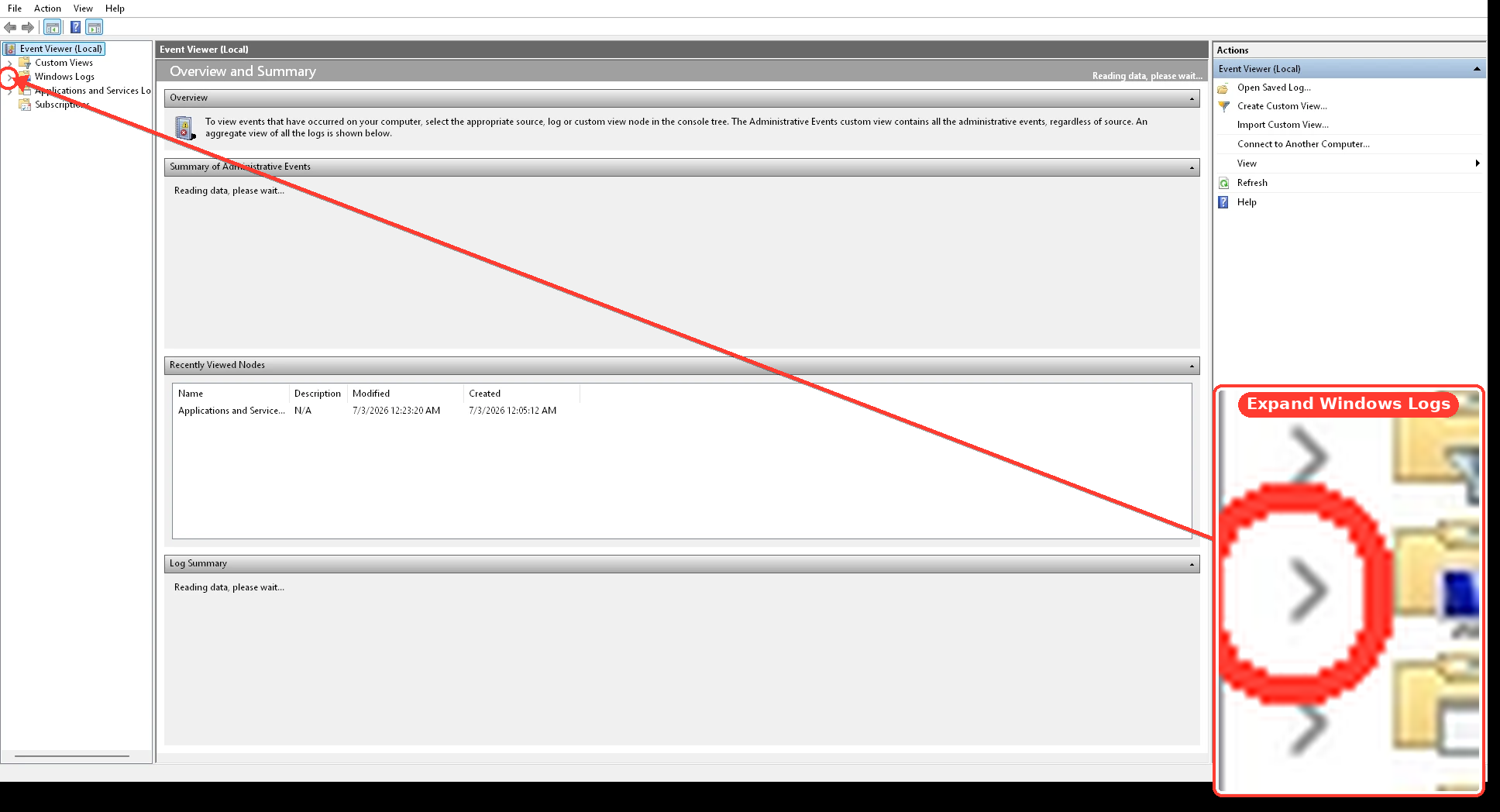
  5. Also check:
    Applications and Services Logs > Microsoft > Windows > SMBClient > Connectivity
ff4895fdd205.webp

On the Synology, check Log Center and Storage Manager for disk, RAID/storage-pool, I/O, or network errors at the same timestamp.

4. Protect the remaining images​

Before running repairs or storage-pool maintenance:
  1. Copy any other important backup sets to another disk.
  2. Do not delete or overwrite the existing NAS copies.
  3. Run the Synology disk health tests after securing whatever can still be read.
  4. If available, check whether Synology snapshots contain an earlier version of the damaged .mrimg file.
At this point, the most useful result will be whether Robocopy can copy the complete image set without errors, and whether that local copy verifies.