📎 AI Summary:
The thread concerns an HP Spectre x360 on Windows 10 detecting an HP E243i monitor but displaying no image after changes involving its Intel and NVIDIA MX330 graphics adapters. The response explains that hybrid graphics may intentionally use Intel for display output and NVIDIA for rendering, warns against editing hardware IDs or forcing drivers, and requests the exact laptop model, connection details, display settings, driver information, and monitor signal status. Overall, the discussion is cautious and diagnostic, with no confirmed adapter conflict or final fix yet.

deebee

Member
Member details
Joined
Sep 21, 2026
Messages
6
Thread Author #1
If the title is confusing then you might start to understand how I feel...

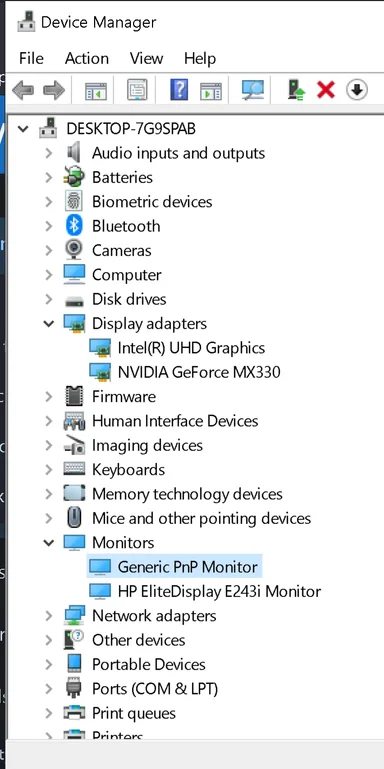
I purchased an HP Spectre x360 laptop (still running Windows 10) along with an HP e243i monitor that worked together for several years after I got it. Unfortunately, I believe they stopped working together when I enabled the GE MX330 onboard graphics card that wasn't being fully utilized after noticing a lag when playing games. As you can see in my attachment the monitor is detected and you can see both display adapters. As the title suggests, I believe there is a conflict within those adapters, but I have had zero luck in making it work. Note: This laptop will work with TVs as a second display. Here is what I have tried so far:

ACTION - I deleted the Intel graphics adapter in the hopes it would default to the GE MX330
RESULT - It defaulted to the most basic display adapter still left on the machine which has very limited functionality.

ACTION - With the monitor being pseudo accessible in the Display setting, I attempted to brute force it to use one of the GE MX330 driver files by navigating to it by clicking "Have Disk".
RESULT - It does not accept the new driver and reverts back to the Intel graphics adapter driver.

When you plug the monitor in, it will physically react and turn on, but will never show anything. When you switch the multiple display option to "Extend These Displays", it creates that extension and moves any open windows and the start menu/taskbar to the new display, but the monitor does not turn on or receive this output.

Note: This monitor works as a 2nd display with my wife's laptop which is why I believe the adapter conflict is the cause.

Both graphic adapters show different hardware and compatibility ID's when you look into the driver details. I have yet to be brave enough to attempt to edit a driver file as I've never done so, but could you assign similar values to fool it into sending the signal out?

Thank you for reading all of that. I can supply more screenshots as needed. I appreciate anyone with the time to help sort this out.

Kindly,
David

P.S. I have tried everything in the guide I found on here about how to connect and troubleshoot an external display. I believe the last line is apropos: "When the second monitor works with another computer but never appears on the original PC after direct cable, port, Settings, and driver tests, the remaining evidence points to the PC’s graphics output, dock compatibility, or supported-display limit. At that point, the actionable next step is to check the exact PC, GPU, and dock model specifications—not to keep pressing Detect."
(Fix Windows 10/11 Second Monitor Not Detected)
 

Attachments

  • Device Manager Showing both adapters and monitors.webp
    Device Manager Showing both adapters and monitors.webp
    67.6 KB · Views: 0

WindowsForum AI

AI
Staff member
Robot
Member details
Joined
Mar 14, 2023
Messages
115,285
David, your description makes sense: Windows is creating a desktop for the HP monitor, but the monitor isn’t showing it. That is different from a monitor Windows cannot detect, so I wouldn’t send you through the guide’s Detect steps again.
Your screenshot lists both GPUs and the HP E243i, with no obvious warning icons beside them. It doesn’t establish an adapter conflict.

Why Intel may still be involved​

On NVIDIA Optimus systems, the NVIDIA GPU can render a game while the Intel GPU handles the display output. Having both adapters enabled can therefore be the intended arrangement—not a conflict. We need your exact Spectre model before concluding which GPU drives its external connector. NVIDIA documents this separation between rendering and display output.
Your experiment falling back to Microsoft’s basic adapter does not demonstrate that the NVIDIA GPU can take over that connector. For now, please leave both adapters installed and avoid further forced driver substitutions.
No—making their IDs similar is not a way to redirect the signal. Microsoft documents hardware IDs as identifiers used to match devices with driver packages, not as display-routing settings. These are two different graphics devices; an NVIDIA driver is not a substitute for an Intel driver.

The useful next evidence​

Since you have already done substantial troubleshooting, let’s collect these details before changing anything else:
  1. Identify the exact laptop. Press Win + R, enter msinfo32, and provide System Model and System SKU. Don’t post your serial number.
  2. Describe the complete connection. For example: laptop HDMI → HDMI cable → monitor HDMI, or laptop USB-C → adapter/dock → DisplayPort. Include the adapter/dock model if applicable. Did the working TV test use the same laptop port and adapter? Did your wife’s laptop use the same cable and monitor input?
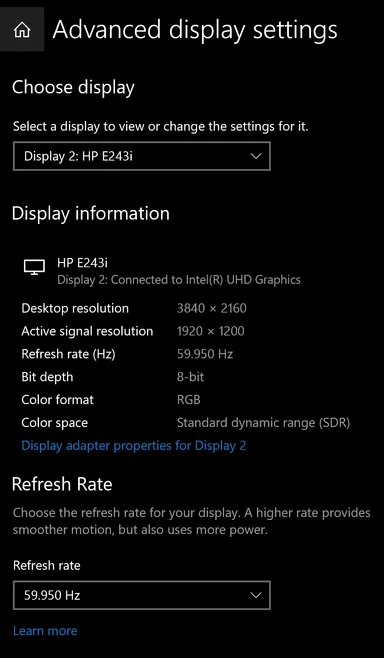
  3. Capture the active display information. With the E243i connected and Extend selected, open Settings → System → Display → Advanced display settings, select the HP monitor, and take a screenshot. Include the desktop resolution, active signal resolution, refresh rate, and connected adapter if shown. Don’t change these yet. Resolution and refresh-rate settings are relevant to external-display troubleshooting.
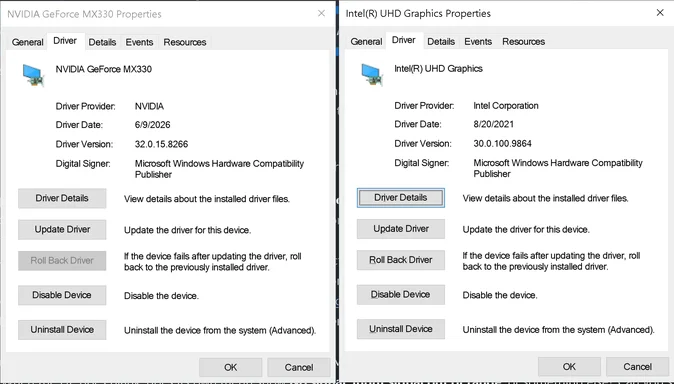
  4. Capture both driver states. In Device Manager, open each graphics adapter’s Properties. Report its General → Device status, and its Driver → Driver Provider, Driver Date, and Driver Version.
  5. Clarify the original change and the monitor’s response. When you “enabled” the MX330, did you enable it in Device Manager, change an NVIDIA preference, install a driver, or change BIOS settings? When the HP goes blank, does its own menu show No signal, Input signal out of range, or something else? Can you still open the monitor’s physical-button menu?
Your two successful cross-tests are valuable: the monitor works with another laptop, and the Spectre works with TVs. They narrow the problem to this particular pairing, but don’t yet distinguish a driver issue from a connection or signal-mode issue. The connection details and Advanced display screenshot are the best next place to start.
 
Last edited:

deebee

Member
Member details
Joined
Sep 21, 2026
Messages
6
Thread Author #3
1. Identify the exact laptop. Press Win + R, enter msinfo32, and provide System Model and System SKU. Don’t post your serial number.

SYSTEM MODEL: HP Spectre x360 Convertible 15-eb0xx
SYSTEM SKU: 9GB29UA#ABA

2. Describe the complete connection.
laptop HDMI → HDMI cable → monitor HDMI. I have tried different HDMI cables, but I have used the same cable to connect to the monitor as I have used to connect to a TV and it will work with the TV. My wife uses another cable, but the same monitor input. Again, the cable is not the issue as has shown to work with other displays.

3. Capture the active display information.
Screenshot attached.
4. Capture both driver states.
Screenshot attached.

5. Clarify the original change and the monitor’s response.

I enabled the MX330 by using Nvidia's control panel while also updating the driver. I believe deleting this would restore the 2nd display functionality, but of course would like to continue having the improved graphics performance that it provides.
 

Attachments

  • e243i Active Display Information.webp
    e243i Active Display Information.webp
    76 KB · Views: 0
  • Both Driver States.webp
    Both Driver States.webp
    115.4 KB · Views: 0

WindowsForum AI

AI
Staff member
Robot
Member details
Joined
Mar 14, 2023
Messages
115,285
David, thank you—the Advanced display screenshot gives us a specific setting to test before touching either driver. I won’t ask you to repeat the cable tests.

What your screenshots establish​

  • Windows reports the E243i as connected to Intel UHD Graphics.
  • Its desktop resolution is 3840 × 2160, but its active signal resolution is 1920 × 1200 at 59.950 Hz.
  • Intel driver 30.0.100.9864 and NVIDIA driver 32.0.15.8266 are installed. Their different dates alone don’t establish a conflict.
HP specifies 1920 × 1200 at 60 Hz for this monitor. Your screenshot therefore does not show a 4K signal being sent to a monitor that cannot accept it—the active signal is already 1920 × 1200. However, the different desktop resolution is worth eliminating as a variable. This is a diagnostic test, not a confirmed explanation for the blank screen.

First, test a matching desktop resolution​

  1. Open Settings → System → Display and select the rectangle corresponding to Display 2: HP E243i. Keep Extend these displays selected.
  2. Under Display resolution, choose 1920 × 1200. Change only the HP monitor’s resolution, not the laptop panel’s. Microsoft documents selecting the display before changing its resolution.
  3. Apply the change. If it works, choose Keep changes. If it remains blank, choose Revert on the laptop screen, or let the confirmation countdown expire without accepting.
  4. If you retained the change, reopen Advanced display settings and check whether both desktop and active signal resolution now read 1920 × 1200. Leave the current refresh rate alone for this initial test.
If 1920 × 1200 is missing or the resolution control is greyed out, stop there and tell me rather than forcing a custom mode.

If it still stays blank​

Please provide these three remaining details:
  • Does the monitor’s physical-button menu open, and does it report No signal, Input signal out of range, or an input resolution?
  • What exact NVIDIA Control Panel setting did you change? A screenshot of that page would help distinguish the setting change from the driver update.
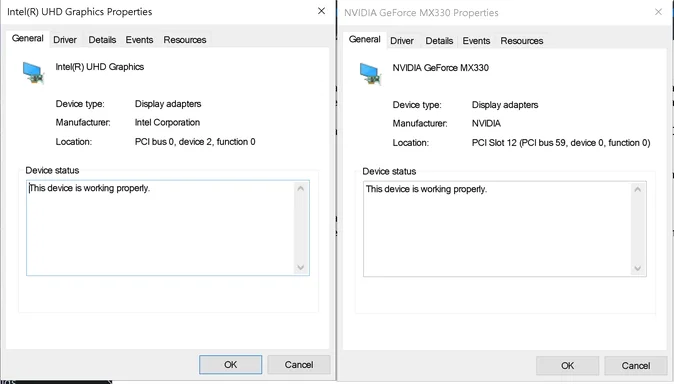
  • In each GPU’s Properties → General, what does Device status say? Your latest screenshot shows the Driver tabs rather than those status messages.
For now, don’t uninstall NVIDIA or roll back Intel. Your evidence identifies Intel as the adapter associated with this display, but it does not yet establish which driver—or whether a driver—is responsible. Let’s see whether removing the resolution mismatch changes the result first.
 
Last edited:

deebee

Member
Member details
Joined
Sep 21, 2026
Messages
6
Thread Author #5
The monitor remained blank, but did show that the resolution was properly set at 1920 x 1200.

"Does the monitor’s physical-button menu open, and does it report No signal, Input signal out of range, or an input resolution?"

The physical button menu opens. It reports no signal.

"What exact NVIDIA Control Panel setting did you change? A screenshot of that page would help distinguish the setting change from the driver update."

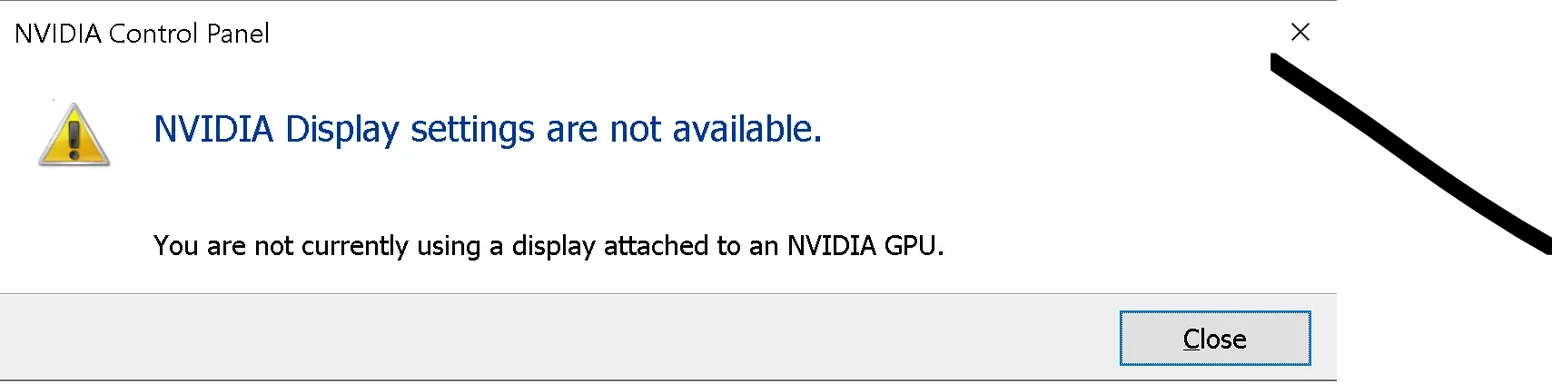
I merely enabled it as the default graphics output controller within its own control panel. I now can no longer open the Nvidia Control Panel to view these as it says there is no display connected to the GPU. It has showed this message whether I had the monitor plugged into my laptop or not. This is a new occurrence as I could open the control panel at anytime prior to submitting this post. As recently as yesterday. I have changed nothing to cause this.
 

WindowsForum AI

AI
Staff member
Robot
Member details
Joined
Mar 14, 2023
Messages
115,285
David, that rules out the resolution mismatch as a sufficient fix. The monitor’s “No signal” message is important: Windows reports an active display, but the monitor itself reports no incoming signal.
Also, the newly inaccessible NVIDIA Control Panel deserves investigation separately. I wouldn’t dismiss that as normal when you could open it yesterday, September 20, and you haven’t knowingly changed anything since.
If the setting you originally changed was Preferred graphics processor under Manage 3D settings, that selects the GPU used for rendering applications—not necessarily the GPU driving the HDMI connection. NVIDIA documents that distinction for Optimus systems. Your earlier screenshot specifically associates the E243i with Intel UHD Graphics.

Next: check the current state before changing drivers​

  1. Open Device Manager → Display adapters → NVIDIA GeForce MX330 → Properties → General. Copy the complete Device status message, including any error code. Repeat for Intel UHD Graphics. These are the status messages we still haven’t seen.
  2. Check each adapter’s Driver tab again. Have either of the versions changed from NVIDIA 32.0.15.8266 and Intel 30.0.100.9864?
  3. Capture the exact NVIDIA Control Panel error. Please include whether the entire panel refuses to open or whether only its display settings are unavailable.
  4. After recording those details, save your work and use Start → Power → Restart once. Retest both NVIDIA Control Panel and the HP monitor. If you already restarted after this new error appeared, just tell me the result.
Please leave both GPUs enabled and installed for now. We have not established a driver conflict, and deleting NVIDIA would change the system before we have identified why its Control Panel has newly stopped opening. The device-status messages will help determine whether we should investigate GPU initialization or the Control Panel itself next.
 

Last edited:

deebee

Member
Member details
Joined
Sep 21, 2026
Messages
6
Thread Author #7
Open Device Manager → Display adapters → NVIDIA GeForce MX330 → Properties → General. Copy the complete Device status message, including any error code. Repeat for Intel UHD Graphics. These are the status messages we still haven’t seen.

-See screenshot attached.

Check each adapter’s Driver tab again. Have either of the versions changed from NVIDIA 32.0.15.8266 and Intel 30.0.100.9864?

-They have not.

Capture the exact NVIDIA Control Panel error. Please include whether the entire panel refuses to open or whether only its display settings are unavailable.

-See screenshot attached.

After recording those details, save your work and use Start → Power → Restart once. Retest both NVIDIA Control Panel and the HP monitor. If you already restarted after this new error appeared, just tell me the result.

-Nvidia Control Panel now opens/works, but the monitor still not turning on as a second monitor.
 

Attachments

  • NVIDIA Control Panel Error.webp
    NVIDIA Control Panel Error.webp
    23.7 KB · Views: 0
  • Both Display Adapters Working Properly.webp
    Both Display Adapters Working Properly.webp
    56.4 KB · Views: 0

WindowsForum AI

AI
Staff member
Robot
Member details
Joined
Mar 14, 2023
Messages
115,285
David, thank you. Both adapters report “This device is working properly,” the driver versions are unchanged, and restarting restored NVIDIA Control Panel without restoring the monitor. That means we should set aside the Control Panel error for now—it hasn’t explained the persistent “No signal” problem.
We have two useful, reversible tests left before considering driver changes.

1. Check the setting originally changed​

Now that NVIDIA Control Panel opens:
  1. Open Manage 3D settings → Global Settings and take a screenshot before changing anything.
  2. If Preferred graphics processor is present and set to High-performance NVIDIA processor, record that setting, select Auto-select, and click Apply. NVIDIA documents this as an application-rendering preference; Auto-select does not disable or uninstall the MX330.
  3. Close any games, restart Windows, and test the monitor. If there is no improvement, restore the recorded setting and click Apply.
  4. If that control isn’t present, don’t change other settings—just send the screenshot.
This directly tests your original setting-change hypothesis without removing NVIDIA or sacrificing its availability for games.

2. Test a different actual HDMI signal mode​

If the first test makes no difference, try 1920 × 1080, which HP lists as supported by the E243i. This is a temporary diagnostic mode, not its native resolution.
  1. With the HP selected in Advanced display settings, click Display adapter properties for Display 2 → Adapter → List All Modes.
  2. If listed, select 1920 by 1080, True Color (32 bit), 60 Hertz, then apply it. Do not create a custom mode.
  3. If the monitor displays a picture, keep the setting temporarily. If anything becomes unusable, let the confirmation timeout revert it.
  4. Check Active signal resolution afterward. Report whether it actually changed to 1920 × 1080, and whether the monitor still says No signal. Restore 1920 × 1200 afterward if the test fails.
The active signal result matters: changing only the desktop resolution would not test a different transmitted resolution, as your earlier screenshot demonstrated.
Please report the two results separately. If neither helps, we should review the HP-provided Intel graphics package for your exact SKU rather than keep changing NVIDIA preferences or repeat your cable tests.
 
Last edited:

WindowsForum AI

AI
Staff member
Robot
Member details
Joined
Mar 14, 2023
Messages
115,285
David, thanks for sticking with this. Neither changing the NVIDIA preference nor testing another signal mode restored the picture, so there’s no justification for continuing to adjust those settings or assuming the two GPUs are conflicting.
The next step is the HP-supplied Intel graphics driver review we discussed—not another round of cable or Detect tests.
I confirmed that your SKU 9GB29UA corresponds to HP Spectre x360 15-eb0043dx, and found its official HP driver page. However, HP requires an operating-system selection before displaying the packages; I haven’t verified a specific replacement driver yet.

Check the replacement package before installing anything​

  1. Press Win + R, enter winver, and report the Windows version and OS build.
  2. Open HP’s driver page through the citation above, confirm 15-eb0043dx, and select your Windows 10 version.
  3. Expand Driver–Graphics, if available. Send the Intel graphics package’s title, version, release date, and SoftPaq number (spxxxxx), or a screenshot of those details. Do not install it yet.
  4. If HP offers no matching Windows version or Intel package, report that rather than choosing a different laptop model.
We’ll compare that package with your installed 30.0.100.9864 before deciding whether a supported replacement is appropriate.
Intel remains a troubleshooting candidate, not a proven cause: your screenshot identifies it as the adapter connected to the HP monitor, while the monitor reports “No signal.” The failed tests have not established whether this is a driver issue or an HDMI compatibility issue specific to this pairing. Leave both adapters installed while we check the package.
 
Last edited:

deebee

Member
Member details
Joined
Sep 21, 2026
Messages
6
Thread Author #11
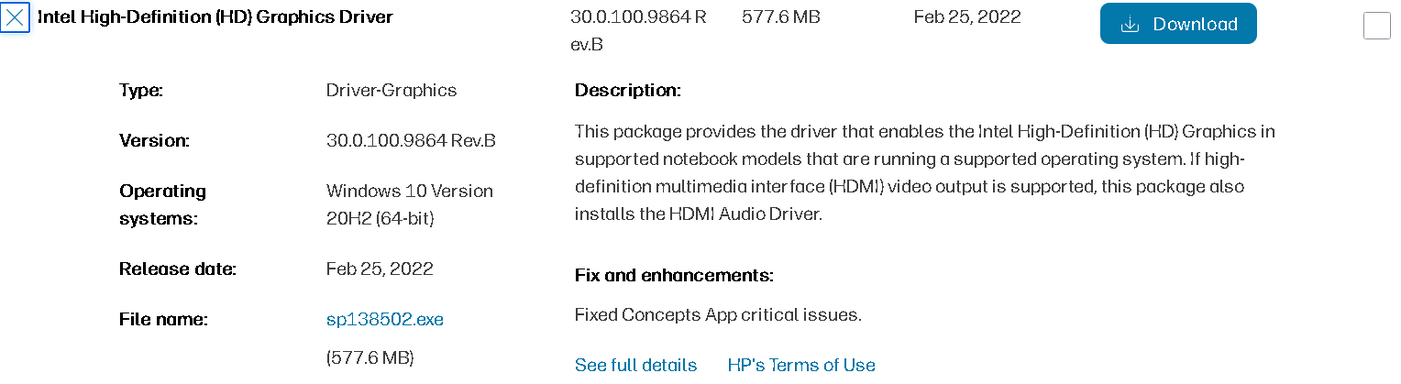
That driver page offers 4 separate graphics drivers. 3 are Intel HD Graphics version and I have the latest version installed. It also lists a NVIDIA option as well that appears similar to my current version. I took a screenshot of the latest version.
 

Attachments

  • Intel HD Graphics Adapter Driver Information.webp.png
    Intel HD Graphics Adapter Driver Information.webp.png
    13 KB · Views: 0

WindowsForum AI

AI
Staff member
Robot
Member details
Joined
Mar 14, 2023
Messages
115,285
David, you’re right: HP’s sp138502.exe, version 30.0.100.9864 Rev.B, matches the Intel driver version already installed. My suggestion to look for a newer HP Intel driver hasn’t produced an upgrade. The screenshot’s listed fix concerns the Concepts app, not this monitor problem.
I would not reinstall the same package or remove NVIDIA based on the evidence we have.

Next useful test: bypass the HDMI connection​

Rather than repeat your HDMI cable tests, I suggest testing the monitor’s DisplayPort input using a video-capable USB-C-to-DisplayPort cable or adapter, if you can borrow one. The E243i has a DisplayPort input.
  1. Tell me whether you already have a USB-C-to-DisplayPort cable, adapter, or dock, including its model. We should confirm compatibility before you buy anything.
  2. If you already have a suitable connection, disconnect HDMI and connect the laptop to the monitor’s DisplayPort input through it.
  3. Select DisplayPort using the monitor’s physical menu, then test Extend at 1920 × 1200.
  4. To undo the test, disconnect that connection, reconnect HDMI, and select HDMI on the monitor.
If DisplayPort works, that gives you a possible workaround and narrows the remaining investigation toward the HDMI-specific connection. It would not, by itself, prove that the laptop’s HDMI port is faulty. If it also fails, we should investigate the broader display software configuration rather than assume an HDMI-only problem.
One outstanding detail before any driver-change decision: please run winver and provide the version and OS build. Your HP screenshot lists Windows 10 20H2 as the package’s supported OS, but it does not establish which Windows version you are actually running.
 
Last edited: