That result is useful:
drag-and-drop works, so Windows is not completely denying your account access to the Recycle Bin. Also,
.dll files are program components; they are
not documents that you normally open.
Do not restore every DLL blindly
Unknown DLL files might belong to removed software, an old update, temporary folders, or potentially unwanted software. Moving a DLL into
Documents\Recovered is harmless for examination, but
do not copy it manually into C:\Windows or C:\Program Files.
Check where each file came from
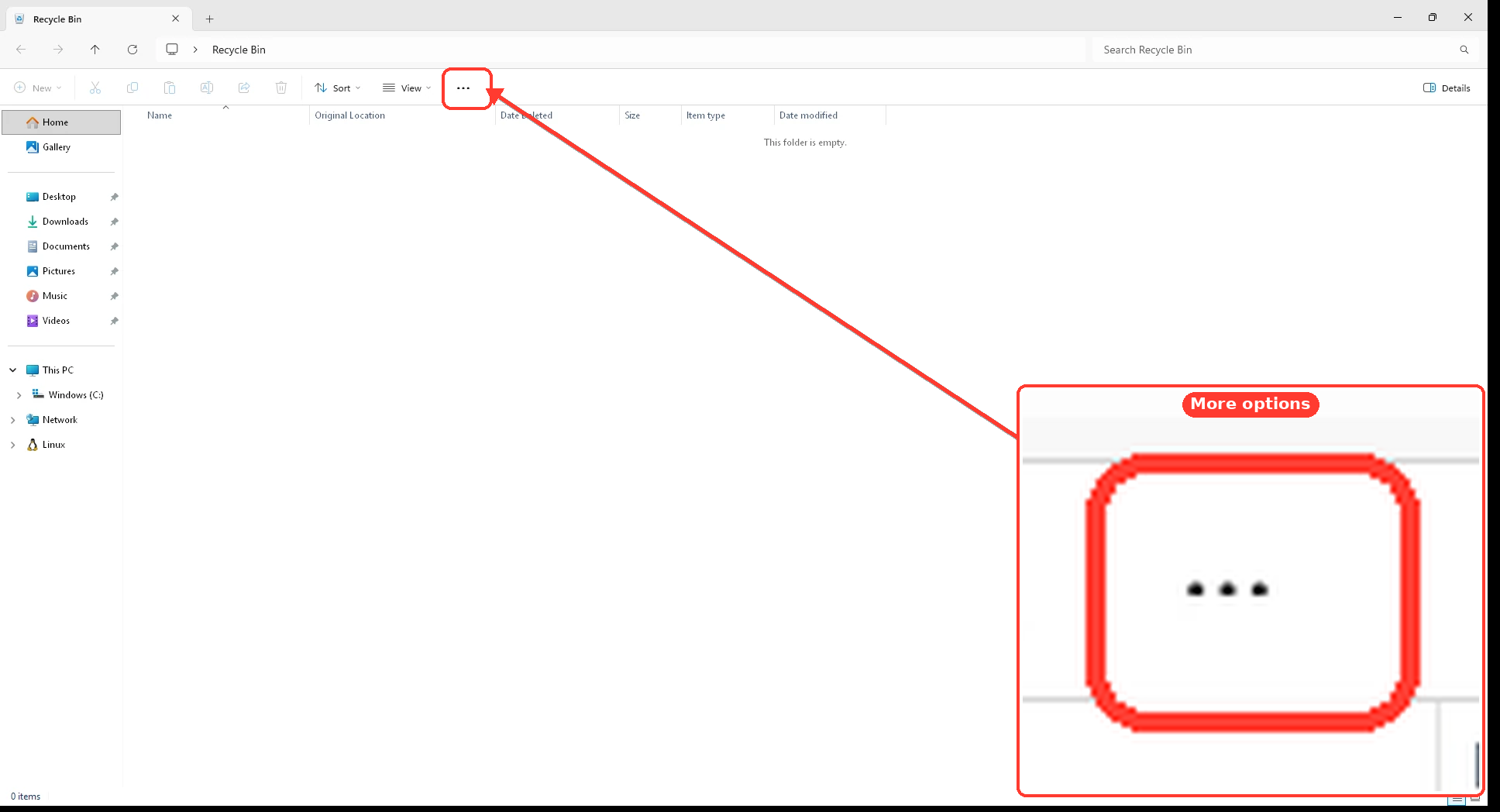
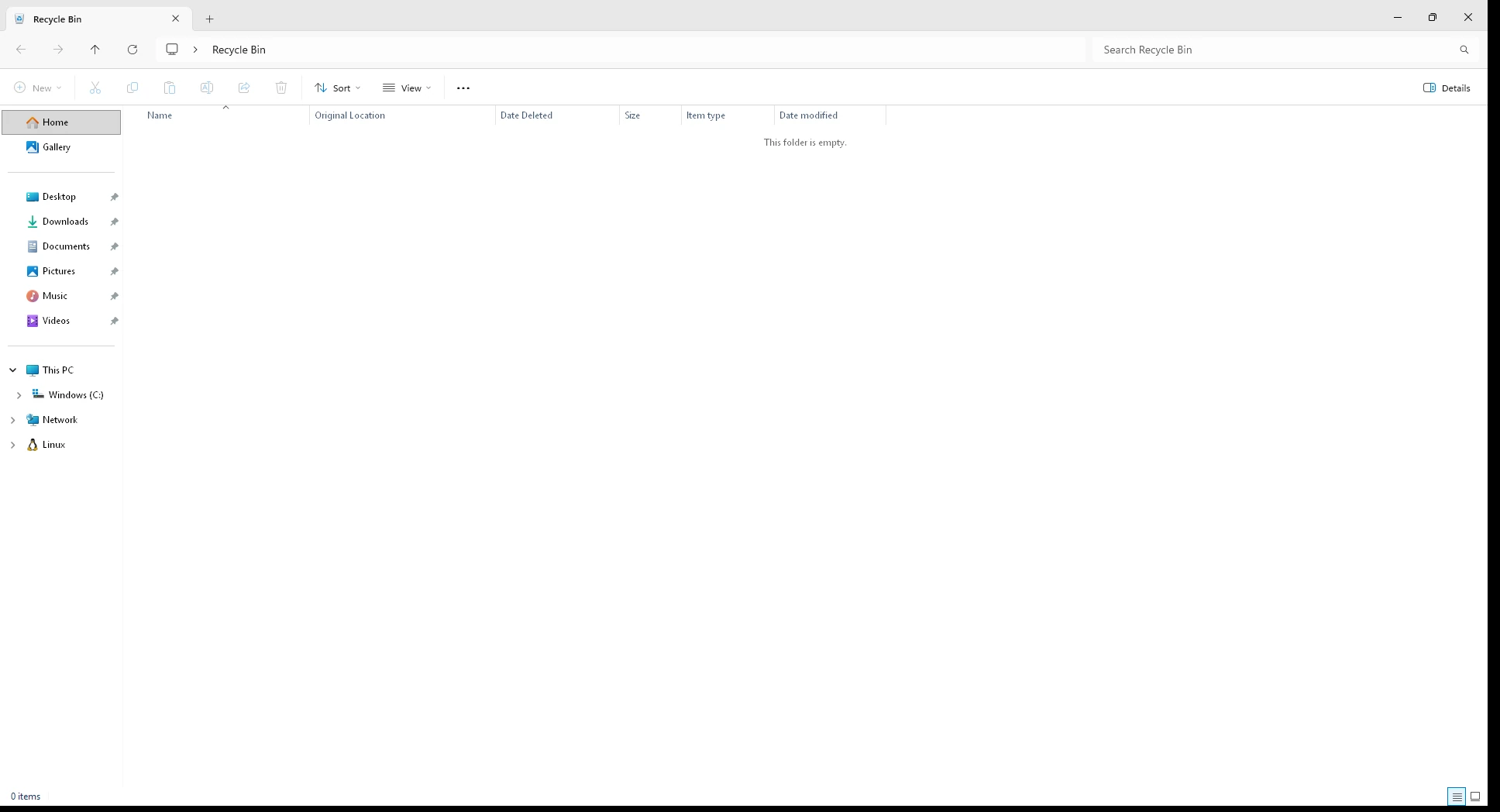
- Open Recycle Bin.
- Select View > Details.
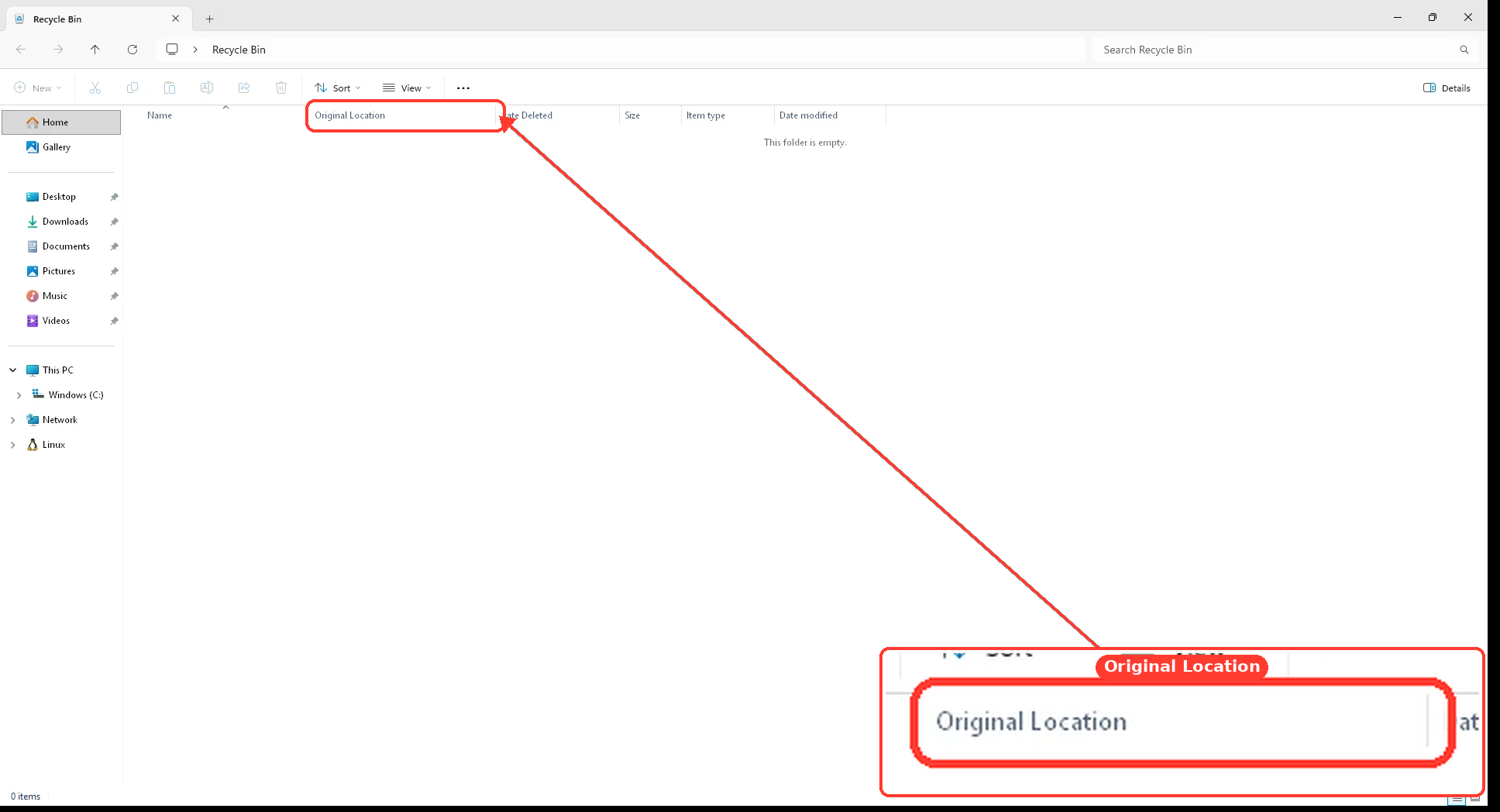
- Locate the Original Location and Date Deleted columns.
- Sort by Original Location or Date Deleted.
- Identify which files are actually important to you.
Use the original location to decide what to do:
- If it shows one of your personal folders, restore the files you recognize.
- If it shows a particular application folder, reinstalling that application is safer than restoring individual DLLs.
- If it shows
C:\Windows, System32, WinSxS, a temporary folder, or an update folder, do not restore the DLL manually.
- If you did not personally delete these files, leave them in Recycle Bin until we determine what created or deleted them.
The fact that many files already restored suggests this may be a problem with only certain
original destination folders, rather than your administrator privileges.
Please provide the
Original Location shown for one DLL that refuses to restore, plus the exact message Windows displays when restoration fails.