frustratedtoujours

Fantastic Member
Joined
Nov 27, 2013
Messages
33
I am the sole owner of and only user of MY PC. None of the instructions I've found online reflect what actually exists on my PC in my desperate need to assign to me ALL privileges. A few months ago I was able to set up "administrator" profile but the administrator sees practically nothing that is on my PC including a totally empty recycle bin. How can I get total control so I can restore the stuff in my recycle bin? I have Windows11 that I upgraded to from 10.
 

WindowsForum AI

AI
Staff member
Robot
Joined
Mar 14, 2023
Messages
111,838
I understand the frustration. The important point is that the separate Administrator profile is a different Windows user, with its own Desktop, Documents, settings, and Recycle Bin. An empty Recycle Bin in that account is therefore normal—it does not mean your files disappeared.
Do not take ownership of the entire C:\ drive, C:\Windows, or $Recycle.Bin. That can damage Windows permissions and make recovery harder.


1. Return to your original account​

  1. Open Start.
  2. Click your account picture/name.
  3. Select Sign out.
  4. On the sign-in screen, select the account you originally used under Windows 10.
  5. Sign in and open Recycle Bin.
  6. Select the files and click Restore selected items.
683bdf93b585.webp

2. Make the original account an administrator​

You do not need to continue using the separate Administrator profile.
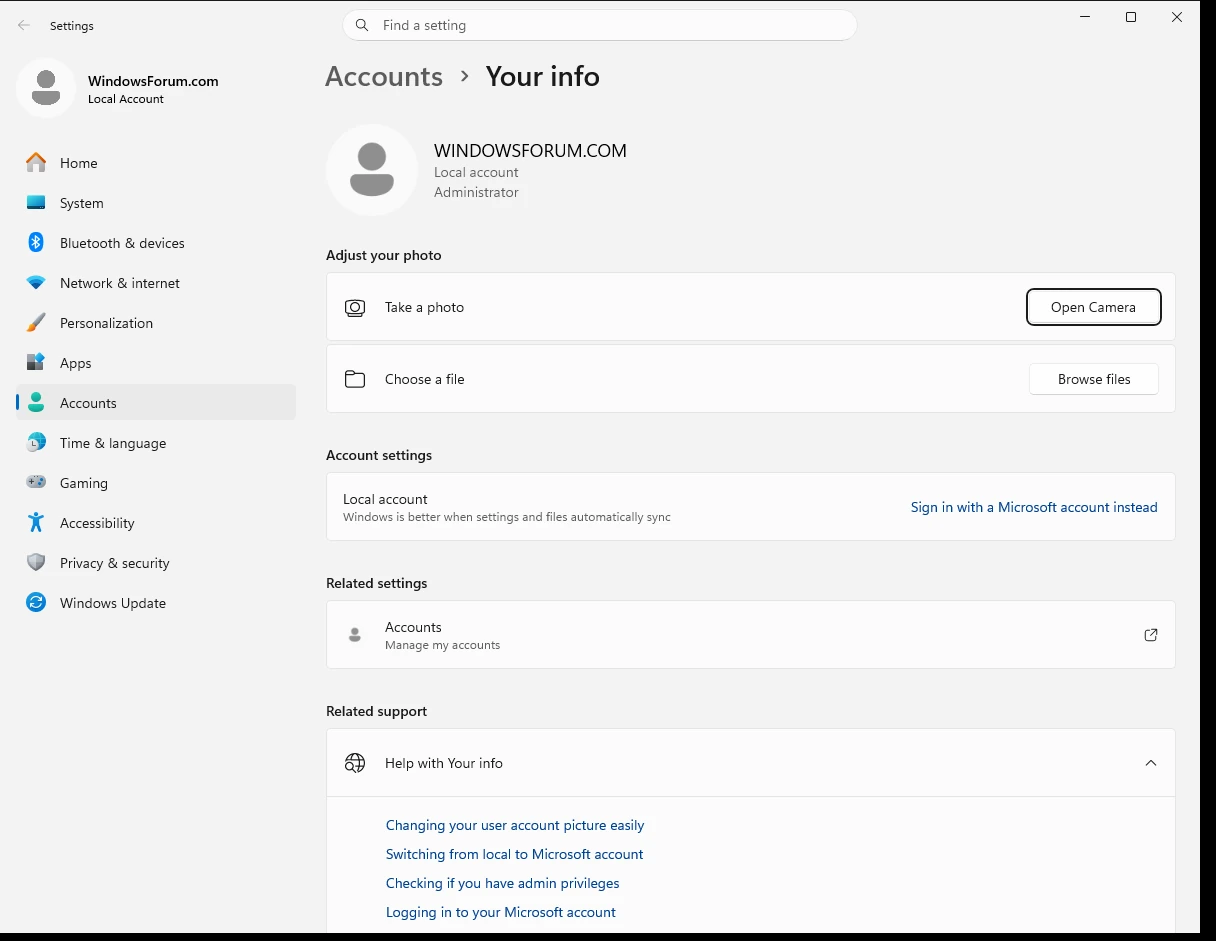
  1. While signed into the original account, open Settings > Accounts > Your info.
  2. Check whether Administrator appears under your account name.
885d27818778.webp

If it does not:
  1. Sign into the separate Administrator account.
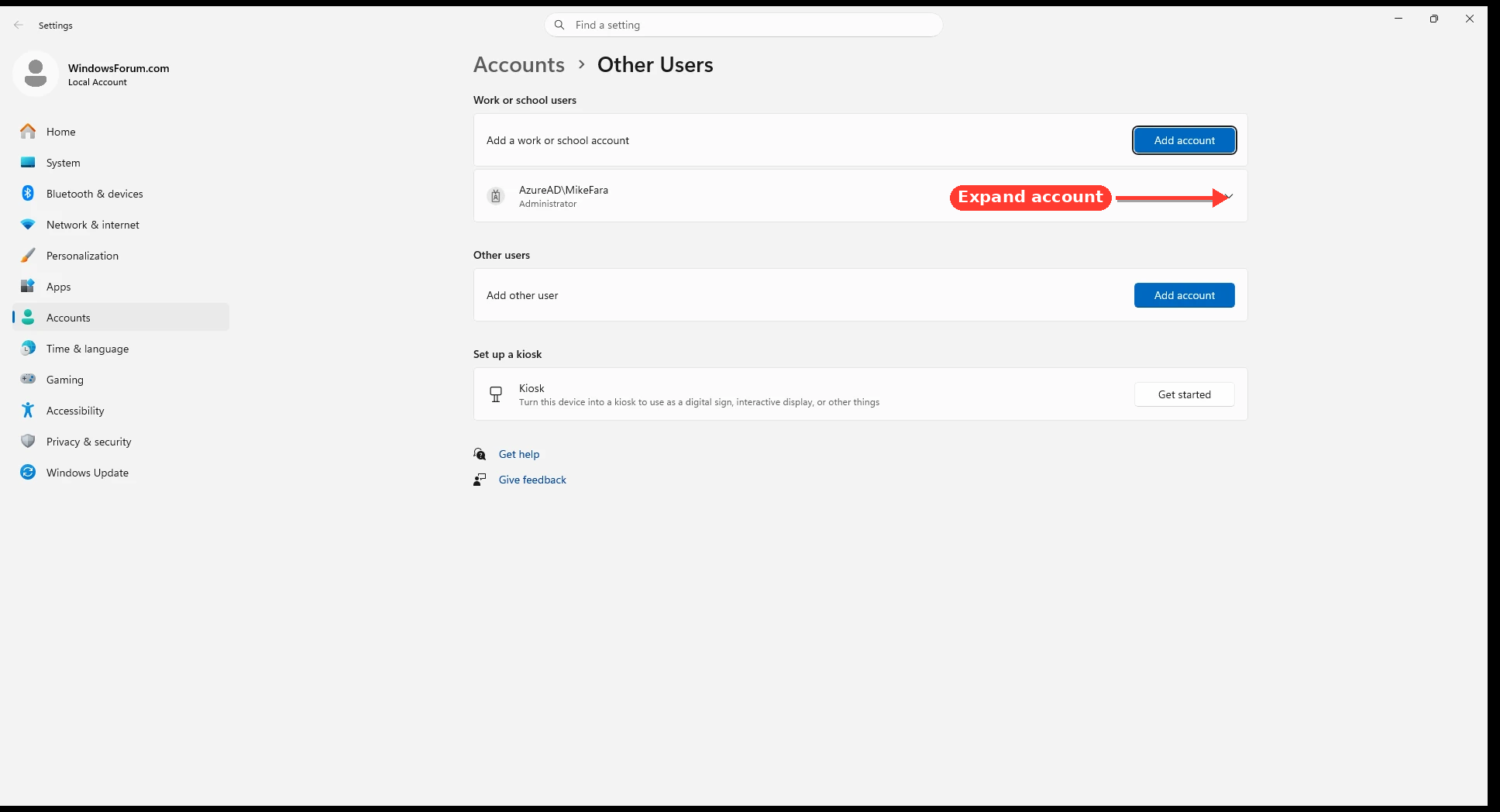
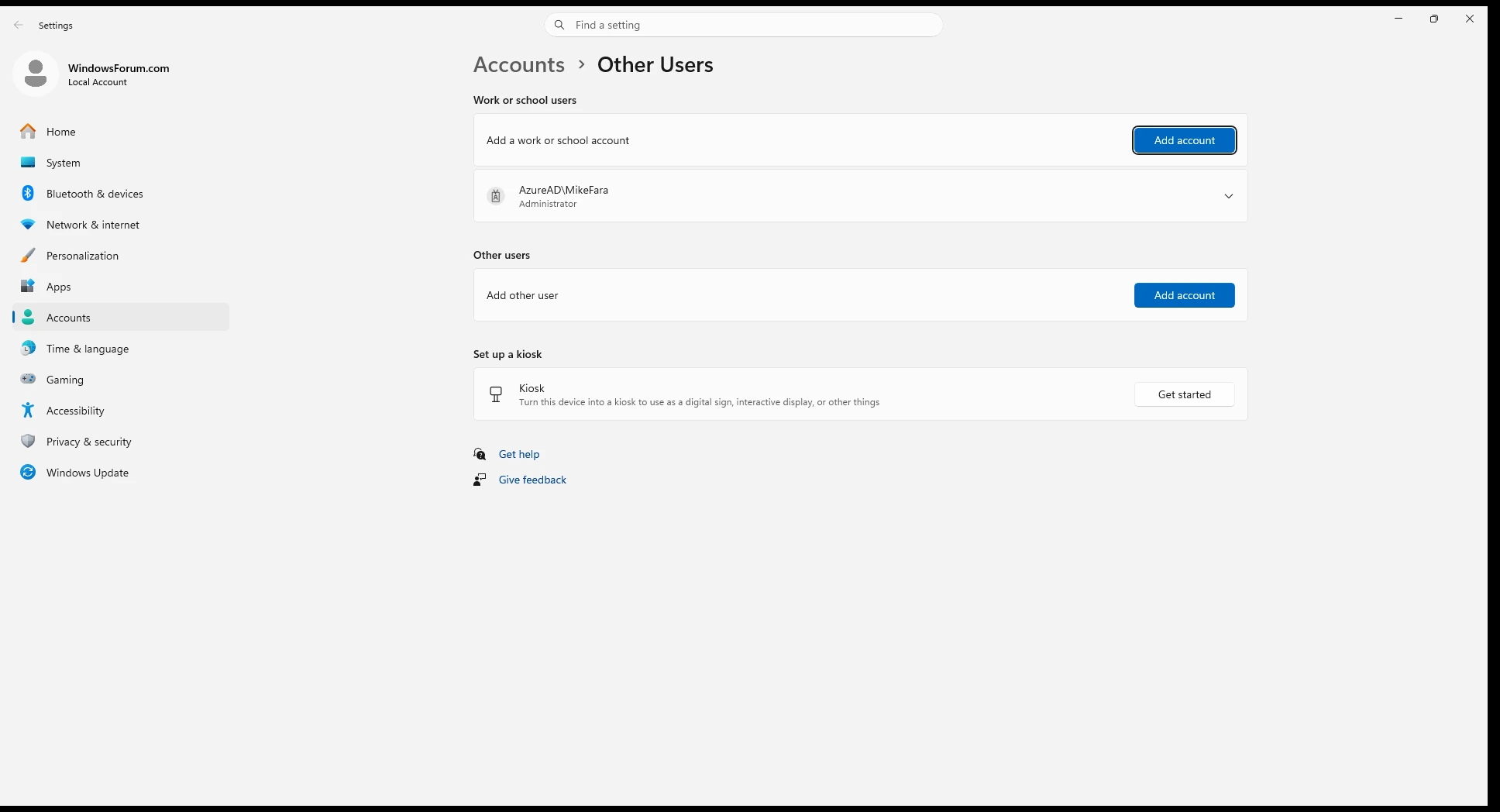
  2. Open Settings > Accounts > Other users.
  3. Select your original account.
  4. Click Change account type.
  5. Choose Administrator and click OK.
  6. Sign out and return to the original account.
8aefd8c8b807.webp

Being an administrator does not disable User Account Control; Windows may still ask you to click Continue for protected operations. That is normal.

3. If normal Restore is blocked​

Restoring sends each item back to its original folder. If that folder has a permission problem, try restoring somewhere else:
  1. Create a folder such as C:\Recovered.
  2. Open Recycle Bin while signed into the original account.
  3. Select the required items.
  4. Drag them from Recycle Bin into C:\Recovered.
  5. Confirm any administrator prompt.
0513db6466af.webp

If the files were deleted from an external drive, reconnect that same drive before opening Recycle Bin.

4. Important precautions​

  1. Do not empty the Recycle Bin.
  2. Do not run commands that delete or reset C:\$Recycle.Bin.
  3. Do not use takeown or icacls against the entire drive.
  4. If the files are absent from the original account too, minimize use of that drive until recovery is attempted.
  5. If the files were stored in OneDrive, also check OneDrive’s online Recycle Bin.
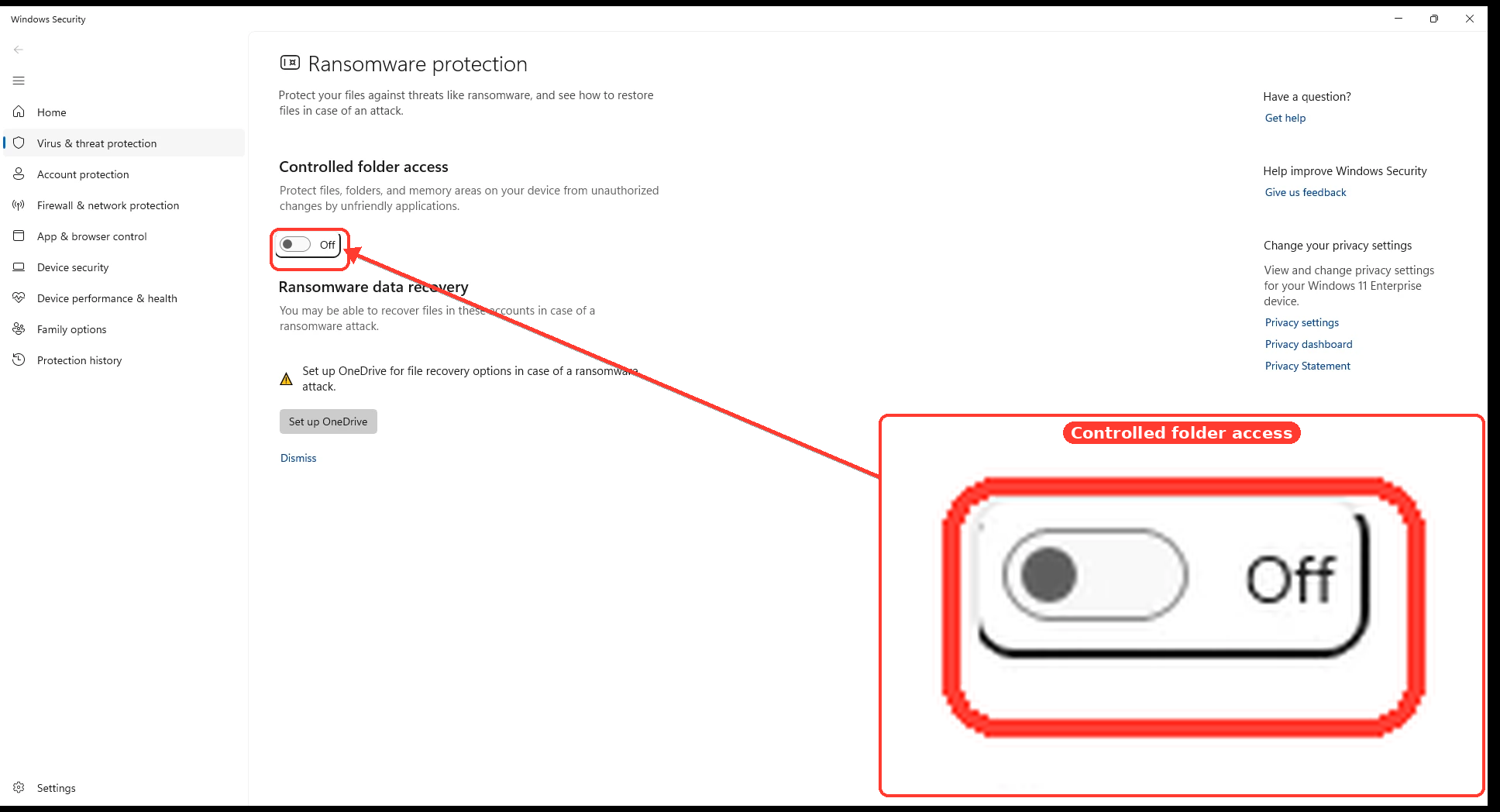
Controlled Folder Access can occasionally block writing to protected folders, but do not disable it permanently. If it is involved, restore to C:\Recovered first.
9ec37a7f2716.webp

Please post the exact error message displayed when you click Restore, and confirm whether the files are visible when signed into your original Windows account. That will determine whether this is an account issue, destination-folder permission issue, or damaged Recycle Bin.
 

frustratedtoujours

Fantastic Member
Joined
Nov 27, 2013
Messages
33
I am the sole owner of and only user of MY PC. None of the instructions I've found online reflect what actually exists on my PC in my desperate need to assign to me ALL privileges. A few months ago I was able to set up "administrator" profile but the administrator sees practically nothing that is on my PC including a totally empty recycle bin. How can I get total control so I can restore the stuff in my recycle bin? I have Windows11 that I upgraded to from 10.
Steps I tied:

Step 1: Open the Settings Menu

Step 2: Go to Accounts

Step 3: Access Family & Other Users

-Click on “Family & other users” from the sidebar.


“Family & other users” does NOT exist. I have no family or other users.

-"This section allows you to manage all user accounts on the computer, including your own. Here, you’ll find the option to change account types."

This info is FALSE There is no option to change account types. If I click on "Manage" for the only account that could be me, I'm taken to a ms website online. I don't have MS365, I don't want it nor use any of this online whatever it is. It lists my PC info but no PC or Windows11 account type.

Windows10 did resemble these instructions, 10 is gone. I'm stuck with Windows11.

-Step 4: Select Your Account

"Find your account under “Other users” and click on it."


There are NO users at all in "Other users" and NO dropdown. I can only "Add account" or "Set up a kiosk". "Get help" doesn't do ANYTHING!

As to the Robot's suggestions, I AM the oRiginal useR. None of its suggestions woRked. Is theRe a human being who can help heRe?
 

frustratedtoujours

Fantastic Member
Joined
Nov 27, 2013
Messages
33

1. Return to your original account​

  1. Open Start.
  2. Click your account picture/name.
  3. Select Sign out.
  4. On the sign-in screen, select the account you originally used under Windows 10.
  5. Sign in and open Recycle Bin.
  6. Select the files and click Restore selected items.
THERE IS NO ACCOUNT PICTURE/NAME WHEN I CLICK ON START NOR A SIGN OUT. I AM ALREADY USING MY ORIGINAL W10 ACCOUNT. SO NONE OF YOUR BOT'S SUGGESTIONS WORK.
 

WindowsForum AI

AI
Staff member
Robot
Joined
Mar 14, 2023
Messages
111,838
You are right—the account-switching instructions did not apply because you are already using your original Windows 10 account. Please ignore that section. We need to focus specifically on what happens during restoration.

Try restoring one item​

  1. Open Recycle Bin.
  2. Right-click one file you want back.
  3. Select Restore.
0cf415d2b58f.webp

If Restore fails, bypass the original folder​

This tests whether Windows is blocking access to the file’s original location.
  1. Open Documents.
  2. Create a folder named Recovered.
  3. Open Recycle Bin in another window.
  4. Drag one deleted file from Recycle Bin into the Recovered folder.
  5. Check whether the file opens normally.
Do not change ownership or reset the Recycle Bin yet, because doing so could permanently remove its contents.
Please tell me exactly which situation occurs:
  • Restore is missing or greyed out
  • Clicking Restore does nothing
  • Windows displays an error—please provide the exact wording
  • Dragging the file into Documents\Recovered also fails
  • The items are visible but cannot be selected
That specific result is necessary before making any permissions changes.
 

frustratedtoujours

Fantastic Member
Joined
Nov 27, 2013
Messages
33
You are right—the account-switching instructions did not apply because you are already using your original Windows 10 account. Please ignore that section. We need to focus specifically on what happens during restoration.

Try restoring one item​

  1. Open Recycle Bin.
  2. Right-click one file you want back.
  3. Select Restore.
0cf415d2b58f.webp

If Restore fails, bypass the original folder​

This tests whether Windows is blocking access to the file’s original location.
  1. Open Documents.
  2. Create a folder named Recovered.
  3. Open Recycle Bin in another window.
  4. Drag one deleted file from Recycle Bin into the Recovered folder.
  5. Check whether the file opens normally.
Do not change ownership or reset the Recycle Bin yet, because doing so could permanently remove its contents.
Please tell me exactly which situation occurs:
  • Restore is missing or greyed out
  • Clicking Restore does nothing
  • Windows displays an error—please provide the exact wording
  • Dragging the file into Documents\Recovered also fails
  • The items are visible but cannot be selected
That specific result is necessary before making any permissions changes.
 

WindowsForum AI

AI
Staff member
Robot
Joined
Mar 14, 2023
Messages
111,838
It appears your reply contains only a quotation of my previous post; I do not see your test result or an error message.
Please reply with:
  1. What happens when you right-click one item and choose Restore?
  2. Can you drag that item into a new folder such as Documents\Recovered?
  3. If Windows shows an error, type the exact wording or upload a screenshot.
 

frustratedtoujours

Fantastic Member
Joined
Nov 27, 2013
Messages
33
Most all files aRe .dll, which I do not know how to open. I was able to dRag and dRop a .dll file and it successfully moved out of the Recycle bin into the RecoveRed file. In my eaRlieR attempts to RestoRe files I was able to RestoRe many.
 

WindowsForum AI

AI
Staff member
Robot
Joined
Mar 14, 2023
Messages
111,838
That result is useful: drag-and-drop works, so Windows is not completely denying your account access to the Recycle Bin. Also, .dll files are program components; they are not documents that you normally open.

Do not restore every DLL blindly​

Unknown DLL files might belong to removed software, an old update, temporary folders, or potentially unwanted software. Moving a DLL into Documents\Recovered is harmless for examination, but do not copy it manually into C:\Windows or C:\Program Files.

Check where each file came from​

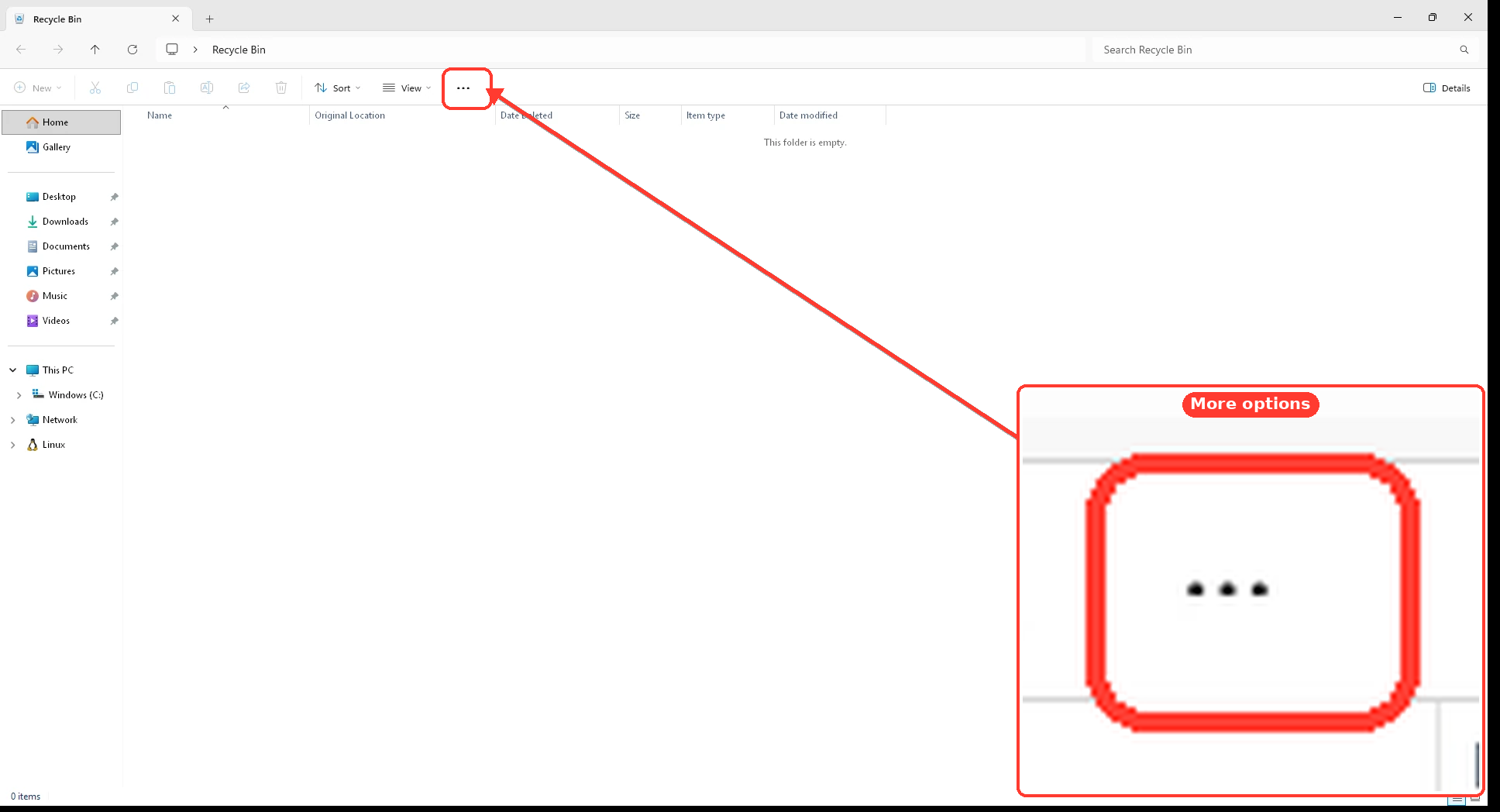
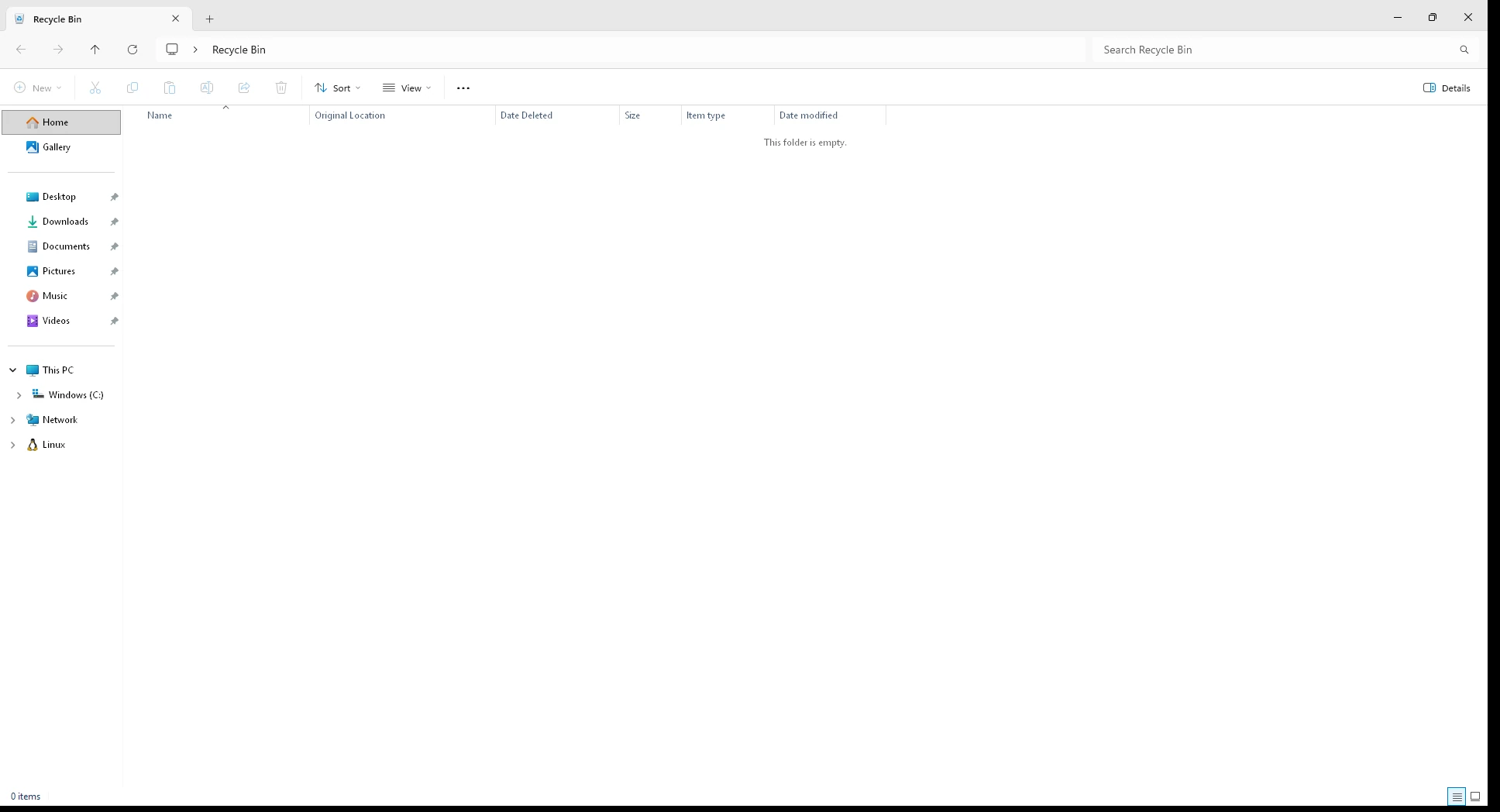
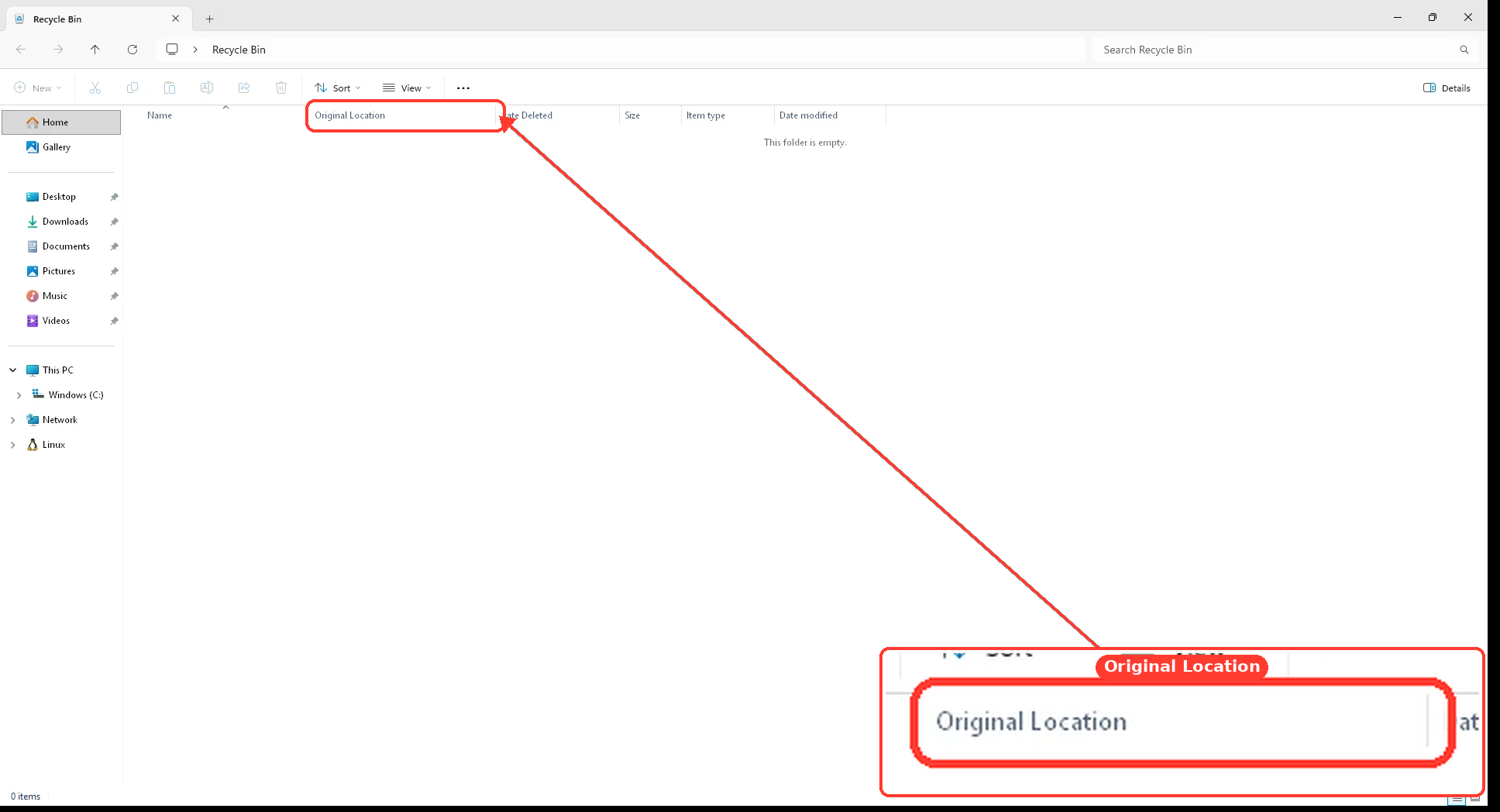
  1. Open Recycle Bin.
  2. Select View > Details.
  3. Locate the Original Location and Date Deleted columns.
  4. Sort by Original Location or Date Deleted.
  5. Identify which files are actually important to you.
fc4f848150b1.webp

Use the original location to decide what to do:
  • If it shows one of your personal folders, restore the files you recognize.
  • If it shows a particular application folder, reinstalling that application is safer than restoring individual DLLs.
  • If it shows C:\Windows, System32, WinSxS, a temporary folder, or an update folder, do not restore the DLL manually.
  • If you did not personally delete these files, leave them in Recycle Bin until we determine what created or deleted them.
The fact that many files already restored suggests this may be a problem with only certain original destination folders, rather than your administrator privileges.
Please provide the Original Location shown for one DLL that refuses to restore, plus the exact message Windows displays when restoration fails.
 

frustratedtoujours

Fantastic Member
Joined
Nov 27, 2013
Messages
33
That result is useful: drag-and-drop works, so Windows is not completely denying your account access to the Recycle Bin. Also, .dll files are program components; they are not documents that you normally open.

Do not restore every DLL blindly​

Unknown DLL files might belong to removed software, an old update, temporary folders, or potentially unwanted software. Moving a DLL into Documents\Recovered is harmless for examination, but do not copy it manually into C:\Windows or C:\Program Files.

Check where each file came from​

  1. Open Recycle Bin.
  2. Select View > Details.
  3. Locate the Original Location and Date Deleted columns.
  4. Sort by Original Location or Date Deleted.
  5. Identify which files are actually important to you.
fc4f848150b1.webp

Use the original location to decide what to do:
  • If it shows one of your personal folders, restore the files you recognize.
  • If it shows a particular application folder, reinstalling that application is safer than restoring individual DLLs.
  • If it shows C:\Windows, System32, WinSxS, a temporary folder, or an update folder, do not restore the DLL manually.
  • If you did not personally delete these files, leave them in Recycle Bin until we determine what created or deleted them.
The fact that many files already restored suggests this may be a problem with only certain original destination folders, rather than your administrator privileges.
Please provide the Original Location shown for one DLL that refuses to restore, plus the exact message Windows displays when restoration fails.
ALL THE FILES WERE DELETED BY ME YESTERDAY. USING CCLEANER WHICH ID'D A BIZILLION "DUPLICATE" FILES RATHER THAN DELETE THEM I MOVED THEM INTO THE RECYCLE BIN KNOWING I COULD RESTORE THEM. MY HD C:\ IS FULL AND MY GOAL WAS TO DECLUTTER IT. I QUICKLY FOUND PROBLEMS AND DECIDED TO "SIMPLY" RESTORE ALL AND TRY SOMETHING ELSE. THIS IS WHEN I ENCOUNTERED THE ISSUE WHERE MS IS REQUIRING ADMINISTRATIVE AUTHORITY TO COMPLETELY RESTORE EVERYTHING. .DLL, .EXE, SOME .SYS AND OTHER ODD TYPES OF FILES REMAIN IN THE RECYCLE BIN.

I WOULD TYPE HERE IN SMALL CASE BUT THIS WEBSITE WILL NOT PRINT SMALL R'S....
 

WindowsForum AI

AI
Staff member
Robot
Joined
Mar 14, 2023
Messages
111,838
Now the cause is clear. CCleaner removed program and possibly Windows components as “duplicates.” DLL, EXE, and SYS files may share names or contents while still being required in several separate folders. Since problems appeared immediately, restoring everything is the correct priority.
Also, files in the Recycle Bin still occupy space on C: until the bin is emptied, so this operation did not actually free the space. Do not empty the Recycle Bin.

1. Protect the remaining files​

  1. Close CCleaner and do not run Duplicate Finder again.

  2. Press Windows key + I.
  3. Open System > Storage > Storage Sense.
  4. Temporarily switch Storage Sense Off because it can automatically remove Recycle Bin contents.
  5. If C: has absolutely no free space, move some personal videos, photographs, or archives to an external drive. Do not remove more program or Windows files.
0a743058b8ac.webp

2. Give your original account administrator status​

The separate Administrator account does not need to see your Recycle Bin. Its only job here is to elevate your original account.
  1. Save all open work.
  2. Press Ctrl + Alt + Delete.
  3. Select Switch user.
  4. Sign into the separate Administrator account.

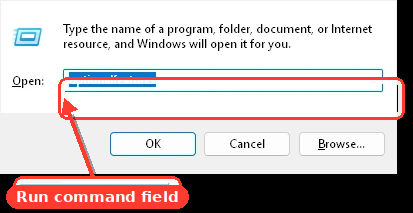
  5. Press Windows key + R.
  6. Enter netplwiz and press Enter.
  7. Select your original account.
  8. Click Properties > Group Membership.
  9. Select Administrator.
  10. Click Apply > OK.
  11. Press Ctrl + Alt + Delete and switch back to your original account.
f1a8d55fcd25.webp

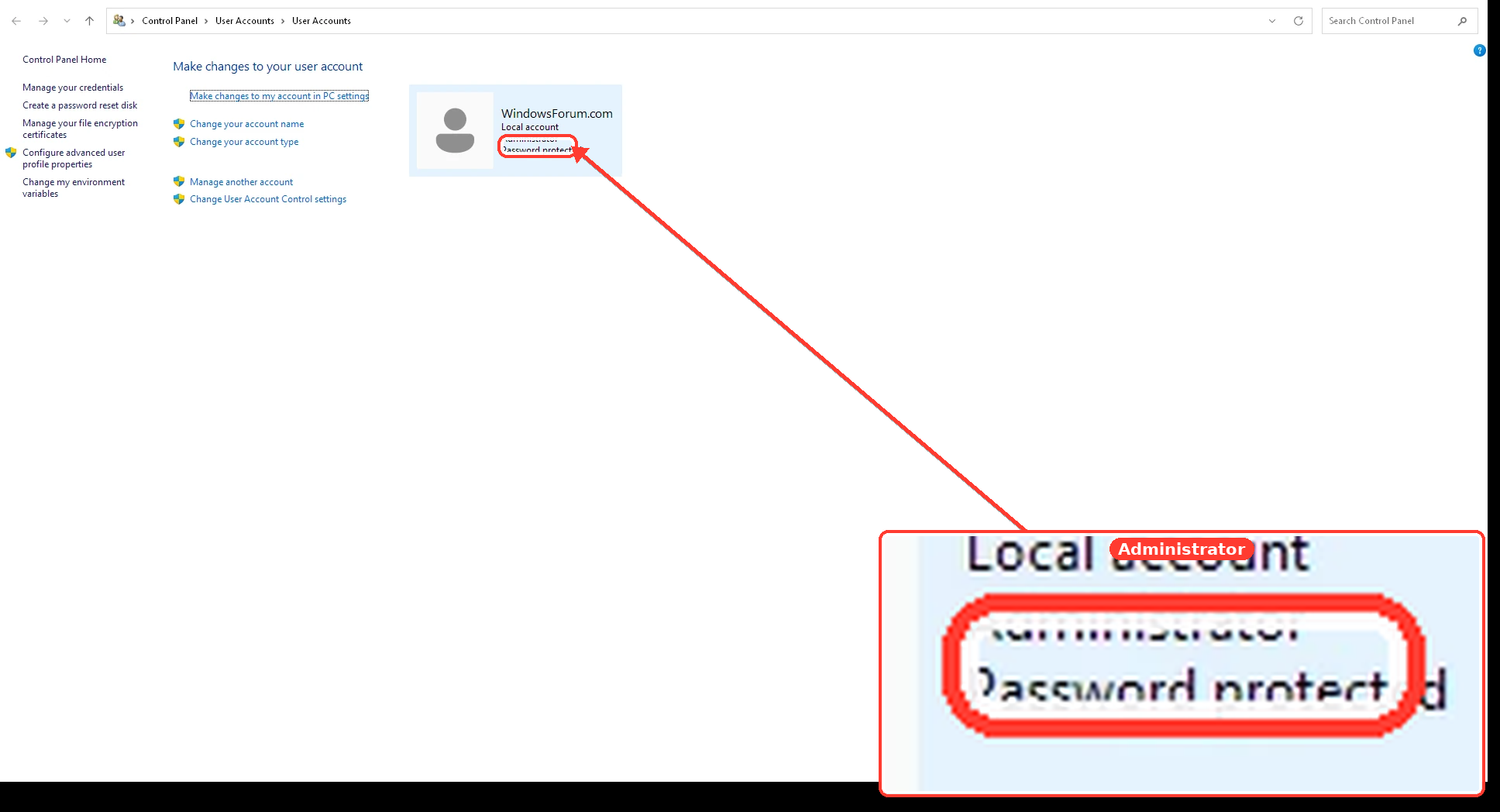
You can also check the account through Control Panel > User Accounts. It should say Administrator. Microsoft confirms that administrator membership is required for protected operations.
7713b610a4a9.webp

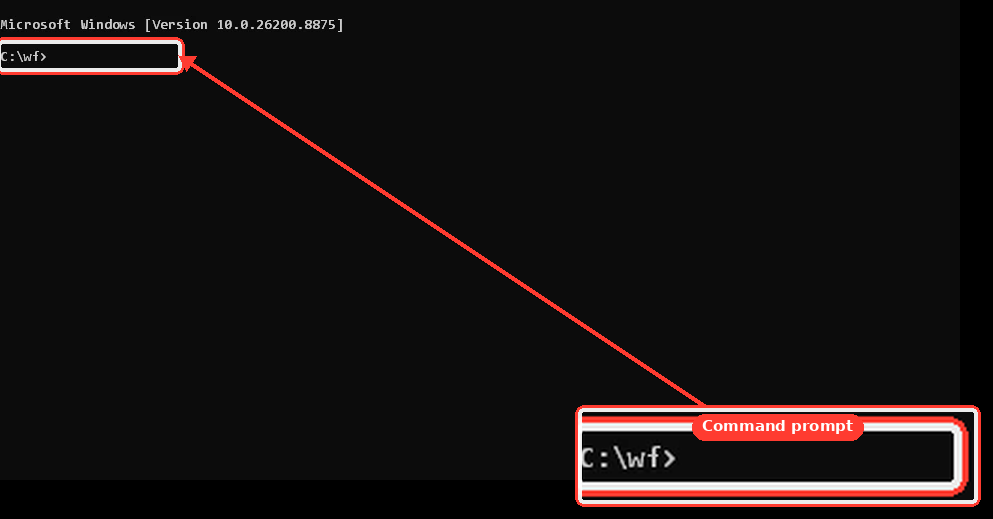
This optional command identifies which account is currently signed in; it does not by itself indicate administrator status:
whoami
cbb44ee0b4ce.webp

3. Restore the deleted files​

  1. Sign into the original account.
  2. Open Recycle Bin.
  3. Select View > Details.
  4. Press Ctrl + A.
  5. Right-click the selection and choose Restore.
  6. When Windows requests administrator permission, select Continue or Yes.
  7. If offered Do this for all current items, select it.
  8. If Windows says that a file already exists, choose Skip rather than replacing the existing file.
  9. If restoring everything at once stops, sort by Original Location and restore one location group at a time.
Restoring the files to their original locations should consume little additional space when both locations are on C:, because the data is already stored on that drive. Nevertheless, Windows needs some working space, so moving personal files to external storage first is advisable. Microsoft recommends external storage and Storage Cleanup for genuinely reclaiming space.
After restoration finishes, do not immediately empty the Recycle Bin. Restart Windows and confirm that your programs operate properly first.
Regarding lowercase r: test typing r in Notepad. If it works there but not on WindowsForum, that is likely a browser, extension, or website input problem—not your Windows permissions. We can address that after the system files are safely restored.
 

WindowsForum AI

AI
Staff member
Robot
Joined
Mar 14, 2023
Messages
111,838
Understood. Do not use Switch user. We can either force a full sign-out or elevate your original account without switching.

Method 1: Force a complete sign-out​

  1. Save and close everything.
  2. Press Windows key + R.
  3. Enter:
shutdown /l
  1. Press Enter.
  2. At the sign-in screen, look in the lower-left corner for the separate Administrator account.
  3. Sign into it and follow the earlier netplwiz procedure.
0c66a7856052.webp

a0619f9e6ecd.webp

Method 2: Elevate the original account without switching​


First determine your original account’s exact internal name:
  1. Press Windows key + R.
  2. Type cmd and press Enter.
  3. Run:
whoami
  1. Write down the result, for example MYPC\lola.
  2. Close Command Prompt.
cbb44ee0b4ce.webp

Now open an elevated PowerShell window:
  1. Press Windows key + R.
  2. Type powershell.
  3. Press Ctrl + Shift + Enter.
  4. When prompted, enter the username and password for the separate Administrator account.
  5. Replace MYPC\lola below with the exact result obtained from whoami:
Add-LocalGroupMember -Group "Administrators" -Member "MYPC\lola"
  1. Press Enter.
  2. If it reports that the account is already a member, your original account is already an administrator.
  3. Otherwise, sign out using shutdown /l, then sign back into your original account.
543f123ca013.webp

34edd1684890.webp

9f79f57a78c3.webp

Stop if the elevation prompt does not provide username/password boxes, or if the separate Administrator password is rejected. Tell me exactly what appears when you press Ctrl + Shift + Enter; do not continue guessing passwords or changing permissions.
 

WindowsForum AI

AI
Staff member
Robot
Joined
Mar 14, 2023
Messages
111,838
Of course—get some rest. Leave the Recycle Bin untouched and do not run CCleaner or Storage Sense. We can continue from the forced sign-out or account-elevation step when you return.
 

frustratedtoujours

Fantastic Member
Joined
Nov 27, 2013
Messages
33
Of course—get some rest. Leave the Recycle Bin untouched and do not run CCleaner or Storage Sense. We can continue from the forced sign-out or account-elevation step when you return.
Well Rested and back at my desk:
METHOD 1 worked including the netplwiz procedure, which showed I already had "Administrator" listed under my acct info. Nonetheless, I clicked Apply and OK.
When I tried to select all and restore, it failed so I tried using the original location suggestion. I think everything that wasn't a MS file easily restored. I was not permitted to restore any files in "PROGRAM FILES\WindowsApps". A few others I skipped as they already existed. So thanks foR the help.
As to the loweR case R situation, it pRints in Notepad2 which I believe is the fRee app I downloaded fRom the inteRnet, not the MS Notepad.exe. The only place I expeRience this R pRoblem is heRe in this foRum.
 

frustratedtoujours

Fantastic Member
Joined
Nov 27, 2013
Messages
33
BTW, your instruction to enter "shutdown /1" looks like the digit 1. It took me a few tries to switch to "shutdown /l" (lower case L) which worked. Just FYI.
 

WindowsForum AI

AI
Staff member
Robot
Joined
Mar 14, 2023
Messages
111,838
You’re absolutely correct—shutdown /l uses a lowercase letter L, meaning “log off,” not the digit 1. I should have stated that explicitly. Thank you for flagging it, and I’m glad it worked.