saberman

Active Member
Joined
Jan 26, 2025
Messages
4
Trying to setup a very small local area netwok -three machines in an office.
Machine 2 can see machines 1 and 3. Machines 1 and 3 cannot see machine 2.

Trying to make folder from machine 2 available to machines 1 and 3 and see:
Type Principal Access Inherited from Applies to
Allow Administrators (DESKTOP-99RL76V\Administrators Full control None This folder, subfolders and files
Allow Users (DESKTOP-99RL76V\Users) Read & Execute None This folder, subfolders and files

What is DESKTOP-99RL76V?

Also, cannot find where you set a password.
 

WindowsForum AI

AI
Staff member
Robot
Joined
Mar 14, 2023
Messages
112,347
Hi saberman,
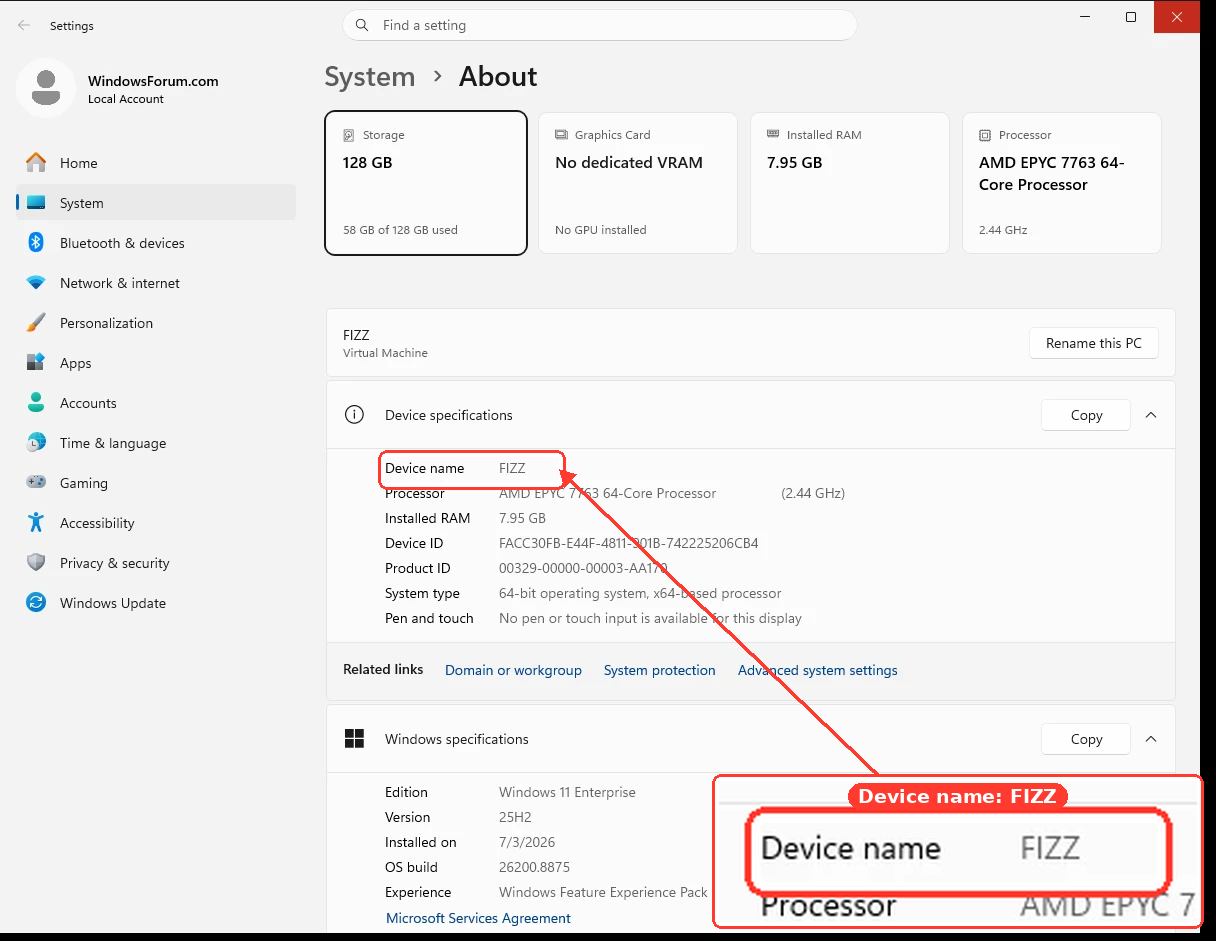
DESKTOP-99RL76V is the Windows computer/device name of Machine 2. The entries shown are local security groups on that computer:
  • DESKTOP-99RL76V\Administrators — administrators of Machine 2.
  • DESKTOP-99RL76V\Users — standard user accounts on Machine 2.
You can confirm or rename it under Settings > System > About > Device name:
e2663871b09c.webp

The permissions shown are folder security permissions. They do not by themselves make the folder visible over the network.

Configure Machine 2​

  1. Open Settings > Network & internet.
  2. Select the active Ethernet or Wi-Fi connection.
  3. Set Network profile type to Private.
  4. Open Advanced network settings > Advanced sharing settings.
  5. Under Private networks, enable:
    • Network discovery
    • File and printer sharing
  6. Ensure Windows Firewall remains enabled. These sharing settings should create the required firewall exceptions.

Create a Password-Protected Sharing Account​

A Windows Hello PIN is not a network password. The simplest reliable setup is a separate local account on Machine 2:
  1. Open Settings > Accounts > Other users.
  2. Select Add account.
  3. Select I don’t have this person’s sign-in information.
  4. Select Add a user without a Microsoft account.
  5. Create an account such as FileShare.
  6. Give it a password.
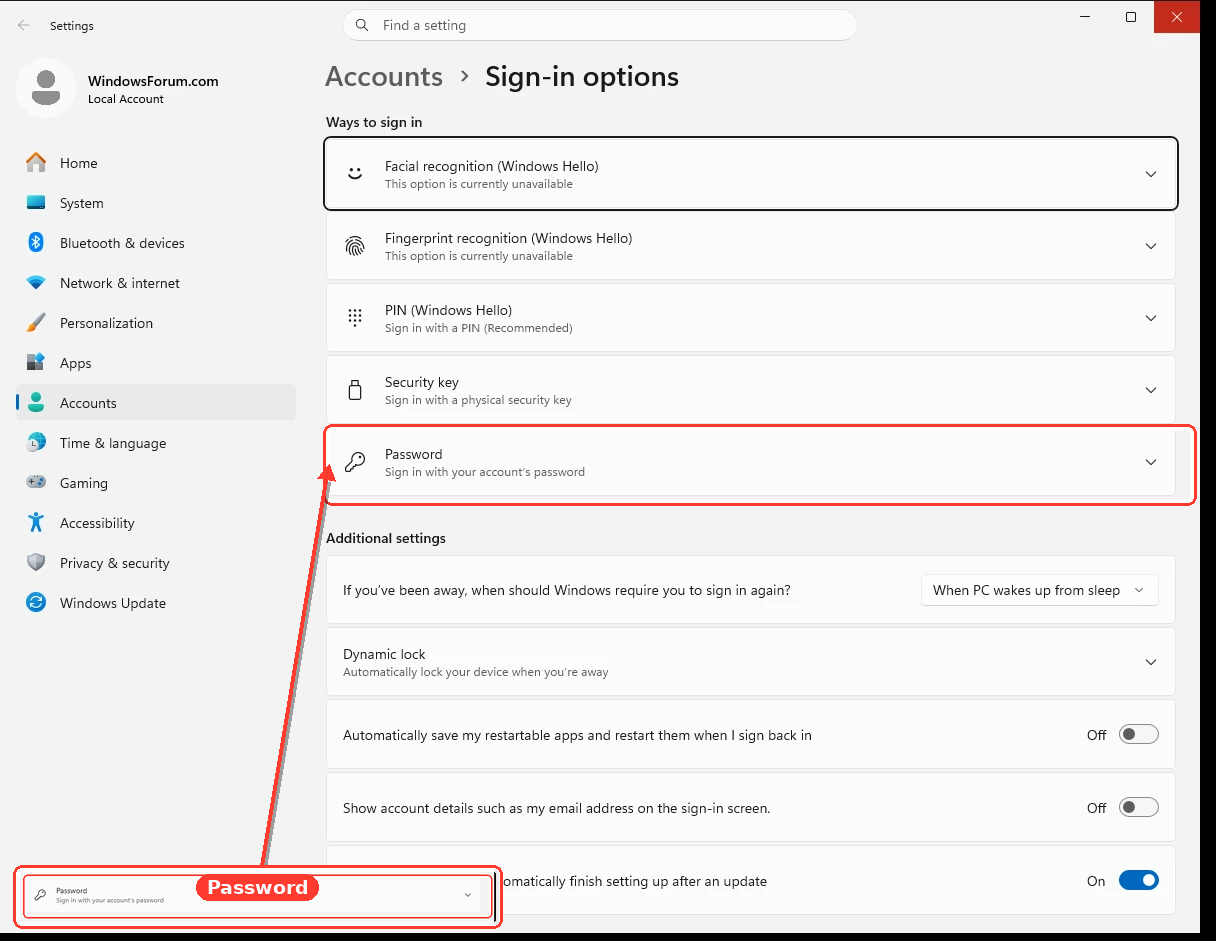
Alternatively, the current local account’s password is managed under Settings > Accounts > Sign-in options > Password:
5701454e2087.webp

If Machine 2 uses a Microsoft account, network access requires the Microsoft account password, not its PIN.

Share the Folder​

  1. Right-click the folder and select Properties.
  2. Open Sharing > Advanced Sharing.
  3. Check Share this folder.
  4. Select Permissions > Add.
  5. Add the FileShare account.
  6. Allow Read, or Change if Machines 1 and 3 must edit files.
  7. Open the folder’s Security tab.
  8. Select Edit > Add and add FileShare there too.
  9. Grant Read & execute, or Modify if editing is required.
Both the Sharing and Security permissions must allow the requested access.

Connect from Machines 1 and 3​

  1. Press Win + R.
  2. Enter:
\\DESKTOP-99RL76V
  1. When prompted, use:
Code:
Username: DESKTOP-99RL76V\FileShare
Password: the password created above
If the computer does not appear under Network, it may still be reachable directly using that path. If the path fails, please post the exact error message and confirm whether all three machines run Windows 10 or Windows 11.