
 Background
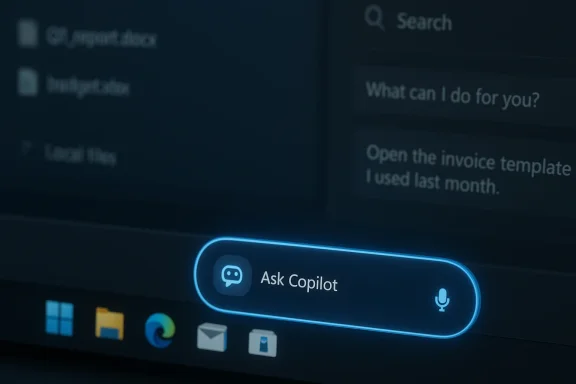
Over the past year Microsoft has repeatedly moved Copilot from a sidebar experiment into deeper OS surfaces: first as a separate Copilot app and browser integrations, and more recently with screen‑aware tools (Copilot Vision), voice activation (Copilot Voice / “Hey Copilot”), and policy‑scoped automations (Copilot Actions). The Ask Copilot taskbar pill is the latest step in that strategy: it puts a single, conversational entry point where users already look for files, apps and settings. This represents a shift from discrete assistants to an embedded, hybrid search + assistant surface.
Microsoft published the official Insider notes for the release that introduced the Ask Copilot taskbar option in Preview Build 26220.7051. Those notes confirm where to enable the feature (Settings > Personalization > Taskbar > Ask Copilot), reiterate that the experience is optional, and explain that the feature uses the same Windows search APIs/indexer to return local results rather than granting Copilot new implicit access to private files.
What Ask Copilot does — a practical overview
One bar, many inputs
- The taskbar pill functions as a hybrid search + chat field: type a query for fast local results, or enter natural‑language prompts to escalate into a Copilot conversation.
- The interface is multimodal: text input, a press‑to‑talk / voice affordance, and a Copilot Vision control for sharing on‑screen content are surfaced from the same pill. Several preview reports show dedicated Vision and voice icons adjacent to the Ask Copilot box.
Real actions, not just answers
Ask Copilot is designed to go beyond showing lists. In preview behavior described by Microsoft and independent observers, Copilot can:
- Open a specific file or app shown in search results.
- Adjust or navigate to Windows settings.
- Summarize or manipulate document contents when the user explicitly shares them (for example, when using Copilot Vision to OCR a screen region).
- Provide quick how‑to answers and step‑by‑step guidance for common tasks.
Those are the scenarios Microsoft highlights as the main productivity benefits.
Examples that appeared in early reporting and previews
Users and preview writeups have tested prompts such as:
- “Open the invoice template I used last month”
- “Connect to the projector”
- “How do I split this PDF?”
These examples illustrate the intended user flow: natural language → local result or guided action → execution (with permission). The Cambridge Network summary captured precisely this intent, noting that Ask Copilot “understandwhat you’re looking for and guideyou directly to the right place — or helpyou achieve what you’re trying to do.”
How it integrates technically (brief, verifiable)
Ask Copilot is not a ground‑up rewrite of Windows Search. Microsoft states the taskbar surface mixes indexed, local results from the Windows Search indexer with a conversational Copilot layer, using existing Windows APIs to return apps, files and settings. If Copilot needs file contents beyond the index, the UI asks for explicit permission to share items into the session. That technical design is central to Microsoft’s messaging about privacy and control.
Two technical implications follow:
Independent previews corroborate Microsoft’s claim that the Ask Copilot surface prioritizes local hits before web results; the Copilot layer is an escalation path rather than a replacement for indexed search.
Privacy and permission model — what Microsoft says (and what to watch for)
Microsoft has emphasized that Ask Copilot is permissioned by design: the taskbar pill uses the same APIs as Windows Search, and Copilot will not read private files unless you explicitly grant it access during a session. The Windows Insider notes explicitly state that Ask Copilot “does not grant Copilot access to your personal content” beyond the indexer’s usual reach.
That language addresses two common concerns:
However, there are important caveats and operational details to watch:
If you are deploying this in a managed environment, treat these two rules as your guardrails: require explicit user training for “share” actions, and manage connectors/tenant scopes centrally.
Enterprise and admin implications
Manageability
Microsoft notes admins can control Copilot visibility and start behavior. The Ask Copilot toggle is user‑facing, but modern management options (Group Policy, Intune/MDM, AppLocker) and tenant controls allow administrators to block or control Copilot installs and features across fleets in managed environments. Early guidance from preview reporting underscores that the rollout is staged and server‑gated, meaning having the Insider build isn’t always enough to see the feature — Microsoft pairs builds with server flags and account/device entitlements.
Recommended admin checklist
These steps reduce surprise in corporate deployments and help security teams audit flows before broad rollout.
UX and productivity: What Ask Copilot promises — and what it realistically delivers today
Productivity promises
These are the core productivity scenarios Microsoft highlights. Early testers reported that when the flow works (index current, Copilot available, and the right permission granted) Ask Copilot can shave seconds to minutes off common tasks, especially for less experienced users.
Today’s limitations and realistic expectations
Performance, compute and on‑device processing
One practical concern often raised in previews is compute and battery cost. If every user on an organisation’s fleet begins invoking model‑backed Copilot sessions from the taskbar, back‑end compute demand grows quickly. Microsoft’s long‑term strategy includes Copilot+ hardware that can offload more AI tasks on device using NPUs, but most current PCs will rely on cloud processing for heavier generative steps. This has implications for latency, privacy, and cost.
If your organisation needs low latency and offline capabilities, review Microsoft’s Copilot+ hardware requirements and evaluate which features are available locally versus which require cloud connectivity. For many enterprise use cases, hybrid policies that restrict tenant connectors and route sensitive operations through enterprise controls will be essential.
Security and data governance — practical risks and mitigations
Principal risks
Mitigations
These measures align with the practical recommendations emerging from multiple preview writeups and enterprise guidance in the field.
How to try it (for enthusiasts and early adopters)
If you want to test Ask Copilot in an Insider preview:
Keep in mind this is a preview path — experiences may vary, and server‑side gating can prevent immediate exposure even with the build. If you are testing in an org environment, use a controlled test tenant or non‑production identity.
Balanced appraisal: strengths, risks, and where this fits in Windows’ evolution
Notable strengths
These strengths make Ask Copilot a credible productivity surface for users who want guided help from the desktop.
Important risks and cautions
Where Ask Copilot shines is in small, high‑frequency workflows — the “open file” or “how do I…” cases where fast guidance saves time. It’s less suited to high‑assurance, compliance‑sensitive workflows until enterprises lock down connectors and retention policies.
Recommendations for IT teams and power users
Those practical steps will reduce surprise during rollout and make Ask Copilot a controlled, useful addition rather than a disruptive surprise.
Final thoughts
Ask Copilot’s taskbar insertion is a modest but meaningful rethinking of where conversational assistance belongs on the desktop: not as a separate sidebar or web page, but as a small, opt‑in pill where users already look for files and quick answers. The feature’s promise is simple — save time and reduce context switching — and Microsoft has deliberately framed it as optional, with the Windows Search indexer and explicit sharing flows forming the backbone of the privacy argument.
That said, the feature is still a preview. Early reports show promising convenience gains but also point to UI rough edges, server‑side gating, and important admin planning work before you deploy widely. For individual users who value fast, conversational desktop help, Ask Copilot will be an appealing, easy opt‑in. For IT teams, success will depend on clear policies, staged testing, and user education so the convenience doesn’t become an accidental source of risk.
If you’ve already read the Cambridge Network summary, it captures the consumer‑facing headline accurately: Ask Copilot aims to make your PC “understand what you’re trying to do” — but, crucially, only if you want it to.
In short: Ask Copilot brings multimodal AI to the Windows 11 taskbar as an opt‑in productivity surface. It’s worth piloting and watching closely, but treat it like any powerful new capability — test, control connectors, educate users, and monitor its behaviour before you flip it on for a whole organisation.
