
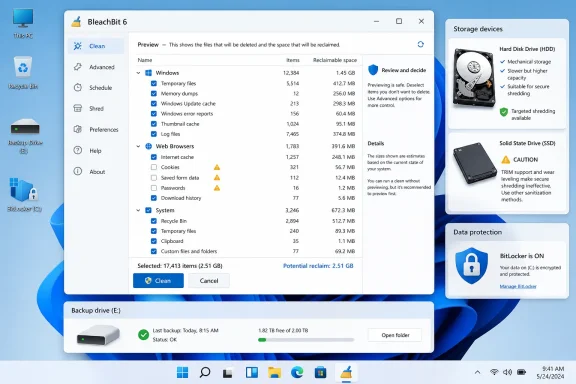
The critical safeguard is Preview. BleachBit lists the exact files it plans to remove and estimates the space to be recovered before a cleanup runs. That matters because cleaning browser cookies, history, saved credentials, recent-file lists, or application backups can be disruptive—and BleachBit does not provide an undo button.
 Start with the files Windows can safely live without
BleachBit’s cleaner categories cover individual applications alongside Windows components such as Explorer, Windows Defender, the Recycle Bin, temporary files, logs, and update installers. Its Deep scan options can also find orphaned and backup files, but those are the areas where administrators and power users should be most conservative.
ZDNET recommends creating a System Restore point before making broader changes. That is sensible advice, but it should not replace a real backup for files that matter: System Restore is not a document-recovery strategy.
A practical first pass is to preview only temporary files, Recycle Bin contents, and known application caches. Review the resulting paths, deselect anything unfamiliar, then run the cleanup. BleachBit reports both the number of deleted files and reclaimed disk space after the job finishes.
Shredding is not the same as ordinary deletion
BleachBit can also shred individual files and folders, overwriting their contents before removal rather than simply deleting their filesystem entry. That makes it useful for a confidential spreadsheet, exported password list, or other sensitive file that should not be trivially recoverable from a traditional hard disk.
The project’s own documentation is more nuanced than many “secure delete” utilities: a single overwrite pass is sufficient for modern spinning disks, while older multi-pass schemes add time without meaningful benefit. But file shredding is not a guarantee that every trace has disappeared. NTFS journaling, prior copies, application temporary files, cloud synchronization, backups, and email attachments can all leave data elsewhere.
SSDs are the important exception. Wear leveling and TRIM mean software overwriting is less reliable as a sanitization method on solid-state storage. BleachBit specifically cautions against repeatedly wiping empty space on SSDs because it generates unnecessary write wear. For an SSD being retired or reassigned, use the drive maker’s secure-erase capability or an enterprise-approved sanitization process; for ongoing protection, full-disk encryption such as BitLocker is the stronger baseline.
Treat “wipe empty space” as a security task, not a cleanup task
BleachBit’s Empty Space option overwrites unallocated areas where previously deleted files may remain. It can take a long time, temporarily fills available capacity while operating, and—once finished—does not increase free disk space. It is therefore not a substitute for clearing caches or removing old installers.
For routine Windows maintenance, the safer workflow is straightforward:
- Preview a narrow set of cleaners before deleting anything.
- Avoid browser passwords, cookies, and session data unless their removal is intentional.
- Use shredding for specific sensitive files on hard disks, not as a universal privacy cure.
- Keep BitLocker enabled on supported systems and maintain separate backups before experimenting with deep-cleaning options.
BleachBit 6 is now the current Windows 10 and Windows 11 branch, while BleachBit 4.7 remains available for legacy Windows versions. The tool’s value is control—but that same control makes a cautious preview more important than the cleanup button itself.
