
PCMag UK highlighted the change on August 26, but Microsoft’s own August 21 release notes make the scope clearer. This is currently an Experimental Channel feature in Windows 11 version 26H2, not a privacy upgrade available to normal Windows 11 installations. It is also delivered through Controlled Feature Rollout, meaning an Insider can be on Build 26340.9233 and still not see it immediately.
The immediate practical value is straightforward. Until now, Windows could control desktop-app access to a camera, microphone, or location data only as a group. Turning on “Let desktop apps access your microphone,” for example, enabled that class of access for compatible Win32 software; users could not revoke it for one particular desktop program while leaving Teams, Zoom, or another trusted tool working. Microsoft Store apps have long had the more granular model.
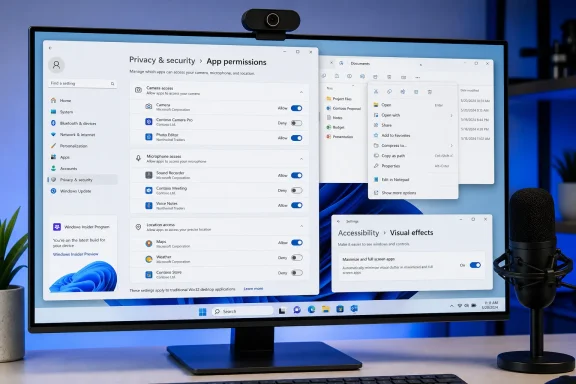
BleepingComputer independently confirmed the new test and the relevant Settings paths: Settings > Privacy & security > Camera, Microphone, and Location. Microsoft says an app that has not previously used one of those resources will ask for permission the first time it attempts access. Existing decisions are preserved, so a system upgrade does not suddenly revoke permissions that applications already hold.
That restraint avoids breaking working cameras and audio hardware after an update. It also means that when this reaches a broader audience, it will not automatically clean up an older PC’s permissions. Users who want the benefit will need to review the new lists themselves.
 Desktop apps are finally moving beyond the master switch
The significance is less about a new Settings toggle than about which software is covered. The Windows permission system introduced with Windows 8 and expanded in Windows 10 and 11 was strongest for packaged, Store-style apps. It was much weaker for the vast universe of conventional Win32 programs that users download directly, deploy with an RMM tool, receive from a vendor portal, or install through an enterprise software catalog.
Microsoft’s current public support documentation still describes the old limitation plainly: desktop apps cannot be individually toggled for camera access. The old model offered a device-wide desktop-app setting, while Store apps appeared in a separately managed application list. The experimental build replaces that all-or-nothing arrangement for camera, microphone, and location access.
This is a meaningful privacy control, but it is not a general-purpose sandbox for every kind of desktop-app behavior. The Build 26340.9233 notes name three protected resources: camera, microphone, and location. They do not promise individual Win32 permissions for Pictures, Videos, Documents, Downloads, arbitrary folders, clipboard data, network access, Bluetooth, or all file-system activity. Claims that Windows is now preventing every conventional app from “spying” would outrun the evidence.
The bigger change is architectural. Microsoft announced its User Transparency and Consent initiative in February 2026, describing a consent-first direction that would give people clearer prompts when software seeks sensitive resources or attempts to install unwanted components. The per-app Win32 controls are the first concrete, publicly documented piece of that program to land in an Insider build.
Microsoft’s release notes also identify an important implementation wrinkle: most desktop apps will have clear attribution, but programs using shared system components or browser-hosted experiences may appear under an unexpected name. Others may be labeled “Unsigned” when Windows cannot verify a publisher. That creates a new job for users and administrators: a permission prompt is only useful if its identity information is intelligible enough to make a sound decision.
For a security team, “Unsigned” should not be treated as proof of malware. Older internal software, small vendors, portable utilities, and applications launched through helpers can be difficult to attribute cleanly. But neither should an unrecognized request be waved through merely because it appears during a video meeting or after an application update. Microsoft’s advice is the right baseline: grant access only to software you recognize and trust.
Build 26340.9233 is a test, not a deployment target
The strongest caveat in the PCMag UK report is the one readers should take most seriously: none of these changes should be assumed to be headed for a specific monthly Windows update. Microsoft states that Experimental Channel features may change, be removed, or never be released beyond Windows Insiders.
Build 26340.9233 was released on August 21, 2026, and is based on Windows 11 version 26H2 through an enablement package. It sits well outside the normal servicing path used by most home PCs and managed fleets. An organization should not move production endpoints into the Experimental Channel just to obtain granular camera or microphone controls.
The good news for IT departments is that Microsoft says existing enterprise privacy policies continue to work as designed. The company is only “exploring additional management capabilities,” however. That phrase matters. The release notes do not document a new Intune policy, Group Policy setting, Configuration Service Provider node, reporting surface, or bulk-deployment mechanism tailored to these new Win32 application identities.
That leaves a gap between a welcome consumer-facing feature and something an administrator can govern consistently at scale. Microsoft’s existing Privacy Policy CSP has long supported policy-based decisions for Windows apps, including camera and microphone categories, but its documented per-app model uses a Package Family Name—an identifier that makes sense for packaged applications. Traditional Win32 apps do not generally present administrators with a tidy Package Family Name inventory.
Until Microsoft explains how it will identify and manage conventional applications in enterprise policy, admins should treat Build 26340.9233 as a chance to test compatibility, not as a ready-made control plane. Test the software that actually drives cameras, microphones, location services, screen capture, virtual devices, VDI sessions, browser-based calling, and accessibility tools. Pay particular attention to apps whose hardware access is brokered through WebView, a browser engine, a vendor helper service, or a shared driver.
The test should also include denial behavior. A correctly blocked microphone request should result in a useful application error and a clear path for a user to understand what happened. A feature that silently blocks an essential business app—or presents the requester under a cryptic host-process name—will create support tickets faster than it improves privacy.
“Open apps maximized” is about accessibility, not forced full screen
The same August 21 Insider release adds an option called Open apps maximized under Settings > Accessibility > Visual effects. It is available in the Beta and Experimental channels, unlike the desktop-app permission controls, which Microsoft specifically documents for the Experimental build.
PCMag UK describes the setting as a Windows 8-like full-screen experience. The official wording is narrower: Windows will maximize an app window when it opens. Maximized and full-screen are different states. A maximized desktop application still normally retains its title bar, taskbar behavior, window controls, and familiar Alt+Tab workflow; it is not automatically placed into the immersive full-screen mode used by a game, a media player, or a browser with its full-screen command enabled.
That distinction will matter to people who use small laptop displays, tablet-mode workflows, magnification, or screen readers. The setting removes repetitive window-management work without changing the application’s intended layout or denying users the ability to restore a window when they need to compare documents side by side.
It is a modest option, but it illustrates a more careful approach than Windows 8’s broad design assumptions. Windows 11 is making maximized windows the default only for people who choose it, and Microsoft is framing it as an accessibility setting rather than a new desktop doctrine.
File Explorer’s context menu now has a Settings page
Microsoft has also announced a substantial redesign of the Windows 11 File Explorer context menu. The company says the current menu became cluttered and sluggish over time as application extensions accumulated. Its answer is to make the default menu cleaner and give users a dedicated customization page under Personalization.
The new controls go beyond the familiar “Show more options” escape hatch. Users can turn built-in commands such as Send to and Create shortcut on or off; enable commands such as Print that were absent from the Windows 11 context menu; choose whether application extensions appear in the main menu or a submenu; and hide the extension submenu entirely. The standard commands—Cut, Copy, Paste, Rename, Delete, and Share—can be shown as inline text rather than icon buttons, while Properties can be moved to the bottom.
For power users, the important detail is that Windows is not simply reviving the Windows 10 menu wholesale. Microsoft is preserving a structured extensibility model while allowing people to decide which third-party commands deserve prime real estate. That should reduce the right-click clutter that returns every time a PDF tool, archive utility, cloud-sync client, source-control package, or GPU driver adds another shell extension.
Microsoft says the revised menu should open faster because it has less top-level work to do, but that performance claim still needs broad testing across real-world extension-heavy machines. Shell extensions have a long history of becoming the slowest or least reliable part of a right-click operation, particularly on older PCs with years of installed software. The new Settings controls may make cleanup easier; they do not guarantee that a problematic extension will become well behaved.
As with the privacy work, Microsoft has not committed to a stable-release date for the redesigned context menu. The company’s own language says it is continuing to refine the experience with Insider feedback.
For ordinary Windows 11 users, the actionable takeaway is simple: there is nothing to configure yet on a stable PC. For Insiders, the privacy feature is worth testing with noncritical software, especially applications that use cameras and microphones. The milestone to watch is not another enthusiastic screenshot—it is Microsoft publishing enterprise-management details and committing these controls to a supported Windows 11 release.
