
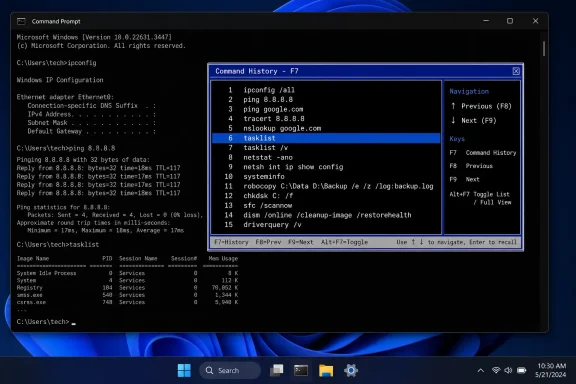
cmd.exe session opens a numbered command-history list, allowing you to scan previous commands, select one with the arrow keys, and execute it with Enter. How-To Geek’s report has put a welcome spotlight on a feature that remains surprisingly useful for Windows administrators, support technicians, developers, and anyone who still relies on the classic Command Prompt.This is not a replacement for PowerShell, Windows Terminal, or a purpose-built terminal workflow. It is something more modest—and, for many routine tasks, more immediately valuable. F7 turns an opaque, linear history buffer into a visible menu. Rather than cycling backward one command at a time and hoping to stop at the right entry, users can see the available choices in one place.
For people who routinely type ipconfig /all, tasklist, netstat, ping, robocopy, or lengthy reg and schtasks commands, that small difference can prevent repetitive keystrokes and reduce retyping errors. Its continued presence also says something important about Windows: the platform still carries forward practical interaction patterns that predate today’s graphical desktop expectations by decades.
 The Command Prompt Shortcut Hiding in Plain Sight
The core workflow is refreshingly simple:
- Open Command Prompt by searching for
cmd, or press Windows + R, entercmd, and press Enter. - Run several commands so the current session has history.
- Press F7.
- Use Up Arrow and Down Arrow to highlight a prior command.
- Press Enter to run the selected command.
Microsoft’s current documentation for doskey describes F7 as displaying, in a dialog box, the commands stored in memory for the active program. The documentation also specifies that the arrow keys select an entry and Enter runs it. Microsoft Learn further documents a related shortcut: F9 prompts for a command-history number and recalls the matching entry to the command line.
That F9 behavior makes F7 more than a visual convenience. The numbered list can serve as a lightweight index into the current session’s command history. If the desired command is numbered 18, pressing F9, entering 18, and pressing Enter recalls it. From there, the command can be inspected, edited, or executed.
The distinction matters. F7 is for visual browsing; F9 is for direct retrieval. Neither is as capable as a modern fuzzy finder or full-text reverse search, but both are faster than blindly tapping Up Arrow through a long sequence of similar commands.
A Better Alternative to Arrow-Key Cycling
The Up Arrow key remains the Command Prompt default that most users know. It recalls the preceding command; Down Arrow moves in the opposite direction. Microsoft’s documentation also lists Page Up for the first command in the current session and Page Down for the most recent command. Microsoft Learn Those commands are useful, but they still treat history as a one-at-a-time sequence.
F7 changes the interaction model:
- Up Arrow: navigate blindly through history.
- F7: view a list before choosing.
- F9: recall a known numbered entry.
- F8: search for entries that begin with the text already present at the prompt.
- Alt + F7: clear the current history buffer.
For a short history, the difference may be trivial. For a session involving troubleshooting, file operations, network diagnostics, and system administration, the list view becomes much easier to use. It is particularly effective when commands are lengthy enough that retyping them would introduce risk but distinct enough to recognize at a glance.
Background: From DOSKEY to Modern Windows Command History
The modern behavior has roots in DOSKEY, the command-recall and line-editing utility associated with MS-DOS. As How-To Geek notes, DOSKEY appeared with MS-DOS 5.0 and supplied command history, editing facilities, and macros at a time when those conveniences were far from universal at a DOS prompt.
The legacy matters because it helps explain why the keys look and feel unusual today. F7 does not resemble the inline search interfaces familiar from contemporary terminals. Instead, it presents a visibly old-school overlay: a compact dialog-like listing that interrupts the current prompt, shows recent entries, and then returns the user to the previous console view when dismissed.
Microsoft still documents doskey for supported Windows versions, including Windows 10, Windows 11, and current Windows Server releases. The tool’s documented role remains remarkably familiar: it recalls previously entered command-line instructions, edits command lines, and creates macros. Microsoft Learn
That continuity can be misleading, however. In a present-day Command Prompt session, users generally do not have to manually launch doskey.exe merely to gain familiar line editing and history behavior. The old DOSKEY name persists in documentation and tooling, while the interactive experience has become part of the broader Windows console compatibility story.
Why the Feature Has Lasted
Windows is built around long-lived software compatibility, particularly for the command-line utilities, administrative habits, batch files, and enterprise workflows that remain essential even after newer shells arrive. cmd.exe itself continues to be documented as the Windows command interpreter, while Microsoft encourages users who need more advanced scripting and automation capabilities to consider PowerShell. Microsoft Learn
That creates a practical division of labor:
- Command Prompt remains fast, familiar, lightweight, and deeply tied to batch-era administration.
- PowerShell supplies an object-oriented pipeline, richer scripting, remoting, modules, and more sophisticated interactive features.
- Windows Terminal serves as a modern host that can run Command Prompt, PowerShell, WSL distributions, and other command-line environments in tabs and panes. Microsoft Learn
F7 persists because it remains part of the interaction vocabulary expected by classic Windows console users. It does not need to be fashionable to be useful. For someone already working in Command Prompt, it is simply there, requires no configuration, and can make a repetitive task noticeably faster.
How to Use F7 Safely and Efficiently
The first lesson is that F7 recalls commands, not intent. It saves typing, but it does not validate whether an older command is still appropriate for the current directory, network connection, system state, or administrative context.
That makes the most effective workflow slightly more deliberate than simply pressing Enter immediately.
Recall, Inspect, Then Run
Use F7 to locate the command, but pause long enough to ensure it is still correct. This is especially important for operations involving deletion, permissions, registry modifications, service configuration, or file synchronization.
A sensible routine looks like this:
- Press F7 and choose the prior command.
- Use Enter to bring it forward or execute it, depending on the host behavior and workflow.
- If the command appears at the prompt for editing, review paths, switches, target machines, user names, and wildcards.
- Change what needs changing.
- Run it only after confirming the command matches the current task.
The benefit is not merely speed. It is controlled reuse. A correctly typed command from five minutes ago is often a better starting point than reconstructing a nearly identical line from memory.
Everyday Commands Worth Recalling
F7 is especially useful with commands that are common enough to repeat but long enough to make typing inconvenient:
ipconfig /all
tasklist /svc
netstat -ano
powercfg /batteryreport
robocopy C:\Source D:\Destination /E /R:1 /W:1
wevtutil qe System /c:20 /f:text
These examples are not inherently dangerous, but they illustrate the appeal of history recall. One mistyped switch, omitted quotation mark, or altered path can turn a routine command into a failed troubleshooting step. Recalling an earlier command reduces that friction.
F8 Is the Underused Companion
F7 is the visual list command, but F8 deserves equal attention. Microsoft documents F8 as showing entries in the history buffer that begin with the characters already typed on the current command line. Microsoft Learn
In practical terms, type the first few characters of a command—such as:
ipconfig
Then press F8 to cycle through prior entries beginning with that text. This can be faster than F7 when the command family is obvious and the session contains many unrelated entries.
For example:
- Type
roband press F8 to locate a previousrobocopyline. - Type
pingand press F8 to revisit a prior connectivity test. - Type
scand press F8 to locate a service-control command. - Type
wevtutiland press F8 to retrieve a previous event-log query.
The classic Command Prompt history system is not as discoverable as it should be, but it is more capable than the Up Arrow shortcut alone suggests.
The Boundaries of F7 Command History
The feature’s biggest limitation is straightforward: Command Prompt history is primarily session-oriented. It is designed for recalling commands in the working context currently open in front of you, not for building a durable personal knowledge base.
That is useful for incident response, repetitive maintenance, or a one-off diagnostic session. It is not ideal for commands that need to be kept for days, weeks, or years.
Microsoft’s doskey documentation describes history entries as commands stored in memory and includes an option—doskey /history—that displays the stored history. It also shows that the output can be redirected to a file, including a batch file. Microsoft Learn That provides a simple, if old-fashioned, escape hatch for preserving the work performed in a session.
For example:
doskey /history > session-history.txt
Or, if converting suitable commands into a starter batch script:
doskey /history > troubleshooting-notes.bat
The second approach demands care. History may include incomplete commands, experiments, paths that only existed temporarily, or actions that should not be rerun automatically. Saving history to a text file is often safer than treating it as a ready-made script.
History Is Not a Security Boundary
A command history buffer can contain sensitive material. That includes:
- Passwords entered directly as command-line arguments.
- API tokens.
- Connection strings.
- Private server names or internal paths.
- Commands revealing usernames, network shares, or security tooling.
- Administrative instructions that should not be casually reused.
F7 makes such commands visible to anyone with access to the open console session. It does not create the security problem—the command was already typed—but it makes the retained history easier to browse.
Avoid putting secrets directly on a command line whenever an alternative exists. Use secure prompts, environment handling appropriate to the tool, credential managers, protected configuration stores, or mechanisms designed for secret input. Do not treat the transient nature of Command Prompt history as a guarantee that sensitive commands cannot be exposed.
When necessary, Alt + F7 clears the commands stored in the active history buffer, according to Microsoft’s key reference. Microsoft Learn That is useful for cleaning up after a sensitive administrative task, though it should not be mistaken for a comprehensive audit or forensic erasure mechanism.
F7 Versus PowerShell and PSReadLine
The case for F7 is strongest in Command Prompt, not as a claim that it is superior to all modern terminal history systems. PowerShell offers a deeper history model, particularly when the PSReadLine module is active.
Microsoft distinguishes between PowerShell’s built-in session history and PSReadLine-managed history. The built-in history is limited to the current session and disappears when that session ends. PSReadLine history, by contrast, tracks commands across PowerShell sessions and writes them to a central per-host file. Microsoft Learn
That has major advantages:
- History survives restarts.
- Commands can be retrieved from earlier work.
- The shell environment supports richer editing and customization.
- PowerShell includes history cmdlets such as
Get-History,Invoke-History,Add-History, andClear-History. Microsoft Learn - The maximum retained command count for PowerShell’s built-in history is configurable through
$MaximumHistoryCount; Microsoft documents a default of4096. Microsoft Learn
There is also an important compatibility wrinkle. Microsoft documents F7 and F9 bindings in the PowerShell console’s built-in history behavior, but notes that when PSReadLine is loaded automatically—as it normally is—those bindings are not assigned to the same functions. Microsoft Learn
In other words, a user who learns “F7 opens history” in cmd.exe should not expect identical results in every PowerShell environment. The behavior can differ based on the host application and key bindings.
Windows Terminal Does Not Make All Shells Behave Alike
Windows Terminal is a host, not a single shell. Microsoft describes it as a modern terminal application for command-line shells such as Command Prompt, PowerShell, and Bash through WSL. Microsoft Learn The shell inside the tab, along with its key bindings and line-editing layer, still affects what function keys do.
This distinction is worth remembering:
- A Command Prompt tab may expose classic F7 command history behavior.
- A PowerShell tab may use PSReadLine bindings instead.
- A WSL shell will follow the history and key behaviors of its Linux shell and terminal setup.
- An application running inside a console can intercept keys for its own functions.
Microsoft specifically warns that character-based interactive applications can override DOSKEY key assignments. If a program uses F7 for its own feature, the DOSKEY history pop-up cannot take precedence. Microsoft Learn
That is not a flaw in F7 so much as a reminder that the Windows console is a layered environment. The terminal host, shell, console APIs, and running interactive program can all influence the final keyboard behavior.
Why This Old Interface Still Has Value
The central strength of F7 is visual certainty. It shows a compact list of what exists in the current command history rather than forcing users to remember chronology or cycle through commands sequentially.
That makes it well suited to several Windows support scenarios:
- Re-running a diagnostic after changing a network cable, adapter setting, or service state.
- Revisiting a long
robocopycommand while changing only one source or destination path. - Recalling a
wmic-era orsc.execommand during legacy system troubleshooting. - Repeating a
findstr,wevtutil, ornetshcommand after altering one parameter. - Retrieving a command typed before an interruption without reconstructing it from scratch.
The design also carries a kind of clarity that newer tools sometimes lose. There is no fuzzy scoring, ranking algorithm, plug-in requirement, or separate configuration file. Press F7, read the list, select an item. For a task performed in a single Command Prompt window, that directness remains hard to beat.
There is a broader lesson here for Windows power users. The most productive shortcut is not always the newest or most elaborate one. Sometimes it is a mature function that was designed around a basic human need: seeing the available choices before making a selection.
The Real Verdict: Use It Where It Fits
F7 is not a hidden reason to abandon PowerShell. It cannot provide durable cross-session history, advanced search, sophisticated editing, or the programmable command-line environment that PowerShell and PSReadLine offer. It also has a distinctly retro interface that can feel disruptive when users are accustomed to seamless inline terminal workflows.
But that criticism misses the point. F7 is a Command Prompt productivity shortcut, not a modern shell strategy. It improves a specific pain point in the environment where that pain point still exists.
For classic cmd.exe users, the habit of hammering Up Arrow is often accepted as unavoidable. It is not. Pressing F7 exposes the command history as a numbered, navigable list; F9 retrieves an entry by number; F8 narrows recall by prefix; and Alt + F7 clears the buffer when needed. Microsoft Learn
That compact set of keys will not transform Command Prompt into a contemporary terminal platform. It does something more practical: it makes an old Windows tool less repetitive, less error-prone, and noticeably faster the next time a needed command is hiding ten Up Arrow presses away.
