
For Windows users, this is one of the most valuable everyday productivity habits. It works in nearly every major browser, Microsoft Word, Microsoft Edge’s PDF viewer, Adobe Acrobat, Google Docs, OneNote, text editors, and many other applications. The challenge is rarely remembering the shortcut; it is understanding the difference between searching the document currently open and searching across files stored on a PC, network, or cloud drive.
This guide explains both approaches, including the practical limitations that can make a visible word seem impossible to find.
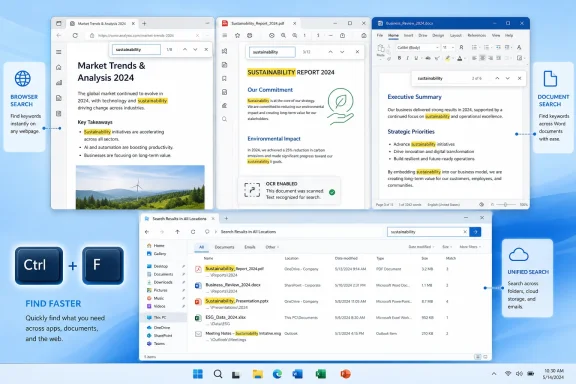 The Universal Method: Ctrl+F and Command+F
The built-in Find command searches the content that is already open in the active window. In most Windows applications, press Ctrl+F. On macOS, press Command+F.
Type a full word, part of a word, or a phrase. The app generally highlights the first occurrence immediately, displays a result count, and provides Next and Previous controls. Pressing Enter commonly advances to the next match.
The basic workflow
- Open the correct tab, document, PDF, note, or file.
- Press Ctrl+F on Windows, Linux, or ChromeOS.
- Press Command+F on a Mac.
- Type the term you need to locate.
- Use Enter, arrow buttons, or dedicated navigation shortcuts to move between results.
- Press Esc or select the close button to dismiss the search box.
The distinction is important: Ctrl+F does not normally search every file on your computer. It searches the page or document in front of you. If the file itself is unknown, use Windows Search, File Explorer search, or a cloud-storage search tool instead.
Why this shortcut is more useful than it looks
A page search is not limited to locating a keyword. It can also help users:
- Find a product model number in a long specification sheet.
- Locate an error code in a support article.
- Jump to a section of a policy, contract, or release note.
- Verify whether a name appears in a report.
- Check whether a webpage includes a particular setting or instruction.
- Compare repeated wording before editing a document.
- Navigate a long PDF without relying on bookmarks or a table of contents.
For exact wording, enter a multi-word phrase rather than one broad term. Searching for Windows update may yield dozens of results, while optional quality update is much more likely to take you to the intended paragraph.
Finding Keywords on Webpages in Windows Browsers
All major desktop browsers provide a page-search feature, but the menu labels and advanced controls differ. The keyboard shortcut remains the most consistent option.
Google Chrome
In Chrome on Windows, press Ctrl+F and type the desired word or phrase. Chrome places the search box near the upper-right corner and marks matching text throughout the page.
The menu route is:
- Select the three-dot More menu.
- Open Find and edit.
- Select Find.
Chrome is particularly effective for long support pages, product documentation, webmail conversations, and web-based documents. If a page has been loaded dynamically, wait for its content to finish appearing before assuming a search term is absent.
Microsoft Edge
Microsoft Edge uses the same Ctrl+F command and offers convenient keyboard navigation once the Find box is open:
- Ctrl+G moves to the next result.
- Ctrl+Shift+G moves to the previous result.
- Esc closes Find on page.
The menu route is straightforward:
- Select Settings and more using the three-dot menu.
- Choose Find on page.
Edge is especially useful in Windows because it can search normal webpages and PDFs opened in the browser. For many users, that removes the need to launch a separate PDF application for routine keyword lookups.
Mozilla Firefox
Firefox’s Find bar is one of the stronger browser implementations for users who need more precise matching. Press Ctrl+F, or open the Firefox menu and select Find in page.
Firefox can provide additional controls such as:
- Highlight All — marks every match, not only the active result.
- Match case — distinguishes uppercase and lowercase letters.
- Match Diacritics — distinguishes accented characters from unaccented versions.
- Whole Words — avoids partial matches within longer words.
These options matter when searching technical documentation. A search for net could otherwise find network, internet, and dozens of unrelated fragments. A whole-word search can substantially reduce that noise.
Firefox also supports lightweight page-search shortcuts:
- Press / when the cursor is not in a text box to open Quick Find.
- Press ' to search links only.
These shortcuts are helpful for quickly locating a download link, a support portal entry, or a navigation label without bringing up the full Find bar.
Safari on Mac
On a Mac, Command+F opens Safari’s webpage search. Type the keyword and move through matches using the controls in the Find interface.
The underlying principle remains the same across platforms: a browser’s find tool searches the currently rendered page. It will not search hidden pages, other tabs, unread messages, or files stored elsewhere unless the browser or website provides a separate search feature.
Searching a Webpage on Android, iPhone, and iPad
Mobile browsers do not have a physical keyboard shortcut available to every user, so the Find command typically lives in a menu. The function is still fast once the route becomes familiar.
Chrome on Android
To search a webpage in Chrome for Android:
- Open the webpage.
- Tap the three-dot More menu.
- Select Find in page.
- Enter the word or phrase.
- Use the arrows to move through the highlighted matches.
The result count helps determine whether the information is actually present on the page. If the count is zero, verify spelling, try a shorter portion of the term, or consider whether the relevant content appears inside an image, video, or embedded PDF.
Chrome on iPhone and iPad
Chrome on iPhone and iPad places the command under its More menu:
- Open the webpage.
- Tap More.
- Select Find in page.
- Enter a search term.
- Use the navigation arrows to review each occurrence.
Results are highlighted, with the currently selected match shown more prominently. This is useful when reviewing long help articles from a phone, where manually scanning the page is slow and error-prone.
Firefox on Android and iPhone
Firefox provides Find in page through its menu controls on Android and iPhone. On iPhone, users may also be able to invoke the command after selecting or long-pressing a word on the page.
Mobile page search is particularly valuable in Firefox because webpages designed for desktop monitors can become extremely long on a narrow phone display. Searching for headings, configuration names, or error messages avoids repeated swiping through content.
Safari on iPhone and iPad
Safari’s current interface uses the Page Menu approach for searching within a webpage:
- Open the webpage in Safari.
- Tap the Page Menu button.
- Select Search Document.
- Enter the word or phrase.
- Tap Next Result to advance through matches.
This terminology matters because older tutorials often instruct users to find the command through the Share sheet. That route may still appear differently depending on software versions and interface settings, but Page Menu and Search Document reflect the modern Safari wording.
Samsung Internet
Samsung Internet includes a similar page-search function:
- Open the webpage.
- Tap the menu button.
- Select Find on page.
- Enter the term.
- Use the result controls to navigate.
On mobile, always search after the page has loaded. Some websites delay loading article text, comments, or product descriptions until the user scrolls, which can affect what the browser can search at that moment.
Finding Text Inside PDFs
PDF files are one of the most common reasons users need keyword search. Manuals, invoices, academic papers, contracts, technical documentation, and downloaded reports often contain hundreds of pages.
The simplest method is familiar:
- Press Ctrl+F in Windows.
- Press Command+F on a Mac.
- Type the word or phrase.
- Move through results using the arrows or Enter.
Microsoft Edge PDF search
When a PDF opens in Microsoft Edge, use Ctrl+F just as you would on a website. Edge highlights results inside the document and allows users to move through occurrences without leaving the browser.
This is often the quickest option for a single downloaded PDF. It is built into Windows’ default browser experience and works well for ordinary text-based documents.
Adobe Acrobat and Acrobat Reader
Adobe Acrobat provides a standard Find toolbar for the current PDF and a more capable advanced search feature for broader research.
For a single document:
- Open the PDF in Acrobat or Acrobat Reader.
- Press Ctrl+F.
- Enter the text to search for.
- Use the navigation controls to move between instances.
Acrobat can also refine searches with options such as:
- Whole words
- Case sensitive
- Include bookmarks
- Include comments
For several PDFs, Acrobat’s Advanced Search is more appropriate. Open the Find toolbar, select the additional options control, and choose Advanced Search. From there, search a selected folder, a PDF Portfolio, or another supported collection.
This is more powerful than repeatedly opening files one at a time, but it has limits. Encrypted files, indexing gaps, browser-based viewers, and inaccessible locations can prevent a multi-document search from returning every expected result.
Preview on Mac
Mac users can search a PDF in Preview through its toolbar search field. If the field is not visible because the window is narrow, enlarging the window can reveal the control.
Preview is sufficient for ordinary document lookup, especially when a user needs to locate a name, date, reference number, or repeated phrase. Acrobat is the better choice for users who need advanced search logic or need to search across multiple PDFs.
Why a PDF Can Show a Word That Find Cannot Locate
A visible word in a PDF is not always searchable text. This is one of the most frustrating but important limitations of document search.
Scanned PDFs are often just images
Many older PDFs are scans of printed pages. Although the user can clearly see words on the screen, the file may contain only page images rather than a selectable text layer.
In that situation, Ctrl+F will return no result because there is no encoded text for the application to search.
OCR determines whether the text is searchable
Optical Character Recognition, usually shortened to OCR, converts letters in an image into machine-readable text. A scan that has been processed with OCR is much more likely to support Find.
However, OCR can make mistakes. Search failures may result from:
- Low-resolution scans.
- Crooked or poorly lit pages.
- Stylized fonts.
- Faint typewriter text.
- Tables with irregular layouts.
- Handwriting.
- Incorrect recognition of
Oand0,land1, or similar characters.
When a PDF search fails, try these practical steps:
- Search a shorter, distinctive part of the phrase.
- Try an alternative spelling or a partial product code.
- Check whether text can be selected with the mouse.
- Open the document in Acrobat and look for OCR or text-recognition tools.
- Locate an original digital copy rather than relying on a scan.
- Use visual inspection only when no searchable version is available.
A search failure does not always prove the word is absent. It may prove only that the document was not created with a reliable text layer.
Finding Keywords in Microsoft Word and Office Documents
Microsoft Word makes document search more useful by combining it with its Navigation Pane. Pressing Ctrl+F normally opens that pane, where Word begins searching as soon as text is entered.
Word for Windows
In Word for Windows, use either of these methods:
- Press Ctrl+F.
- Select View and enable Navigation Pane.
- Select Home and choose Find.
The Navigation Pane lists matches and lets users jump directly to them. It can also show headings and pages, providing a faster way to move around a well-structured report.
For replacements, use:
- Ctrl+H
- Home > Replace
Find and Replace is powerful, but it deserves care. A blanket replacement can alter words in the wrong context, damage product names, or unintentionally change text inside quotes. Review replacements individually in important documents.
Word for the web
Word for the web supports Ctrl+F and uses a Search in document field. Its filter controls can narrow results with options such as:
- Match case
- Whole words only
This is a useful compromise for collaborative documents. It is fast enough for ordinary review while avoiding unnecessary edits to a shared file.
Word for Mac
Use Command+F to search in Word for Mac. Common navigation shortcuts include:
- Command+G for the next occurrence.
- Shift+Command+G for the previous occurrence.
The exact layout can vary between Office releases, but the keyboard behavior remains familiar to long-time Mac users.
Searching Google Docs, Sheets, and Slides
Google’s web-based productivity apps follow the standard desktop convention:
- Ctrl+F on Windows and ChromeOS.
- Command+F on Mac.
This works in Google Docs, Google Sheets, and Google Slides. For editing rather than merely locating text, open Edit and select Find and replace.
When Find and Replace needs extra caution
In Google Sheets, a search term can appear in formulas, labels, comments, notes, or displayed values depending on the document and feature context. Replacing text without reviewing the scope can alter formulas or standardized entries unexpectedly.
Before using Replace All:
- Confirm the search phrase is specific.
- Check whether case matching is needed.
- Review the number of matches.
- Verify the replacement text.
- Use individual replacement for sensitive documents.
On Android, iPhone, and iPad, Google Docs places the feature under More > Find and replace. Mobile users can enter the term, search, use the arrows to navigate, and then close the search view when finished.
Searching Notes, Text Files, and Personal Knowledge Bases
Search becomes even more important in note-taking software because information is often stored in fragments rather than a single formal document.
OneNote search
For an individual OneNote page, Ctrl+F can locate text within the current content. Broader search tools can search notes across a larger scope, depending on the OneNote version and platform.
OneNote’s search controls may support scopes such as:
- Current page
- Current section
- Current notebook
- Open notebooks
Exact phrases can be more reliable when enclosed in quotation marks in a broader search field. This reduces the chance that OneNote will return separate matches for individual words spread across unrelated notes.
Apple Notes and TextEdit
Apple Notes includes a general search field for locating notes by their contents. For text within a specific open note, use the app’s Find command.
In TextEdit, use Edit > Find > Find. TextEdit also supports using selected text as the next search term, which is useful when a word already appears in the document and needs to be located elsewhere.
Plain-text editors on Windows
Notepad, Notepad++, Visual Studio Code, and many other Windows text editors recognize Ctrl+F. In code and log files, use a unique error ID, filename, module name, or exact message fragment rather than a broad word.
For example, searching a log for error may produce thousands of matches. Searching for a specific code such as 0x80070005 or a service name can make the result actionable immediately.
Searching for a File When the Filename Is Unknown
A document-level search is the right tool only when the document is already open. If the file is missing—or its name has been forgotten—switch to file search.
Windows Search
Windows Search can locate files from the taskbar. Type a filename, file extension, or a keyword remembered from the document.
Depending on settings, file locations, permissions, synchronization status, and indexing, Windows can return matches from the PC and connected cloud storage such as OneDrive.
For more focused searching:
- Open File Explorer.
- Navigate to the likely folder, drive, or library.
- Use the search field in the File Explorer window.
- Narrow the search by location, file type, or other available filters.
Searching inside a likely folder is often faster and more accurate than searching the entire PC. It also reduces irrelevant results from old downloads, backups, and duplicate files.
The role of Windows indexing
Windows indexing improves search speed by maintaining a searchable catalog of content and metadata. But it is not infallible.
File-content searches can fail when:
- The folder is not indexed.
- The file type lacks a suitable content handler.
- The file is encrypted or permissions prevent access.
- The content is stored only in a cloud placeholder.
- The file was created or copied recently and indexing has not caught up.
- The document contains scanned images rather than real text.
When Windows Search does not locate a known phrase, open the likely document directly and use Ctrl+F. This bypasses many indexing limitations.
Cloud drives and online storage
Cloud providers also provide account-wide search, usually through a search bar at the top of their website or app.
Common examples include:
- OneDrive, which can search files and related metadata.
- iCloud Drive, which can search files from the web interface and Apple devices.
- Dropbox, which can search names, file types, folders, and, in supported cases, file contents.
- Google Drive, which can search across stored documents and supported content.
Results depend on the service’s indexing, the file format, account permissions, and whether the item has completed synchronization. Search is never a substitute for confirming that the correct account, folder, and shared-drive location are being searched.
AI Summaries Are Not a Replacement for Find
Modern browsers and PDF apps increasingly offer AI-assisted page summaries and document questions. These tools can be useful for extracting themes, explaining dense writing, or producing a concise overview.
They do not replace Find in page for exact-match work.
Use conventional Find when the task is to:
- Confirm whether a particular word appears.
- Locate every occurrence of a product name.
- Jump to an error message.
- Find a specific line in a policy or contract.
- Verify a version number.
- Review the exact wording of a statement.
Use AI-oriented tools when the task is to:
- Summarize a long report.
- Explain technical language.
- Compare broad themes.
- Identify likely relevant sections.
- Produce a high-level answer from a document.
There are also privacy and management considerations. Work and school devices may disable browser AI features through organizational policy. Sensitive documents should be handled according to company rules, especially when an AI feature may process or share page content with an online service.
For reliable, local, and precise navigation, Ctrl+F remains the first tool to reach for.
A Practical Search Strategy for Windows Users
The most efficient workflow starts by deciding what is actually missing: a word within an open file, or the file itself.
Use this decision path
- The webpage, PDF, or document is already open: press Ctrl+F.
- The phrase is visible but no match appears: check whether the file is a scan or image-based PDF.
- The word produces too many results: search a longer phrase and enable whole-word or case-sensitive options where available.
- The document is not open but its contents are remembered: use Windows Search or File Explorer search.
- The file may be in cloud storage: search through OneDrive, Dropbox, iCloud Drive, or the relevant service.
- Several PDFs must be searched: use Acrobat Advanced Search or an indexed document workflow.
- The goal is understanding rather than exact location: use a summary or AI feature only after identifying the relevant document.
The key habit is simple: use page search for precision, file search for discovery, and AI for interpretation. Once those roles are separated, even very long webpages and document collections become much easier to navigate.
