

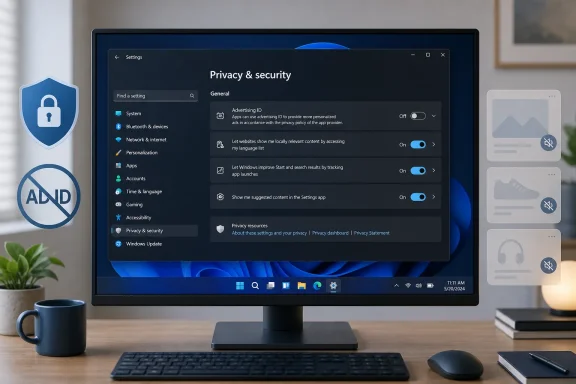
The practical fix is simple: open Settings > Privacy & security, then look for either General or Recommendations & offers, depending on the Windows 11 build and Settings layout installed on the PC. Turn off Advertising ID or Let apps show my personalized ads by using my advertising ID.
That route needs one clarification. Microsoft’s own support article is titled around “Recommendations & offers” but directs users to Privacy & security > General; Neowin and Windows Central have documented newer Settings layouts where the same switch appears under Recommendations & offers. The label has moved, but the control has not: it governs Windows’ advertising identifier, not every type of tracking or every promotional message in the operating system.
What the Windows advertising ID actually does
Microsoft describes the advertising ID as a unique alphanumeric value for each user account on each Windows device. In developer documentation, Microsoft says all apps running for one user on one device receive the same value when they ask Windows for it. A second user account on that PC receives a different value, and the identifier does not roam with a Microsoft account to another computer.
That makes it closer to an app-platform equivalent of an advertising cookie than to a hardware serial number. An app developer or ad network can use it to recognize activity connected to that particular Windows account and device, associate data it has collected with the ID, and deliver advertising or personalization based on that profile.
Microsoft’s API documentation makes the behavior unusually clear: when the feature is disabled, the advertising-ID API returns an empty string. An app coded to respect the platform setting therefore loses access to the common identifier it would otherwise use across apps.
Microsoft Store policy also requires Store apps to respect the advertising-ID choices users make. That matters for Windows administrators and privacy-conscious users because the setting is not cosmetic; it changes what a compliant Store app can request from Windows.
It is still a narrow control. It does not stop an app from using its own account login, its own first-party identifier, network information, cookies in an embedded web view, or any other tracking method permitted by that app’s privacy policy. It prevents access to this Windows-provided ID.
Turning the setting off resets the identifier, but does not erase the web
Disabling the Advertising ID switch does two things that are sometimes flattened into one claim. It turns off app access to the identifier, and Windows resets the ID rather than retaining it for reuse. If the user later turns the feature back on, Windows generates a new advertising ID; Microsoft says the old value is not reused.
That is a meaningful privacy break. A participating app cannot simply ask Windows for the previous identifier after the user opts back in, and a new ID should not automatically carry forward the platform-level association that the old ID enabled.
But the popular claim that the switch “deletes your advertising profile” goes farther than Microsoft’s documentation supports. Windows can reset and withhold its identifier; it cannot compel every developer, ad network, or service that previously received information to erase historical records already held on its own servers. Whether an organization removes or retains data linked to the old ID depends on that organization’s policies and applicable privacy law.
The more accurate conclusion is that the toggle cuts off future access to the Windows advertising ID and severs continuity when a new one is later created. It is not a universal data-deletion request.
Microsoft also notes that turning the ID off will not reduce the total number of ads. Ads inside a Windows app may continue to appear, but they should no longer be personalized through the Windows advertising-ID mechanism. The trade-off is relevance, not ad volume.
What the Advertising ID switch does not control
The advertising ID is often discussed alongside Windows telemetry, Start-menu recommendations, lock-screen content, Edge browser advertising settings, and Microsoft account personalization. Those controls may all affect privacy or promotional content, but they are separate systems.
Microsoft explicitly says the Windows advertising-ID setting does not apply to interest-based advertising delivered through browser cookies. Turning the switch off will not clear cookies in Edge, Chrome, Firefox, or another browser; it will not change a website’s ad preferences; and it will not stop websites from profiling users through sign-ins, fingerprinting, or their own consent mechanisms.
It also does not automatically disable Windows features that use diagnostic data to personalize tips, offers, or recommendations. Nor does it remove content that Microsoft characterizes as suggestions in Settings, the Start menu, File Explorer, the lock screen, notifications, or the Windows Spotlight experience. Those features each have their own controls and can persist even with the advertising ID disabled.
For a user who wants to reduce promotional content rather than only disable this identifier, the Advertising ID switch should therefore be the first step, not the last. The other Settings categories worth reviewing are:
- Privacy & security > Diagnostics & feedback, where Windows controls the use of diagnostic data for tailored experiences.
- System > Notifications, where Windows can surface setup prompts, tips, and suggestions.
- Personalization > Start and Personalization > Lock screen, where suggested apps, content, and Spotlight-style experiences can be managed.
- Microsoft Edge privacy and site-permission settings, where browser cookies, site notifications, and personalized advertising require separate decisions.
None of those controls is a substitute for the advertising-ID switch, and the advertising-ID switch is not a substitute for them.
The Global Device ID is real, but it is not the Advertising ID
Neowin’s explanation correctly distinguishes the Windows advertising ID from the Global Device ID, or GDID, but calling the latter a built-in advertising tracker is not supported by the public Microsoft record.
Microsoft documentation for Windows Update for Business reporting includes a field named GlobalDeviceId, and Microsoft’s Intune documentation refers to a Global Device ID in device-registration and authentication error reporting. That establishes that a separate device-oriented identifier exists in parts of Microsoft’s management and update infrastructure.
What the documentation does not establish is that GDID is used for ad targeting, is exposed to advertising networks, or is governed by the Advertising ID switch. Microsoft’s advertising-ID API documentation identifies the per-user, per-device advertising ID as the value used for ad relevance, frequency measurement, fraud detection, and related advertising purposes. It says nothing about GDID filling that role.
The distinction matters because users should not be told that disabling Advertising ID eliminates all Windows identifiers. It does not. Windows has multiple identifiers serving distinct functions across activation, updates, device registration, diagnostics, management, security, Store services, and accounts. The available evidence supports a narrower claim: the switch disables the identifier made available specifically for cross-app advertising and personalization.
What administrators can enforce
On a managed Windows fleet, relying on every user to find the correct Settings page is unnecessary. Microsoft publishes both Group Policy and MDM policy controls for disabling the advertising ID.
The Group Policy setting is located at:
Computer Configuration > Administrative Templates > System > User Profiles > Turn off the advertising ID
Microsoft’s Policy CSP calls the corresponding MDM setting DisableAdvertisingId. When that policy is enabled, apps cannot use the advertising ID for experiences across apps. When it is left unconfigured, users retain control over the setting in Windows Settings.
This is a useful baseline setting for organizations that do not have a business need for app-level targeted advertising. It is also a low-risk policy operationally: it does not block Windows Update, Microsoft Store access, sign-in, Microsoft Entra registration, application installation, or core Windows diagnostics. Its direct consequence is that apps lose access to the Windows advertising identifier.
Administrators should avoid presenting it as a broad privacy lockdown. It is one privacy control among many, and it does not govern browser traffic, account-level data collection, diagnostic data configuration, or the telemetry settings that may be required or constrained by an organization’s Windows edition and management model.
The important action is to disable it before adding more app activity
For an individual Windows 11 user, the action is straightforward: disable Advertising ID in Settings > Privacy & security > General or Recommendations & offers. If the switch is absent, greyed out, or cannot be changed, the PC may be governed by an organizational policy.
For admins, deploy the policy rather than issuing a help-desk instruction. It applies the same choice consistently and prevents a later user action from re-enabling cross-app access to the identifier.
The setting will not make Windows ad-free or anonymous. What it does do is remove a shared, Windows-issued handle that participating apps can use to connect advertising activity on that specific user account and PC. That is a precise, worthwhile boundary—and one Windows leaves enabled unless the user or administrator changes it.