

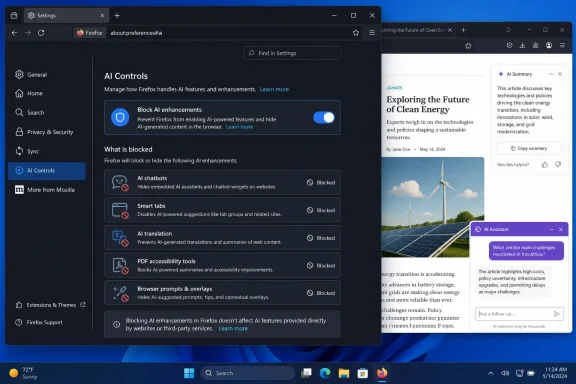
The setting is useful, especially for people tired of feature prompts and AI panels appearing after ordinary browser updates. But “completely AI-free” overstates what the switch does. Mozilla’s Block AI enhancements control blocks Firefox’s own current and future generative-AI features and suppresses their promotional prompts; it does not stop websites, search engines, or independently installed extensions from contacting third-party AI services.
For a Windows user, the practical path is straightforward: open Firefox’s main menu, select Settings, choose AI Controls in the sidebar, then turn on Block AI enhancements. Firefox asks for confirmation because the choice affects more than the sidebar chatbot. Once enabled, the browser treats present and newly introduced Mozilla AI enhancements as blocked by default.
Mozilla documented the behavior when it introduced AI Controls in Firefox 148, and later support material confirms the setting is designed to survive future feature additions. That future-proofing is the real value here: users do not have to revisit Settings each time Firefox adds another AI-assisted function.
Firefox 148 Is the Minimum Version, Not the Version to Install
PCWorld’s instruction to first install Firefox 148 was accurate when the feature debuted in February. It is stale on August 12. Mozilla’s release notes show Firefox 153.0.1 was first offered to the stable release channel on July 28, 2026, following Firefox 153 on July 21.
That distinction matters for two reasons. First, users should not deliberately seek out an older browser build merely to find AI Controls; Firefox updates include security fixes and reliability work, and 153.0.1 specifically addressed a Windows startup crash that could happen after an update. Second, being on Firefox 153 rather than Firefox 148 does not remove the AI kill switch. AI Controls remain available in current Firefox releases.
Check the installed version through the menu’s Help entry and About Firefox, or by typing about:support in the address bar. The browser will normally download the newest available update from that screen. On managed Windows devices, an organization may defer or pin versions, so the control’s visibility can depend on the enterprise deployment policy as well as the browser version.
Firefox 153 ESR, Mozilla’s current Extended Support Release, also includes the features introduced since Firefox 140. That means organizations moving to the July 21 ESR release are not excluded from AI Controls simply because they use the slower-moving support channel.
What “Block AI Enhancements” Actually Disables
Mozilla describes the master switch as blocking new and current generative AI features in Firefox. The company’s support documentation says that, when a feature is blocked, Firefox removes its entry points, disables its function, and stops showing prompts or notifications intended to encourage use.
At launch, the affected feature categories included:
- AI-powered website translation.
- AI-generated alternative text for images in PDF documents.
- Smart tab-group suggestions.
- AI-generated key points in link previews.
- The Firefox sidebar chatbot.
- AI-powered window-arrangement functions, now listed by Mozilla as Smart Window.
This is broader than hiding a chatbot button. Turning the switch on also means forfeiting some functions that a user may regard as ordinary productivity or accessibility tools rather than “AI.” Firefox’s translation feature, for example, is included in the control. So is PDF image-description generation, which can be useful for accessibility workflows.
Mozilla does provide per-feature dropdowns for people who want a narrower configuration. A user can leave the master block enabled while explicitly making a particular feature available or enabled. That creates a sensible setup for someone who wants no chat sidebar, link summaries, or tab-group suggestions but still needs page translation for multilingual research.
There is one detail that makes the block more substantial than a cosmetic preference: Mozilla says downloaded on-device AI models are removed when their related feature is blocked. That helps users who are concerned about local storage consumption or about leaving unused models on endpoints after a trial deployment. It also means re-enabling an on-device function later may require Firefox to download its model again.
The Switch Does Not Control AI on the Web
The headline promise needs a boundary. Firefox cannot make the web itself AI-free.
Mozilla’s own support documentation explicitly says that extensions using third-party AI services can continue to do so independently. An extension that sends text to OpenAI, Anthropic, Google, Microsoft, or another provider is outside the Firefox AI Controls switch unless that extension relies on AI supplied by Firefox itself. The browser’s master control also cannot remove AI summaries from Google Search, an AI chat widget embedded in a site, or an employer’s web application that uses a remote model.
This is the difference between blocking browser-integrated AI and blocking all AI traffic. Firefox can do the first; it does not claim to do the second.
For users who want a stricter result, the follow-up audit is familiar Windows browser hygiene: review extensions in about:addons, remove tools that provide AI writing, summarization, transcription, or search assistance, and check the services used in pinned tabs and startup pages. A browser setting cannot prevent a user from visiting an AI-powered website or stop a page from generating content server-side.
The same limitation applies to enterprise controls. Mozilla’s policy can disable Firefox features; it cannot enforce an organization-wide prohibition on external AI services. That requires network controls, extension allowlisting, identity policy, and application-specific governance—not a browser toggle.
Mozilla Has Turned a Consumer Preference Into an Admin Policy
The less-publicized development is that Firefox AI Controls are not restricted to each employee making a personal choice. Mozilla added an AIControls enterprise policy compatible with Firefox Enterprise 149 and later, including Windows Group Policy support.
Administrators can set the default state for all supported Firefox AI features to blocked and lock the choice, preventing users from turning it back on. The policy can also control each feature individually: translations, PDF alt text, Smart Tab Groups, Link Preview Key Points, Sidebar Chatbot, and Smart Window. Mozilla’s policy reference says a blocked on-device feature removes any previously downloaded models.
That is a material distinction for schools, regulated organizations, and businesses with data-handling restrictions. A company may want to permit on-device translation but prohibit the sidebar chatbot. Another may want to block every listed feature during an AI-risk review without forcing staff onto an outdated browser or relying on unsupported about:config changes.
On Windows, Mozilla documents the policy beneath the Software\Policies\Mozilla\Firefox\AIControls registry path, with values for the overall default and each individual capability. Organizations using Firefox’s ADMX templates can apply the same options through Group Policy. The Locked setting is the enforcement lever: setting a feature to blocked without locking it leaves room for user changes; locking it turns the decision into managed configuration.
This arrived after Firefox 148 itself. Mozilla’s policy-template release notes said the AI Controls policy missed the initial Firefox 149 template release and was expected in a follow-up update. The administrator reference now documents it as supported, closing the gap between Mozilla’s consumer-facing “choice” message and deployable Windows management.
The More Useful Message Is Choice, Not Purity
Mozilla deserves credit for making the opt-out visible and persistent instead of burying individual AI settings across multiple menus. The master switch blocks future Firefox AI additions by default, removes the related prompts, and can be enforced centrally by IT. Competing browsers still tend to distribute AI settings across separate search, sidebar, appearance, productivity, and experimental-feature pages.
But users should describe the outcome accurately. Turning on Block AI enhancements makes Firefox’s built-in generative-AI features unavailable; it does not cleanse the browser of AI generated by websites or third-party add-ons. For most people, that is precisely the control they need. For an organization seeking a genuine AI-free browsing environment, it is the first policy to deploy—not the last control to configure.