

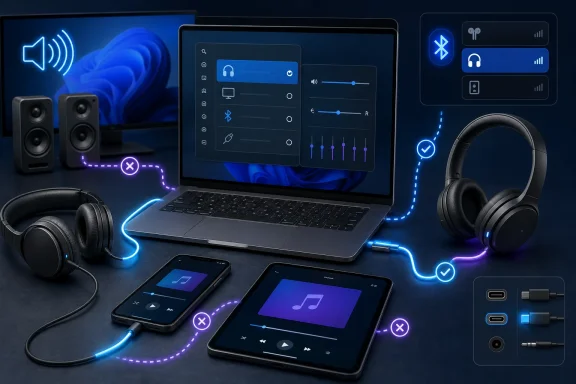
Start With the Physical Connection
Before changing settings, eliminate the faults that software cannot solve. A loose plug, exhausted Bluetooth battery, blocked USB-C port, faulty dongle, or damaged cable can all produce symptoms that look like an operating-system problem.
Check the headphones themselves
For wired headphones, unplug them completely and reconnect them firmly. A 3.5 mm plug may feel inserted while still sitting one click short of a full connection, which can cause silence, mono audio, crackling, or sound from only one earcup.
Inspect these components carefully:
- The headphone plug and cable for bends, tears, corrosion, or fraying
- The inline remote for a stuck mute button or damaged volume control
- The headphone jack or USB-C port for lint, dust, moisture, or damage
- Adapters, hubs, docks, and extension cables
- Earbud speaker meshes for accumulated debris
If an audio adapter or dock is involved, remove it temporarily. Connect the headphones directly to the PC, phone, tablet, or Mac. This isolates one of the most common trouble spots: a hub that provides power and data correctly but handles audio poorly.
For Bluetooth headphones, begin with the basics:
- Charge the headphones or replace their batteries.
- Turn them off completely, then turn them back on.
- Confirm that no hardware mute control is enabled.
- Move the headphones close to the device.
- Put them into pairing mode using the manufacturer’s documented button sequence.
Many Bluetooth headsets automatically reconnect to the last phone, laptop, TV, or tablet they used. If they are silently attached to another device in the room, the current computer may show them as connected while audio continues elsewhere.
Treat USB-C audio as its own category
USB-C makes audio connections convenient, but it also introduces compatibility variables. Not every USB-C accessory works the same way, and some phones, tablets, and PCs expect a digital USB audio device rather than an older analog-style adapter.
If USB-C headphones do not work:
- Try another known-good USB-C headset or adapter.
- Disconnect any USB-C hub or charging accessory.
- Check whether the port reports moisture or debris.
- Restart the device after disconnecting the accessory.
- Test the headphones on a second compatible device.
Do not force a connector into a port that feels obstructed. Moisture alerts and debris warnings exist to prevent damage, and continuing to connect accessories can turn an audio inconvenience into a hardware repair.
Identify the Symptom Before Resetting Everything
The phrase “headphones not working” covers several very different problems. Identifying the symptom prevents destructive or unnecessary troubleshooting.
No sound, but the headphones are connected
This is usually an output-routing problem. The device recognizes the headphones but is still playing through built-in speakers, a monitor, a dock, an HDMI display, or another Bluetooth device.
Only one side works
This can indicate:
- A partially inserted 3.5 mm plug
- A damaged wire near the plug or earcup
- Incorrect left/right balance settings
- Mono or channel configuration issues
- A Bluetooth earbud that did not fully pair with its companion earbud
- Low battery on one wireless earbud
Bluetooth says “Connected,” but no audio plays
The most likely causes are an incorrect output choice, disabled media audio, a bad Bluetooth pairing record, an app using a different speaker, or a headset that switched back to another paired device.
Music works, but calls or meetings are silent
This is typically an application-level audio selection issue. Zoom, Teams, Google Meet, browsers, games, and voice-chat clients can each maintain their own speaker and microphone choices.
Audio sounds thin, muffled, or low quality during calls
Bluetooth devices may switch audio modes when their microphone becomes active. This behavior is particularly noticeable on older Bluetooth implementations, where voice-chat mode prioritizes two-way communication over music quality.
The right solution is often to adjust the app’s microphone selection, update Bluetooth drivers, or use a wired or USB audio device for calls—not to replace otherwise healthy headphones.
Fix Headphones Not Working in Windows 11
Windows PCs are especially prone to output confusion because many systems expose several audio devices at once: motherboard audio, monitor audio over HDMI or DisplayPort, a USB dock, Bluetooth hardware, virtual audio software, and an external microphone.
Select the correct Windows output device
Start with the taskbar.
- Select the speaker icon near the clock.
- Open the output-device selector beside the volume control.
- Choose the headphones, USB headset, or Bluetooth device explicitly.
- Raise the output volume and make sure it is not muted.
- Play a test sound or video.
For deeper controls, open:
Start > Settings > System > Sound
Under Output, select the intended headphones. Windows may label the device using its manufacturer name, a generic name such as “Headphones,” or the name of a USB audio chipset.
If sound is playing from monitor speakers, select the headset manually instead of assuming Windows will switch automatically. HDMI displays and docks often reclaim the default output after reconnecting, waking the PC, or installing a graphics driver update.
Set the headphones as the default playback device
If Windows keeps reverting to another speaker, make the headphones the default device.
- Open Settings > System > Sound.
- Select More sound settings.
- Open the Playback tab.
- Select the headphones.
- Choose Set Default.
- Confirm with Apply and OK.
This is particularly useful for USB headsets used daily at a desk. It reduces the chance that an HDMI monitor or a recently attached accessory becomes the primary output without notice.
Fix audio in one Windows app
When system sounds work but a browser, game, or meeting client remains silent, check the Volume mixer.
Open:
Settings > System > Sound > Volume mixer
Review three things:
- The overall system volume
- The volume level for the specific application
- The selected output device for that application
An app may be unmuted but routed to a different device. For example, a game might be assigned to monitor speakers while Windows notifications play correctly through headphones.
This per-app routing is powerful, but it can also create confusing failures after moving between speakers, docking stations, Bluetooth earbuds, and virtual audio tools.
Use Windows audio troubleshooting selectively
Windows includes automated troubleshooting for common audio and Bluetooth problems. It is most useful when a device disappears, refuses to start, or reports an error after an update.
Look under Settings > System > Sound for audio troubleshooting options, or use the Windows Get Help experience when available. Let it detect disabled outputs, stopped services, or driver problems before manually removing devices.
Automated repair is not a substitute for choosing the correct speaker. If the headphones are visible and working but Windows is simply set to the wrong output, manual selection remains the quickest answer.
Repair Bluetooth Headphones on Windows
Bluetooth introduces more moving parts than a wired connection: radio hardware, headset firmware, pairing data, power management, profiles, codecs, and drivers all need to cooperate.
Remove and pair the headphones again
A clean re-pair often resolves the classic “connected but no sound” problem.
- Open Start > Settings > Bluetooth & devices.
- Find the headphones in the device list.
- Select the More options menu.
- Choose Remove device.
- Turn the headphones off and back on.
- Put them in pairing mode.
- Select Add device and pair them again.
After pairing, return to Settings > System > Sound and verify that the headphones are selected under Output. Pairing alone does not guarantee that Windows is actively using them for audio.
Check Bluetooth audio format
For a Bluetooth headset that connects but produces no sound, poor sound, or one-sided output, inspect its audio properties in Windows.
Open:
Settings > Bluetooth & devices > Devices
Select the connected Bluetooth device, then open its advanced sound settings if that option is available. A broadly compatible configuration is:
2 channels, 16 bit, 48000 Hz (DVD Quality)
That setting should not be treated as a universal cure, but it is a practical compatibility check when an unusual format has been selected. If only one earbud plays, also confirm that Windows is not configured for mono output.
Go to:
Settings > System > Sound
Then make sure Mono audio is turned off unless it has been deliberately enabled for accessibility needs.
Understand Bluetooth LE Audio limitations
Newer Windows PCs and compatible headphones may support Bluetooth LE Audio, a modern Bluetooth audio standard designed to improve efficiency, call handling, and device flexibility. However, support depends on the PC hardware, installed driver, Windows version, and the headphones themselves.
If a setting related to LE Audio appears for a connected device, test it methodically. Do not assume that enabling every available option will improve compatibility. Some accessories perform better with a conservative configuration, especially after a firmware update or when using the headset microphone.
When stereo audio becomes unstable during calls, try adjusting the headset’s active-microphone audio format if Windows provides that control. In some cases, choosing mono for calls improves reliability, while stereo remains preferable for music and video.
Update or reinstall the audio and Bluetooth drivers
A missing output device, repeated disconnects, or sound failures after an update can point to a driver issue.
- Right-click Start and open Device Manager.
- Expand Bluetooth.
- Expand Sound, video and game controllers.
- Look for the Bluetooth adapter and audio device.
- Right-click the relevant item and choose Update driver.
- Restart the PC.
If a device has disappeared, use View > Show hidden devices, then choose Action > Scan for hardware changes. If Windows still cannot restore the device, uninstalling the affected driver and restarting may force a clean detection process.
Use Windows Update as well, including optional driver updates when they are offered. For laptops and prebuilt desktops, the PC manufacturer’s current driver package may be more appropriate than a generic driver, particularly for Bluetooth chipsets.
Prevent aggressive Bluetooth power saving
Some systems reduce Bluetooth power too aggressively, causing dropouts when the display sleeps or the PC is idle.
In Device Manager, open the properties for the Bluetooth adapter. If a Power Management tab is present, consider clearing the option that allows Windows to turn off the device to save power.
This option is not displayed on every system, and it should not be treated as mandatory. Still, it can be useful when a headset disconnects repeatedly despite having a strong battery and a stable pairing.
Resolve One-Sided Headphones and Uneven Audio
One-sided audio is frustrating because the fault may be physical, wireless, or software-driven. Start with the simplest test: connect the headphones to another device.
If the same side remains silent on a phone, PC, and tablet, the hardware is likely at fault. If both sides work elsewhere, focus on the original device’s settings.
Check balance and channel settings
On Windows, verify that the left and right channel levels are equal in the selected headphone device’s sound properties. Also confirm that mono audio is disabled when you expect normal stereo playback.
On iPhone and iPad, open:
Settings > Accessibility > Audio & Visual
Move the Balance control to the center. An accidental shift toward left or right can make a healthy earbud appear dead.
On Android devices, look for audio balance or accessibility audio controls. The exact menus vary by manufacturer, but balance settings can appear in Sound, Accessibility, Hearing enhancements, or connected-device settings.
Rebuild the wireless earbud pairing
True wireless earbuds commonly maintain a connection between the left and right earpieces as well as the connection to the phone or PC. If one side fails, charge both earbuds fully, place them in the charging case, and follow the manufacturer’s official reset or re-pair procedure.
Avoid generic reset instructions found for unrelated models. Button combinations vary significantly, and the wrong sequence can do nothing—or trigger a different function entirely.
Fix Headphone Output on Mac
macOS generally handles audio switching well, but a Mac can still send sound to internal speakers, a display, AirPlay hardware, a dock, or another Bluetooth accessory.
Select headphones in macOS Sound settings
Open:
Apple menu > System Settings > Sound > Output
Choose the connected headphones, USB audio device, Bluetooth headset, or other intended output. Raise the output volume and confirm that mute is not enabled.
The macOS Control Center can also provide a faster route. Open Control Center, select Sound, and choose the desired headphones.
Re-pair Bluetooth headphones on a Mac
For Bluetooth accessories:
- Open Apple menu > System Settings > Bluetooth.
- Turn Bluetooth on if necessary.
- Put the headphones in pairing mode.
- Select the headphones from the available-device list.
- Return to Sound > Output and select them.
If they have been paired before but behave unpredictably, remove the device and pair it again. This can clear stale pairing data, particularly after changing Apple devices, resetting headphones, or updating macOS.
Improve call-quality issues
When Bluetooth headphone audio sounds dramatically worse during a call, a conferencing app may be using the headset microphone. That changes the audio mode and can reduce music-like stereo quality.
Quit unused calling, chat, browser, and recording apps that may have microphone access. Then test playback again. If sound quality returns immediately, the headphones are likely functioning normally, and the issue is tied to active microphone use rather than speaker damage.
Fix Headphones on iPhone and iPad
iPhone and iPad audio can route through wired headphones, Bluetooth devices, AirPlay speakers, car systems, hearing devices, and built-in speakers. A connected device is not always the selected destination.
Choose the playback destination
Start audio in an app such as Music, Podcasts, or a video service. Use the playback destination or AirPlay control and select the headphones directly.
For Bluetooth headphones, open:
Settings > Bluetooth
Confirm that Bluetooth is enabled and that the device shows as connected. If it connects but media remains on the phone speaker, return to the app’s audio destination picker and select the headset there.
Forget and re-pair a problematic device
If the Bluetooth connection has become unreliable:
- Open Settings > Bluetooth.
- Tap the information button beside the headphone name.
- Choose Forget This Device.
- Restart the iPhone or iPad.
- Place the headphones into pairing mode.
- Pair them again from Bluetooth settings.
This resets the relationship between the device and the headphones without erasing the entire phone.
Review accessibility audio settings
Uneven volume, unexpected tuning, or one-sided playback can originate in audio accessibility controls.
Open:
Settings > Accessibility > Audio & Visual
Review:
- Balance, which should normally remain centered
- Mono Audio, which combines channels intentionally
- Headphone Accommodations, which can alter sound tuning
These features are valuable when configured intentionally. They can be confusing when accidentally enabled, especially if multiple people use the same device.
Restore Media Audio on Android and ChromeOS
Android Bluetooth settings often separate different functions. A headset can be connected for calls but not allowed to play music, podcasts, video, or game sound.
Enable media audio on Android
Open Settings > Connected devices or the device’s Bluetooth settings. Find the paired headphones, open their settings, and confirm that Media audio is enabled.
If calls are also failing, confirm Phone audio is enabled. Device menus differ across Samsung, Google Pixel, Motorola, OnePlus, and other Android manufacturers, but the underlying concept is consistent: Bluetooth profiles can be enabled or disabled independently.
If the headphones are connected to multiple devices, inspect multipoint settings. Stop playback on the other device and begin it again on the phone you want to use. Multipoint is convenient, but automatic switching can look like an audio failure when it is really a source-selection decision.
Select headphones on a Chromebook
On a Chromebook:
- Select the time in the bottom-right corner.
- Adjust the volume control.
- Open Audio settings.
- Select the headphones under Output.
For Bluetooth pairing, open Quick Settings, select Bluetooth, enable it, put the headset into pairing mode, and choose it from the list.
Chromebooks can expose both a headset output and a separate hands-free profile. Select the normal headphone output for music and video unless a call specifically requires the hands-free mode.
Repair App-Specific Headphone Problems
If YouTube works but Zoom is silent, or music plays normally while Teams calls go to speakers, the operating system is not the whole problem. The application is choosing its own output.
Zoom
In the Zoom desktop client, open Settings > Audio. Select the headphones under Speaker, adjust the volume, and use Test speaker.
If the speaker test is silent, change the speaker selection manually rather than relying on the default device. On mobile, verify the meeting’s audio source and reconnect wired or Bluetooth headphones if necessary.
Microsoft Teams
In Teams, open:
Settings and more > Settings > Devices
Under Audio settings, choose the intended headset from the Speaker list. Select Make a test call when available to verify that playback and microphone routing both work.
During a meeting, review the audio options from the meeting controls. Teams can join using computer audio, phone audio, room audio, or no audio, and a mistaken selection can make functioning headphones appear broken.
Google Meet and browser-based audio
In Google Meet, open the meeting settings and select the headphones as the speaker. Browser permissions, tab muting, operating-system volume mixer settings, and companion-mode limitations can all interfere with expected audio.
For any browser-based service, also check:
- The browser’s tab is not muted
- The site has permission to use audio hardware
- The browser is using the correct system output
- Another communications app is not holding the headset microphone
- The browser has been restarted after a device change
Update Only After Basic Routing Is Correct
Operating-system and driver updates are important, but they should not be the first response to a loose cable or wrongly selected output. Update after confirming that the headphones are charged, connected, unmuted, and selected.
Use the platform’s built-in update path:
- Windows: Settings > Windows Update
- Mac: System Settings > General > Software Update
- iPhone and iPad: Settings > General > Software Update
- Android: Settings > System > Software updates
- Chrome: About Chrome, then relaunch when prompted
Updates can resolve Bluetooth regressions, restore missing audio devices, improve accessory compatibility, and correct application bugs. They cannot repair a broken cable, blocked port, dead earbud battery, or incompatible adapter.
When the Problem Is Probably Hardware
After testing the headphones with another device, the diagnosis becomes much clearer. If the same symptoms follow the headphones everywhere, replacement or repair is more likely than another settings change.
Hardware warning signs include:
- Audio cuts in and out when the cable moves
- One side works only at a certain plug angle
- The headset will not charge or power on
- Bluetooth range is extremely short across several devices
- The microphone or speaker is distorted on every platform
- The headphones are not detected on any compatible device
- The connector is visibly bent, corroded, or cracked
For wireless models, perform the manufacturer’s approved reset only after confirming output selection, charging, and re-pairing. A reset is useful when internal pairing data is corrupted, but it also removes saved device relationships and should not replace basic diagnosis.
The most reliable headphone troubleshooting strategy remains simple: verify the physical connection, select the correct output, repair the Bluetooth relationship where necessary, and then inspect the individual app. That sequence avoids unnecessary resets and driver removals while resolving the majority of “connected but no sound” failures across Windows PCs, Macs, phones, tablets, Chromebooks, and communication apps.