

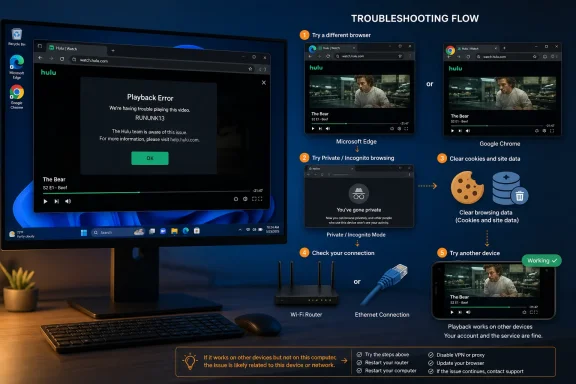
WindowsReport’s RUNUNK13 guide correctly points readers toward browser data, device restarts, connectivity, and possible service outages. Its central explanation—connectivity trouble—does not cover the full record, however. Online Tech Tips has separately described RUNUNK13 as a failure occurring when Hulu cannot connect to the device during playback, with network conditions, service downtime, app bugs, and browser problems all in scope.
The distinction is practical: a RUNUNK13 error that affects every device on the same home network points in a different direction from one that appears only in Microsoft Edge after a browser update. In the latter case, resetting Windows or power-cycling a router may consume time without touching the fault.
Start by separating a Hulu outage from a PC-specific failure
Before clearing data or changing network settings, try Hulu on a second device and, if possible, a second connection such as a phone hotspot. Use the same Hulu account and attempt the same program, because a failure limited to one title can be different from a platform-wide playback issue.
If Hulu fails on several unrelated devices and networks, the problem is likely on Hulu’s side or connected to the account or title. No local repair will fix that; retry later and contact Hulu support with the exact error code, device model, browser version, time of failure, and title involved.
If Hulu works on a phone or television but fails only on the Windows PC, narrow the investigation to Windows and the browser. If it fails only on one Windows browser, do not reset the Hulu app first. The browser is already the more useful suspect.
This is where the generic “check Hulu’s server status” advice needs a caveat: Hulu does not offer a clearly detailed public incident page that maps RUNUNK13 to an active outage. A third-party outage tracker can show a spike in user reports, but it cannot establish that Hulu has acknowledged an incident. Treat those reports as a signal to pause local troubleshooting, not as a diagnosis.
Test Edge, Chrome, and a clean playback session
The quickest Windows test is to open Hulu in a private browsing window, sign in, and try the same stream. This starts with a fresh temporary cookie session and usually disables extensions unless they have explicitly been allowed in private mode.
If playback works privately, the likely issue is local browser state rather than the broadband connection. Remove Hulu site data, then test again in a normal window. Hulu’s own support documentation recommends clearing browser cache, and it separately requires JavaScript and cookies for the service to function.
For a more useful test than simply clearing all browsing history, clear data associated with Hulu first:
- In Microsoft Edge, open Settings, then Cookies and site permissions, then Manage and delete cookies and site data. Search for Hulu under the stored site data and remove those entries.
- In Google Chrome, open Settings, then Privacy and security, then Third-party cookies, then See all site data and permissions. Search for Hulu and delete its stored data.
- In Firefox, open Settings, then Privacy & Security, then Cookies and Site Data, then Manage Data. Search for Hulu and remove the matching entries.
You will need to sign in again. This procedure removes stored session and playback data for Hulu without needlessly erasing every saved login, payment form, and browsing preference on the PC.
Next, disable content-blocking, privacy, script-filtering, and VPN extensions for the Hulu site just long enough to test playback. Streaming services depend on a chain of authentication, DRM licensing, analytics, video segments, and—in ad-supported plans—advertising calls. An extension can allow Hulu’s page to load while blocking a request needed immediately before or during playback. Do not permanently weaken browser protections just to make a stream work; identify the conflicting extension, update it, or add the narrowest site exception that restores playback.
Also check the browser’s version manually. In Edge, open the three-dot menu, choose Help and feedback, then About Microsoft Edge. In Chrome, use Help and then About Google Chrome. A 2023 Microsoft Q&A thread documented RUNUNK13 failures that began after an Edge update; Microsoft said Edge version 113.0.1774.42 resolved that particular compatibility problem. One user in the same thread reported that clearing cookies and cached files had not helped.
That episode matters because it demonstrates what RUNUNK13 does not tell the user: the same code can be caused by a browser-side regression, and a browser update—not a network repair—can be the correct resolution. If Hulu works in Chrome but not Edge, or vice versa, update the failing browser and test in the other one while waiting for a fix. Do not assume the working browser proves Hulu itself is healthy, but it does strongly reduce the odds that the router is the culprit.
Check the connection for stability, not merely headline speed
WindowsReport’s quoted targets—3 Mbps for ordinary streaming and 16 Mbps for 4K—match Hulu speed recommendations widely reproduced by internet providers and streaming references. They are useful minimums, but they should not be treated as a pass/fail verdict for RUNUNK13.
A speed test measures a short interval to one test server. Hulu playback depends on sustained throughput to its delivery network, packet loss, DNS resolution, Wi-Fi interference, and whether other devices are using the same connection. A 300 Mbps test result does not rule out a brief Wi-Fi dropout that causes the player’s request to fail.
Run two checks:
- Test Hulu over a wired Ethernet connection if the PC normally uses Wi-Fi. If playback immediately becomes reliable, the broadband service may be fine while the local wireless link needs attention.
- Restart the modem and router only after checking whether other devices have the same failure. A restart can clear a transient routing or DNS problem, but it also makes the issue harder to observe if it returns.
Avoid changing Windows DNS, disabling the firewall, or resetting the entire network stack as a first-line RUNUNK13 fix. Those changes are intrusive, frequently unnecessary, and can create a new problem in a managed PC environment. A browser-specific failure should be investigated as browser-specific first.
The Windows 10 app repair advice is dated and may miss the real component
The most questionable part of the WindowsReport sequence is the instruction to repair or reset a “Windows 10 Hulu app” through Apps & Features. Hulu’s 2015 announcement described its original Windows 10 client as a Universal Windows Platform app with Cortana commands and Live Tiles. That is a very different Windows app model from the browser-based and Progressive Web App-style experiences users have encountered in later years.
Users and support discussions have reported that Hulu’s native UWP client was replaced by a web-hosted application. That history makes the old repair/reset sequence less definitive than it appears. A reset may remove an app wrapper’s data, but it may not address the Edge or Chromium browser engine, its DRM components, a broken extension, or the account session that actually controls playback.
The practical rule is simple: determine what is failing before resetting it.
If the Hulu shortcut opens an Edge- or Chrome-like window and the same error occurs on hulu.com in that browser, work through browser updates, Hulu site data, extensions, and private mode. If the app fails while Hulu works normally in a browser, then use Windows Settings to repair or reset the app, followed by uninstalling and reinstalling it if necessary. Hulu’s current support material still includes general guidance for fully closing, clearing cache, updating, and reinstalling its apps, but it does not make RUNUNK13 a Windows-app-only condition.
For an organization with locked-down browser policies, the relevant comparison is a clean profile or another managed browser—not an employee’s personal workaround. Check whether recent policy changes affect third-party cookies, protected-content playback, tracking prevention, proxy routing, or extension deployment. The 2023 Edge incident is a reminder that even an ordinary browser release can break one streaming provider without affecting every other video service.
A disciplined recovery order avoids destructive fixes
For most Windows users, the appropriate sequence is:
- Confirm whether Hulu fails on another device or network.
- Test the same title in a private browser window.
- Clear Hulu-only site data and sign in again.
- Disable browser extensions and any VPN or proxy for a single controlled test.
- Update Windows, the browser, and the Hulu app or installed web app.
- Test Ethernet versus Wi-Fi and restart networking equipment only if the evidence points to the connection.
- Repair, reset, or reinstall the Windows app only when the browser test shows the failure is isolated to that app.
If RUNUNK13 persists after those steps, support needs reproducible facts rather than a generic statement that Hulu is broken: the title, approximate timestamp and time zone, device, Windows edition and build, browser/app version, whether it reproduces in private mode, whether a second network works, and whether other devices can play the same content.
The important correction to the common RUNUNK13 advice is that a reset is a last-mile repair, not the diagnosis. On a current Windows PC, the fastest path is to establish whether the failure follows the account, title, network, browser, or app container. Once that boundary is clear, the fix is usually far smaller than rebooting and resetting everything in sight.