

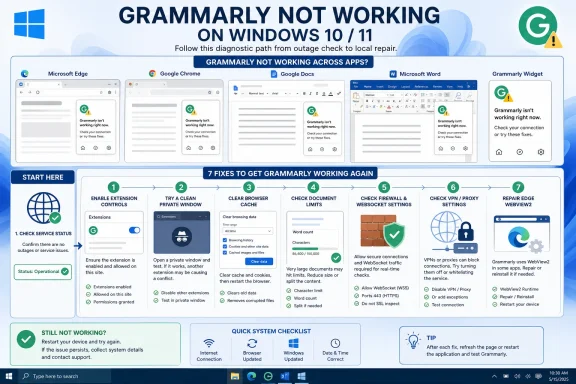
A WindowsReport troubleshooting guide published August 4 correctly points to browser state, extensions, connectivity, and document limits as common causes. But several details in that guide no longer match Grammarly’s own current support record: Grammarly does not list Opera One or Internet Explorer as supported browser-extension targets, and its document-upload limit is based on 100,000 characters as well as a 4 MB size cap—not a 60-page ceiling.
Start by separating an outage from a local failure
Before changing browser settings, open Grammarly’s status page from a working device or mobile connection. On August 4, Grammarly reported all core products operational; that does not rule out a problem with one account or one corporate network, but it makes an across-the-board outage unlikely.
Then test the same text in Grammarly’s web Editor and in a private browser window. If it works in the Editor but not in Google Docs, Outlook, or a particular website, the account and basic service connection are working. The fault is probably the browser extension, an application integration, a policy restriction, or a conflict with another add-on.
This division matters for IT teams as well as individual users. A blanket browser reset can erase sessions, custom settings, and extension configurations while doing nothing for a proxy that blocks Grammarly’s connection or a site whose text field is unsupported.
The seven fixes worth trying, in order
- Use a currently supported browser and update it through its normal update channel. Grammarly currently lists Chrome, Microsoft Edge, Firefox, and Safari for its browser extension, and advises using current stable browser and operating-system releases. Internet Explorer is retired, while Opera and Brave are explicitly not supported at this time; a Chromium-based browser is not automatically a supported Grammarly platform. For Windows users, that generally means test in updated Edge or Chrome first.
- Confirm that the Grammarly extension is installed, enabled, and allowed on the affected site. A gray Grammarly toolbar icon usually means the extension itself is switched off. In Chrome, open
chrome://extensions; in Edge, openedge://extensions; make sure Grammarly is enabled and inspect its site-access permissions. If Grammarly works on ordinary text fields but not on one application, the issue may be the site’s editor rather than the extension installation. - Run a clean extension-conflict test instead of resetting the whole browser. Grammarly’s own support instructions recommend disabling all other extensions temporarily, restarting the browser, and testing again. Privacy blockers, script managers, security extensions, clipboard tools, and competing writing assistants can alter page scripts or text fields in ways that prevent Grammarly from injecting its widget. If the problem disappears, turn extensions back on one by one until the offender is identified.
- Clear cached browser data before deleting cookies or resetting settings. For Chrome and Edge, Grammarly directs users to clear cached images and files for all time; Edge users should leave the other data types unchecked for this first pass. Cache cleanup can remove stale application assets without signing a user out everywhere. Cookie clearing is more disruptive: Grammarly says it can help with a browser-compatibility message, but it will sign the user out of Grammarly and may remove site preferences elsewhere.
- Check the actual upload limits if the failure is limited to a document. Grammarly’s current upload guidance requires a supported
.doc,.docx,.odt,.txt, or.rtffile below 4 MB and below 100,000 characters, including spaces. It also requires tracked changes to be accepted before upload. Splitting a file may help, but page count alone is the wrong diagnostic because a 20-page text-heavy document can exceed the character limit while a 60-page lightly formatted document may not. - Ask the network administrator to permit Grammarly rather than turning off antivirus or the Windows firewall. Grammarly says its apps require access to its
grammarly.com,grammarly.io, andgrammarly.netservices over ports 80 and 443, with WebSocket support working through the firewall, proxy, and VPN. That is a configuration problem, not evidence that endpoint protection should be disabled. Temporarily shutting off a firewall can be a narrowly controlled diagnostic on a nonproduction machine, but it is not an appropriate repair for a managed Windows endpoint. - For Grammarly for Windows, repair the app path rather than treating it as a browser-extension issue. Grammarly’s Windows support guidance says a gray widget or “Something went wrong” message can result from network controls, VPN or proxy settings, and firewall rules. It also directs Windows users to reinstall Microsoft Edge WebView2 where appropriate. In Microsoft Word specifically, Grammarly now identifies Microsoft 365 Copilot as a possible interaction point for personal and family subscriptions; disabling Copilot temporarily in Word’s options and restarting Word is a more targeted test than reinstalling Office.
Google Docs failures are usually extension or site-context failures
Google Docs is the place where users most often interpret a missing Grammarly button as a general Grammarly outage. It usually is not. First verify that the extension is active, then test in a new Chrome or Edge profile or a private window with Grammarly explicitly permitted there.
If the widget appears on other sites but not in Google Docs, avoid assuming that browser compatibility is the answer. Grammarly maintains separate known-issue guidance for Google Docs and notes that some websites or fields can be unsupported because of their underlying framework. The company also notes that the browser extension does not initialize in text areas shorter than 38 pixels, a small implementation detail that can explain why it appears in one field but not another.
Grammarly’s branding adds another possible source of confusion. Its support pages now say Grammarly is part of Superhuman, and users who have activated Superhuman Go may see Superhuman branding rather than the familiar Grammarly icon or panel. That is a product-interface change, not proof that the checking engine has stopped working.
Do not overlook the Windows app’s dependencies
The Windows desktop integration can check text across native apps and web apps, but it introduces dependencies that do not exist when using only a browser extension. Grammarly’s deployment documentation lists Windows 10 version 1903 or later, .NET Framework 4.7.2, and Microsoft Edge WebView2 as minimum requirements. A machine missing or damaged in those components can produce behavior that looks like a Grammarly account failure.
For managed fleets, administrators should also check whether a proxy performs TLS inspection, whether WebSocket upgrades are blocked, and whether software restriction policies prevent the Grammarly process or WebView2 from starting. Grammarly provides deployment methods for Microsoft Intune, Microsoft SCCM, and Group Policy, which is a signal that this should be handled as a managed application in enterprise environments rather than as an ungoverned browser add-on.
The vendor’s recent release notes also show why keeping the Windows app current is more than generic advice. Grammarly documented fixes in 2026 for the Windows app failing to initialize in WhatsApp Desktop, crashing during paragraph-level rewrites involving curly single quotes, and corrupting text in new Outlook when long rewrite suggestions were accepted. Those are specific application failures that cache clearing cannot solve.
Resetting is the last step, not the first
Browser resets remove or disable extensions and reset settings, so they can appear to fix Grammarly merely by removing the extension that conflicted with it. They also disrupt more of the user environment than a controlled test does. Save it for a reproducible browser-only failure after checking extension state, cache, browser updates, and a clean profile or private window.
If Grammarly fails in every browser, the web Editor, and the Windows app while the status page remains green, capture the exact error text, the app version, Windows build, browser version, time of failure, and whether a VPN, proxy, or corporate network is in use. That record gives Grammarly Support—or an internal help desk—something actionable.
For most Windows users, the fastest path is now clear: test on updated Edge or Chrome, isolate extensions, clear cached files, and verify the network permits Grammarly’s WebSocket traffic. Only after those checks should a user reset a browser, disable security controls for a controlled test, or reinstall the application.