
As outlined by NewsPatrolling, the usual suspects are startup applications, pending updates, temporary-file pressure, malware, and aging hardware. The order matters: start with software you can reverse easily, then investigate storage and hardware.
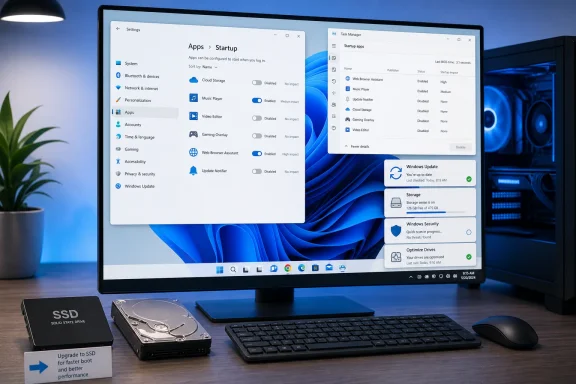 Start with the apps Windows launches automatically
In Windows 11 and Windows 10, open Settings > Apps > Startup or press Ctrl+Shift+Esc to open Task Manager and select Startup apps. Sort by Startup impact and disable third-party utilities that do not need to run the moment you sign in: chat clients, game launchers, printer helpers, update agents, and vendor tray tools are common candidates.
Do not disable security software, hardware-driver utilities you rely on, or items you cannot identify. Disabling a startup entry does not uninstall it; it simply prevents automatic launch, so the change is easy to reverse.
Update Windows, then use Restart
Go to Settings > Windows Update and install available updates. Microsoft’s guidance is particularly relevant here: a normal Restart performs a full boot cycle, while Fast Startup affects shutdown-and-power-on behavior.
That distinction matters because Windows Fast Startup saves part of the kernel session to the hibernation file rather than starting completely fresh. It can reduce boot time, but Microsoft has documented cases where pending Windows updates do not complete after a Fast Startup shutdown. When troubleshooting a sluggish or unreliable boot, use Restart before deciding whether an update caused the issue.
Free space and treat SSDs differently from hard disks
A nearly full system drive can make Windows feel slower at startup and throughout the session. In Windows 11, check Settings > System > Storage > Cleanup recommendations; Storage Sense can also remove temporary files automatically. Disk Cleanup remains available, but Storage settings offer a clearer view of what is consuming the C: drive.
For drive maintenance, search for Defragment and Optimize Drives. Windows automatically maintains drives on a schedule, but the terminology is important: hard disk drives can be defragmented, while SSDs receive a TRIM optimization operation. Do not use third-party “SSD defrag” tools as a startup fix.
Fast Startup is optional, not a cure-all
Fast Startup is available through Control Panel’s Power Options when hibernation is supported. It can shorten the time from shutdown to the sign-in screen, especially on older systems, but it will not fix a desktop that remains slow after login because apps and services are still loading.
If the machine has unusual shutdown behavior, missed update completion, or driver instability, test with Fast Startup disabled rather than assuming it must stay enabled. Microsoft notes that Restart is unaffected by this setting, making it the better baseline for testing.
Escalate carefully when the simple fixes fail
If startup remains slow after trimming startup apps and applying updates, run a Microsoft Defender scan. For suspected persistent malware, Windows Security’s Microsoft Defender Offline scan restarts the PC and scans outside the normal Windows environment, where some threats are less able to hide.
For a more systematic software diagnosis, Microsoft recommends a clean boot: hide Microsoft services in msconfig, disable the remaining third-party services and startup apps, then re-enable items in groups to isolate the offender. This is safer than randomly disabling Windows services.
An old mechanical HDD remains the most decisive hardware bottleneck. Moving the Windows installation to an SSD usually produces a larger startup improvement than any cleanup utility; adding RAM can help where the PC is heavily paging during sign-in. The practical goal is not the shortest stopwatch result—it is a reliable boot with only the software and services the machine genuinely needs.
