
The practical fix depends on where the failure originates. A home network that suddenly fails on every phone, tablet, and PC points toward the router, modem, DNS interception, or the internet provider. A work, school, hospital, or managed Wi-Fi network typically uses 802.1X authentication, certificates, a RADIUS/NPS server, and centrally deployed policies—so its resolution may require the network administrator rather than a local Windows tweak. As Guiding Tech’s troubleshooting overview notes, adapter resets, correct system time, and the built-in network diagnostics are sensible first checks, but they should be applied in an order that preserves useful evidence and avoids weakening certificate validation.
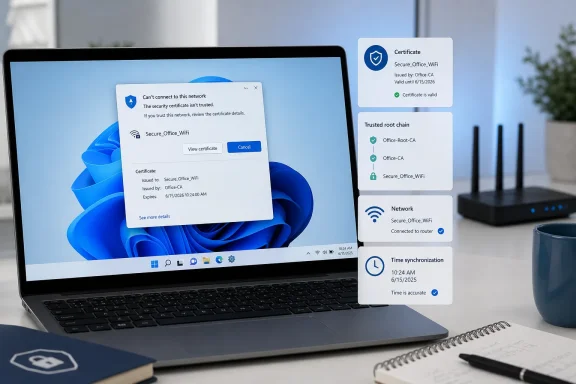 Understanding What a Wi-Fi Certificate Error Actually Means
Most home Wi-Fi networks use a pre-shared password under WPA2-Personal or WPA3-Personal. In that setup, a Windows certificate warning is unusual. It may instead appear when a public hotspot is redirecting traffic to a sign-in page, when router firmware or DNS settings are malfunctioning, or when security software and VPN components are interfering with the connection.
Enterprise Wi-Fi is different. It often uses WPA2-Enterprise or WPA3-Enterprise, where Windows authenticates through an Extensible Authentication Protocol method such as PEAP, EAP-TLS, or PEAP-TLS. Microsoft explains that Windows clients on 802.1X wireless networks validate the certificate presented by the RADIUS authentication server; in certificate-based deployments, the client may also present its own certificate. Microsoft’s 802.1X wireless guidance confirms that certificate validation is part of the default connection process for common enterprise EAP configurations.
That distinction matters because there are several very different failures that may be described loosely as a “Wi-Fi certificate error”:
- The server certificate cannot be trusted. Windows does not recognize the issuing root certification authority, cannot build the certificate chain, or finds the certificate name inconsistent with the expected authentication server.
- The certificate is expired or not yet valid. The server certificate, the client certificate, or the PC clock may be wrong.
- A client certificate is missing or unsuitable. The network expects a certificate issued to the device or signed-in user, but Windows cannot locate one that meets the Wi-Fi profile’s requirements.
- The saved Wi-Fi profile is stale. The organization may have replaced its certificate authority, changed RADIUS server names, moved to a new certificate template, or updated its authentication policy.
- A local networking component is broken. Wi-Fi adapter drivers, VPN filters, security products, virtual switches, and a damaged Windows network stack can all interfere before or during authentication.
- The network itself is at fault. A router reboot will not repair a poorly deployed enterprise certificate, but a bad router configuration can certainly create misleading connection symptoms.
The most important security rule is simple: do not permanently accept a certificate warning merely to get online. Microsoft documents wireless alerts where the presented certificate is valid but its issuing CA is not configured as a trusted anchor for the profile. That is a configuration issue that may be legitimate in an administered environment, but it is also precisely the kind of trust decision that should not be ignored on an unfamiliar network. Microsoft’s support guidance describes how Windows checks the relevant CA trust relationship before allowing certificate validation to succeed.
Start With Scope, Not Random Resets
Before changing Windows settings, establish whether the problem follows the PC, the network, or the user account. This takes only a few minutes and can prevent unnecessary certificate-store edits or destructive network resets.
Test another device on the same network
Connect a phone, a second laptop, or a tablet to the same SSID. If another device joins normally, the most likely issue is local to the affected Windows 11 PC: its system time, Wi-Fi profile, certificate deployment, driver, or installed networking software.
If every device fails, focus on the network equipment or its upstream connection. Restart the modem and router in the vendor-recommended order, check whether the router’s management page is accessible, and inspect any service-status notice from the internet provider. Microsoft likewise recommends testing the same Wi-Fi network with another device because a successful connection elsewhere helps isolate the fault to the original computer. Microsoft’s Wi-Fi troubleshooting guide places this comparison among its core diagnostic steps.
Identify whether the network is managed
A network name such as Company-Secure, Staff, Campus-WiFi, eduroam, or Secure8021X is an immediate clue that local trial-and-error has limits. In an organization, the wireless profile may be delivered through Group Policy, Microsoft Intune, a mobile-device-management platform, or a vendor agent.
Microsoft’s Intune documentation shows why certificate deployment must be coordinated: Windows Wi-Fi profiles that use EAP-TLS can specify trusted root certificates for server validation, and certificate profiles must be available on the device for the authentication design to work. The Windows Wi-Fi settings reference for Microsoft Intune explicitly includes root certificates for server validation in the EAP-TLS configuration.
For an employee or student, the cleanest path is usually to report the exact alert text and time of failure to IT. For an administrator, the client-side message is only the beginning; the certificate chain, server identity, RADIUS policy, enrollment state, and WLAN profile all require review.
Record the exact message before dismissing it
Capture a screenshot or write down the error wording. “The server presented a valid certificate, but the CA is not configured as a valid trust anchor” points to a different fix than “No valid certificates found” or “Unable to identify a user for 802.1X authentication.”
Windows also keeps useful authentication evidence in Event Viewer. Microsoft recommends checking:
Applications and Services Logs > Microsoft > Windows > WLAN-AutoConfig > Operational
for wireless-side 802.1X troubleshooting. Microsoft’s 802.1X authentication troubleshooting guidance notes that certificate problems account for many complex 802.1X failures and identifies the WLAN-AutoConfig operational log as the key client-side location.
Fix the Windows Clock Before Touching Certificates
Certificates have validity windows. A certificate with a valid-from date in the future will fail if the PC clock is behind; a still-valid certificate can appear expired if the clock has jumped forward. This is one of the least invasive and most effective Windows 11 Wi-Fi certificate error fixes.
Set time, date, and time zone automatically
- Right-click the clock in the taskbar and select Adjust date and time.
- Turn on Set time automatically.
- Confirm the correct Time zone, or enable automatic time-zone detection where appropriate.
- Select Sync now if the option is available.
- Disconnect from Wi-Fi, then try the network again.
The actual clock value, date, and time zone all matter. A PC may show a plausible local time while still being a day ahead, an hour behind after a daylight-saving transition, or configured for the wrong region.
Windows uses the Windows Time service, also known as W32Time, for network clock synchronization. Microsoft states that time synchronization is essential for Kerberos and Active Directory-based authentication, which is especially relevant on domain-managed devices that use enterprise Wi-Fi and single sign-on. Microsoft’s Windows Time Service documentation explains that authentication and other security services depend on synchronized time.
Check the Windows Time service only when time will not stay correct
If the clock repeatedly drifts, press Win + R, enter services.msc, and locate Windows Time. Restarting it can be reasonable for a one-off synchronization problem, but changing its startup mode should not be a reflexive fix on a managed PC.
On domain-joined devices, Windows normally follows the domain’s time hierarchy rather than a consumer internet time source. Microsoft’s Windows Time settings documentation explains that domain-joined clients generally synchronize from the domain hierarchy. For that reason, an employee should avoid overriding corporate time settings simply to bypass a certificate issue; persistent time drift can signal a broader domain, VPN, or policy problem.
A useful administrative diagnostic is:
w32tm /query /status /verbose
This does not fix the Wi-Fi connection by itself, but it can reveal whether the system has recently synchronized and which time source Windows is using. Microsoft documents this command as a way to review Windows Time status and synchronization details. The Windows Time service tools reference includes the status query in its supported diagnostic workflow.
Refresh the Wi-Fi Adapter and Its Driver
A corrupted adapter state will not normally invalidate a certificate, but it can prevent Windows from completing the EAP exchange reliably or from applying the expected wireless profile. Resetting the adapter is a safe, low-impact next step.
Disable and re-enable the adapter
- Right-click Start and choose Device Manager.
- Expand Network adapters.
- Identify the physical wireless adapter, often labeled with terms such as
Wi-Fi,Wireless,WLAN, Intel, Realtek, Qualcomm, or MediaTek. - Right-click it and select Disable device.
- Wait several seconds, then right-click it again and select Enable device.
- Reconnect to the wireless network.
Avoid disabling virtual adapters unless they are part of a deliberate troubleshooting plan. Windows machines may list Bluetooth PAN, VPN, Hyper-V, WSL, Wi-Fi Direct, and virtual Ethernet interfaces alongside the physical Wi-Fi card.
Update or reinstall the wireless driver
Use Update driver in Device Manager first, then check the PC manufacturer’s support page for a newer Windows 11 driver specific to the system model. The manufacturer driver is often preferable to a generic package because laptop vendors may include platform-specific power, antenna, and radio coexistence tuning.
If Wi-Fi stopped working after a driver or Windows update, a clean driver reinstall may help:
- Download the current Wi-Fi driver in advance, using Ethernet or another device if necessary.
- In Device Manager, right-click the wireless adapter.
- Select Uninstall device.
- Restart Windows.
- Allow Windows to reinstall the adapter or install the manufacturer package manually.
Microsoft lists uninstalling and reinstalling the network adapter driver as a later-stage remedy, particularly when a connection stopped working after a recent update. Its Windows Wi-Fi support article also advises having a backup driver ready before removal.
Forget and Rebuild the Saved Wireless Profile Carefully
A saved Wi-Fi profile contains more than a password. On an enterprise network, it may include the EAP method, server-validation behavior, trusted root CA references, single-sign-on behavior, and whether authentication is performed as the computer or the signed-in user.
For a personal network, forgetting and reconnecting is often appropriate:
- Open Settings.
- Go to Network & internet > Wi-Fi > Manage known networks.
- Select the affected SSID.
- Choose Forget.
- Reconnect and enter the Wi-Fi password again.
For a managed 802.1X network, this step requires caution. Forgetting the profile can remove locally cached settings that were created by IT, while the replacement profile may not arrive until the device reconnects through Ethernet, a guest network, VPN, or device management. If the Wi-Fi profile is centrally managed, allow the organization’s management service to reinstall it rather than trying to recreate PEAP or EAP-TLS settings manually.
This is also why manually importing arbitrary .cer, .pfx, or .p12 files is rarely a good first response. A certificate in the wrong store, without the associated private key, or without the intended Enhanced Key Usage cannot satisfy EAP-TLS. Worse, importing an untrusted root certificate can make the PC trust servers that it should reject.
Use Windows Diagnostics, Then Escalate Intelligently
Windows 11’s network diagnostics can repair common configuration issues, although they cannot renew an expired corporate certificate or correct a broken RADIUS deployment.
Run the built-in troubleshooter
Open Settings, then use the Network & internet section and the available troubleshooting or Get Help workflow. Follow the prompts and note any reported adapter, DNS, or gateway findings.
Microsoft’s current support guidance directs Windows 11 users to the automated Network and Internet troubleshooter in the Get Help app, which runs diagnostics and attempts common repairs. Microsoft’s Wi-Fi connection troubleshooting documentation also recommends reviewing the wireless network report for adapter-specific problem codes.
Generate a wireless report
Open Command Prompt as administrator and run:
netsh wlan show wlanreport
Windows generates an HTML report containing recent connection sessions, driver details, disconnect reasons, and wireless events. It can be particularly valuable when the notification disappears too quickly or the failure only occurs intermittently.
For enterprise support tickets, provide:
- The SSID.
- The approximate time and time zone of the failed connection.
- The exact error text or screenshot.
- The Windows edition and build.
- The wireless adapter model and driver version.
- The WLAN AutoConfig event details.
- Whether the network works on another device.
- Whether the device can connect to a guest network or wired Ethernet.
That evidence helps administrators distinguish a certificate-selection issue from a server-trust failure, a RADIUS policy rejection, a missing enrollment certificate, or a local driver problem.
Treat Hyper-V, VPNs, and Network Filters as Secondary Factors
Virtualization is a legitimate troubleshooting consideration, but it is easy to overstate its role. Simply enabling Hyper-V, Virtual Machine Platform, or Windows Hypervisor Platform does not repair a certificate chain, renew a client certificate, or make an untrusted RADIUS server trustworthy.
Hyper-V can, however, add virtual adapters, virtual-switch bindings, and network filter layers that complicate local connectivity. Microsoft describes the Hyper-V Virtual Switch as a software-based Layer 2 switch with extensible networking and filtering capabilities, used to connect virtual machines to external and virtual networks. Microsoft’s Hyper-V Virtual Switch overview explains the role of those virtual networking components.
The more productive test is to identify what changed near the time of failure:
- A new VPN client or a VPN update.
- Endpoint protection or web-filtering software.
- A virtual-machine platform, container runtime, or WSL networking update.
- A driver update.
- A wireless profile or certificate enrollment update.
- A Windows update followed by a reboot that did not complete cleanly.
Temporarily disconnecting a VPN and closing a third-party network-security client can help isolate the issue, provided organizational policy allows it. Do not disable managed endpoint protection or remove corporate VPN software without authorization; on a work device, that can create compliance problems and erase useful support context.
Reserve Network Reset for the Right Situation
Network reset is powerful because it removes installed network adapters and restores their settings to defaults after reboot. It is useful when broad Windows networking corruption is suspected, especially after an upgrade or a failed driver installation.
It is not a first-line certificate fix. Microsoft specifically calls network reset a last step and warns that it removes adapters and settings; it may also require reinstalling VPN software and recreating Hyper-V virtual-switch configurations. Microsoft’s Windows Wi-Fi support guidance notes that reset can affect VPN clients, virtual switches, and network-profile assignments.
To use it in Windows 11:
- Open Settings.
- Select Network & internet.
- Open Advanced network settings.
- Choose Network reset.
- Select Reset now and confirm.
- Restart when prompted.
- Reconnect to Wi-Fi and restore any required VPN, virtual networking, or custom adapter settings.
On a corporate device, get approval before performing this reset. The computer may lose configuration that is required for remote access, printer connectivity, security agents, or device management.
When the Fix Belongs to the Network Administrator
There are clear signs that a Wi-Fi certificate error is not something an end user should solve by modifying Windows.
Server trust or CA changes
If Windows reports that the certificate authority is not a trusted anchor, the wireless profile may be missing the organization’s root CA or intermediate CA. Microsoft documents this exact class of issue on workgroup devices, where Windows may not have the enterprise CA represented in the relevant trust configuration. Microsoft’s security alert troubleshooting article describes the underlying trust-anchor check and an administrator-level certificate-store remediation.
The correct enterprise remedy is usually deployment through Intune, Group Policy, Active Directory Certificate Services, or another managed PKI process—not asking users to accept warnings or distribute certificates through email.
Missing device or user certificates
A certificate-based network may be configured for computer authentication, user authentication, or a combination. A device that has not completed enrollment, has an expired certificate, lacks access to its private key, or is at the Windows sign-in screen without a user certificate available can fail even though its Wi-Fi radio works perfectly.
This is especially common after certificate renewal changes, device replacement, account migration, or MDM enrollment failures. The fix may require a new SCEP or PKCS certificate profile, corrected certificate template permissions, or a revised WLAN policy.
Failure across multiple managed devices
When multiple company laptops receive the same warning at roughly the same time, the likely fault lies in shared infrastructure: a new RADIUS server certificate, an expired intermediate certificate, an incorrect NPS configuration, a CA rollover, DNS change, or a certificate-profile deployment error.
That is not a reason to lower certificate-validation settings. It is a reason to preserve the warning, use an approved alternate connection if one is available, and let network administrators correct the chain or profile centrally.
The Most Reliable Windows 11 Wi-Fi Certificate Error Strategy
The strongest troubleshooting sequence is deliberately conservative. Confirm whether the problem affects one device or the whole network, correct the Windows clock, refresh the physical Wi-Fi adapter, and inspect the saved profile before escalating to resets or manual certificate work.
For home users, the likely answer is usually a local adapter, router, time, or saved-network problem. For users on an enterprise SSID, a Wi-Fi certificate error is often evidence that Windows is doing its job: refusing to trust an authentication path that no longer matches the organization’s intended security configuration.
The goal is not merely to make the warning disappear. It is to restore a connection while preserving the certificate validation that protects Windows 11 devices from connecting to the wrong network in the first place.
