

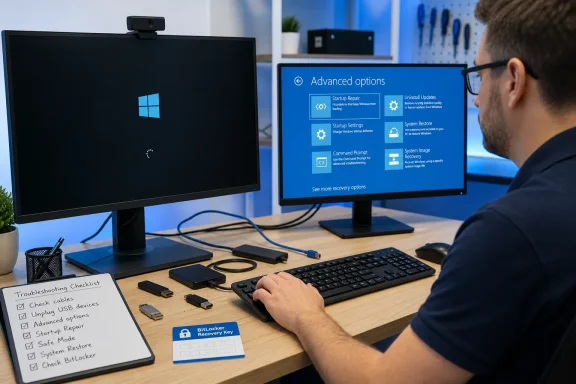
Microsoft’s current Windows 11 and Windows 10 documentation identifies Startup Repair as the first built-in option when Windows “doesn’t start or keeps loading.” Dell’s support guidance independently recommends first disconnecting external hardware, then using Windows Recovery Environment, or WinRE, to repair startup files. The missing part of many quick-fix guides is knowing when the problem is Windows itself and when the machine has not reached Windows at all.
If the system stops at the manufacturer’s logo—Dell, HP, Lenovo, ASUS, and so on—or cannot open UEFI/BIOS setup, this is not yet a normal Windows startup failure. Check the PC’s built-in diagnostics, storage detection, memory, and firmware settings instead. If the Windows logo appears and the animated loading indicator never reaches the sign-in screen, WinRE is the right place to begin.
Start With the Devices Windows Does Not Need
Shut the PC down fully and unplug everything except a wired keyboard, display, and—on a desktop—the power cable. Remove USB flash drives, external hard disks, dock stations, printers, card readers, game controllers, and any non-essential USB accessories before attempting another boot.
This is more than a ritual. External storage can change boot order or present a damaged boot record; docks, USB network adapters, and display hardware can introduce a driver or power-initialization problem while Windows is loading. Dell’s no-boot documentation uses the same first step because it can separate a Windows installation failure from a problem introduced by connected hardware.
If Windows starts after the peripherals are removed, do not reconnect them all at once. Restart successfully once with the machine bare, then reconnect devices individually. A repeatable failure after connecting one disk, dock, or USB device gives you a concrete suspect; a one-time successful boot after clearing everything may instead point to a transient startup or power-state issue.
For laptops, leave the original AC adapter connected unless it is visibly damaged or suspected of causing trouble. Do not remove an internal battery or open the chassis merely because Windows is stuck at the logo. That is a hardware-service step, not a Windows recovery procedure.
Enter WinRE Without Reinstalling Windows
When the machine cannot get to the sign-in screen, Windows normally opens WinRE after multiple unsuccessful starts. Microsoft describes the environment as a built-in repair platform with Startup Repair, Startup Settings, System Restore, update removal, Command Prompt, and reset options.
To force Windows to recognize repeated failed starts, power on the PC and wait until the Windows logo appears. Hold the physical power button until the system turns off, then repeat that interruption two more times. On the next start, Windows should display Preparing Automatic Repair or offer recovery options.
Forced shutdowns should be used only to reach recovery when Windows is already unable to boot normally. Repeatedly cutting power during a Windows update, disk repair, firmware update, or a screen explicitly saying not to turn off the computer can make the underlying problem worse.
Once WinRE loads, choose Troubleshoot > Advanced options. Before changing anything, have the BitLocker recovery key available. Microsoft warns that encrypted PCs can require the key before some recovery tools will run. This is a major practical omission in generic logo-hang advice: a user can reach the repair menu successfully yet be blocked from restoring Windows because the recovery key was never saved or cannot be retrieved.
On personal PCs where BitLocker or Device Encryption was enabled through a Microsoft account, the key may be stored with that account. On company-managed systems, IT may hold it in Microsoft Entra ID, Active Directory, or a management platform. Do not guess at the key or keep trying arbitrary numbers; use the recovery-key identifier displayed by WinRE to locate the matching key.
Let Startup Repair Handle Boot Files First
From Advanced options, select Startup Repair and choose the Windows installation if prompted. The tool checks startup components that can stop Windows before the sign-in screen, including damaged or missing system files, boot configuration data, master boot record issues on applicable installations, registry faults, and some incompatible-driver conditions.
Startup Repair is the least destructive recovery option in this sequence because it is intended to repair boot infrastructure rather than roll back a broader set of system changes. Microsoft specifically recommends it for Windows systems that will not start or remain stuck loading.
Its limits are just as important. Startup Repair cannot repair a failing SSD, a drive that disappears intermittently from firmware, damaged RAM, a bad storage cable, or a firmware problem. Dell makes the same distinction in its support materials: Startup Repair addresses Windows startup files, not hardware failure or personal-file recovery.
If Startup Repair reports that it could not repair the PC, do not immediately run it over and over. Move to the recovery option that best matches what changed before the failure:
- Use Safe Mode when the trouble began after a driver, security tool, hardware utility, or application installation.
- Uninstall a recent update when the failure appeared directly after Windows Update completed or attempted to complete.
- Use System Restore when a restore point predates the driver, application, or configuration change that coincided with the failure.
Safe Mode Turns a Suspicion Into a Test
In WinRE, select Troubleshoot > Advanced options > Startup Settings > Restart. After the PC restarts to the numbered startup menu, choose Safe Mode—usually option 4 or F4—or Safe Mode with Networking, usually option 5 or F5, only if network access is needed.
Safe Mode loads Windows with a limited set of drivers and services. Microsoft’s guidance is clear on the diagnostic value: if the problem does not occur in Safe Mode, the normal startup configuration, third-party services, non-basic drivers, or startup applications become more likely suspects.
A successful Safe Mode boot does not prove that “a driver” is the cause, and it does not mean every installed program should be removed. Start with the most recent change: a graphics driver, storage controller driver, endpoint-security product, RGB or peripheral-management utility, VPN client, virtualization software, or software installed immediately before the machine began hanging.
Uninstall that one change, restart normally, and see whether the fault is gone. For drivers, Device Manager’s Roll Back Driver option can be safer than uninstalling hardware support wholesale, particularly for storage, chipset, or network devices. Download replacement drivers only from the PC maker or hardware vendor after Windows can start reliably again.
Remove Updates Carefully, Then Use Restore Points
WinRE’s Uninstall Updates option can remove the latest quality update or the latest feature update. Start with the latest quality update—the monthly cumulative servicing package—if the logo hang began immediately after a normal Patch Tuesday-style update. A feature-update rollback is more consequential and should be reserved for a failure that started after a Windows version upgrade.
Microsoft still provides the removal option in WinRE because an update can leave Windows unbootable before the desktop is reachable. But the presence of the tool is not proof that the most recent update caused the failure. If the problem began days later, after a driver install or a sudden power loss, removing a security update is more likely to add work than solve the boot issue.
If update removal does not help, return to Advanced options and use System Restore. Select a restore point from before the boot failure began. System Restore rolls back system files, drivers, registry settings, and installed applications to the state recorded by that restore point, while Microsoft says personal documents and photos are not affected.
The key qualification is that System Restore only works if a usable restore point exists. Many systems have few or no restore points, especially if System Protection was disabled or storage allocation was too small. It also removes software installed after the selected point, so note any applications that will need reinstalling once the PC is stable.
If none of those steps restores startup, stop treating the issue as a simple Windows-logo freeze. Run the manufacturer’s pre-boot diagnostics and verify that the internal SSD is detected consistently in UEFI/BIOS. A drive that vanishes, reports SMART or diagnostic errors, or makes the Windows logo hang intermittently is a data-protection problem first: avoid repeated repair attempts and prioritize copying recoverable files.
Microsoft’s recovery guidance places reinstalling Windows after Startup Repair and System Restore have failed. Use a Windows installation USB or recovery drive to access WinRE if the internal recovery environment will not load, and back up data before choosing Reset or a clean installation. For Windows 10 devices, this is also a moment to plan migration: Microsoft ended free Windows 10 security updates and technical support on October 14, 2025, so repairing an old installation should not become a reason to keep an unsupported PC on the network.