

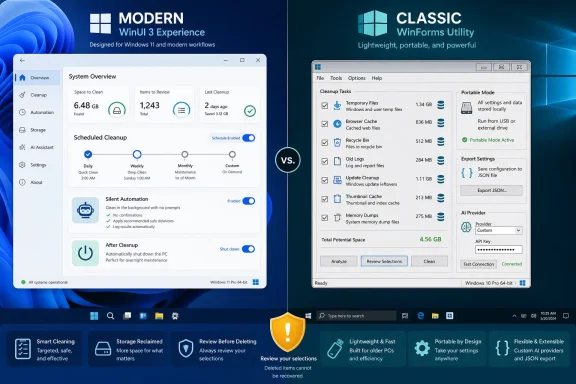
Neowin’s release listing groups the two builds together, but the official GitHub record shows they were not a same-day code drop. Modern 26.07.05 was published on July 28, 2026, while the Classic 1.11.112 release arrived on August 6. The latest marked release is Classic, and it presents Modern 26.07.05 as the current companion build. That distinction matters for admins and enthusiasts tracking fixes: Classic 1.11.112 is newer as a release, but it does not replace the Modern build or add Modern’s scheduler changes.
Both editions still share FluentCleaner.Core and the project’s Winapp2-compatible cleaning-rule parser. They are increasingly separate applications around that common engine, however: Modern uses WinUI 3, .NET 10, and the Windows App SDK; Classic uses WinForms and .NET Framework 4.8.
Modern 26.07.05 turns saved selections into scheduled deletions
The headline feature in FluentCleaner 26.07.05 is a built-in schedule editor for daily, weekly, and logon-triggered cleaning. It runs the existing /AUTO command-line mode without opening the app window, and it can be configured to shut Windows down after a completed cleanup. The result is a friendlier wrapper around Task Scheduler rather than a new cleaning mechanism.
That is a sensible implementation choice. FluentCleaner’s own documentation says /AUTO uses the selection already saved in the app, performs the cleanup silently, then exits; it also writes an auto.log file under the user’s AppData folder with a timestamp, deleted paths grouped by entry, and the total amount recovered. A scheduled run therefore inherits every choice made interactively before it was scheduled.
The operational consequence is straightforward: review the selected cleaning categories before creating a logon or weekly task. A schedule does not introduce a second safety policy or a fresh confirmation screen. If browser cookies, download caches, IDE histories, application logs, or custom rules are selected when the task is created, the headless run will use those saved settings later with no prompt.
The shutdown option raises the stakes further. It is useful for a machine deliberately left on for overnight maintenance, but it is a poor fit for a workstation that may have unsaved documents, remote sessions, installers, or long-running jobs. The release notes do not spell out the task account, privilege level, behavior when target files are locked, retry behavior, or whether a scheduled shutdown is suppressed when cleanup encounters errors. Those omissions do not make the feature unsafe; they mean it should be tested manually on a non-critical profile before it is trusted on a production PC.
FluentCleaner also fixed a scheduling collision introduced by maintaining two editions. Modern and Classic now create separate Windows tasks and retain separate schedule settings, so creating a schedule in one should no longer overwrite the other. That is a genuine reliability fix, not cosmetic cleanup: users who installed both editions could previously have had one interface silently alter the other edition’s automation.
The AI tools explain rules, not the files found on a PC
Modern 26.07.05 adds a provider selector for Groq, OpenAI, and Anthropic, and applies the chosen service across entry explanations, Custom Cleaner generation, and PowerShell generation. Groq requests now use OpenAI’s openai/gpt-oss-120b model, with a revised completion-token parameter and hidden low-effort reasoning output. Groq’s own current documentation lists that model as available through its service, so the model identifier in FluentCleaner’s release notes is valid.
The useful context comes from the project’s own GitHub discussion, where developer Belim and testers describe the actual boundary of the feature. The AI explainer currently describes static Winapp2 cleaning entries; it does not inspect an individual scan result and certify that the exact files on a specific machine are safe to delete. A tester explicitly raised that distinction after expecting scan-aware guidance, and Belim said a private experimental build can reason about actual scan results but that it is being held back because a confident hallucination could cause data loss.
That restraint is appropriate. A language model can turn a cryptic rule name into a readable explanation, but it cannot replace an administrator’s understanding of an application’s cache, a profile’s browser data, or an organization’s retention requirements. Users should treat the AI options as documentation assistance, not deletion authorization.
Classic 1.11.112 extends that optional AI setup in a different direction. It now accepts custom OpenAI-compatible providers with editable API endpoint, model name, and API key fields, and preconfigures OpenRouter as an option. This is valuable for people running a compatible local endpoint through Ollama or LM Studio, or using a provider other than the three direct integrations. It also means the data-handling decision is now made by the endpoint the user chooses. FluentCleaner’s release notes do not provide a privacy or credential-storage description for those custom connections, so users should avoid putting a high-value API key into a portable utility until they have inspected the open-source implementation and the provider’s terms.
Classic’s changes are practical, not merely nostalgic
Classic 1.11.112 improves startup speed, lowers memory use during startup, restores a maximized window correctly, and adds French and Spanish localizations. It also adds JSON settings export and import from the About page, with existing Options pages refreshing before the app asks for a restart.
The import/export function is particularly useful for the audience that Classic targets: technicians moving between systems, portable-tool users, and anyone who wants repeatable selections without manually recreating exclusions, databases, UI preferences, language choices, and provider configuration. But portability cuts both ways. A settings file may contain more than harmless interface choices, depending on which features have been configured. Treat it as configuration data that may be sensitive, especially after the addition of custom AI endpoints and API keys.
The project also improved provider-aware response caching so an answer from one model, endpoint, or service does not get reused as though it had come from another. That is a small but necessary correction now that Classic can point at arbitrary OpenAI-compatible endpoints. Without that separation, changing models could leave a user seeing stale explanations while believing they were evaluating a new provider.
Classic remains the more practical pick for older, locked-down, or low-resource Windows installations. The official comparison describes it as a roughly 3.57 MB unpacked WinForms application with about 20 files, using the .NET Framework already present on the system. Modern is self-contained, contains roughly 243 files, and is listed at about 140 MB unpacked. Neowin’s compressed-download figures of 46.4 MB for Modern and 1.6 MB for Classic are not directly comparable to those unpacked sizes, but they point in the same direction: Modern’s polished interface and bundled runtime come with a much larger footprint.
“Windows 10 support” has a build-number caveat
FluentCleaner is advertised for Windows 10 and Windows 11, but the project’s own compatibility table is more specific. It says Modern needs Windows 10 version 2004, build 19041, or later, plus the Windows App SDK 2.0.1 runtime; its broader platform line elsewhere names Windows 10 build 17763 and later. The README also warns that Modern’s required runtime is exact enough that an older or newer Windows App SDK runtime may not work.
That is an important discrepancy to resolve before deployment. For a Windows 10 machine below build 19041, or a system where installing a particular Windows App SDK runtime is unacceptable, Classic is the safer choice. The Modern build’s WinUI 3 interface is not a generic “runs on any Windows 10 PC” proposition despite the broad product description.
The official repository further warns that third-party websites claiming to be FluentCleaner’s official home are unaffiliated. The project’s July 28 release notes specifically called out a recommendation that directed readers to an unofficial domain. The GitHub releases are the project’s stated official distribution point, and the release pages show verified GitHub commit signatures. That verifies the published source commit, but the visible release notes do not publish independent file checksums or describe Authenticode signing for the downloadable archives. Download directly from the official release record and verify any supplied hashes when they are available.
For most users, the decision is now clearer than the paired version label makes it look. Choose Modern 26.07.05 if scheduled cleanup, a WinUI 3 interface, and the current AI workflow are worth the runtime and size requirements. Choose Classic 1.11.112 if startup speed, portability, settings transfer, and custom compatible AI endpoints matter more. In either case, the new automation should be configured only after the scan selections have been reviewed—because the scheduler will faithfully delete what those selections tell it to delete.