 Background / Overview
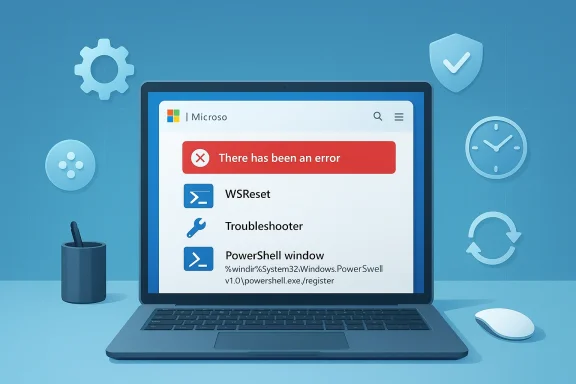
The Microsoft Store is a modern app platform (AppX/MSIX) that depends on cached metadata, app registrations, system services, and correct system time/region settings to authenticate and download packages. When any of those components gets out of sync — corrupted cache, stopped background services, wrong system clock, or network filtering from VPN/antivirus — the Store can throw a non‑descriptive modal: “There has been an error.” This generic error is usually a client-side problem that can be resolved without reinstalling Windows. Community and support runbooks consistently recommend a safe, ordered checklist that begins with cache and app repairs and only escalates to PowerShell re-registration and system file repairs if needed.
What follows is a practical, tested, step‑by‑step guide for U.S. Windows users (applies to both Windows 10 and Windows 11 with small UI differences). Each major claim below is supported by community and troubleshooting documentation; when a step carries risk (data loss, profile changes) it will be explicitly flagged.
Quick triage: What to try first (safe, low-risk)
Start here — these steps are fast and non‑destructive in nearly all cases.
1. Restart the Store and your PC
- Close Microsoft Store, open Task Manager, and make sure no Store-related processes remain.
- Reopen the Store; if that fails, reboot Windows.
Why: A reboot clears transient locks, refreshes services, and often restores a stalled Store agent. Community troubleshooting lists restarting as the very first step.
2. Clear the Microsoft Store cache with WSReset (the most common fix)
- Press Windows key + R, type: wsreset.exe, and press Enter.
- A blank command window opens; wait for it to close and the Store to relaunch.
What it does: WSReset clears temporary Store metadata and cache without removing installed apps or purchases. It’s the most commonly effective single fix for downloads, stuck updates, or failure to open. Expect this to take 10–60 seconds.
Example: If Netflix or an update shows “There has been an error” while downloading, WSReset frequently clears the cached state and allows the download to proceed.
3. Run the Windows Store Apps troubleshooter
- Windows 11: Settings > System > Troubleshoot > Other troubleshooters > Windows Store Apps > Run.
- Windows 10: Settings > Update & Security > Troubleshoot > Additional troubleshooters > Windows Store Apps > Run.
This automated tool detects common configuration and entitlement issues and will apply suggested fixes. It’s particularly effective for account/token problems.
If the quick steps didn’t work: Repair, Reset, and account checks
If WSReset and the troubleshooter don’t solve it, move to these next‑level, still low‑risk steps.
4. Repair or Reset the Microsoft Store app
- Windows 11: Settings > Apps > Installed apps > Microsoft Store > three dots > Advanced options > Repair (try first) → Reset if Repair fails.
- Windows 10: Settings > Apps > Apps & features > Microsoft Store > Advanced options > Repair → Reset.
Notes:
- Repair tries to fix app state while preserving sign‑in tokens and local settings.
- Reset clears local Store data and will sign you out of the Store, but it does not remove installed apps. Use Reset only after Repair fails or when caches appear corrupted.
5. Sign out and sign back into the Store (and Xbox app if you use Game Pass)
- Open the Store, click your profile, choose Sign out, then close the Store and sign back in.
- For game-related issues, sign out/in the Xbox app too.
Why: Account tokens can become stale; re-authenticating refreshes entitlements and can clear download permission mismatches.
6. Check Date, Time, and Region settings
- Settings > Time & language > Date & time → Enable Set time automatically and Set time zone automatically, then click Sync now if present.
- Settings > Time & language > Language & region → Ensure Region is set correctly (for U.S. users: United States).
Why: Microsoft Store relies on certificates and token exchanges; even small clock drift can invalidate authentication and produce generic errors. This is a surprisingly frequent root cause.
Network and interference checks
If the Store fails to connect or displays network‑related error codes (for example 0x80072EFD), try these network checks before deep system repairs.
7. Temporarily disable VPN and third‑party antivirus/firewall
- Disable VPN clients and any third‑party AV/firewall temporarily and test the Store.
- If disabling fixes the Store, re-enable components one at a time to isolate which agent is blocking traffic.
Many security tools block Store endpoints or intercept TLS, interfering with downloads and entitlements. Community reports repeatedly show VPN/AV as the culprit for network errors.
8. Basic network stack refresh (Admin Command Prompt)
Run these commands (copy/paste as administrator), then reboot:
- ipconfig /flushdns
- netsh winsock reset
- netsh int ip reset
- netsh winhttp reset proxy
These reset DNS cache, Winsock and IP stack quirks, and WinHTTP proxy settings — common fixes when the Store can’t reach its servers.
9. Check the hosts file
- Open Notepad as Administrator and open: C:\Windows\System32\drivers\etc\hosts
- Ensure there are no entries blocking microsoft.com, windowsupdate.microsoft.com, or other relevant endpoints.
A misconfigured hosts file can silently block Store endpoints and produce generic errors.
Services and background components to verify
The Microsoft Store and AppX deployment rely on several Windows services. If these are stopped or disabled, installs and updates will fail.
10. Verify and (if needed) start these services
Open Services (Win + R → services.msc) and check:
- Microsoft Store Install Service (InstallService / StoreInstallService)
- Windows Update (wuauserv)
- Background Intelligent Transfer Service (BITS)
- Delivery Optimization
- AppX Deployment Service (AppXSvc)
- Client License Service (ClipSVC)
- Cryptographic Services (CryptSvc)
- Application Identity
For each service: set Startup type to Manual or Automatic (not Disabled) and click Start if the service is stopped. Restart the one that directly references the Store (Microsoft Store Install Service) when you’re troubleshooting downloads.
Why this matters: BITS and Delivery Optimization are used to fetch Store packages; if they’re disabled installs will silently fail or stall.
Advanced repairs (use when earlier steps fail)
If the Store still shows the generic error after the above, move to more powerful but still supported repairs. These require administrator access and may take time.
11. Re‑register Microsoft Store and AppX packages with PowerShell (Admin)
Open PowerShell as Administrator and run the targeted command for the Store first:
Get-AppxPackage -allusers Microsoft.WindowsStore | ForEach-Object { Add-AppxPackage -DisableDevelopmentMode -Register "$($.InstallLocation)\AppXManifest.xml" }
If you prefer to re-register all packages (broader but noisier), run:
Get-AppxPackage -AllUsers | ForEach-Object { Add-AppxPackage -DisableDevelopmentMode -Register "$($.InstallLocation)\AppXManifest.xml" }
Notes and cautions:
- Expect red warning lines for in‑use system packages; that’s normal.
- Re‑registration can take several minutes. If the command appears to hang, be patient — the operation may be modifying manifest files.
Why: Broken or missing AppX registrations are a common cause of Store failures; re‑registering rebuilds the manifest registrations the shell uses to launch and update apps.
12. Clear Microsoft Store LocalCache manually (advanced but safe)
- Open File Explorer and paste: %localappdata%\Packages\Microsoft.WindowsStore_8wekyb3d8bbwe\LocalCache
- Delete the folder contents (or move them to a backup folder).
- Then run WSReset and restart the Store.
If wsreset failed earlier, manually clearing LocalCache is a low‑risk next step before re‑registration.
13. Repair system image and protected files: DISM + SFC
Run these commands in an elevated command prompt (order matters — DISM first):
- DISM /Online /Cleanup-Image /RestoreHealth
- sfc /scannow
Expect DISM to take 10–30+ minutes depending on disk and network. If DISM cannot download files, you may be prompted to supply an ISO or alternate source. The recommended sequence is DISM first (repairs the component store), then SFC (replaces corrupted system files). This is a well‑documented escalation when Store repairs fail due to deeper system corruption.
14. Reset Windows Update components and caches (advanced step)
If Store installs fail due to an inconsistent Windows Update state, run these (Admin Command Prompt), then reboot:
- net stop wuauserv
- net stop bits
- net stop cryptsvc
- ren C:\Windows\SoftwareDistribution SoftwareDistribution.old
- ren C:\Windows\System32\catroot2 catroot2.old
- net start wuauserv
- net start bits
- net start cryptsvc
This forces Windows to rebuild update metadata and can solve mismatches between the Store and servicing components.
Isolation techniques: identify profile or third‑party interference
When fixes work in one account but not another, or when third‑party software is suspected, use isolation methods before taking destructive actions.
15. Clean Boot to rule out third‑party interference
- Run msconfig, on the Services tab check Hide all Microsoft services, then disable remaining services.
- On the Startup tab, open Task Manager and disable startup items.
- Reboot and test the Store.
If the Store works under a clean boot, re-enable services/startup items in groups to identify the offender — often antivirus or vendor helper services.
16. Test with a new local administrator user
- Settings > Accounts > Family & other users > Add account > “I don’t have this person’s sign‑in information” > “Add a user without a Microsoft account” — then make it Administrator.
- Log into the new account and test the Store.
If the Store works in a fresh profile, the issue is profile‑specific and you can migrate data rather than escalate to system repair.
When to escalate: reinstallation, in‑place repair, or professional help
If you’ve worked through everything above and the Store still shows errors, consider escalation options — but only after backups.
17. Reinstall the problematic app (destructive for app data)
- If a single app fails repeatedly, back up the app’s local data, uninstall it, and reinstall from the Store.
- Use PowerShell Remove‑AppxPackage if the GUI uninstall fails.
Warning: Removing an app deletes local per‑user data for that package. Back up local files and settings first.
18. In‑place repair upgrade (keeps files and apps)
- Mount a Windows ISO and run setup.exe → choose Keep personal files and apps.
- Or use Settings > System > Recovery > Reset this PC → Keep my files as a last resort.
These operations refresh system files and servicing components without wiping user data and often resolve persistent, deep corruption. They require time and a reliable backup beforehand.
19. Corporate or managed devices
If the device is managed by an organization, group policies, or endpoint protections can intentionally block Store features. Coordinate with your IT admin before attempting re‑registration or destructive fixes. Local repairs won’t override enterprise restrictions.
Practical checklist you can copy/paste (safe→advanced)
- Restart PC and Store.
- Run: wsreset.exe (Win + R).
- Run Windows Store Apps troubleshooter.
- Settings > Apps > Microsoft Store > Advanced options → Repair → Reset (if needed).
- Confirm Date/Time/Region settings and sync.
- Temporarily disable VPN/AV; flush DNS and reset Winsock.
- Ensure required services (InstallService, BITS, Delivery Optimization, AppXSvc, ClipSVC) are started.
- Re‑register Store: PowerShell (Admin) targeted command for Microsoft.WindowsStore.
- Clear LocalCache: %localappdata%\Packages\Microsoft.WindowsStore_8wekyb3d8bbwe\LocalCache.
- DISM /Online /Cleanup-Image /RestoreHealth and sfc /scannow.
- Test in a clean boot or new local admin user if unsure.
Common error codes and what they usually mean
- 0x80072EFD — network connection to Store blocked or failing; try disabling VPN/AV and perform the network stack reset.
- 0x803F8001 / 0x80073Dxx — entitlement or package registration issues; try sign out/in, WSReset, Repair/Reset, and PowerShell re‑register steps.
- “Working…” or stuck at “Pending” — often cache or Delivery Optimization/BITS issue; WSReset, reset update caches, and check services.
If you encounter a specific error code not listed here, note it verbatim and use it when searching support articles or when contacting Microsoft Support; codes materially change the recommended troubleshooting order in some cases.
Safety notes and final cautions
- Always try non‑destructive steps first: Restart → WSReset → Troubleshooter → Repair. These steps resolve the majority of cases.
- Use Reset only after Repair fails and after backing up any unsynced app data. Reset will sign you out of the Store.
- PowerShell re‑registration is effective but can produce red warnings for in‑use system components; if you’re on a managed device, coordinate with IT before running these commands.
- Avoid third‑party “fixers” or aggressive debloat scripts; community reports show these can remove Store components and make recovery harder. Prefer built‑in Windows tools and documented escalation steps.
Preventing future Store problems
- Keep Windows up to date — Store and servicing components are updated via Windows Update and mismatches can cause problems.
- Avoid persistent VPN/AV policies that intercept TLS to Microsoft endpoints; if needed, create exceptions for Store endpoints.
- Use Microsoft account sign‑in consistently for purchases and app ownership; multiple accounts can create entitlement confusion. Sign out/in if you switch accounts.
- Occasionally run the Windows troubleshooters after major updates if you notice app behavior changes.
Conclusion
A Microsoft Store showing “There has been an error” is usually fixable without dramatic measures. Start with the simplest, safest steps — WSReset, the built‑in troubleshooter, and Repair — and only escalate to PowerShell re‑registration, DISM/SFC, or an in‑place repair if those do not work. Carefully checking services, date/time, and network interference (VPN/AV) resolves many cases quickly. If the device is managed by an organization or if re‑registration repeatedly fails, coordinate with IT or consider professional support before attempting deeper repairs. The structured, layered approach above follows community and support guidance and will restore Store functionality for most users.