
 Overview: A Preview Update With Several Audiences
KB5101681 moves Windows 11 26H1 to Build 28000.2608 and arrives as part of Microsoft’s established optional preview-update cadence. These releases are cumulative, include production-quality non-security fixes, and give administrators an early validation window before the same content is considered for a subsequent monthly security release. Microsoft’s Windows client update-cycle documentation describes optional preview releases as a mechanism for validating upcoming quality and feature improvements.
That distinction matters. This is not a Patch Tuesday security update, and ordinary users do not need to rush to install it merely because it is available. The package is especially relevant for people affected by one of its resolved bugs, for enthusiasts who want the new Windows 11 features ahead of wider release, and for IT teams that need to test changes before they potentially reach their managed environments.
Microsoft is also using a two-phase approach for the headline feature set. The company identifies a gradual rollout, where features appear progressively and availability can differ between eligible devices, and a normal rollout, where the relevant content reaches eligible devices more broadly. That means two PCs on the same Windows 11 26H1 build can temporarily expose different experiences after KB5101681 is installed. Microsoft’s release notes explicitly state that feature availability varies by device and market.
For WindowsForum readers, the bigger story is Microsoft’s continued use of servicing updates as a delivery vehicle for platform evolution. New Windows 11 capabilities no longer arrive only with annual version upgrades. Instead, the operating system increasingly changes through feature-enabled cumulative updates, with staged delivery serving as a guardrail against deploying an interface or reliability regression to every device at once.
Calendar-Based Update Pauses Make Windows Update More Legible
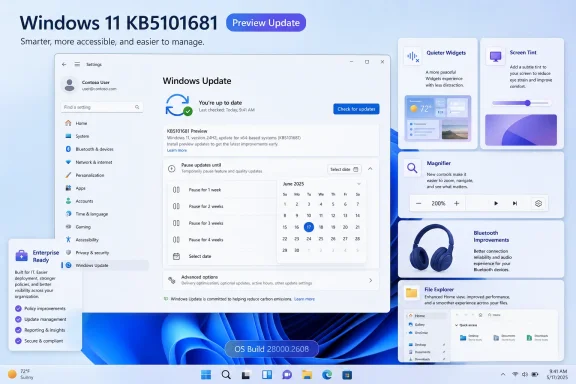
The signature addition in KB5101681 is a calendar experience for pausing Windows Update. In Settings > Windows Update, users can now choose a precise end date for the update pause, up to 35 days ahead, rather than relying solely on a more opaque duration-based control. When the selected date approaches, users can choose another end date and pause updates again. Microsoft’s KB5101681 documentation describes the new date-selection workflow and its 35-day limit.
At first glance, it is a small usability change. In practice, it addresses a persistent weakness in Windows Update: users can understand a calendar commitment much more readily than an abstract number of weeks. Someone traveling, preparing for a presentation, maintaining a production workstation, or avoiding an inconvenient restart window can now select an end date that aligns with a known event.
What the Change Improves
A date-oriented pause control has several practical benefits:
- Clarity: “Pause until August 20” is less ambiguous than counting forward through a fixed interval.
- Planning: Users can match update behavior to travel, exams, demonstrations, deadlines, or maintenance windows.
- Control without permanent deferral: The 35-day ceiling preserves Microsoft’s intent that consumer systems eventually resume normal servicing.
- Reduced accidental disruption: A visible end date makes it easier to see when Windows Update will become active again.
The feature is also a modest but welcome acknowledgment that Windows Update’s technical requirements should not obscure the user’s real-world schedule. Windows needs regular security and reliability servicing, but the interface benefits when it treats maintenance as something users need to coordinate rather than merely endure.
The Limits of a Better Pause Button
The new calendar interface does not turn pausing updates into a long-term management strategy. A paused device can miss important security fixes, and extending the pause simply postpones, rather than eliminates, the need to install cumulative updates. Microsoft’s own servicing model emphasizes that Windows client updates are cumulative specifically to prevent fragmentation and ensure devices receive both reliability and security corrections together. Microsoft’s update release-cycle guidance explains why installing only a subset of fixes can create reliability and vulnerability risks.
That is especially important in business environments. A calendar pause is useful for an unmanaged home PC, but it is not a substitute for Windows Update for Business, Microsoft Intune policies, WSUS, or a disciplined update-ring strategy. Managed devices typically receive new consumer-facing features under temporary enterprise controls, with administrators deciding when to enable them. Microsoft’s documentation notes that certain features can remain off by default on managed devices until a later annual feature update or an administrator policy change.
The result is sensible: Windows gets a friendlier pause mechanism without abandoning its security-first servicing model.
Widgets Become Less Intrusive by Default
KB5101681 also delivers a quieter, more focused Widgets experience. Widgets will no longer open merely because the pointer hovers over them, and notifications and taskbar badges are minimized by default. On first use, Windows now opens the Widgets dashboard rather than leading with a more interruptive presentation. Microsoft’s release notes outline the new defaults and notification behavior.
This adjustment may sound minor, but it reflects an overdue refinement in Windows 11’s design philosophy. Hover-activated panels often create accidental interruptions, particularly on a taskbar where users move the pointer frequently. Removing that automatic opening behavior makes Widgets feel more intentional: it should appear when someone asks for it, not because their cursor briefly passed through the wrong location.
A Better Default Does Not Mean a Removed Feature
Microsoft is not stripping down Widgets or eliminating personalization. Instead, the dashboard remains configurable through its settings area, and dashboard icons can display an alert count. Badges clear automatically after the user leaves a dashboard, while some default choices can be retained based on usage patterns and others adjust to reduce interruptions. Microsoft’s KB article describes this mix of retained preferences and interruption-reducing adjustments.
The company also claims improved reliability, responsiveness, and visual quality across Widgets. Those claims are promising, although they are broad enough that users should judge them through day-to-day use rather than expect a dramatic performance transformation. Widgets has historically been a feature where polish matters more than benchmarkable speed; better rendering and fewer accidental interactions may produce a larger perceived benefit than raw performance numbers.
For users who have ignored Widgets because it felt distracting, KB5101681 makes the feature easier to tolerate. For users who rely on it, the update preserves configurability while reducing noise. That is a more mature compromise than forcing either a permanently busy taskbar experience or a hard retreat from glanceable information.
Accessibility Improvements Focus on Comfort and Precision
The most broadly valuable additions in this Windows 11 26H1 update may be the accessibility controls. KB5101681 introduces Screen Tint, a full-screen color overlay intended to reduce eye strain and improve readability, and it enhances Magnifier with direct percentage entry and adjustable zoom increments from the Magnifier bar. Microsoft’s release notes place Screen Tint under Settings > Accessibility and detail the new Magnifier controls.
Screen Tint Is More Than a Cosmetic Filter
Screen Tint lets users choose a preset tint, vary its intensity, or enable the effect automatically. The capability may appeal to people sensitive to glare, high-contrast white interfaces, or certain display conditions, but it should not be reduced to a generic wellness feature. A full-screen overlay can be a meaningful reading and comfort aid for users who need visual adjustments that do not neatly fit into traditional brightness, Night Light, dark mode, or contrast-theme settings.
The benefit is flexibility. Windows has long offered accessibility tools, but too many visual adjustments require navigating through multiple menus, accepting an all-or-nothing theme change, or relying on third-party utilities. A configurable full-screen tint provides a more direct option for users who want the operating system to adapt to them.
There is one caveat. Because Screen Tint changes the perceived appearance of all on-screen colors, it may be unsuitable for tasks requiring strict color accuracy, including photo retouching, graphics design, and certain media-production workflows. The correct approach is to treat it as an on-demand accessibility layer, not as a universal display calibration replacement.
Magnifier Gets Controls That Match Its Purpose
Magnifier’s new behavior is just as practical. Users can type a precise zoom percentage rather than moving only through predefined values, and they can change the zoom increment from the Magnifier bar without returning to Windows Settings. Microsoft’s KB5101681 documentation confirms both improvements.
That removes friction from a tool whose users may need quick, frequent adjustments. Precision is central to accessibility: a 25% jump might be too large for one person and too small for another. Giving people direct control over both the current zoom level and the increment makes Magnifier less like a basic utility and more like a tool that accommodates varied vision needs.
KB5101681 also expands voice access and voice typing with real-time text improvement in French, German, and Spanish, including grammar, punctuation, recognition, and clarity assistance. Microsoft says the capability is designed to function even with background noise, though availability can vary by device and market. Microsoft’s release notes list the new language support and the availability qualification.
File Explorer Receives Both Features and Needed Fixes
File Explorer remains a key testing ground for Windows 11 servicing, and KB5101681 contains a substantial cluster of Explorer changes. The most visible new item is support for quick actions, including Open file location and Ask Copilot, when hovering over files in File Explorer Home for work and school accounts using Microsoft Entra ID. Microsoft’s official release notes specify that this expanded quick-action support applies to Entra ID accounts.
Microsoft also lists faster Explorer launching, improved responsiveness when mounting disk images, better address-bar handling for paths with double backslashes and quotation marks, and a more reliable address-bar suggestion list that consistently closes after a selection. These changes may not be glamorous, but they target areas where repeated, small annoyances can erode confidence in the desktop experience.
OneDrive, Rename Behavior, and Shell Reliability
The update fixes an issue that could show OneDrive files twice in File Explorer Home’s Favorites section. It also addresses repeated text selection during renaming and delays in reflecting a filename change that modifies only letter case, whether the file is local or cloud-hosted. Microsoft’s KB5101681 notes list these OneDrive and rename fixes.
These are exactly the kinds of defects that deserve attention in a quality update. They are not headline-grabbing failures, but they affect familiar, daily workflows. A file manager should be dependable with ordinary inputs, expected cloud synchronization behavior, and basic rename operations. When it is not, users perceive Windows as unfinished regardless of how many sophisticated new features the platform adds.
KB5101681 also improves explorer.exe reliability around third-party credential providers on login and lock screens, taskbar icons that could appear as blank gray placeholders, OneDrive-sync navigation to File Explorer Home, desktop switching, shell-extension app launches, and acrylic blur effects in Start, Settings, and the lock screen. Microsoft’s update notes describe that broader shell-reliability work.
Enterprise File Handling Gets Important Corrections
The package includes a more consequential file-management fix for businesses using Distributed File System (DFS) mapped drives. After a device started while disconnected and later reconnected, files from a DFS mapped drive could be incorrectly treated as though they originated from the internet. That could trigger a warning in Explorer’s Preview Pane or apply an unexpected Mark of the Web when files were copied. Microsoft’s documentation details the faulty classification behavior and its effects.
That correction is significant because it sits at the intersection of security markings and routine enterprise file access. Mark of the Web protections have an important purpose, but false application of that designation can interrupt legitimate work, complicate document handling, and generate confusion over whether internal files are truly unsafe.
The update additionally improves the display of all characters in Explorer search results and file tooltips for content using GB18030 or UTF-8 without a byte-order mark. This is a welcome compatibility improvement for multinational organizations and users working with a wide range of filenames and metadata encodings.
Bluetooth, Calling, and Audio Improvements Are Extensive
Although the calendar pause feature will draw more attention, KB5101681 contains an unusually detailed Bluetooth change list. Windows now keeps microphone mute status synchronized between the audio mixer and the Bluetooth Hands-Free Profile (HFP), improving consistency for headphones with physical mute controls or indicators. Microsoft’s release notes describe the HFP synchronization change.
Microsoft also cites specific accessory compatibility work, including faster pairing-mode appearance for AirPods and better microphone reliability on Beats Studio Pro headphones. The update aims to reduce reconnect time after hibernation for classic Bluetooth audio hardware, improve resilience when LE Audio accessories disconnect and reconnect, and shorten the time LE Audio devices take to begin playback while a microphone is active. Microsoft’s KB5101681 entry lists these Bluetooth stability and responsiveness improvements.
These fixes deserve more attention than they might get. Bluetooth problems tend to be disproportionately frustrating because they occur in basic tasks: joining a call, resuming music, using a headset microphone, or reconnecting after closing a laptop lid. Reliability improvements are therefore more valuable than a long list of cosmetic additions.
Phone Link call routing also becomes more logical. When an outgoing call is placed from a paired phone, the audio remains on the phone while it rings and moves to the PC only if the call is answered there. Incoming call audio will also stop ringing on the PC when Windows Do Not Disturb is enabled. Microsoft’s release notes explain the adjusted call-routing behavior.
Enterprise and Backup Fixes Carry Real Operational Weight
The most urgent KB5101681 fix for some organizations concerns mobile device management enrollment. Microsoft says newly provisioned or recovered Windows devices running releases issued on or after July 14 could be left in an incorrect noncompliant state after enrollment in an MDM service such as Microsoft Intune, preventing access to corporate resources. Microsoft’s KB5101681 documentation identifies the affected scenario and its potential compliance impact.
For an enterprise, this is not a minor quality issue. A device that successfully enrolls but is reported as noncompliant can fail conditional access checks, block productive work, and create unnecessary service-desk demand. Organizations provisioning Windows 11 26H1 hardware should make this fix a testing priority, particularly if they use Autopilot-style onboarding, recovery workflows, Intune compliance policies, or conditional-access controls.
The package also restores the PowerShell application name to Windows PowerShell for compatibility with applications and tools that depend on its earlier name. Microsoft’s release notes state that the rename is intended to restore compatibility. It is a reminder that seemingly cosmetic naming alterations can break automation, deployment scripts, and legacy tool assumptions.
Another welcome fix corrects File History automatic backups to SMB network shares. In the affected scenario, backups failed because Windows displayed a false “invalid credentials” error while connecting to the Server Message Block share. Microsoft’s official update notes document the false credential failure.
Backup errors are never merely cosmetic. A misleading authentication prompt can cause users to assume their protection is active when scheduled backups are silently failing. Anyone using File History with NAS storage or a shared network location should validate a backup after installing the preview or after the fix reaches the next cumulative security update.
Servicing Stack Work and Installation Considerations
KB5101681 includes KB5101747, a servicing stack update that advances the servicing component to Build 28000.2602. Microsoft says the SSU improves the reliability of the Windows update installation process. Microsoft’s KB5101681 article confirms the bundled servicing stack component.
This matters because the servicing stack is part of the machinery Windows uses to install updates. An SSU will not make a PC feel faster in the way a File Explorer or Bluetooth improvement might, but reliable update installation is foundational. Windows can only maintain its security and quality posture if the mechanism delivering those fixes works consistently.
Microsoft says it is not currently aware of known issues in KB5101681. That is encouraging, but it should be interpreted carefully: it reflects the company’s known-issue status at publication, not a guarantee that no hardware, driver, application, or deployment edge case will emerge. Microsoft’s release notes list no currently known issues.
For image-maintenance teams, there is a specific deployment warning. When applying dynamic updates to existing Windows installation media, Microsoft says the correct boot.stl file must be included; otherwise, affected media can fail to boot and return error 0xc0430001. The file is used in Secure Boot validation and must match the Windows version and architecture being serviced. Microsoft’s deployment guidance within the KB5101681 article provides the technical requirement.
Should You Install KB5101681?
For most home users, KB5101681 is worth installing if the new calendar-based update pause, Screen Tint, Magnifier refinements, Widgets changes, or Bluetooth improvements are personally useful. It is available through Settings > Windows Update > Advanced options > Optional updates, and it can also be acquired through the Microsoft Update Catalog for supported x64 and Arm64 systems. Microsoft’s installation instructions describe those delivery channels.
For users who prefer maximum stability, waiting is also reasonable. Optional preview updates are designed for early validation, and the relevant improvements can be expected to reach a future regular cumulative update if Microsoft does not alter its servicing plan. Microsoft’s update model specifically positions preview releases as an advance validation stage for the following month’s security release. Microsoft’s Windows servicing documentation explains that relationship.
IT administrators should treat the package as a focused test candidate rather than a blanket deployment. The MDM compliance correction, DFS and Mark of the Web behavior, SMB File History repair, Explorer changes, Bluetooth stack adjustments, and servicing stack update all touch systems that can vary sharply between organizations. A representative pilot group remains the right place to test it.
Windows 11 26H1 itself requires a final note of context: Microsoft says the version is limited to new devices with select new silicon and is not delivered as an in-place Windows Update upgrade for PCs already running earlier Windows 11 versions. Microsoft’s Windows 11 26H1 update history makes that deployment scope explicit. For owners of supported 26H1 hardware, however, KB5101681 demonstrates that this branch is receiving a substantial stream of usability, accessibility, reliability, and enterprise servicing improvements.
The strongest part of KB5101681 is its balance. The calendar pause control and quieter Widgets defaults make Windows less intrusive; Screen Tint and the Magnifier updates make it more adaptable; File Explorer, Bluetooth, MDM, DFS, and SMB fixes tackle real friction that users and administrators encounter. It may be a preview update, but it is a meaningful example of Windows 11 servicing focused not on spectacle, but on making the operating system easier to manage and more dependable in the places that matter most.
Update: KB5101681 also addresses Win32 project-creation crashes (July 29, 2026)
Windows Report notes an additional application-reliability fix in KB5101681: Microsoft has addressed crashes affecting some Win32 applications when users create a new project.
That is a targeted correction, but it could matter for desktop software that starts a document, workspace, project, or similar new-item workflow through legacy Win32 components. Users affected by repeatable crashes at that point should find the optional update worth testing.
The report also reiterates that KB5101681’s bug fixes are available to all users who install the package, rather than being subject to the gradual feature rollout used for selected new experiences.
Update: KB5101681 adds touchpad, handwriting, virtualization, and AI-related changes (July 29, 2026)
Ubergizmo reports that KB5101681 also expands input customization: users can adjust the size of a precision touchpad’s right-click zones, while Japanese handwriting recognition has been refined for entering English characters. The update’s voice-typing improvements in French, German, and Spanish are also described as offering real-time grammar and punctuation assistance with better recognition in noisy settings.
The report identifies further reliability and enterprise-facing fixes not previously detailed, including improvements for Confidential Virtual Machines and Hyper-V, reduced Wi‑Fi-related blue-screen errors, better compatibility with third-party VPN applications, and simpler printer installation.
It also says the update broadens native support for running larger local AI models. For IT teams, the virtualization, networking, and printing changes are likely more immediately testable than the AI capability, particularly in managed environments with Hyper-V workloads, VPN-dependent users, or wireless fleets.
