
Microsoft’s support record identifies KB5101684 as a “Preview” cumulative update delivering builds 26100.8973 for Windows 11 24H2 and 26200.8973 for 25H2. It is available through Optional updates and the Microsoft Update Catalog; Windows Update for Business does not receive it as an ordinary managed update. Microsoft explicitly says the changes will arrive through the next security update for business deployment.
That makes the framing of an “officially initiated August update” premature as of August 3. Windows Central, Pureinfotech, Neowin, and PCWorld have all described these features as the preview wave expected to reach the mainstream August servicing release. The next scheduled Patch Tuesday falls on August 11, 2026, but Microsoft has not yet published the security update that would make that rollout official for the broad managed fleet.
For administrators, this is more than calendar pedantry. A preview update is a validation opportunity, not a mandate to alter production baselines eight days before the regular monthly release.
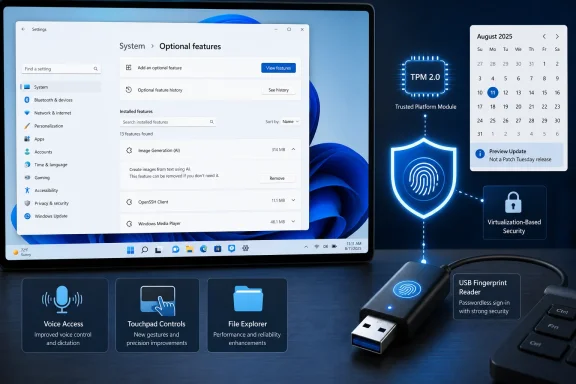 KB5101684 makes one AI component removable—not Windows AI removable
Microsoft’s headline AI change is narrow: supported Copilot+ PCs can remove the local Image Generation AI component where it is installed. Microsoft’s own KB confirms the capability, and Windows Central reports that the control appears under Settings > System > AI Components.
The useful part is real. Windows now treats at least one on-device model as a separately manageable operating-system component rather than an inseparable payload of the Copilot+ experience. That gives users and support teams a supported removal path for an image-generation workload they do not need.
But the update does not create a universal “turn off AI” switch for Windows 11. It does not remove Recall, Click to Do, Windows Studio Effects, Copilot, local semantic search components, or every model an application may bring with it. Microsoft’s release notes also list component updates for Image Search, Content Extraction, Semantic Analysis, and Settings Model, all updated to version 1.2607.840.0 in the same package. The newly removable Image Generation component is one element in a larger set of AI services.
Microsoft also does not state how much storage removal recovers, whether a later feature installation can pull the model back down, or whether removal changes behavior in particular bundled apps. Claims that it frees meaningful processing bandwidth are therefore speculative: an inactive local model is not necessarily reserving NPU cycles simply by being present on disk.
The practical instruction is straightforward. On a supported Copilot+ PC, install KB5101684 only if you are deliberately testing the preview release, then check whether Image Generation appears in AI Components. If it does, removal is a supported configuration choice. If it does not, the device either is not in the rollout cohort or does not have that component installed. Do not mistake its absence for a failed update.
This is a modest but important policy shift from Microsoft: removable models make component inventories easier to defend in regulated and storage-constrained environments. It is not a retreat from AI integration in Windows 11.
External fingerprint readers can now keep ESS enabled
The stronger security change is Windows Hello Enhanced Sign-in Security, or ESS, gaining support for peripheral fingerprint sensors. Microsoft says this extends the feature beyond PCs with built-in biometric hardware to desktops and other Windows 11 machines, including Copilot+ PCs, provided the reader itself supports ESS.
The difference between an ordinary USB fingerprint reader and an ESS-capable fingerprint reader is not cosmetic. Microsoft’s Windows Hello documentation says ESS uses Virtualization-Based Security and the TPM to protect authentication data and the channel used during biometric operations. For fingerprints specifically, the sensor must use match-on-chip hardware: matching and template storage are isolated in the sensor rather than handled as a conventional peripheral transaction.
A compatible reader needs a Microsoft-issued certificate embedded during manufacture, plus firmware and drivers that implement ESS. Plugging in an old or generic Windows Hello fingerprint scanner will not upgrade it to this security model.
That point corrects a common oversimplification in early reporting. Standard Windows Hello does protect credentials, but ESS is not simply “encrypted sign-in data inside the operating system.” Its purpose is to keep the biometric process out of normal Windows memory and establish a protected path among the sensor, VBS-protected biometric components, and the TPM. That materially raises the bar against attacks that target the running OS or its memory.
There is also a deployment consequence Microsoft makes clear in its technical documentation: enabling ESS is a system-wide security posture, not a per-user preference. On a shared PC, the lowest Windows Hello security posture can govern the device. If an organization moves a machine from non-ESS enrollment to ESS, users may be required to update their PIN and re-enroll.
Existing non-ESS biometric enrollments and associated credentials—including passkeys—can be removed during that migration, after which they must be provisioned again. That is the operational cost absent from the consumer-friendly “plug it in and follow the prompts” description.
IT teams should therefore test any ESS reader rollout against their passkey recovery process, help-desk workflow, and shared-device design. An ESS-certified peripheral reader can strengthen desktop sign-in. It can also create avoidable support tickets if staff discover only after deployment that prior biometric credentials and passkeys need re-registration.
The update improves voice and touchpad controls, but the features are being conflated
KB5101684 contains several usability changes, though two of them are often inaccurately grouped together.
Voice Isolation belongs to Voice Access, Microsoft’s speech-control accessibility feature. It adds three microphone-processing options under Voice Access settings > Improve speech recognition:
- Voice Isolation filters other speakers and background noise after a one-time voice setup.
- Remove background noise only suppresses non-speech sounds such as typing or a door closing.
- No filtering uses the microphone’s ordinary input.
This is potentially useful in noisy offices, shared rooms, and home environments where Voice Access otherwise misidentifies nearby conversation as commands. It does not affect every speech-to-text product on the PC, and Microsoft does not present it as a system-wide audio noise-suppression layer for Teams, games, or third-party dictation tools.
Fluid dictation is a separate Voice Typing feature. The change in this release is not its introduction: Microsoft says Fluid dictation is now off by default for new users, accompanied by a teaching tip the first time it is used. That is a product-default adjustment, not a new mandatory speech feature.
The new precision-touchpad controls are separate again. In Settings > Bluetooth & devices > Touchpad, users can set scroll-and-zoom speed and enable accelerated scrolling, which increases scrolling speed as the gesture is repeated. These are ordinary HID and input changes; Voice Isolation has no connection to touchpad gestures.
The same update also makes File Explorer’s Details view show file sizes with appropriate units—KB, MB, and GB—instead of displaying everything in kilobytes. It improves app searching for partial names and typographical errors, enables middle-click folder opening in File Explorer’s address bar and Home page, and restores an adjustable Energy Saver threshold under Settings > System > Power & battery.
The rollout language means feature availability will vary
Microsoft divides KB5101684’s changes into gradual rollout and normal rollout categories. The company’s definition is blunt: gradual rollout reaches devices in phases, and availability can vary by hardware and configuration. Installing the cumulative package does not guarantee that every advertised interface change will immediately appear.
That matters particularly for the AI removal control and ESS peripheral support. The former requires a supported Copilot+ system with the Image Generation component installed. The latter requires a compatible fingerprint reader, appropriate Windows build, supporting drivers and firmware, and—in migration scenarios—a readiness to refresh Windows Hello credentials.
The update has another lifecycle wrinkle for shops still operating Windows 11 24H2. Microsoft’s KB says 24H2 Home and Pro editions reach end of updates on October 13, 2026; Enterprise and Education editions remain supported until October 12, 2027. The preview applies to both 24H2 and 25H2 today, but consumer and Pro fleets should be planning their 25H2 transition rather than treating a new optional update as long-term maintenance.
Microsoft reports no known issues in KB5101684. That does not turn it into a security emergency. The sensible sequence is to use the preview on representative hardware—especially Copilot+ PCs and machines assigned external fingerprint readers—validate enrollment and passkey behavior, then decide whether to take the broadly distributed security release when it arrives.
The concrete change worth watching on August 11 is whether Microsoft carries these features forward under a new monthly security KB. Until then, KB5101684 is a production-quality optional preview with meaningful security and manageability implications, not an August patch that every Windows 11 PC has already received.
