
For Windows users staring at a slow decade-old laptop, that may sound like semantic hair-splitting. It is not. Understanding the difference between a system that is responsive and one that is faster under sustained load makes it much easier to choose the right fix—whether that is Linux, a clean Windows installation, an SSD upgrade, additional RAM, or simply accepting that a particular workload has reached the limits of the hardware.
Linux can be a remarkably effective way to extend a PC’s productive life. It can shorten the time between clicking an icon and seeing an application window. It can leave more memory available for browser tabs and reduce the storage contention that makes an old hard-drive-based Windows machine seem perpetually busy. But an operating system cannot add CPU cores, increase GPU shader throughput, or expand a laptop’s physical VRAM.
That is not a weakness of Linux. It is a more realistic description of what makes a lightweight Linux distribution such a compelling second life for old computers.
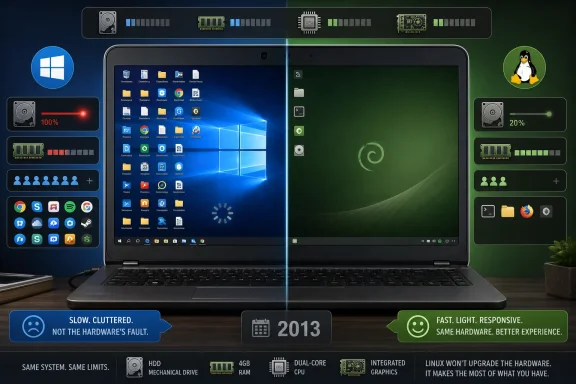 The Key Difference: Responsiveness Is Not Raw Compute Throughput
The phrase “Linux makes old computers faster” blends several different measures of performance into one emotionally satisfying claim. A machine that starts quickly, opens a browser without pause, and does not freeze while copying files certainly feels faster. In daily use, that feeling can be more important than a benchmark score.
Yet technical performance has multiple dimensions:
- Boot and login time — how long it takes to reach a usable desktop.
- Interactive latency — the delay after typing, clicking, switching windows, or opening a menu.
- Application launch time — how quickly a program becomes ready.
- Idle resource use — CPU activity, RAM consumption, disk I/O, network activity, and power draw when the user is doing little.
- Sustained throughput — work completed per second during long, intensive tasks such as rendering, compiling, encoding, or simulation.
- Graphics performance — frame rates, frame consistency, rendering speed, and GPU compute output.
- Storage throughput — the speed at which the system can read and write data.
Linux may improve several of those categories at once, particularly on older systems with limited RAM, slow hard drives, and entry-level processors. It cannot, however, fundamentally alter the physical resources that define the upper bound of sustained CPU and GPU work.
A Core i5 processor remains the same Core i5 processor after a Linux installation. A GeForce GTX 1650 Ti does not gain more CUDA cores. Four gigabytes of RAM do not become sixteen. A mechanical hard drive does not acquire SSD-like random-access performance because the desktop environment has changed.
That does not mean operating systems are irrelevant to performance. Quite the opposite: software overhead, driver quality, scheduler behavior, background tasks, storage pressure, and graphics stacks can all influence how much of the hardware is available to the task at hand. The more accurate statement is this:
Linux can let an old PC spend more of its limited capability on the user’s workload instead of on operating-system and application overhead.
That is a real benefit. It is simply not the same as a hardware upgrade.
Why Older Windows PCs Often Feel Busy
A well-maintained Windows system can be responsive on modest hardware. The problem is that many old PCs are not evaluated under ideal conditions. They are judged after years of driver installers, OEM utilities, cloud clients, browser extensions, update remnants, trial software, startup applications, and accumulated files.
That creates a comparison problem. A freshly installed Linux distribution is often being measured against a years-old, heavily customized Windows installation. The conclusion may be true from the owner’s point of view—Linux is clearly more pleasant to use—but it does not necessarily prove that Linux is inherently many times faster in every workload.
Background work is useful, but it is still work
Windows performs background tasks for valid reasons. Search indexing helps make file search fast. Security scanning protects the system. Synchronization services keep cloud files current. Updates and maintenance tasks address reliability and security. The issue on aging hardware is not that every background process is malicious, pointless, or uniquely a Windows phenomenon. It is that older PCs have less spare capacity to absorb several tasks at once.
Microsoft’s own documentation shows that Windows Search indexing can take hours after significant file changes and that indexing intentionally scales back when a user is active or when the system is too busy. That behavior is designed to prioritize foreground use, but it also confirms that indexing is a real workload competing for CPU and storage resources. Microsoft’s Windows Search guidance notes that the indexer may wait when CPU or disk use is high and may reduce its speed while the device is being used.
Microsoft Defender is another example of an essential service with tangible performance implications. The company documents that full scans can run for hours or even days depending on content and available resources, while scan CPU settings involve an explicit trade-off between scanning speed and system responsiveness. Microsoft’s Defender performance guidance also explains that antivirus scans cover synchronized OneDrive folders by default and warns that unthrottled scans can lead to unresponsive applications.
OneDrive deserves similar nuance. The sync client exists to make files available and protected across devices, not to sabotage performance. Microsoft provides policies specifically to control its startup behavior, background network activity, bandwidth use, and Files On-Demand configuration. Its documentation states that the client normally starts automatically at Windows sign-in unless policy changes that behavior. Microsoft’s OneDrive policy documentation also describes automatic upload bandwidth management intended to reduce interference with other network activity.
On a modern desktop with a fast NVMe SSD, 16GB or 32GB of memory, and a current processor, those services may be barely noticeable. On a 2013 laptop with 4GB of RAM and a 5,400RPM hard drive, the same work can produce long pauses, audible drive thrashing, and a desktop that seems to react several seconds late.
Startup software frequently amplifies the problem
The Windows operating system is not usually the only contributor to sluggish startup. OEM helper tools, game launchers, messaging clients, peripheral utilities, third-party updaters, audio enhancements, RGB software, browser preloaders, and cloud-storage clients can all add background activity.
Microsoft has long recognized the impact of startup programs. Its compatibility guidance explains that Task Manager presents the impact of startup apps so users can assess what is running at sign-in. Microsoft’s startup-app documentation specifically discusses pre-launchers and software that moves app startup work into the login phase.
That matters because the usual “Linux is instant” experience is often partly a clean-install experience. A new Linux installation may have fewer automatically starting third-party applications, less manufacturer software, and fewer personal files for indexers and sync tools to process. That is a substantial practical advantage—but it is not an apples-to-apples comparison with a clean, properly configured Windows installation.
Why Linux Often Feels So Much Lighter
Linux is not one desktop operating system. It is an ecosystem of distributions, kernels, desktop environments, display servers, drivers, package managers, and optional services. That flexibility is precisely why it can work so well on old hardware.
A user can install a full-featured desktop such as Linux Mint Cinnamon, Fedora Workstation, or Ubuntu. Or they can choose a lighter environment such as Xfce, MATE, LXQt, or a minimal window manager. The overhead difference can be enormous, especially when a PC has limited memory or a weak integrated GPU.
Less pressure on constrained memory
Memory pressure is one of the clearest reasons an old PC begins to feel unusable. When physical RAM fills, the operating system has to move data between memory and storage. On a modern SSD this is undesirable but often tolerable. On an older hard drive, it can transform ordinary multitasking into a series of stalls.
A lightweight Linux desktop can leave more RAM available for:
- A modern browser and its many processes.
- Office and productivity applications.
- Development tools and terminals.
- File managers and media players.
- Small server workloads.
- Background caching that prevents repeated storage reads.
The benefit is not that Linux has created additional RAM. It is that the machine may need to rely on slow swap space less often. This can make window switching, browser tab recovery, and application launching feel radically improved.
Fewer unnecessary writes can matter on hard drives
Old machines are often storage-bound rather than processor-bound. A 10-year-old CPU can still open documents, display webpages, and run lightweight code. A hard drive struggling with updates, scanning, indexing, browser caches, and paging can make that same CPU appear far weaker than it is.
A clean Linux setup can improve the experience because a distribution may begin with fewer preinstalled services and no legacy layer of OEM software. Linux also gives advanced users significant control over services that start automatically, mount behavior, logging, swap configuration, and desktop effects.
That flexibility should not be confused with automatic superiority. An improperly configured Linux system can also be slow. Heavy desktop effects, poor graphics drivers, browser processes, runaway background services, and a nearly full disk can create the same kind of frustration on any operating system.
A desktop that is proportionate to the hardware
The desktop environment is especially important. A lightweight interface can make an old machine feel composed rather than overwhelmed.
This does not mean every user must accept a visually spartan experience. Modern lightweight desktops can still provide:
- Taskbars and application menus.
- Window snapping and workspaces.
- File management and removable-drive support.
- Bluetooth and Wi-Fi controls.
- Notifications and power-management tools.
- Attractive themes, panel widgets, and accessibility options.
The key is proportion. A dual-core laptop with integrated graphics and 4GB of RAM does not need the same visual effects, preloading behavior, and multitasking expectations as a current workstation.
The Hardware Ceiling Does Not Move
Linux can reduce waste. It cannot repeal hardware constraints.
CPU-bound work stays CPU-bound
Consider video encoding, software compilation, large spreadsheet calculations, 3D rendering, scientific workloads, encryption, and local AI inference. These tasks eventually use the CPU’s execution resources continuously. Once the processor is close to saturation, removing a few background processes may produce a modest improvement, but it cannot turn an older mobile chip into a modern high-core-count desktop CPU.
The same is true of thermal limits. If a laptop’s cooling system cannot sustain the processor’s boost behavior, the CPU will throttle under heavy load regardless of the operating system. Linux may expose that behavior more clearly through monitoring tools, but it cannot correct dried thermal paste, a clogged fan, or a heat sink designed for a lower power envelope.
GPU limits are even more concrete
The graphics processor sets firm limits for modern games, GPU rendering, machine learning, and hardware-accelerated media work. Linux driver improvements can matter, and individual games may perform better or worse depending on their engine, APIs, translation layers, and driver version. But the GPU still has a finite number of execution units, a fixed memory capacity, and fixed bandwidth.
It would therefore be wrong to say that Linux cannot ever improve game performance. Operating-system releases, graphics drivers, desktop compositors, and graphics APIs can produce measurable changes. For example, testing reported by Tom’s Hardware found that Ubuntu 26.04 delivered gains in some Nvidia GPU tests versus Ubuntu 25.10, while the results varied substantially by title and GPU.
That is an important caveat. The operating system can affect how efficiently software uses hardware. It cannot make a low-end GPU suitable for workloads that demand substantially more compute, memory bandwidth, or VRAM than it possesses.
Benchmarks can show genuine OS differences
There is no need to pretend that Linux and Windows always deliver identical performance. They do not. Differences in compilers, libraries, file systems, drivers, scheduling, power profiles, security configuration, and application builds can cause one platform to lead in a particular task.
A reported Phoronix benchmark comparison covered by Tom’s Hardware found Ubuntu ahead of Windows 11 across a broad 41-test geometric mean on the tested hardware. That result is meaningful for that test configuration, but it must not be treated as a universal rule for every PC, application, graphics driver, game, or productivity workload.
Benchmarks answer narrow questions:
- Which version of which application?
- Built with which compiler and libraries?
- On which processor, GPU, storage device, and driver?
- At which power setting and thermal state?
- Using native software or a compatibility layer?
- With which background services active?
- Measured by average throughput, latency, frame time, or power use?
The right conclusion is not “Linux always wins” or “Windows always wins.” It is that the workload determines the result, and old-PC responsiveness is often a different problem from raw benchmark throughput.
Windows 11 Raises the Stakes for Aging Hardware
The Linux conversation has become more prominent partly because many older PCs fall outside the preferred hardware profile for Windows 11. Microsoft’s documented baseline includes a compatible 64-bit processor, 4GB of memory, 64GB of storage, UEFI firmware with Secure Boot capability, TPM 2.0, and DirectX 12-compatible graphics with a WDDM 2.0 driver. Microsoft’s Windows 11 requirements make clear that the operating system’s security and platform expectations are broader than raw CPU speed.
Modern Windows security features can also affect the performance calculus. Microsoft’s Memory Integrity, part of virtualization-based security, is designed to protect kernel memory and is enabled by default on eligible clean installations of Windows 11. Microsoft’s technical documentation notes that the feature uses the Windows hypervisor to establish an isolated environment and lists hardware prerequisites for automatic enablement.
That is not an argument against security. It is an argument for honest trade-offs. A current operating system has to balance convenience, cloud integration, malware resistance, device management, accessibility, and compatibility. A lightweight Linux installation may choose a different balance and therefore feel less burdened on older hardware.
For some users, that makes Linux the better option. For others, Windows-only software, enterprise requirements, peripherals, specialized workflows, games, or familiarity outweigh the benefits of a lighter system.
A Better Way to Test Whether Linux Solves the Problem
Replacing Windows with Linux should be treated as a practical performance experiment, not as an article of faith. Before reinstalling an operating system, identify the actual bottleneck.
Start with the physical basics
An old PC can often gain more from basic maintenance than from a desktop-environment change.
- Replace a mechanical hard drive with an SSD. This is frequently the single largest improvement for boot time, application launches, paging behavior, updates, and general responsiveness.
- Increase RAM where practical. Moving from 4GB to 8GB can materially reduce swap activity and browser-induced slowdowns.
- Check temperatures. Dust, failed fans, degraded thermal paste, and blocked vents can reduce sustained performance.
- Test the battery and power adapter. Some laptops restrict CPU performance when using an underpowered adapter or a worn battery.
- Free storage space. Nearly full drives create problems for updates, temporary files, swap, and general maintenance.
These changes help Windows and Linux alike.
Compare clean systems, not just old versus new
A fair comparison should use a clean Windows installation or a well-maintained existing installation against a clean Linux installation. Remove unnecessary startup applications, uninstall manufacturer utilities that are not needed, review sync software, and ensure drivers are current.
Then compare the same tasks:
- Cold boot to usable desktop.
- Browser launch and restoration of the same set of tabs.
- File-copy time for the same folder.
- Video-export duration using the same application where possible.
- Application launch time.
- Memory use at idle.
- CPU and storage usage during ordinary work.
- Game frame times, not merely average frames per second.
This approach separates the benefit of Linux from the benefit of starting fresh.
Use a live USB before committing
A Linux live USB is an excellent first test. It can reveal whether Wi-Fi, audio, touchpads, external displays, sleep behavior, and basic graphics work acceptably before any permanent change.
However, live environments have limits. They may run from slower USB media, use different persistence behavior, and not reflect the performance of a fully installed system. They are useful for compatibility checks and desktop feel, not definitive performance benchmarking.
Linux Is Most Valuable When It Gets Out of the Way
The most persuasive case for Linux on old hardware is not that it makes a 2012 laptop equivalent to a new PC. It is that it can restore a sense of control.
A lightweight distribution can turn an abandoned Windows notebook into:
- A capable web and email machine.
- A writing and research computer.
- A family device for schoolwork.
- A media player or retro-gaming system.
- A low-power home server.
- A coding and terminal workstation.
- A dedicated device for backups, file sharing, or network tools.
Those are meaningful outcomes. They reduce electronic waste and allow hardware to remain useful long after it has stopped meeting the expectations of a fully loaded contemporary desktop environment.
The limitations should remain visible. Linux will not make a slow hard drive competitive with an SSD under every workload. It will not transform integrated graphics into a modern discrete GPU. It will not guarantee smooth 4K video playback, demanding game performance, fast local AI inference, or efficient professional rendering on hardware that was never designed for those jobs.
But responsiveness is not an illusion in the dismissive sense. It is a legitimate part of performance, and for everyday computing it is often the part people notice most. Linux can reclaim that responsiveness by reducing friction, lowering resource contention, and letting an old PC devote more attention to the work in front of it.
The most accurate promise is also the most useful one: Linux does not make old hardware more powerful—it often makes the power that remains far more available.
